Chapter 31A — Agreements
The employment contract says what the job is and what it pays. It is not where a company writes down that a laptop was handed over, that a car may be driven on company business, that a loan is repaid over twelve months, or that what an engineer learns here stays here. Those are agreements of their own, with their own dates, and most of them end long before the employment does. In many companies they live as Word files in somebody's mailbox, and nobody can say who signed which version or which ones ran out last month.
What this chapter covers
- 31A.1 Agreement types and the starting text
- 31A.2 Fields in the text
- 31A.3 Issuing: to one person or to many
- 31A.4 The person's answer and the record
- 31A.5 Withdrawing, ending, renewing and expiry
- 31A.6 The PDF and what a verifier sees
The concept
An agreement is worth something later only if four things can be shown. What was agreed: the exact text the person saw, not the template as it reads today. Who agreed, and when: both sides, with a date. That they were able to read it first: an acceptance nobody could have read is a weak one. And where it stands now: in force, ended, run out, or never accepted at all. A system for agreements is a system for keeping those four true without anyone having to remember them.
It also has to keep agreements apart from the contract. Accepting the contract is what makes a new hire an employee (Chapter 31). Accepting a vehicle agreement must not.
How Operentra handles it
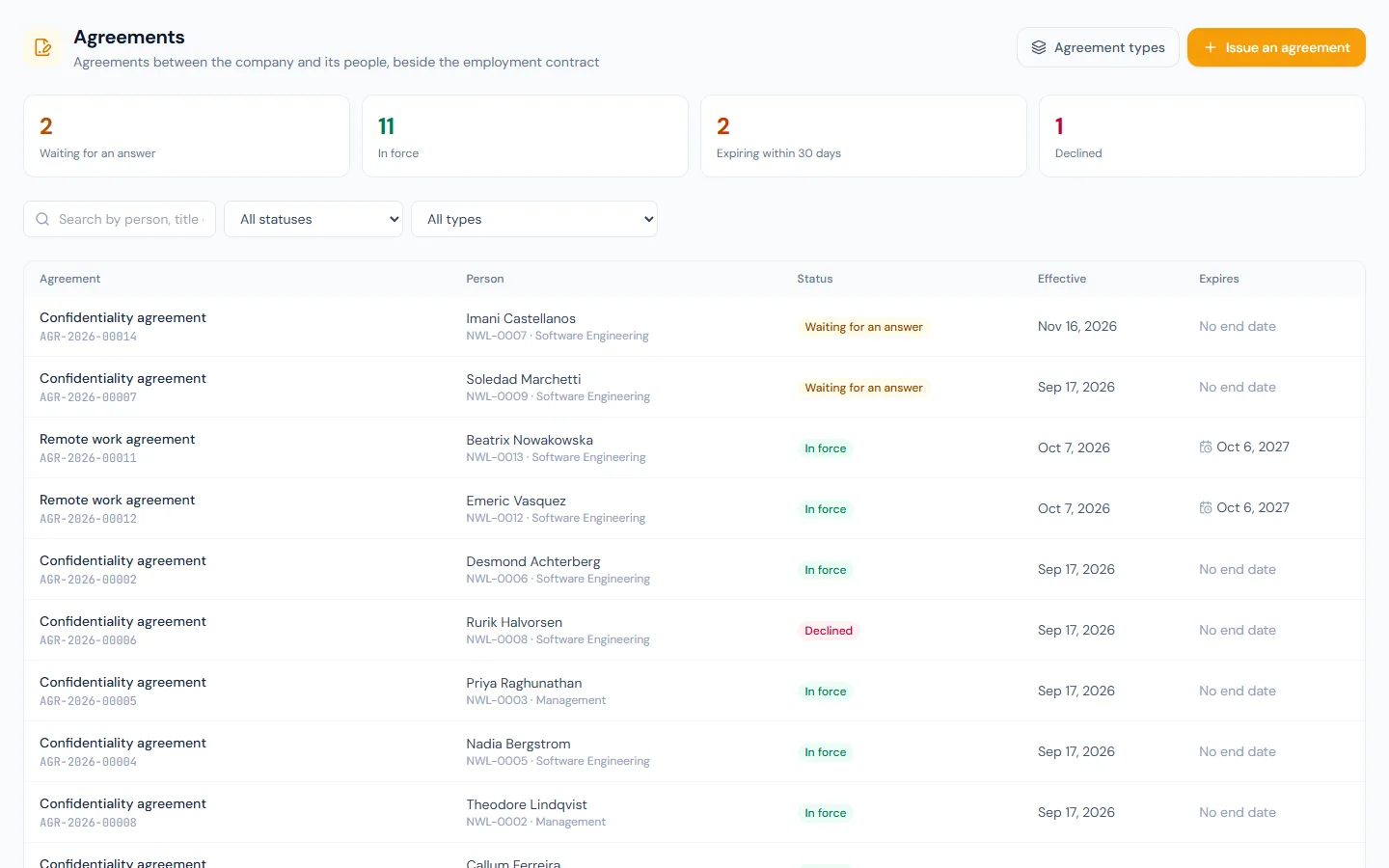
- Contracts › Agreements lists every agreement with its person, type, state and dates. An agreement is a record of its own: it never changes the person's contract or status.
- Contracts › Agreement types is the catalogue. A type holds the text, what the agreement is about (the person only, a loan, or an asset), how many months it runs, and whether the company's signatory is named.
- Every workspace starts with six types, switched off: the text is a start, and switching a type on is HR saying it has been read.
- The text holds fields from a fixed list, filled in when an agreement is issued. A field with nothing to fill it stops the agreement from being issued, and the message names the field.
- An agreement is issued to the shared audience: everyone, departments, branches, roles or named people, one copy each.
- From the moment it is sent, the text is fixed, and a fingerprint of it is kept. The person reads it to the end in the portal, then accepts by typing their name or declines with a reason.
- HR can withdraw what was not accepted, end what was, and renew into a new draft. An agreement in force expires the day after its expiry date.
- The PDF carries a QR code. The public check shows the agreement's number, dates and state, never its text.
agreements.viewreads;agreements.managewrites types and issues. A person needs neither to read and answer their own. Read-only on the public API asagreements.
Walkthrough
31A.1 Agreement types and the starting text
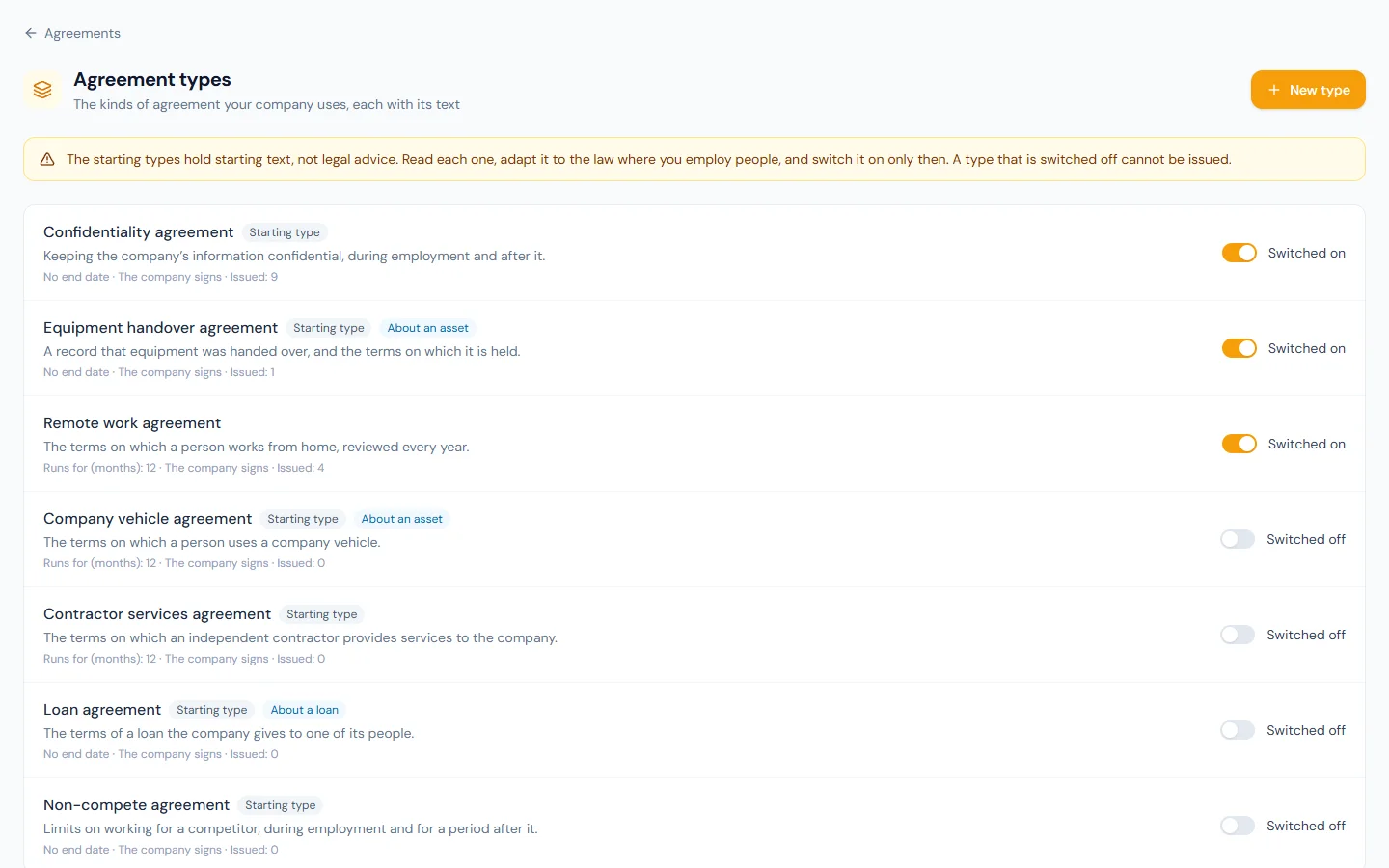
Open Contracts › Agreement types. A new workspace shows six: Confidentiality, Company vehicle, Equipment handover, Loan, Non-compete and Contractor services, each marked Starting type and each Switched off, under a notice that says why. The starting texts are plain wording of what such an agreement usually says, in the language the workspace writes its documents in. They are not legal advice. A non-compete that is ordinary in one country is void in the next, and Operentra cannot know which one you are in. So the order is: open the type, read it, change what your law or your lawyer requires, and only then turn on Switched on. A type that is switched off is not offered when issuing.
New type adds one of your own, for example a remote work agreement that runs for twelve months. For each type you set:
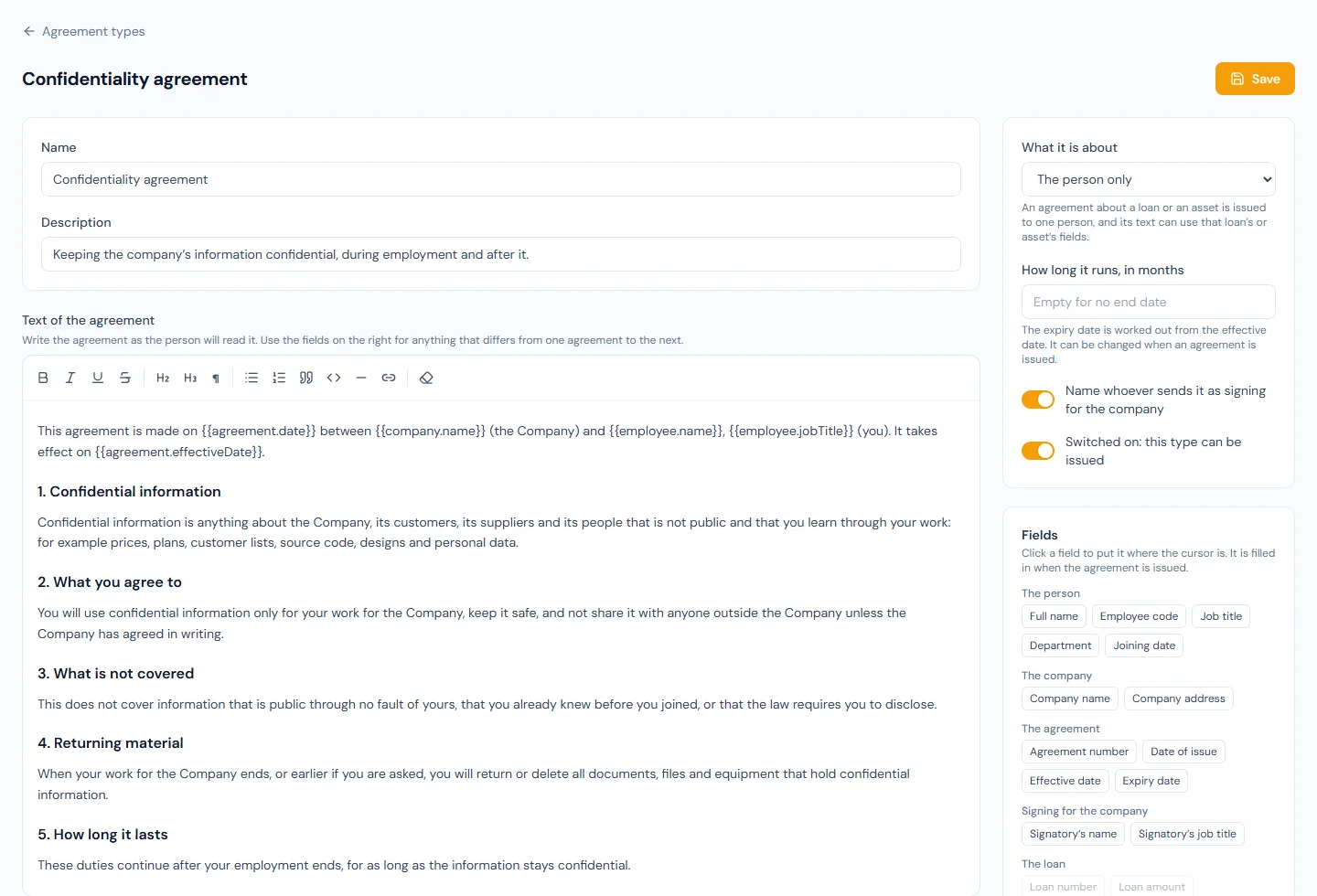
- What it is about. The person only, A loan of the person or An asset held by the person. The last two make the agreement about one loan (Chapter 60) or one asset (Chapter 33), and open that loan's or asset's fields to the text.
- How long it runs, in months. The expiry date is worked out from the effective date: twelve months from 1 March ends on the last day of February. Empty means no end date.
- Name whoever sends it as signing for the company. The sender's name and job title are printed as the company's side, with the time it was sent.
A starting type cannot be deleted, and neither can a type agreements were issued from: each agreement keeps pointing at its type. Switch it off instead.
31A.2 Fields in the text
The editor is the knowledge base's (Chapter 81B), with a Fields panel beside it. Selecting a field puts it where the cursor is: the person's name, code, job title, department and joining date; the company's name and address; the agreement's number, date of issue, effective date and expiry date; the signatory's name and job title; and, for a type about a loan or an asset, the loan's amount and instalments or the asset's name and tag.
Two refusals protect you from a document that goes out wrong while looking right:
- On save, a field that is not on the list is refused, and so is a field with formatting inside it (half of it in bold is no longer a field), and a loan or asset field in a type that is not about one.
- On issue, any field with nothing to fill it is refused and named. A text that prints the expiry date cannot be issued without one. A text that prints the company's address cannot be issued until the company profile has one. The alternative would be a signed agreement with a blank in it.
Changing a type's text changes what is issued from then on. An agreement already sent keeps the text it was sent with.
31A.3 Issuing: to one person or to many
Issue an agreement asks for the type, who it is for, the effective date and the expiry: as the type says, no end date, or a date of your own.
"Who it is for" is the audience picker used for announcements and documents: everyone, chosen departments, branches or roles, or named people. It reaches everyone employed in the audience, people on leave included, and each person gets their own numbered copy. A type about a loan or an asset is issued to one named person; you then choose which of their open loans, or which asset assigned to them.
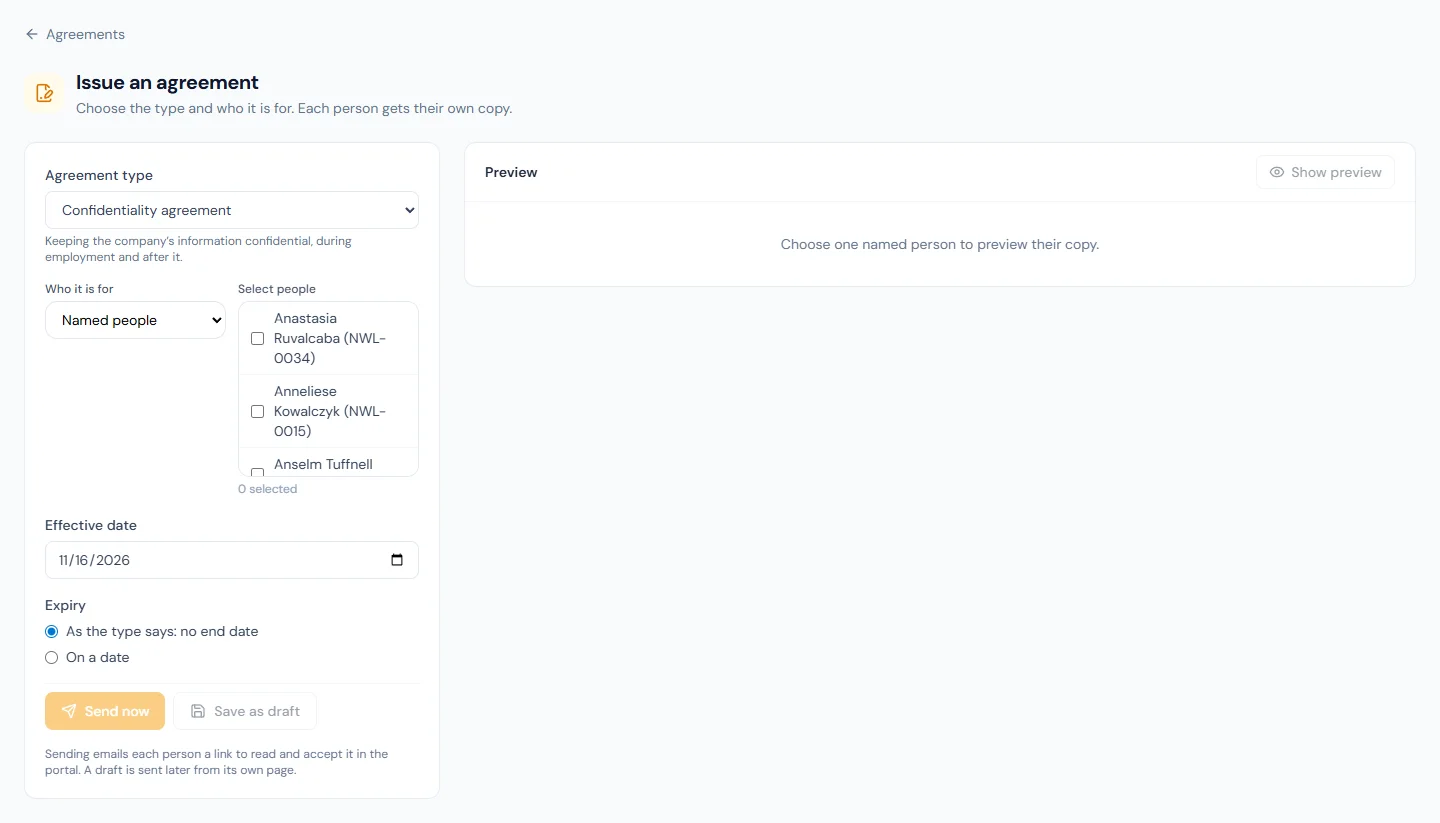
With one named person chosen, Show preview shows their copy before anything is written. Send now sends each copy; Save as draft keeps them for sending later from their own pages.
Two limits are worth knowing. One request issues to at most 200 people: a larger audience is issued a department or a branch at a time, and an audience that is too large is refused whole, never cut off part-way. And when some people cannot be given the agreement, the rest still get theirs: the result lists who was left out and why, which is usually an agreement of the same type already waiting for them.
31A.4 The person's answer and the record
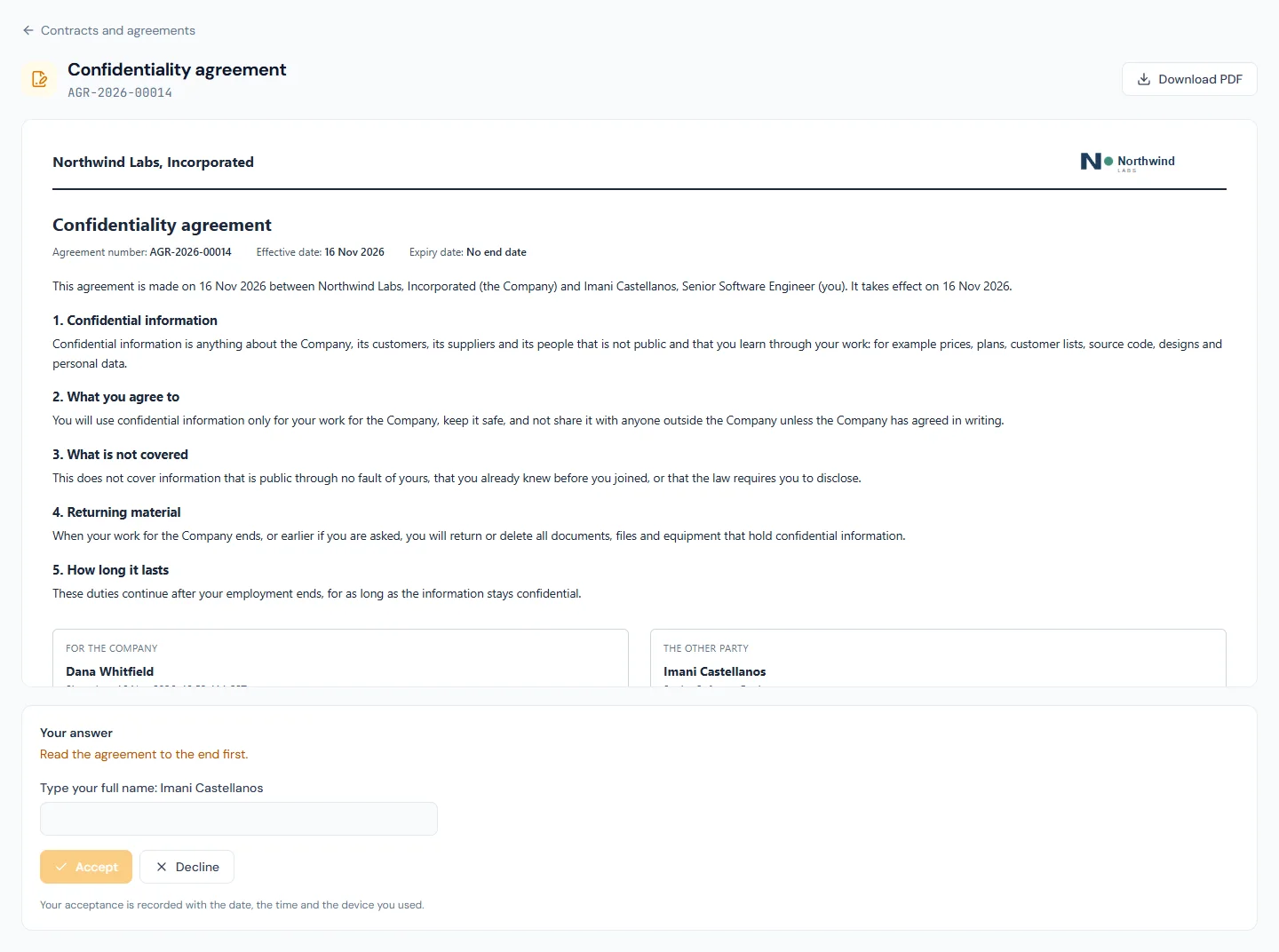
Sending emails the person a link and puts the agreement at the top of Contracts and agreements in their portal (Chapter 85), and on their Home under Needs your attention. They open it and read it; the box for their name stays locked until the end of the document has been on screen. Then they either:
- Accept, by typing their full name as it appears on the agreement. A name that is not theirs is refused.
- Decline, with a reason. Whoever sent the agreement is emailed the reason, and the agreement shows as Declined.
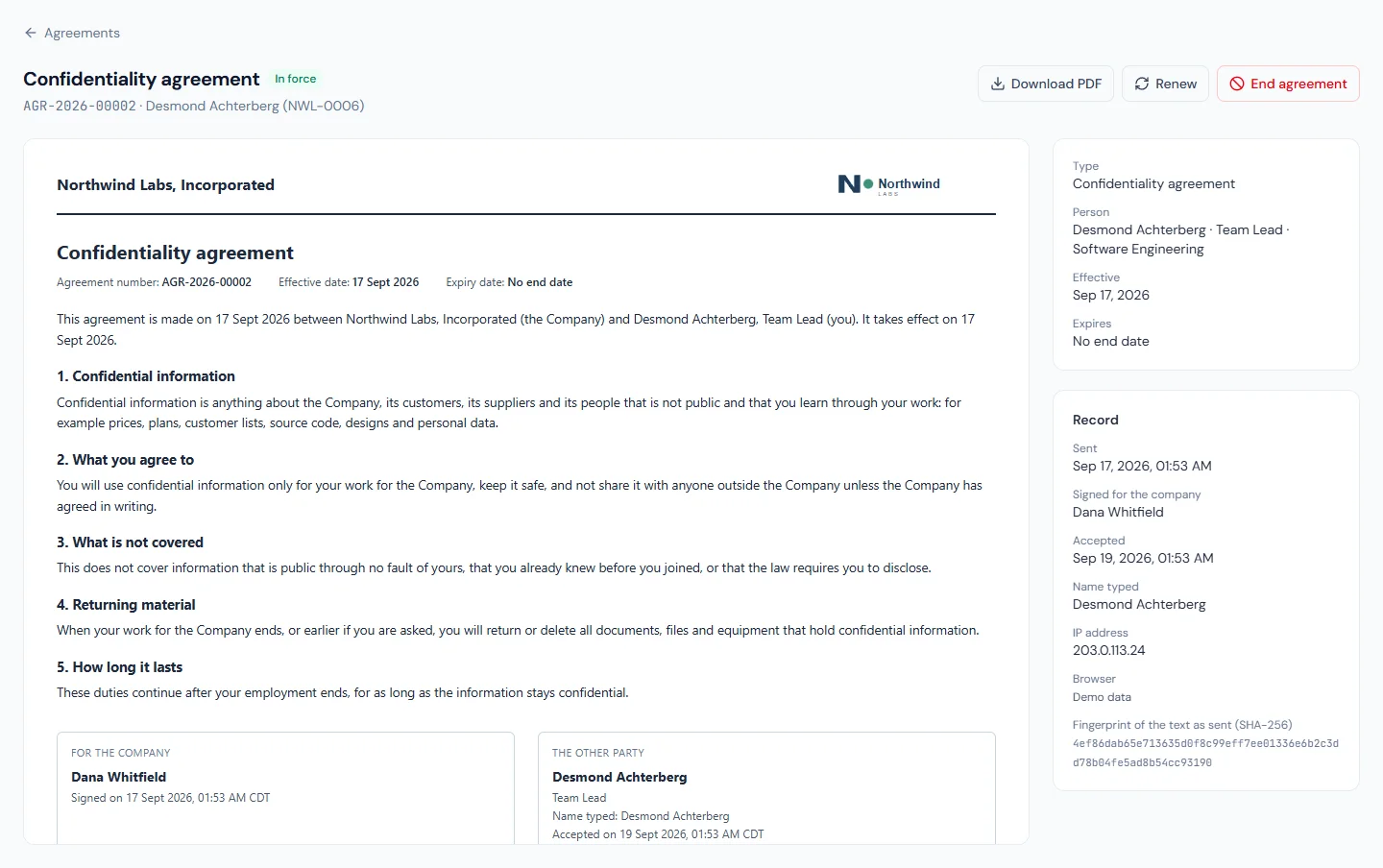
On the agreement's page HR sees the Record: when it was sent and who signed for the company; the acceptance with its time, the name typed, the IP address and the browser; and the fingerprint (SHA-256) of the text as it was sent. That fingerprint is the answer to "is this the text they accepted": the stored text gives the same fingerprint, or it has been altered.
Someone who has not answered is reminded by email after three days and once more after seven, and no more than that. Send a reminder sends one by hand.
31A.5 Withdrawing, ending, renewing and expiry
| You want to | Use | The agreement becomes |
|---|---|---|
| Take back one that is waiting or was declined | Withdraw | Withdrawn |
| Stop one that is in force, such as when the car is returned | End agreement | Ended |
| Continue one that is in force, expired or ended | Renew | A new draft, linked to the earlier one |
| Remove a draft that was never sent | Delete | Gone |
Withdrawing and ending both ask for a reason and keep it. Renewing writes a new draft for the same person from the type's text as it reads today; check it, then send it, and the person accepts the new one as they did the first.
Expiry needs nobody. The day after its expiry date, an agreement in force becomes Expired. One still waiting for an answer on that day can no longer be accepted, so it is Withdrawn by itself, with that as the reason. Thirty days before, the people who manage agreements are emailed one message listing every agreement about to run out, once for each agreement, and the Expiring within 30 days tile on the Agreements page lists the same ones.
31A.6 The PDF and what a verifier sees
Download PDF gives the agreement as a document: the company's name and logo, the title and number, the dates, the text, and the two signature blocks. The person downloads their own copy from the portal. A draft has no PDF.
The PDF carries a QR code (Chapter 77). For a letter or a payslip, the public page behind the code shows the official copy. For an agreement it deliberately does not: it shows the agreement's number, title, dates and state (accepted and in force, ended, expired), and says that the document itself is between the company and the person. A bank that is handed a loan agreement can confirm it is real and still in force; nobody who finds a copy's code can read the terms.
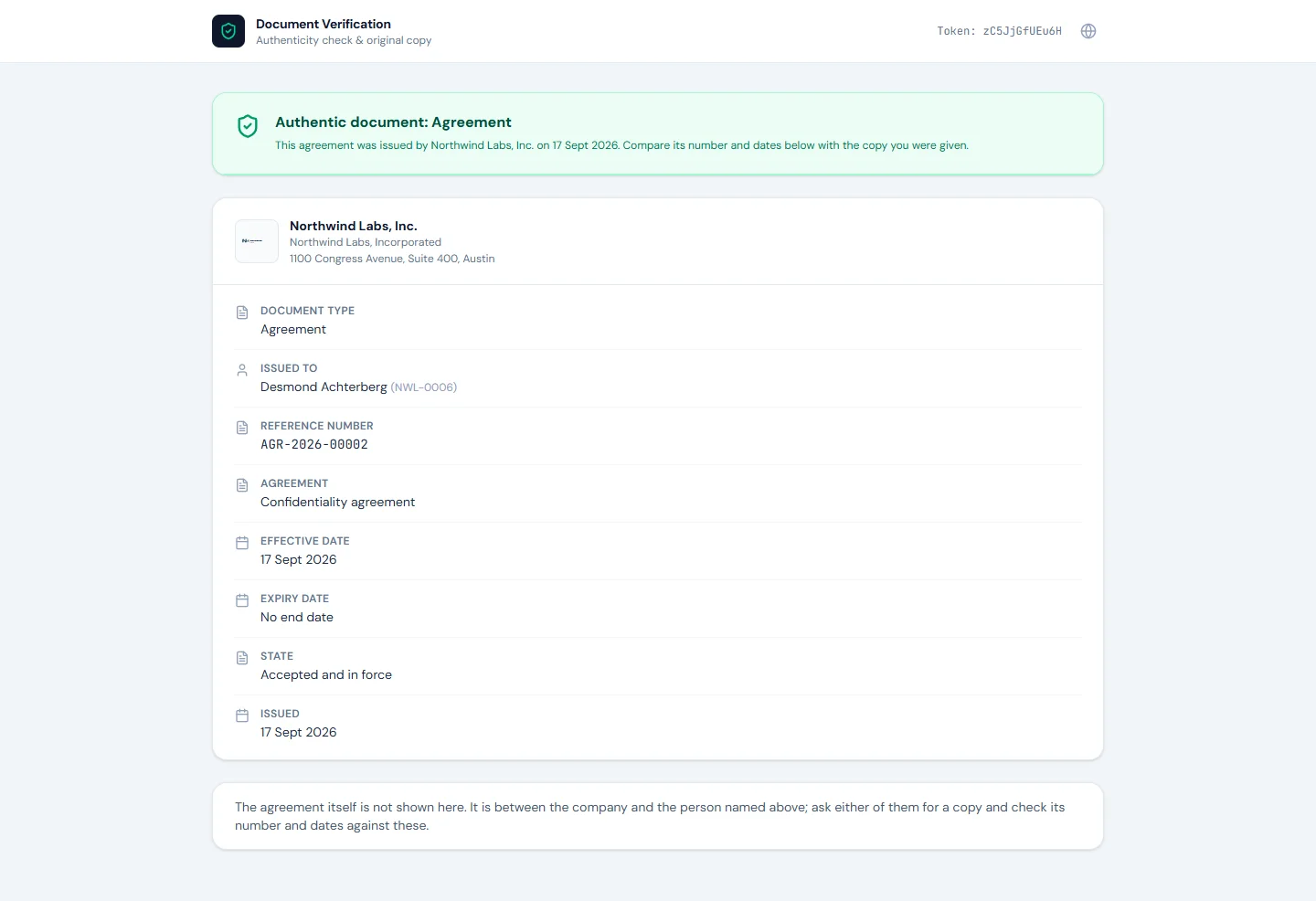
A withdrawn agreement stops verifying, and has no PDF from then on. The page says it was withdrawn before it was accepted. It does not give the reason: that is HR's note, on HR's record. One that was in force and has ended or expired still verifies as genuine, and says what became of it.
What happens next
- Sending emails the person and fixes the text. Nothing is emailed for a draft.
- Accepting emails whoever sent it and puts the agreement in force. It does not touch the contract, the person's status, or the loan or asset it is about.
- Declining emails whoever sent it, with the reason.
- Ending or withdrawing emails nobody; the person sees the state on their page.
- Deleting a person's record for a privacy request deletes their agreements with the acceptance evidence. Agreements they issued to others stay: they are those people's records, and still name the signatory printed on them.
The five emails are listed in Appendix C, the two permissions in Appendix E, and the states in Appendix G.
What the employee sees
- Contracts and agreements in the portal: their agreements above their contract, the ones waiting for an answer first.
- An email when one is sent to them, and a reminder if it is still waiting after three days and after seven.
- The document, and under it the name they are asked to type, in a box that unlocks once they have read to the end.
- After answering: that they accepted or declined, and when. Not the IP address or the browser recorded with it.
- Download PDF for any agreement that was sent to them. A draft, and one withdrawn before they answered, are never shown.
Common mistakes
- Switching on a starting type without reading it. The text is a start. A non-compete or a loan clause that your law does not allow is your problem once people have accepted it.
- Putting loan or vehicle terms into the employment contract. The contract then has to be reissued when the car changes. Keep what ends on its own date in an agreement of its own.
- Formatting part of a field. Bold on half of a field breaks it, and the type will not save. Format the whole field or none of it.
- Expecting an edit to the type to change what people accepted. It changes what is issued next. To change an agreement in force, end it and issue a new one, or renew it.
- Withdrawing when you mean ending. Withdraw is for what was sent and never accepted, and it stops the code verifying. An agreement that was in force is ended, and stays on record as genuine.
- Issuing a second copy to someone who already has one waiting. They are left out, and the result says so. If the first was wrong, withdraw it and issue again.
- Leaving a declined agreement where it is. Declined is the person telling you something is wrong with it. Read the reason, withdraw it, fix the cause and issue it again.
- Treating the reminder emails as endless. There are two. After the second, someone has to ask.
Practice
Use your own trial workspace, not a customer's.
- Open Agreement types. Read the Confidentiality type, change one sentence, and switch it on. Try to delete it and read why you cannot.
- Create a type of your own that runs for twelve months and prints the expiry date. Put half of one field in bold, save, and read the refusal; then fix it.
- Issue your new type to one named person with No end date. Read the refusal, which names the expiry field. Issue it again with the expiry as the type says, and send it.
- Sign in as that person. Try to accept before reading to the end, then with a wrong name, then properly. Back as HR, open the Record and find the name typed and the fingerprint.
- Issue the Confidentiality type to a department as drafts. Open one draft, send it, decline it as the person with a reason, and read the email HR receives.
- Download the PDF of the accepted agreement and open the link under its QR code in a private window. Note what the page shows and what it does not.
- End the accepted agreement with a reason, open the verification page again, then renew the agreement and send the new draft.
Quiz
1. A workspace has just been created. Why can HR not issue the Loan agreement type?
It is a starting type, and starting types are switched off until HR switches them on. The text is a start, not legal advice: someone has to read it and adapt it first. A type that is switched off is not offered when issuing.
2. A type's text prints the expiry date. HR issues it with "No end date". What happens?
It is refused, and the message names the expiry date field. A field with nothing to fill it never goes out as a blank: the agreement is not issued until every field its text uses has a value.
3. HR rewrites a clause in the Confidentiality type. What changes for the forty people who accepted it last year?
Nothing. Each agreement holds the text it was sent with, and a fingerprint of it. The new clause is in agreements issued from now on. To put it to the forty, issue the agreement to them again or renew theirs.
4. What does a person do to accept an agreement, and what is recorded?
They read it to the end in the portal, then type their full name as it appears on the agreement. The time, the name typed, the IP address and the browser are recorded with the agreement, and whoever sent it is emailed.
5. A bank scans the QR code on an employee's loan agreement. What does it see?
That the agreement is genuine, with its number, title, dates and state, such as accepted and in force. It does not see the agreement: the terms stay between the company and the person.
6. An agreement was sent by mistake and the person has not answered. Withdraw or end?
Withdraw. Ending is for an agreement that was accepted and was in force. Withdrawing takes it away from the person and stops its code from verifying, and the reason is kept.