Chapter 81B — The knowledge base
An announcement tells people something once; a document hands them a file. Most of what people ask HR is neither. It is "how does leave work here", "can I claim the taxi", "who do I ask for a laptop", asked again by every new joiner and answered by whoever is nearest. The knowledge base is where those answers are written once, kept current, and found by the person asking at the moment they ask, whether they look for them or ask the assistant.
What this chapter covers
- 81B.1 Articles, categories and the editor
- 81B.2 The audience
- 81B.3 The working copy, publishing and versions
- 81B.4 Acknowledgements
- 81B.5 Search: the portal and the assistant
- 81B.6 Spaces, owners and review dates
The concept
A good internal knowledge base has four properties. It is written in the company's own words: not the law, not the vendor's manual, but what applies here. It is aimed: the sales team's travel rules are not the warehouse's, and a reader should never have to work out which of two articles is theirs. It is current in a way you can prove: when a policy changes, the old text is kept, the new one is dated, and anyone required to read it is asked again. And it is owned: every page has a named person who answers for it and a date by which they will look at it again. A page that fails the last two is worse than no page, because people trust it; and a knowledge base only HR may write in fails the last one within a year, because HR does not know how the engineers release software.
How Operentra handles it
- Company Documents › Knowledge Base holds articles in spaces, and inside a space in categories two levels deep. An article has a title, a summary, a rich-text body, tags and an audience.
- A space has an owner and editors, who write in it without
knowledge.manage, from the portal. Every workspace starts with HR policies and Company and adds its own. - The audience is the announcement's: everyone, or chosen departments, branches, roles or named people. The portal, the assistant and the email all read the same definition.
- An article has a working copy and a published copy. Readers see only the published one; editing never leaks.
- Every publish that changes the content moves the version by one and keeps the old text. Acknowledgements carry the version read.
- Every published article carries the date it was last reviewed and the date its next review is due; owners are reminded on Mondays of what is due, and readers are told when an article is past its date.
- The portal searches the published copies the reader may see; the assistant's help search does the same, before the generic guides.
knowledge.view(everyone) reads and acknowledges;knowledge.manage(HR) writes anywhere and keeps the spaces. Read-only on the public API asarticles.
Walkthrough
Northwind's knowledge base is seeded with eight articles in three spaces; the one everyone meets first is Working from home.
81B.1 Articles, categories and the editor
Open Company Documents › Knowledge Base. The list shows every article with its status (Draft, Published, Archived), its space and category, its audience, when it was last touched and when it is next due for review; a published one that asks for acknowledgement reads how many of its audience have confirmed. The tabs above the list are the spaces of 81B.6: Northwind has HR policies, Company and an Engineering handbook.
Categories belong to a space. Choose a space's tab and Categories opens that space's list: HR policies has Policies with Time off inside it, Company has How-to and IT & equipment. A category is a name and a description and can sit inside a top-level one, so two levels and no deeper; deleting one keeps its articles, uncategorised.
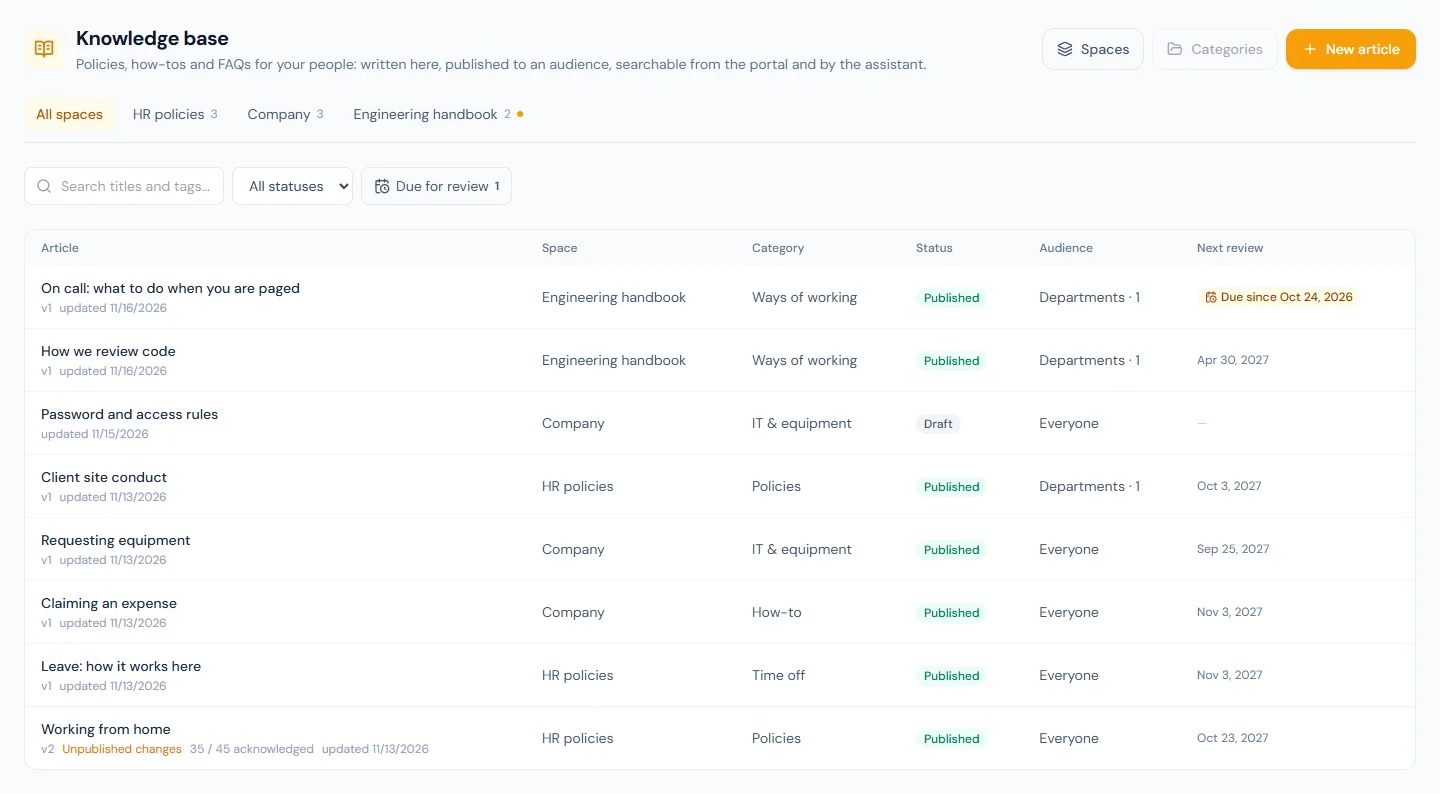
New article opens the editor. The left is the article: a title, a one-paragraph summary that lists and search results show, and the body, written in the toolbar's formatting — headings, bold and italic, lists, quotes, code, rules, links, tables. Paste from a word processor and the formatting that is not on the toolbar is dropped, first on save by the server and again on display: an image, an embed or a script never survives. An article runs to 50,000 characters, formatting included; past that it is refused on save, and the full text belongs in the document library as a file. The right is the housekeeping: the space and its category, tags (comma-separated, lower-cased, searched like the summary), the audience of 81B.2, the acknowledgement switch of 81B.4, and the review date of 81B.6. Save draft keeps it private; Preview shows it as the portal will.
81B.2 The audience
Who can read it is the announcement audience of Chapter 78: Everyone, or Departments, Branches, Roles or Named people, each with a pick-list. An article aimed at Sales is simply absent from an engineer's portal and from the assistant's answers to them; if Sales and Engineering have different travel rules, two articles with the same title and different audiences are the right answer, and each person finds only theirs. A narrowed audience with nobody ticked cannot be saved: it would reach no one.
The audience is read the moment someone looks, from active employees, so a transfer into Sales starts seeing the Sales articles that day and a leaver stops.
81B.3 The working copy, publishing and versions
What the editor shows is the working copy. Publish copies it into the published copy, which is the only thing readers, the assistant and the public API ever see. Edit a published article and nothing changes for readers: the list and the editor flag Unpublished changes until you press Publish changes. That is what lets HR rewrite the leave policy over a week without a half-done version going out.
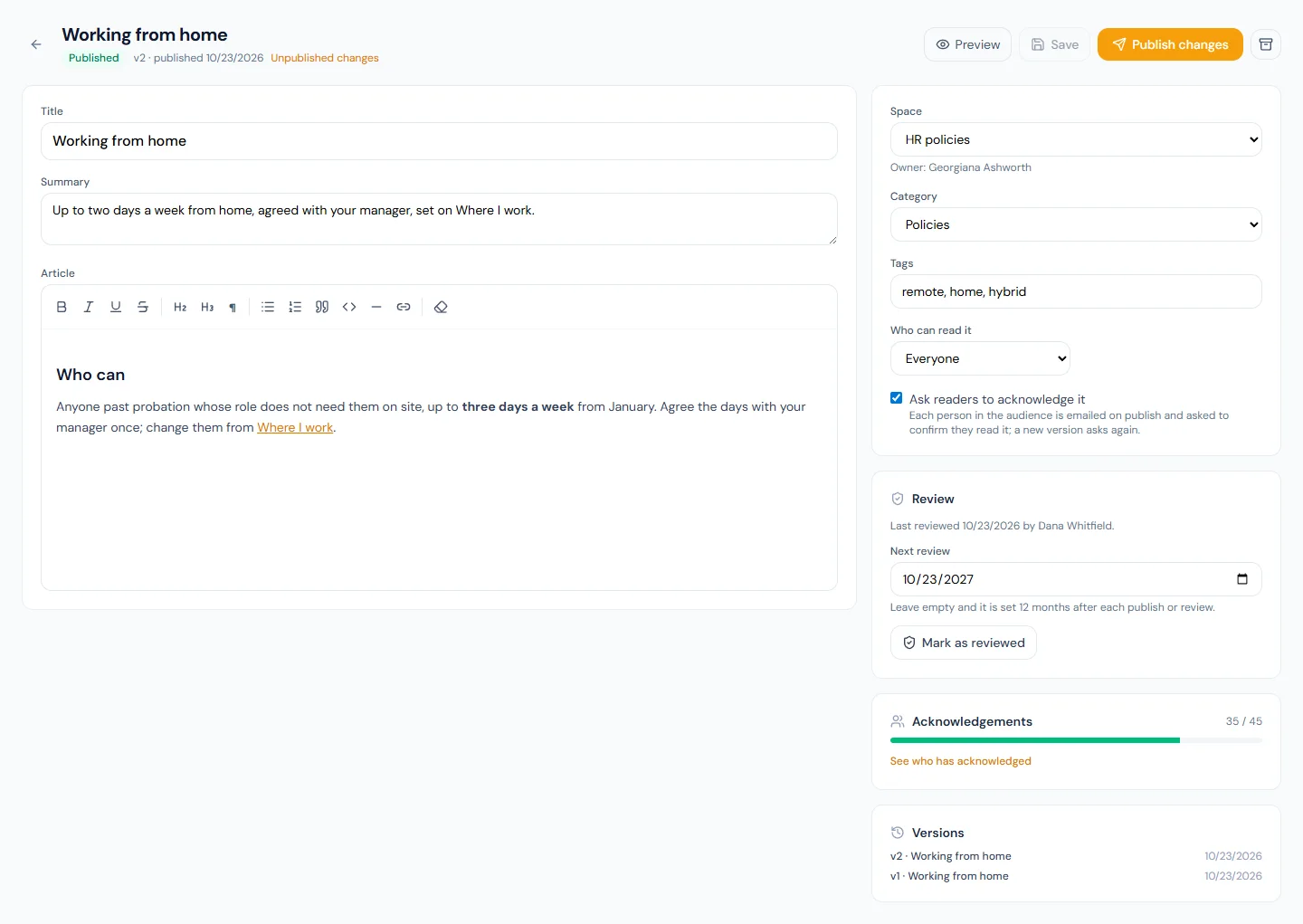
Each publish that changes the title, summary or body moves the version by one and records the text under Versions on the right, where any earlier version opens for reading. Publishing an article whose content has not changed moves nothing. Archive takes a published article off the portal and out of search while keeping its versions and acknowledgements; it can be published again. A draft or an archived article can be deleted outright; a published one is archived first, so nothing disappears from under a reader by a single click.
81B.4 Acknowledgements
Tick Ask readers to acknowledge it and publishing does two more
things: everyone in the audience is emailed
(knowledge_article_published, with a link straight to the article)
and asked to confirm they read it, and the editor gains an
Acknowledgements panel: how many of the audience have confirmed the
current version, and See who has acknowledged for the roster.
The acknowledgement carries the version read, so after a change that
moved the version the roster reads v2 only against anyone who has
not re-read, and the person's portal asks them again. An unchanged
re-publish asks nobody twice. The shape is the document library's
(Chapter 89), so a
policy that is both an article and a signed PDF is checked the same
way.
81B.5 Search: the portal and the assistant
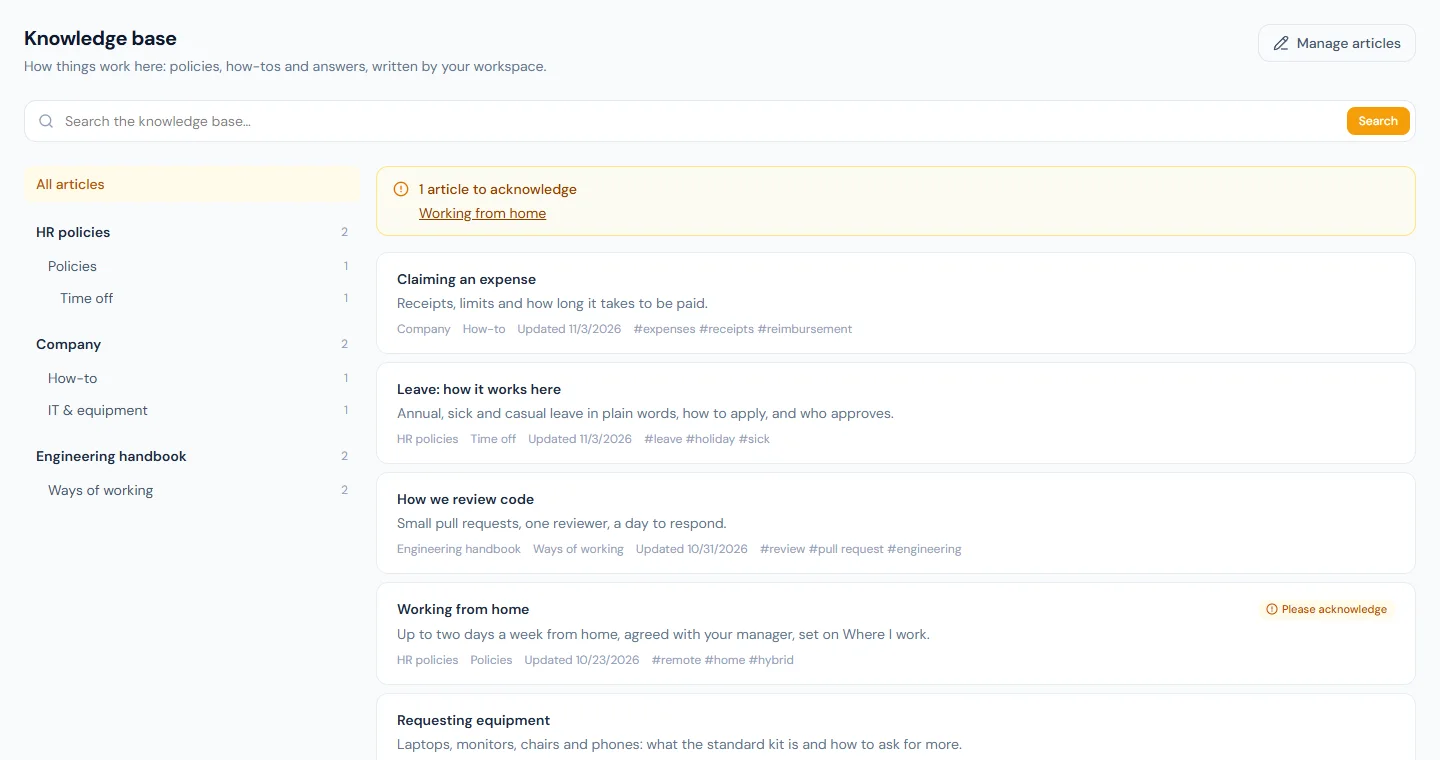
On the portal, Company › Knowledge Base has a search box, the spaces with their categories on the left, and an amber box listing anything still to acknowledge. Search is over the published copies the reader may see: every word typed must appear somewhere, as a word or the start of one, a title match ranks first, then the summary and tags, then the body, and each result shows the passage around the first match. A tag at the foot of an article lists everything carrying it.
The assistant (Chapter 98) runs the same search for the person asking, before it searches the generic employee and admin guides, and lists the article first with a link. It reads the company documents shared with the person the same way, by the text inside their files (Chapter 89). So "what is our policy on working from home?" is answered from Northwind's own article, not from Operentra's description of the feature, and only for someone in that article's audience. Archiving an article removes it from both at once.
81B.6 Spaces, owners and review dates
A knowledge base that only HR can write in holds only what HR knows. A space is how the rest gets written without handing out HR's permissions. Press Spaces above the list.
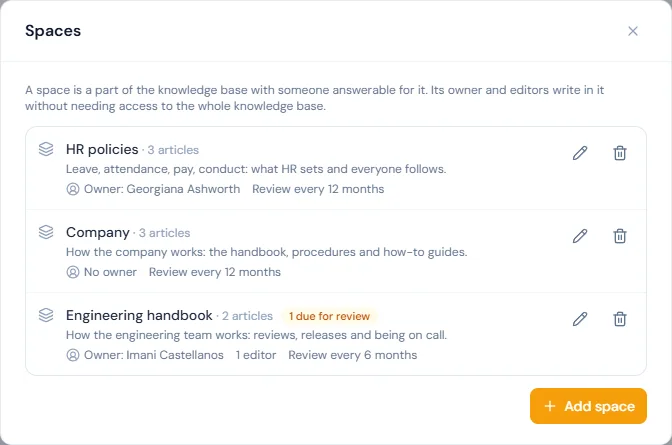
Every workspace starts with HR policies and Company; Northwind
added an Engineering handbook. A space has a name, a description,
an owner, any number of editors, and how often its articles
are reviewed (3, 6, 12 or 24 months, or never; 12 to start with). The
owner and the editors are employees, and they write in that space
(articles, publishing, categories, the acknowledgement roster) with
nothing more than the knowledge.view everyone holds. They see no
drafts of any other space and cannot open its articles for editing.
The owner also chooses the editors and the review interval. Adding,
renaming and deleting spaces, and naming their owners, stays with
knowledge.manage.
Sign in to the portal as Imani Castellanos, a senior software engineer and the handbook's owner. Her Knowledge Base page has a button most of her colleagues do not: Manage articles. It opens the two articles of her space and nothing from HR policies or Company.
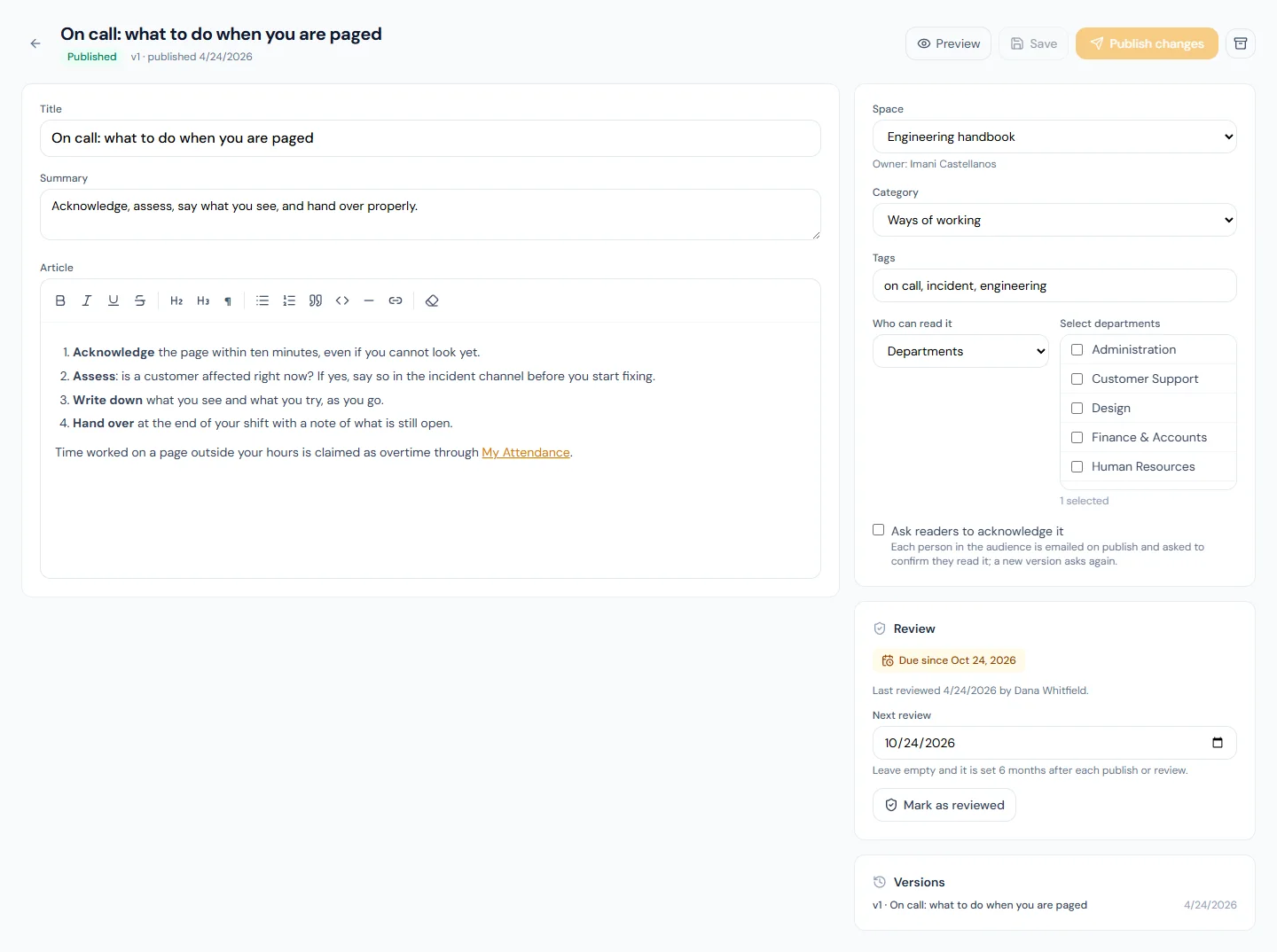
The second half of ownership is the review date. Publishing an
article, for the first time or with changed content, counts as a
review: it is marked reviewed by whoever published it, and its next
review falls one interval later. On call: what to do when you are
paged was published over six months ago in a space reviewed every six,
so it is due for review: an amber Due since badge on the list
and in the editor, a dot on the space's tab, and Due for review
above the list to show only what is due. On Mondays each owner is
emailed what is due in their spaces (knowledge_review_due,
Appendix C).
The owner then does one of two things. If the article is wrong, she corrects it and publishes, which is a new version and a fresh review. If it still holds, Mark as reviewed records that she read it and moves the date on, with no new version and nobody asked to acknowledge again. A date typed into Next review overrides the interval for that one article. Until one of those happens, readers are told on the article that it is past its review date; afterwards they see the day it was last reviewed. Nothing is ever unpublished by a date: a review is a prompt to a person, not an expiry.
What happens next
- Publishing makes the published copy visible to the audience at once; with acknowledgement on, the emails go in the same minute. Nothing is sent for an article that does not ask.
- Editing a published article changes nothing for readers until the next publish.
- Archiving removes it from the portal, the assistant and the public
API; the public API lists it as
archived. - A review date that comes changes nothing for readers except the note on the article. The owner hears on the next Monday, and every Monday after it until the article is published again or marked as reviewed.
What the employee sees
- Only the articles aimed at them, with search, categories and tags, and a Please acknowledge badge where one is asked.
- An email with a link when an article that asks for acknowledgement is published to them, and the amber box on the page until they confirm.
- The version and the date on each article, and, after a change, which version they had confirmed.
- When each article was last reviewed, or that it is past its review date.
- Manage articles, if they own or edit a space, with the editor for that space's articles only.
Common mistakes
- Publishing to Everyone because narrowing feels like work. The engineer who reads the Sales travel rules claims the wrong per diem. Aim articles; write two when two teams differ.
- Editing a live article in place and assuming readers see it. They see the last published copy until you press Publish changes. The flag on the list is there to be read.
- Asking for acknowledgement on everything. Readers learn to click without reading. Keep it for what someone will be held to.
- Deleting instead of archiving. Delete takes the versions and the acknowledgements with it. Archive keeps the proof of who read what.
- Pasting a scanned policy as an image. Images are stripped; the article is empty text. Type it, or put the PDF in the document library and write the summary here with a link.
- Expecting the assistant to answer from a draft. It searches published copies only, like the portal.
- Leaving a space with no owner. Nobody is emailed when its articles fall due, so nobody looks. Name one person, not a team.
- Pressing Mark as reviewed without reading. The date readers see then vouches for text nobody checked. If there is no time to read it, leave it due.
- Giving someone
knowledge.manageso they can write one team's pages. That opens every space and every draft. Make them an editor of the one space.
Practice
Use your own trial workspace, not a customer's.
- Create a category and write an article aimed at one department, with acknowledgement on. Publish it; as an employee in that department, find it by search, read it and acknowledge it. As an employee in another department, confirm it is absent.
- Edit the published article's body and save without publishing. Read it on the portal: nothing changed. Publish the change and read the portal again; open Versions and the old text.
- Open the acknowledgement roster: the first employee reads v1 only. Acknowledge the new version as them and watch the roster update.
- Ask the assistant a question the article answers and check its source link points at the portal article.
- Archive the article and search for it on the portal and through the assistant.
- Add a space, make an ordinary employee its owner and set its review interval to three months. Sign in as that employee: open Manage articles, write and publish an article, and confirm you can open nothing of the other spaces.
- As the owner, type yesterday's date into Next review and save. Find the article under Due for review, read what its readers now see on the portal, then press Mark as reviewed and read it again.
Quiz
1. HR edits a published article on Tuesday and publishes on Friday. What did readers see on Wednesday?
The copy published before Tuesday. Editing changes only the working copy; readers, the assistant and the public API see the published copy until Publish changes is pressed.
2. An article asked for acknowledgement at version 1 and everyone confirmed. HR fixes a typo and publishes. Who is asked again?
Everyone: a publish that changes the content moves the version and the acknowledgements carry the version read, so each person's confirmation now reads v1 only. Re-publishing unchanged content would have asked nobody.
3. Two departments have different travel rules. How do you avoid the wrong person reading the wrong rule?
Write two articles, each aimed at one department through the audience. A person sees only the articles aimed at them, on the portal and in the assistant's answers.
4. Why does an image pasted into an article vanish?
The body is sanitised to the toolbar's formatting on save and again on display; images, embeds, scripts and styles are removed. A scanned policy belongs in the document library, with a written summary and a link here.
5. What is the difference between archiving and deleting an article?
Archiving takes it off the portal, the assistant and the public API listing of published articles while keeping its versions and acknowledgements, and it can be published again. Deleting removes all of that; a published article cannot be deleted without archiving first.
6. The engineering lead should keep the team's handbook pages. What do you give them, and what can they then not do?
Make them the owner (or an editor) of an Engineering space. They write,
publish and review that space's articles from the portal with only
knowledge.view. They cannot open another space's drafts or edit its
articles, and they cannot add, rename or delete spaces or change a
space's owner; those stay with knowledge.manage.
7. An article is past its review date. What changes for the people reading it, and how does it stop being due?
It stays published and searchable; readers see a note that it is past its review date and may be out of date, and its owner is emailed on Mondays. It stops being due when it is published with changes (a new version and a fresh review) or when someone who may write in the space presses Mark as reviewed, which moves the date on without a new version.