Chapter 32A — Activity plans
The checklist of Chapter 32 is the product's: the same twelve tasks for every new hire. What a company owes a new engineer is not what it owes a new accountant, and what it owes a leaver or a newly promoted manager is on no built-in list at all. Those steps live in one person's memory and are skipped the week that person is away. This chapter is the template that writes them down once: its kind, who it is for, its items, and how it becomes somebody's checklist.
What this chapter covers
- 32A.1 Kinds, and which plan a person gets
- 32A.2 Items: who, when, required
- 32A.3 Task types and what each action does
- 32A.4 From plan to checklist; edits and emails
- 32A.5 Applying a plan by hand; movement checklists
The concept
A checklist template answers one question: when this event happens to a person, what does the company do, every time? Each step needs an owner by role, not by name, so the template outlives the people in it; a deadline relative to the event, not a calendar date; and a decision on whether it gates the event being called finished.
A template is copied, not linked. Each person's checklist is a snapshot of the plan on the day it was taken, so changing the plan in March does not rewrite what was promised to January's joiner.
How Operentra handles it
- Onboarding › Plans holds the templates, in four kinds: Onboarding, Offboarding, Transfer and Promotion. The checklists they produce live where they always did: the onboarding pipeline, a separation's clearance list (83.9) and transfer and promotion checklists (24.5).
- One plan is picked when the event is recorded: the closest match for the person's job title and department, else the default.
- Who.
activity_plans.viewreads plans (Super Admin, HR Manager, HR Officer, Department Head).activity_plans.managewrites and applies them and names the IT and Finance users (Super Admin, HR Manager). Working a checklist is its own permission,onboarding.manageoroffboarding.manage(Appendix E). The person a task is assigned to needs neither to mark their own task done (32A.4). - No plan feature or grant is needed.
Walkthrough
Northwind has four plans: Standard onboarding (the default), Engineering onboarding (for the Software Engineering department), Standard offboarding and Promotion follow-through (both defaults). It has no transfer plan.
32A.1 Kinds, and which plan a person gets
New plan asks for a name, a kind and who the plan is for. The kind cannot be changed once the plan is saved.
| Kind | Starts when | Due dates count from |
|---|---|---|
| Onboarding | An employee is added | The joining date |
| Offboarding | A separation is started | The notice date, or the last working day |
| Transfer | A transfer is recorded | The transfer date |
| Promotion | A promotion is recorded | Its effective date, else the promotion date |
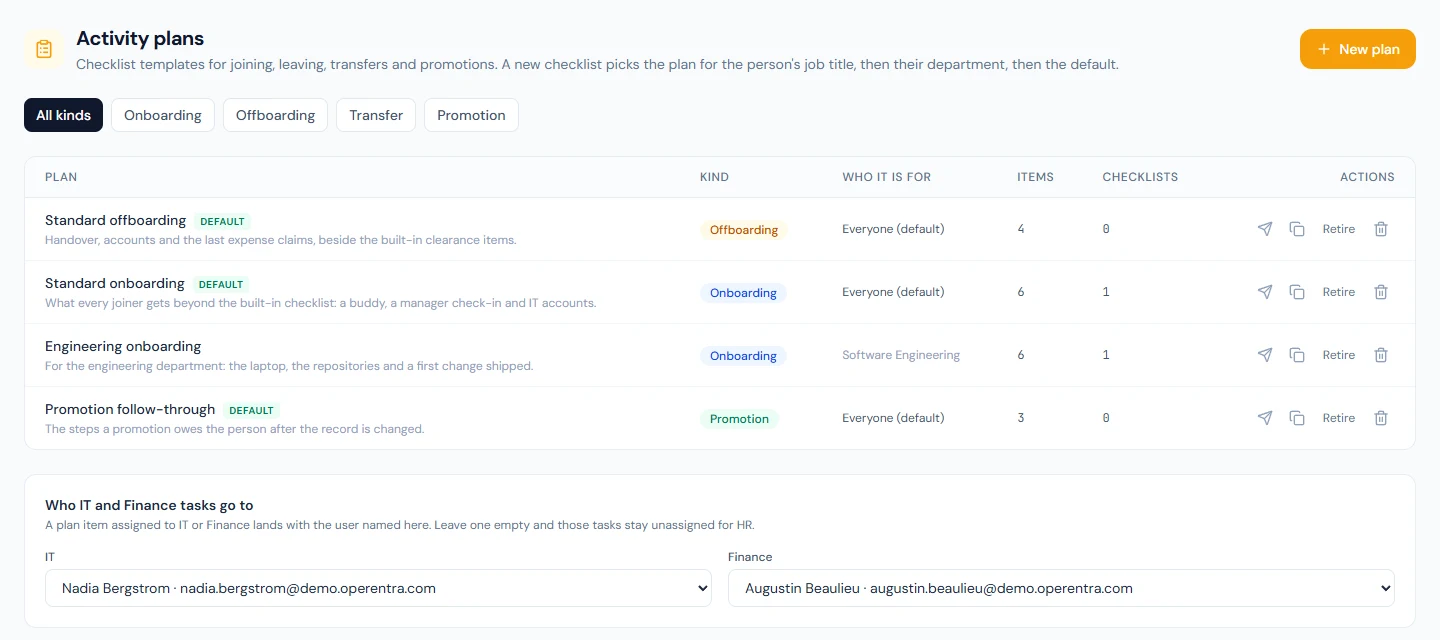
Who it is for is three fields: Default plan for this kind, Department and Job title. Only Active plans of the kind are considered, and a plan fits when every field it sets equals the person's. Among those that fit, the first of these wins: a plan with both a job title and a department; one with a job title; one with a department; the default.
- One plan, not a stack. An engineer at Northwind gets Engineering onboarding and none of Standard onboarding's items; a new accountant gets Standard onboarding.
- A default has no scope, and making a plan the default unsets the previous default of that kind. A plan with neither scope nor default is never picked; the list shows it as Applied by hand.
- Two plans for the same scope: the one saved most recently wins.
- A move is matched on where the person lands: the department and job title after the transfer or promotion.
With no match, a joiner or a leaver gets the built-in list only, and a transfer or promotion no checklist. Retire takes a plan out of the matching; Delete leaves the tasks already copied.
32A.2 Items: who, when, required
Add item adds a row, Details opens it, and the handle or the arrows set the order. Preview, on a saved plan, shows the result for a real employee: each task, who it lands with, and its due date.
| Goes to | Lands with |
|---|---|
| HR | Nobody by name: the task is unassigned, for any HR user. |
| Manager | The person's reporting manager. |
| Employee | The person themselves. |
| Buddy | The colleague named as buddy on the pipeline. Onboarding plans only. |
| IT, Finance | The two users chosen under Who IT and Finance tasks go to, at the bottom of the Plans page. |
| Named user | Always the one user you pick. |
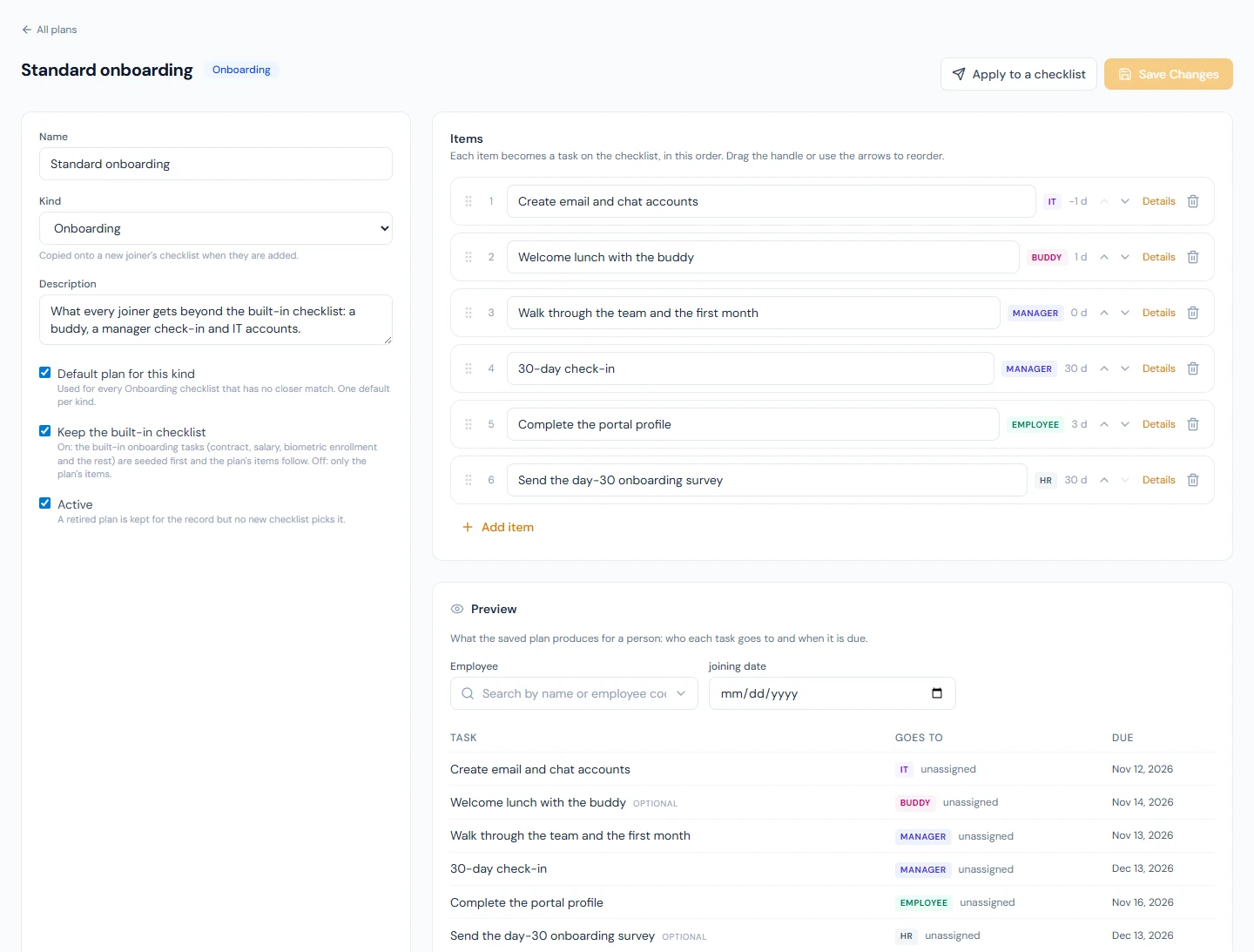
A manager, employee or buddy needs an active portal login to be given a task. When the role cannot be resolved (no manager, no login yet, no buddy named, IT left empty) the task is created unassigned, with the role still shown on it. On an onboarding, transfer or promotion checklist a Manager, Employee or Buddy task does not stay that way. A buddy's tasks go to the buddy when one is named on the pipeline. A manager's or the employee's go to them once there is a manager, or a login: the next time the checklist is opened, or when the person opens their own Checklist Tasks page. An IT or Finance task with nobody named, and an unresolved item on a clearance list, stay unassigned until HR assigns them.
Due is a number of days, from 365 before to 730 after, counted from the anchor: negative for before, 0 for the day. Offboarding items choose between the notice date and the last working day; each falls back to the separation date when it is empty. Northwind's "Handover document signed off" is due 3 days before the last working day. A due date is worked out once, when the task is copied: changing a separation's last working day afterwards does not move it, and nothing is emailed when a task falls due.
Required holds the checklist open until the task is Done or Waived; an optional task does not. On an offboarding plan the tick decides whether the item holds the clearance open: untick it for something that may be left, such as an exit survey the leaver might not answer. The item still shows on the clearance, marked optional, and can still be ticked. The built-in clearance items are always required.
32A.3 Task types and what each action does
| Task type | Kinds | What the task offers |
|---|---|---|
| Tick off by hand | All | Mark done, Waive, Reopen. |
| Link to a page | Onboarding, Transfer, Promotion | Open, to a path in the app or a full address. {employeeId} in the path becomes the person's id. Opening does not close the task. |
| Run an action | Onboarding | Run, which performs the step and writes Done, or Blocked with the reason (32.5). |
There are five actions. Four are the built-in checklist's own Run tasks: Send the pre-joining email, Send the welcome email, Enroll on the biometric device and Schedule the probation review. The fifth, Send a survey, exists only on plans. It invites the joiner to every open survey listening for the item's trigger, Onboarding, day 30 or Onboarding, day 90 (Chapter 81A); with none open, the task is Blocked.
No action runs by itself on its due date; someone with
onboarding.manage presses Run. Northwind's Standard onboarding ends
with "Send the day-30 onboarding survey": HR, 30 days after joining,
optional. No action requests a document or assigns training. Use a
link to the page where that work is done, as Engineering onboarding
does with "Issue the laptop" and /admin/assets?employee={employeeId}.
32A.4 From plan to checklist; edits and emails
When the event is recorded, the built-in tasks go in first and the plan's items follow in order. The pipeline or separation names its plan ("Plan: Standard onboarding") and each plan task shows its role. Keep the built-in checklist, on onboarding and offboarding plans, decides whether the built-in tasks are there at all. After the copy, the checklist no longer reads the plan:
- Editing an item changes checklists opened from then on. Open ones keep their wording, assignee and due date.
- Adding an item reaches an open checklist only when the plan is applied to it again (32A.5).
- Removing an item or deleting the plan leaves the copied tasks.
- Nothing is read live, not even Keep the built-in checklist. An onboarding created without the built-in tasks stays without them: turning the setting back on, or deleting that plan, changes the checklists created from then on.
| Moment | |
|---|---|
| An onboarding is created, or a recorded transfer or promotion opens a checklist | "Task assigned: …" to each user a plan task landed with, one email per task. Unassigned tasks email nobody. |
| A buddy is named on the pipeline | The same email, for the buddy's tasks. |
| A task that waited for a manager or a login is handed over when the checklist is opened | The same email, to its new owner. None when the person takes the task by opening their own Checklist Tasks page: they are looking at it. |
| A separation is started | The same email, for each plan item that landed with someone. |
| A plan is applied by hand, to a checklist or to an employee | The same email, for each task that application added and that landed with someone. Applying twice adds nothing and emails nobody. |
The assignee's own page. A task lands with a manager, a buddy,
the employee, IT or Finance, and none of them holds
onboarding.manage. Each has Checklist Tasks in the portal, under
Work, an entry that appears once they have a task. It lists the
tasks assigned to them on checklists still open, with the person each
is for and its due date, and offers two things: Mark done, and
Undo for a tick they made themselves. A task marked there counts
as it does from the checklist page: the last required one closes the
checklist. Nothing else can be changed from it, and the rest of the
checklist is not shown.
Two kinds of task are listed without a button, because a tick would record work that did not happen: one that runs an action, which is completed by pressing Run on the checklist, and a clearance item that follows the records, such as assets returned.
The email's button opens that page. For someone who can open the
checklist itself, with onboarding.view, or offboarding.view for a
clearance item, it opens the checklist instead.
32A.5 Applying a plan by hand; movement checklists
Apply to a checklist, on the plan, and Apply a plan, on a pipeline or a separation's clearance list, add a plan to a checklist that already exists. The kinds must match and the checklist must be open. The items go after the tasks already there, and items already taken from that plan are skipped. This is how an engineer also gets Standard onboarding's buddy lunch, and how a plan written today reaches last week's joiner.
From the plan, a transfer or promotion plan is applied to a person: choose the employee and the date, empty for today. It opens a new checklist under Onboarding, found with the kind filter. The same plan, person and date while the first is open takes you to that one. A recorded movement opens its checklist without you, once: at Northwind a promotion opens Promotion follow-through's three tasks, and a transfer opens nothing.
What happens next
- The tasks are worked where they landed: Chapter 32 for onboarding and movement checklists, Chapter 83 for clearance.
- A plan assigns work; it approves nothing. Approvals have their own routing (Chapter 14A).
- Integrations can read plans and their items through the public API.
What the employee sees
Nothing of the plan, only the tasks it gave them. If Imani Castellanos is named buddy for a new engineer she receives "Task assigned: Pair with the buddy on the local setup", with the joiner's name and the due date. Its button opens Work → Checklist Tasks, where the task is waiting with Mark done. She pairs with the joiner, presses it, and can Undo it while the onboarding is still open. She sees no other task on that pipeline. For Solomon Nakamura, who is also an HR manager, the same button opens the pipeline.
Common mistakes
- Expecting plans to stack. One plan is picked. Apply the second by hand, or duplicate the default and add the department's items.
- Saving a plan with no scope and no default. It is never picked.
- Editing the plan to fix an open checklist. Open checklists are copies. Apply the plan again for new items.
- Leaving IT and Finance empty. Nobody is emailed those tasks.
- Leaving Required ticked on an item that may never happen. An exit survey or a farewell lunch left required holds the settlement until someone waives it. Untick Required for those.
Practice
In the Northwind demo workspace, signed in as the admin:
- Open Onboarding › Plans. Read the four plans and the Who it is for column, then the IT and Finance users at the bottom.
- Open Standard onboarding and the Details of "Send the day-30 onboarding survey". Read who it goes to, its due days and trigger.
- In Preview, choose Imani Castellanos. Note which tasks have a name and which read unassigned. Repeat on Engineering onboarding.
- Create a Transfer plan, tick the default, and add two items. Use Apply to a checklist for an employee, and find the checklist under Onboarding with the kind filter.
- Add a third item and apply the plan to the same employee and date: you land on the open checklist without the new task. Use Apply a plan on that page to add it, then retire your plan.
Quiz
1. A new hire joins Software Engineering at Northwind. Which plan's items are on their pipeline?
Engineering onboarding's, after the built-in tasks. A department plan wins over the default, and only one plan is picked.
2. An item goes to Manager, and the joiner's manager has no portal login. What happens?
The task is created unassigned, with the Manager role still shown, and nobody is emailed. Once the manager has a login it goes to them: when the checklist is next opened, with the task-assigned email, or when they open their own Checklist Tasks page.
3. HR changes an item's due days on a plan that three open pipelines used. What changes on them?
Nothing. Their tasks are copies; the new figure applies to checklists opened from then on.
4. An offboarding plan's exit survey item has Required unticked. What happens if the leaver never answers?
Nothing holds: the clearance completes once every required item is Done or Waived, and Complete Settlement is open. The survey item stays on the clearance, marked optional, until someone ticks it or the separation settles.
5. Someone presses Run on a Send a survey task and no survey is open for its trigger. What is the result?
The task is Blocked, with a note that no open survey listens for the trigger. Open one under Surveys and run it again.