Chapter 81D — The HR Desk: requests and their answers
An announcement is the company speaking to its people. A request is the other direction: a person asking the company for something. Most of what people ask HR has no form of its own, so it arrives by email, in a chat, or at someone's desk, and from there nobody can say who has it or whether it was answered. The HR Desk gives every such request a number, an owner and one conversation.
What this chapter covers
- 81D.1 Request types and their forms
- 81D.2 Teams: who answers what
- 81D.3 Working a request
- 81D.4 Replies, internal notes and statuses
- 81D.5 Approval before the team works it
- 81D.6 Deadlines, the rating and the report
- 81D.7 Answers before a request, and other ways in
- 81D.8 A change to a person's own details
- 81D.9 Speak up: concerns raised in confidence
The concept
A service desk is a single front door for requests, behind which each one is routed to the people who can answer it. HR borrowed the idea from IT because the problem is the same: many people asking, a few answering, and no shared record.
Three ideas carry it:
- A catalogue: a list of the things a person can ask for, each with its own form, so the request arrives with the facts already in it and nobody has to write back asking for them.
- Ownership: every request is with a team, and then with one person. A request with no owner is a request nobody answers.
- A status the person can read: they do not have to ask whether anything is happening.
A request differs from an approval. An approval is a yes or a no from a manager. A request is work: someone has to find something out, order something, or change something, and then say so.
How Operentra handles it
- HR Desk in the admin menu is the desk; employees send requests under Company › Requests in the portal. It is on the Growth and Enterprise plans (Appendix F).
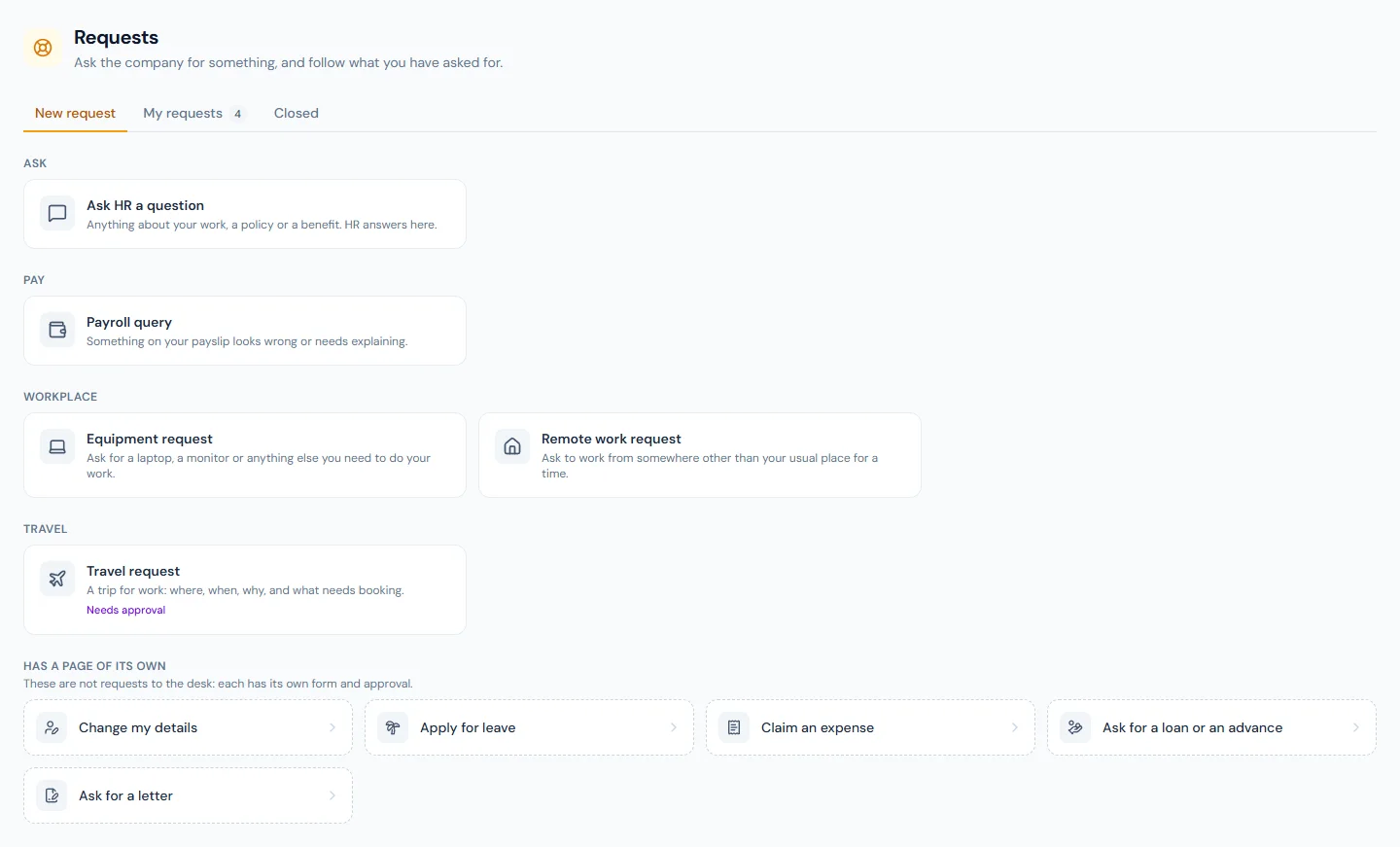
- A request type is a form plus the team it goes to and the people who may send it. A workspace starts with five, switched off until HR has read them: Ask HR a question, Payroll query, Equipment request, Remote work request and Travel request.
- A team is the people who work one kind of request. HR and Payroll are there from the start; a workspace adds its own.
- A request keeps the form it was sent with. Changing a form later changes what new requests ask, never what an old one shows.
- Leave, expenses, loans, timesheets and letters keep their own pages and approvals. The desk is for what has no page of its own.
- A request type can ask for approval before its team works a request, and can set deadlines in working days for a first reply and for a resolution.
- A rating of 1 to 5 is asked of the person once a request is resolved, and HR Desk › Report adds the figures up.
- Who:
requests.createfor everyone;requests.handlefor Super Admin, HR Manager, HR Officer and Accountant;requests.view_allandrequests.managefor Super Admin and HR Manager;requests.approvefor Super Admin, HR Manager, HR Officer and Department Head (Appendix E).
Walkthrough
Northwind's HR manager sets the desk up, and Imani Castellanos, an employee, sends the first request.
81D.1 Request types and their forms
HR Desk › Request types lists the five starting types, each switched off. The HR manager opens Equipment request. Its form has four fields: What do you need? (one choice: Laptop, Monitor, Phone, Headset, Chair or desk, Something else), What is it?, Why do you need it? and Needed by.
What is it? carries a condition: Show when "What do you need?" is Something else. Someone who picks Laptop never sees it, and it is not asked for. A condition can point at an earlier One choice or Yes or no field.
The field types are short and long text, a number, an amount of money, a date, a from-and-to pair of dates, one choice, several choices, yes or no, a file, a colleague, and a section heading. The preview beside the form shows it as people will see it. A form can hold 40 fields.
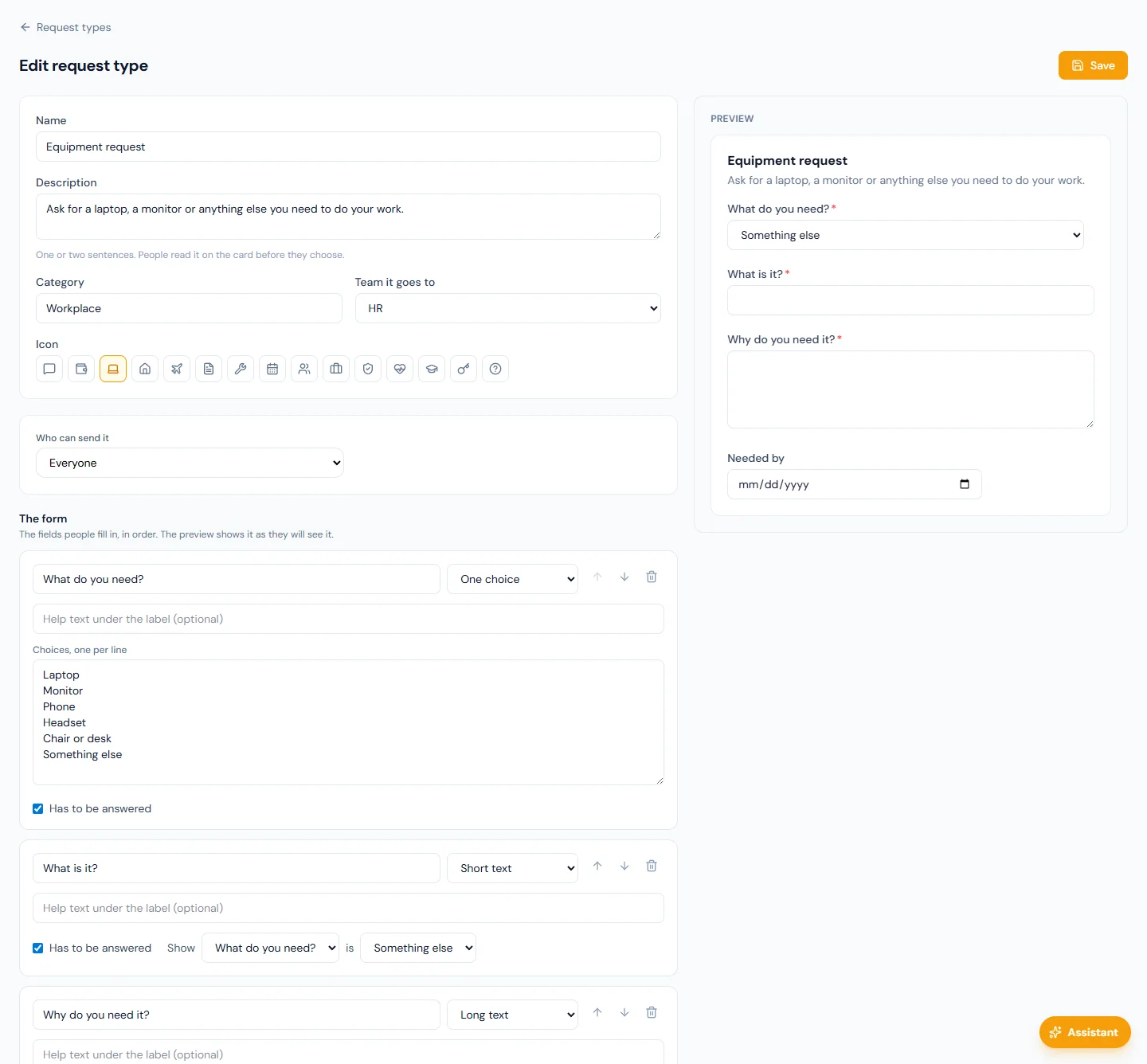
Who can send it is everyone, or chosen departments, locations, roles or named people: the audience an announcement has (Chapter 78). The HR manager leaves it at everyone, switches Show it in the portal on, and saves.
81D.2 Teams: who answers what
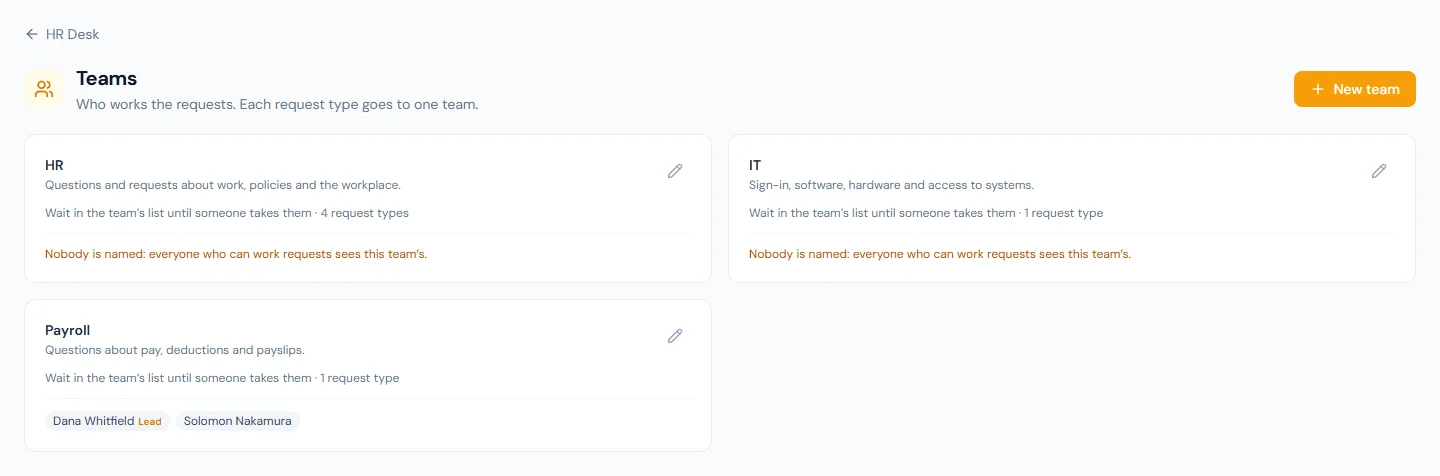
HR Desk › Teams shows HR and Payroll. Each request type goes to one team: a payroll query to Payroll, the rest to HR.
A team's members are the people who see and answer its requests. Only someone whose role can work requests can be a member. Northwind names the people who run its payroll on Payroll, so a pay question is read by them and by nobody else.
With nobody chosen, everyone who can work requests sees that team's. That is how the two teams start, and how Northwind leaves HR and its own IT team; a workspace with one HR person can leave them all so.
New requests either wait in the team's list until someone takes them, or go to the members in turn.
81D.3 Working a request
Imani opens Company › Requests, chooses Equipment request,
picks Monitor, writes why, and sends it. It is given a number,
REQ-000011, and the HR team is emailed.
On the desk, the request sits in HR's list as Open and Unassigned. The HR officer opens it: what Imani sent on the left, and a panel on the right with the team, who has it, the status and the priority. Take it makes it theirs and moves it to In progress. So does replying: a first reply to a request nobody has taken takes it.
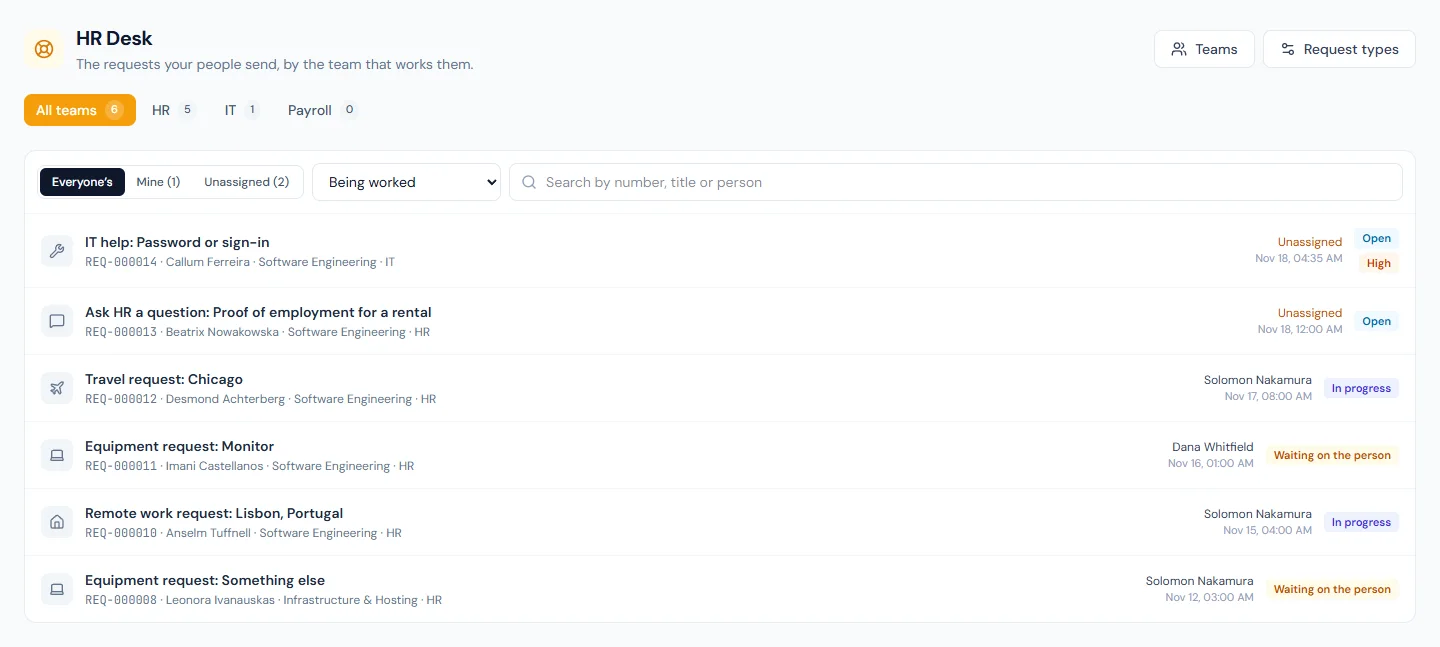
A request sent to the wrong team is moved, and the other team is told. Whoever moves it stops seeing it unless they work that team too.
81D.4 Replies, internal notes and statuses
The box under the conversation writes one of two things:
- A reply to the person. Imani sees it in the portal and is emailed.
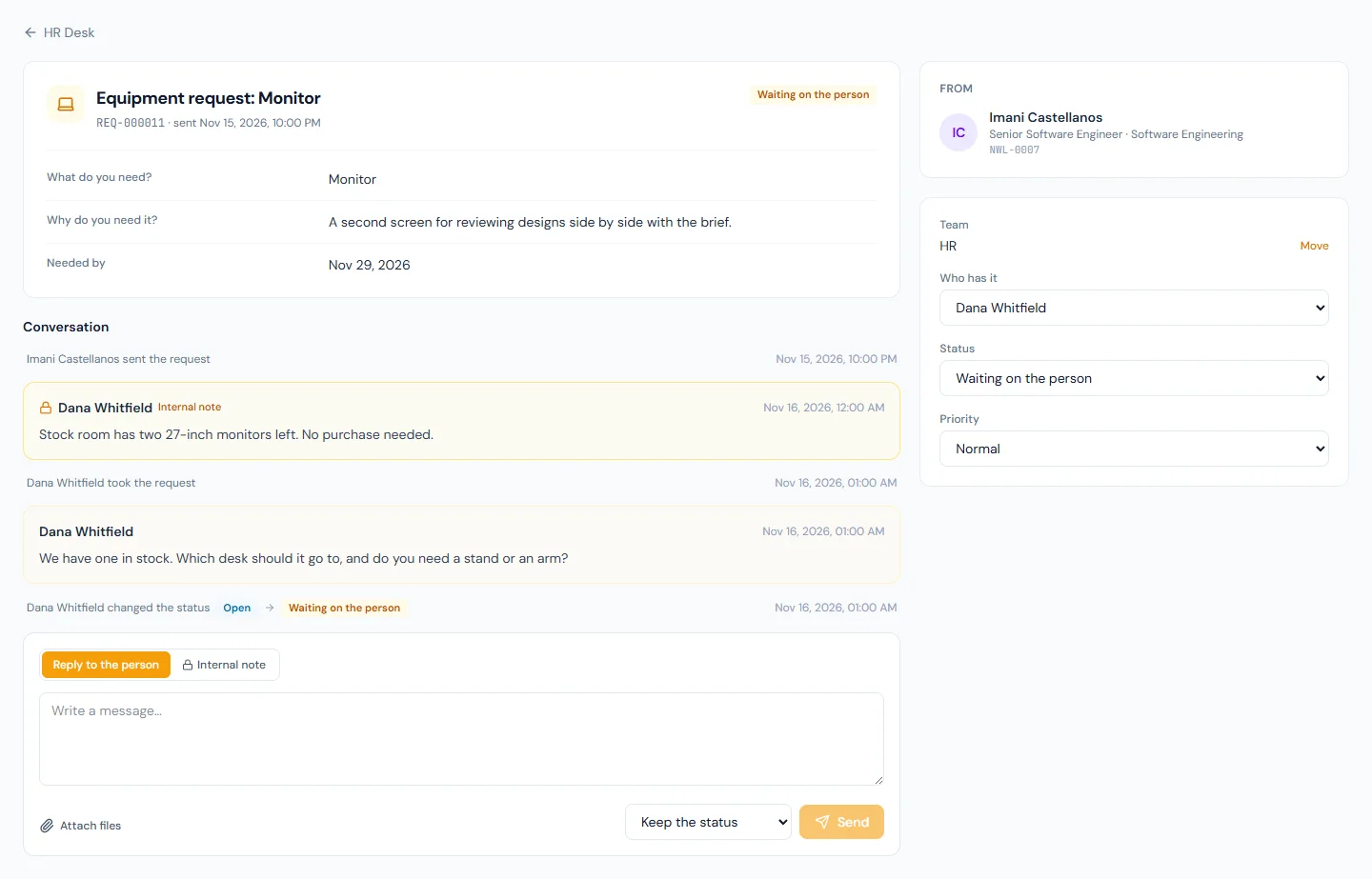
- An internal note. Only the people who work the team's requests see it: "Checked the stock room, two monitors left." Imani never sees a note, or a file attached to one, and nobody is emailed.
A reply can set a status with it. The HR officer asks which desk the monitor is for and sets Waiting on the person; when Imani answers, the request goes back to In progress by itself. Once the monitor is on her desk, a last reply sets Resolved.
| Status | Meaning |
|---|---|
| Open | Waiting in the team's list |
| In progress | Someone has it |
| Waiting on the person | The desk has asked them something |
| Resolved | Dealt with; the person has 7 days to reopen it |
| Closed | Seven days passed; nothing more can be written |
| Withdrawn | The person withdrew it before it was resolved |
The desk never closes a request by hand: that happens seven days after it is resolved (Appendix G).
81D.5 Approval before the team works it
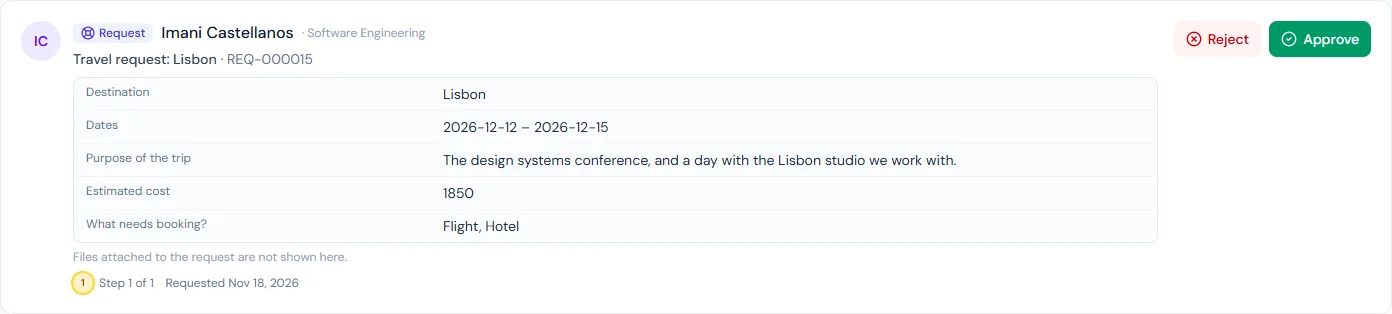
A request type can have Needs approval before the team works it switched on. Northwind's Travel request has.
- The request waits as Awaiting approval. The team can read it but cannot reply; the person can withdraw it.
- Who decides: the person's reporting manager, where the manager's
role holds
requests.approve. A flow of the workspace's own, under Settings › Approval flows for HR Desk requests, can name someone else or add steps, for chosen request types and above an amount (Chapter 14A). - The approver decides in Approvals in the portal, where the card shows the request's answers. A refusal needs a reason.
- Approved, the request reaches the team as Open. Not approved, it ends there and the person is emailed the reason.
- With nobody able to approve, the request goes straight to the team and its conversation says so.
81D.6 Deadlines, the rating and the report
A request type can set First reply within and Resolved within, in working days.
- Working days are the default shift's working week, less the company-wide holidays. The day a request arrives is not counted.
- The time to resolve stops while the request is Waiting on the person. The first-reply deadline is met only by a reply to the person, never by an internal note.
- The list marks a request due within a day and one that is late, and Late filters to those. The team's lead is emailed once for each deadline a request misses.
- Once a request is resolved, the person is asked How well was this resolved?, from 1 to 5.
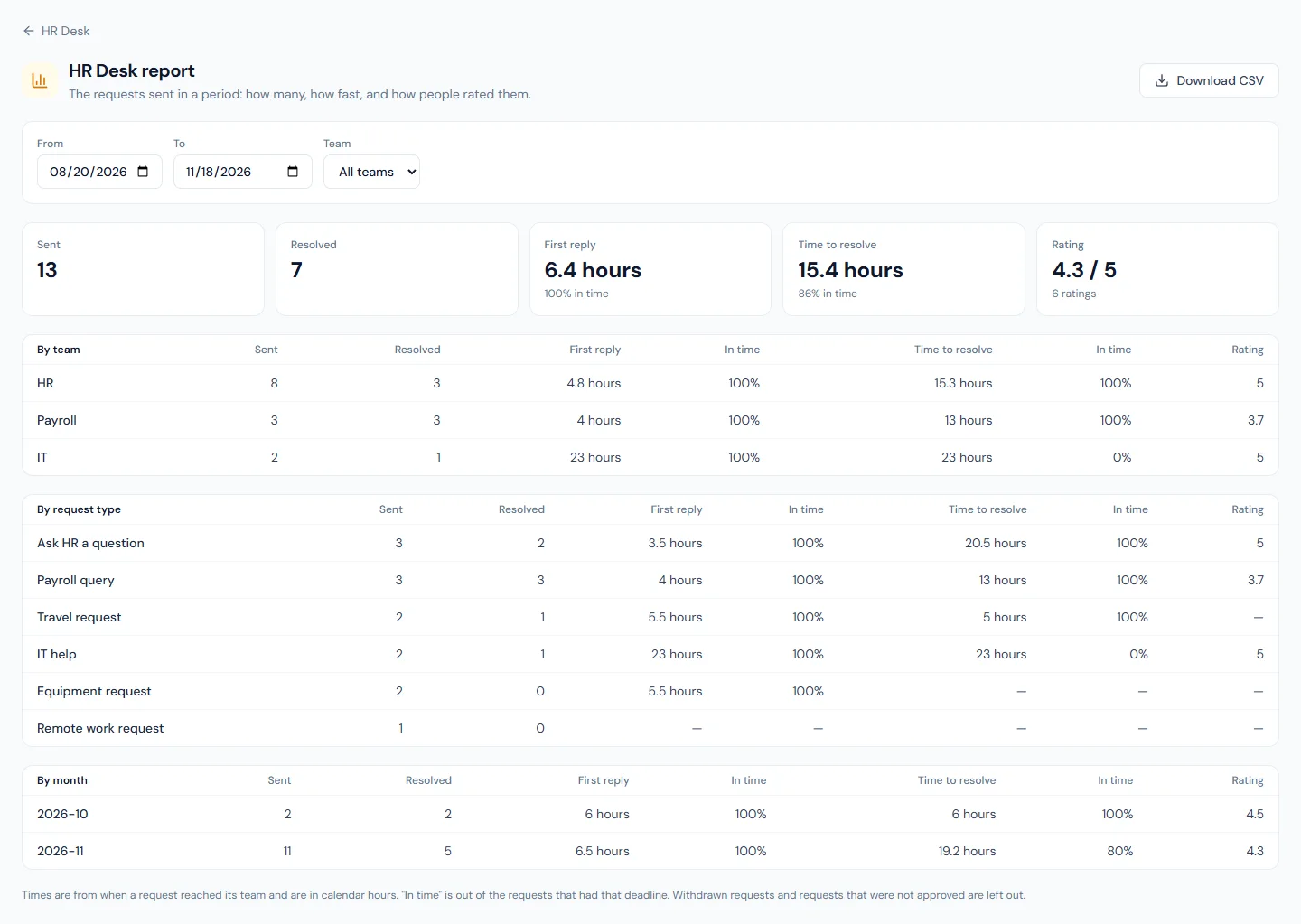
- HR Desk › Report shows, for a period: requests sent and resolved, the time to a first reply and to resolve, the share in time, and the rating, by team, by request type and by month, with a CSV of one row per request.
81D.7 Answers before a request, and other ways in
A question the knowledge base already answers need not reach the desk.
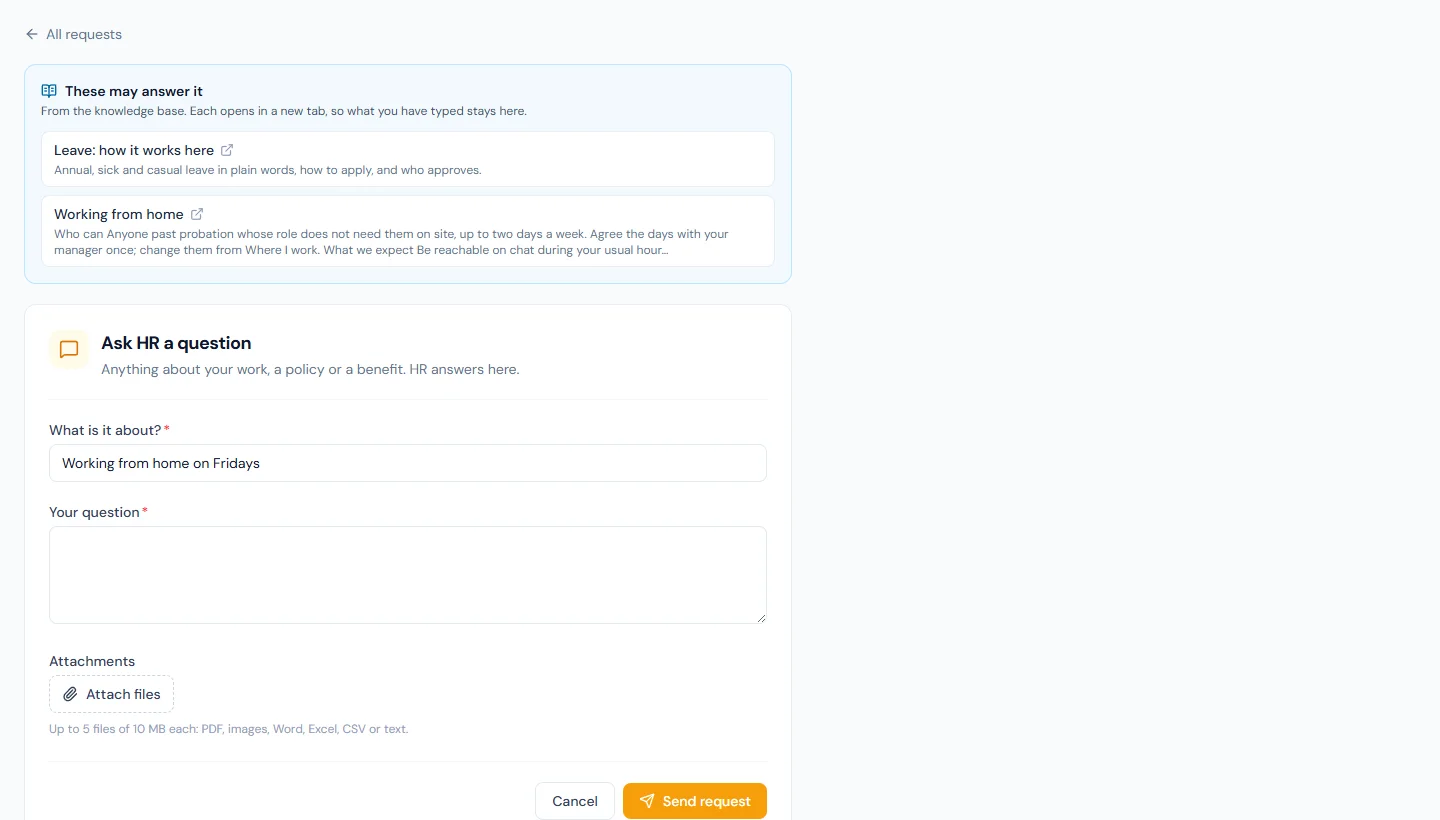
- Articles shown with the form, in a request type's editor, pins up to five published articles (Chapter 81B). They appear above the form under These may answer it.
- What the person types is searched in the knowledge base as they type, and the articles found are added.
- Each person is offered only what they can read. An article aimed at another department is not shown to them.
- Has a page of its own, at the foot of the portal's Requests page, sends people to leave, expense claims, loans and letters, where the plan has them and the person may open them.
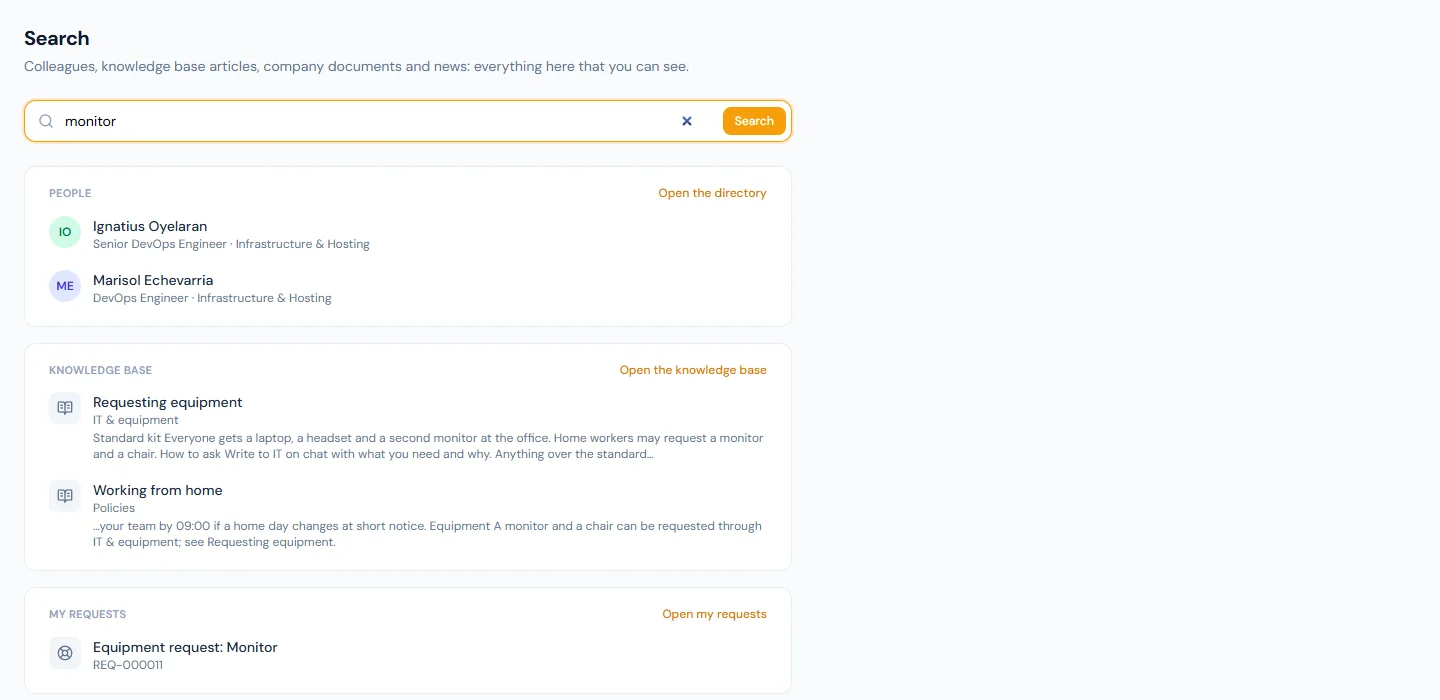
- Home counts the requests waiting for the person's reply, and the portal search finds a person's own requests.
- The AI assistant (Chapter 98) prepares a request, or a handler's reply, as a card that is sent only when confirmed. It cannot attach files.
- Outside the app: a chat line for a new request (its kind, team
and number, never who sent it), webhooks, and a
requestsresource in the public API (Chapter 97).
81D.8 A change to a person's own details
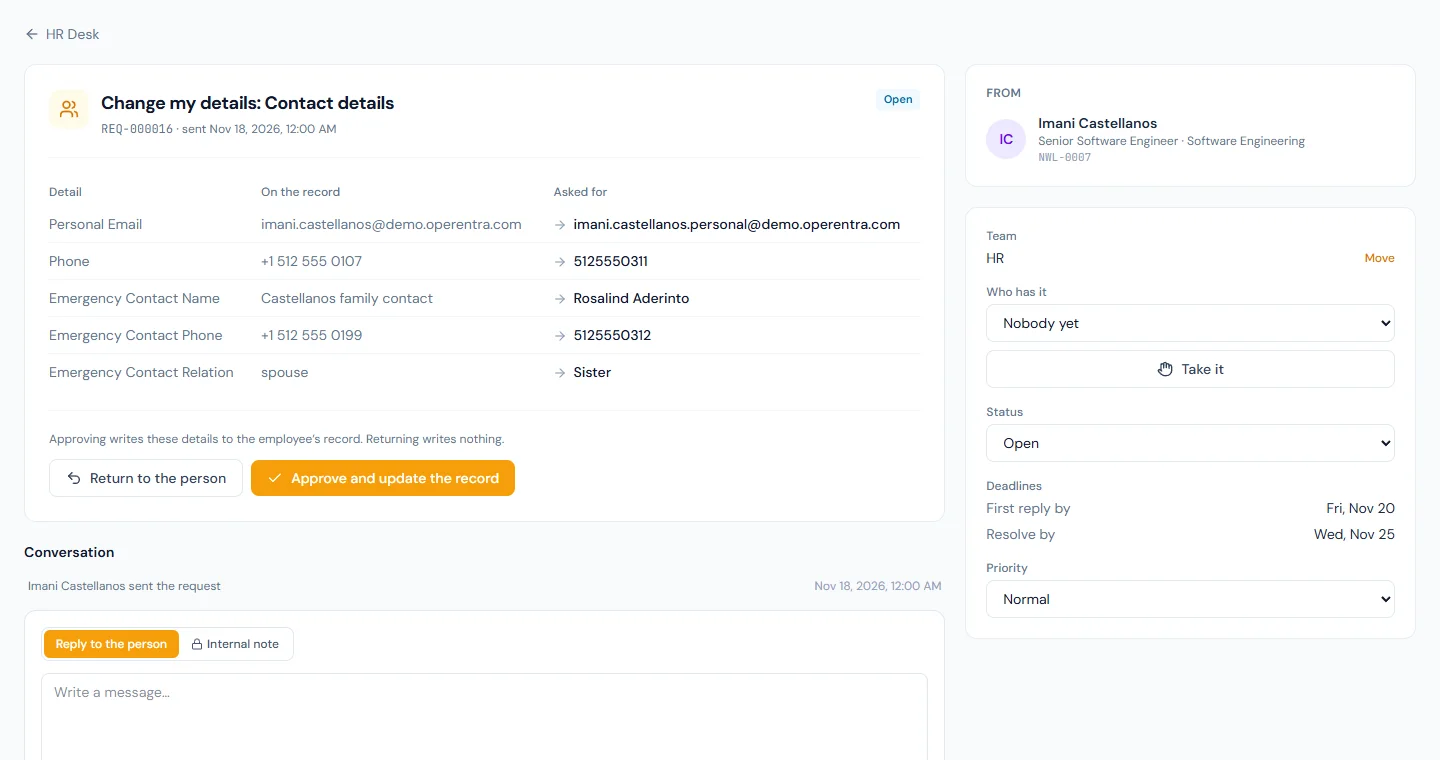
People change their name, contact details, address and bank account on their profile page, and HR approves the change before it is on the record (Chapter 21). The built-in type Change my details brings that review to the desk.
- Switched on, each change a person sends is a request, with a number, deadlines and a conversation. It shows each detail on the record beside what was asked for.
- Approve and update the record writes the change, as approving on the Profile approvals page does. Return to the person needs a note and writes nothing.
- Deciding needs a place on the request's team and
employees.update. - A change to the bank account alone goes to the Payroll team. Where a locked pay run with the person in it is still to be paid, the request says so: a bank file made for it afterwards pays into the new account.
- The type has no form and is not a card in the portal: a tile under Has a page of its own leads to the profile page.
- Switched off, nothing changes: the Profile approvals page reviews every change. It is on from the start only in a workspace created from 19 November 2026.
81D.9 Speak up: concerns raised in confidence
Some things should not go to a team's list: misconduct, harassment, a safety problem, fraud. Speak up is for those, and it is kept apart from the desk.
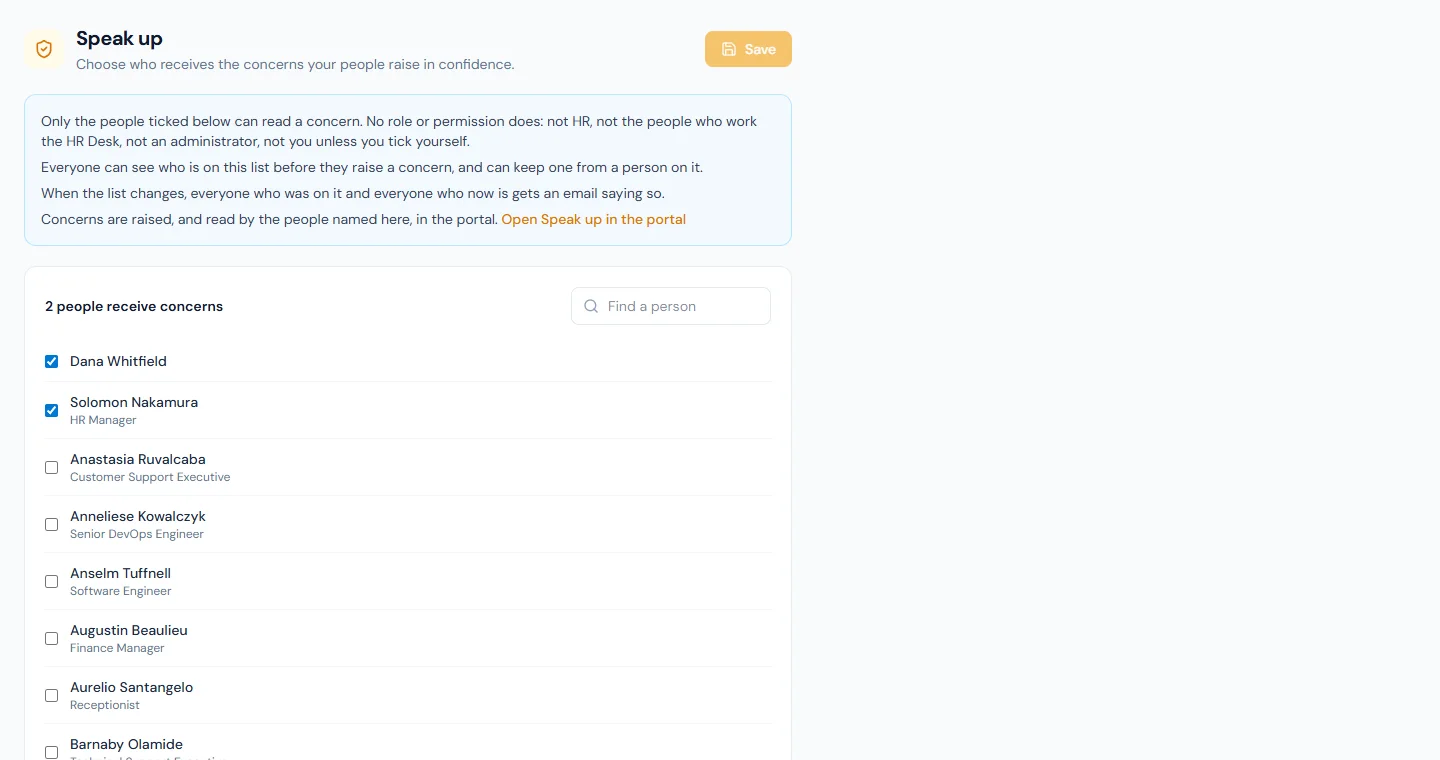
- Who reads a concern: the handlers named under HR Desk › Speak up, and the person who raised it. Nobody else: not the manager, not the people who work the desk, not someone who reads every team's requests, not a super admin who is not named.
- Naming handlers needs
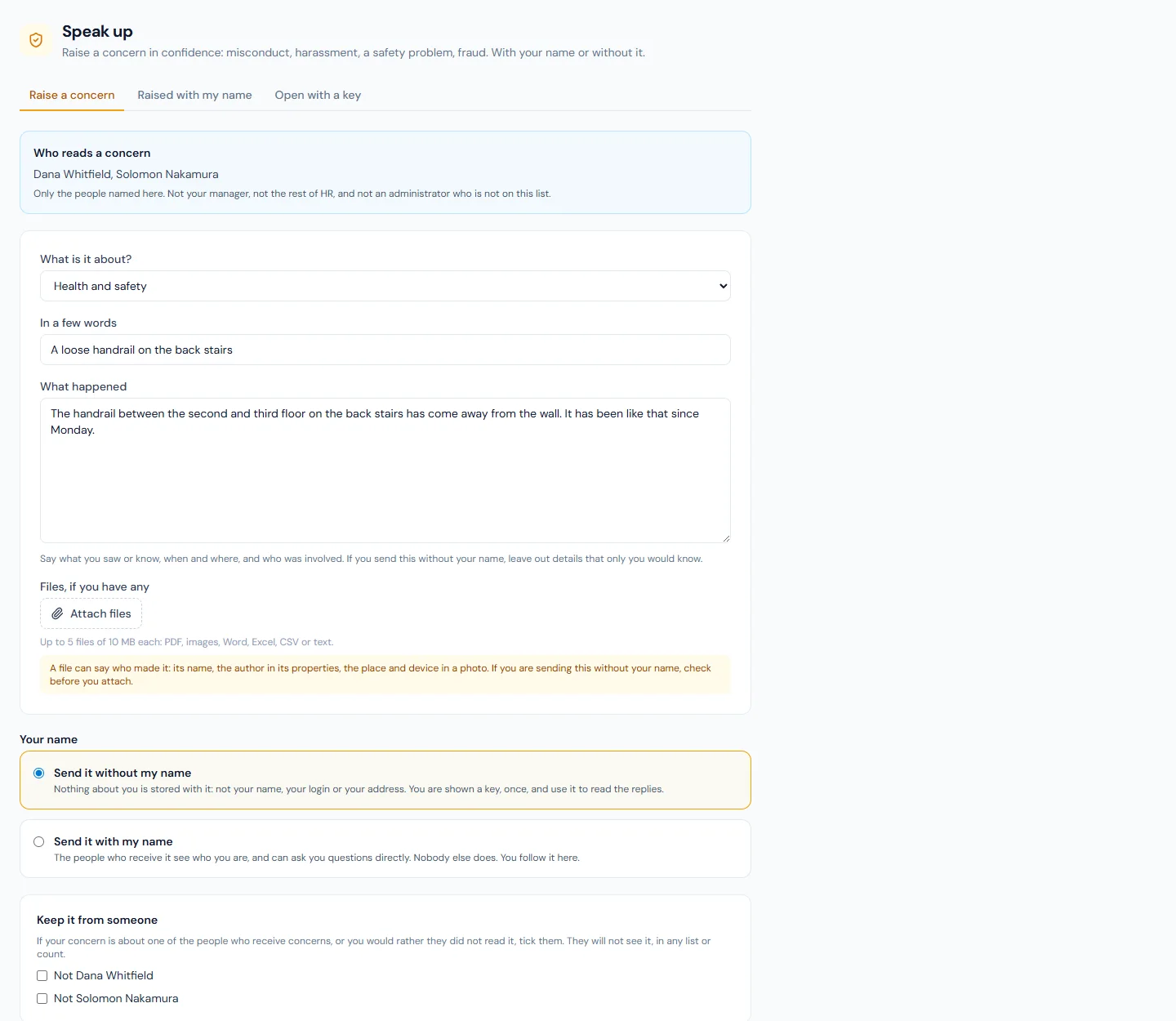
speakup.manage(Super Admin) and lets nobody read anything. The list is shown to everyone before they raise a concern, and when it changes everyone on it, before and after, is emailed. - With a name or without. Without one, nothing about the sender is stored; they are shown a key, once, and read the replies with it. Nobody keeps the key.
- Kept from a handler. The sender can keep a concern from a handler it may be about, never from all of them.
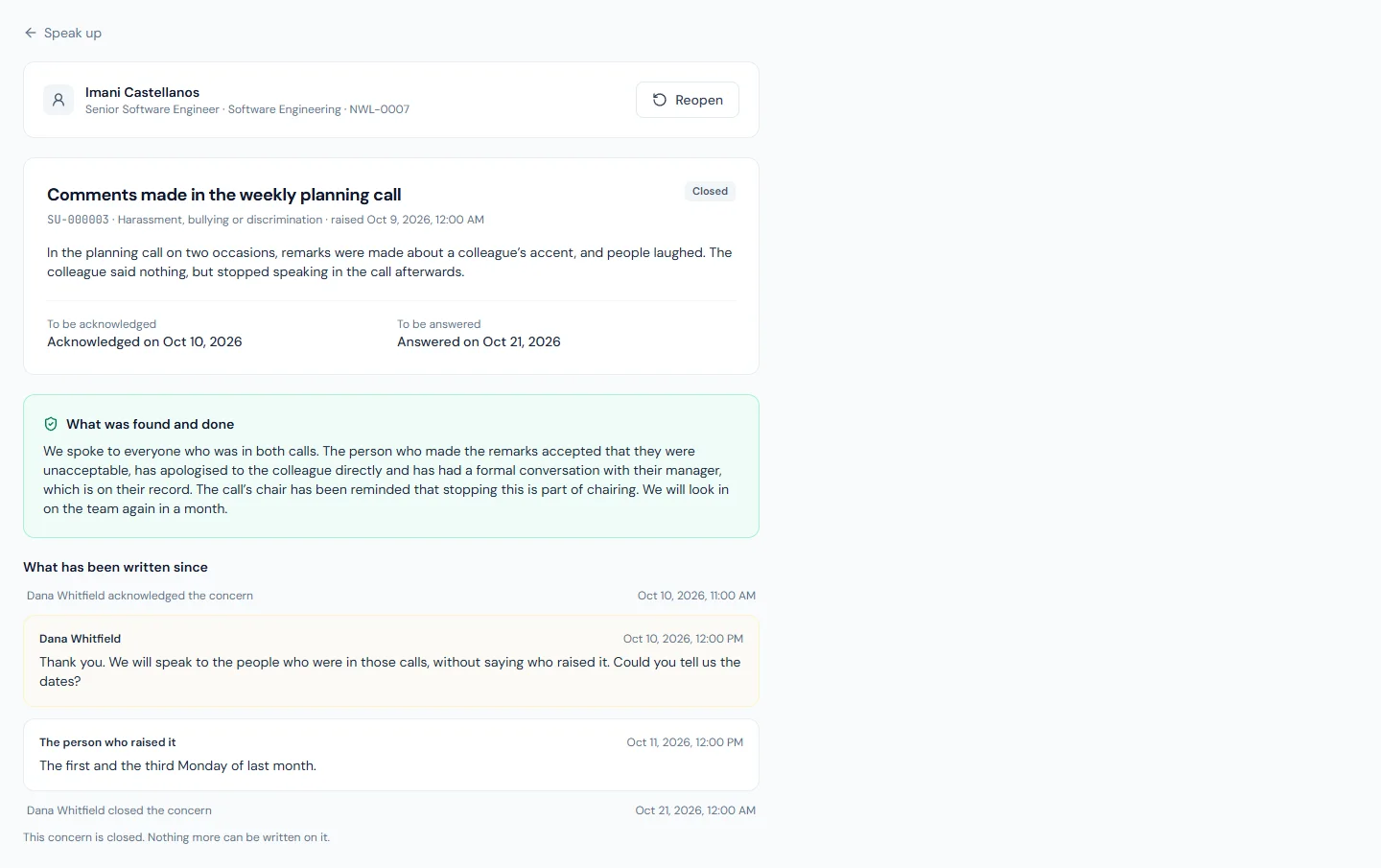
- Two dates: acknowledged within 7 days, answered within 3 months. The handlers are reminded once before each: two days before the first, two weeks before the second. A handler closes a concern with what was found and done, which is the answer the person is owed.
- Files: up to five with a concern, and with anything written on it afterwards. Nothing records who uploaded one, and the form warns that a file can itself say who made it.
- Nobody who raises a concern is emailed about it, named or not. Handlers are emailed that something is waiting, never what.
- A concern is never in the desk's lists or report, the search, the assistant, a chat channel, a webhook or the public API.
- Erasing a person removes their name from a concern they raised and leaves the concern: it is about someone else (Chapter 93).
What happens next
- Each step is emailed and shown in the bell: a new request to the team, a reply to the person, a reply from the person to whoever has the request (Appendix C).
- A resolved request closes after seven days unless the person reopens it. A reopened request gets a new deadline to resolve.
- A request that needs approval emails the people who can decide it; a refusal emails the person the reason.
- Erasing a person (Chapter 93) deletes their own requests with the conversation and the files. What they did at the desk for others stays, without their name.
What the employee sees
Company › Requests has three tabs: New request, with a card for each request type open to them; My requests, with a status beside each; and Closed. Opening one shows what they sent, the replies and the changes of status, and a box to reply. Reopen is there for seven days after a request is resolved, and Withdraw request while it is still being worked. A card for a type that is approved first says Needs approval; the request then shows Awaiting approval until someone decides, and the decision appears in its conversation. A resolved request asks for a rating.
Common mistakes
- Switching every starting type on unread. Each form asks your people something. Read it, and change the choices to what your company offers.
- One team for everything. A payroll query then reaches everyone who answers equipment requests. Put pay questions with the people who run payroll.
- Answering in an internal note. The person never sees a note. If they need to know, reply.
- Leaving a request Open while working on it. Nobody else can tell it is taken. Take it, or reply.
- Resolving without saying what was done. The person is emailed that it is resolved and opens it to find out how. Say so in the reply that resolves it.
- Using Priority to tell the person it is urgent. They do not see it. It orders the desk's own work.
- Editing a form to fix one request. A request keeps the form it was sent with. Ask the person in a reply.
- Building a leave or an expense form here. Those have their own pages, balances and approvals. A form on the desk reaches none of them.
- Asking for approval on everything. A question to HR then waits on a manager who has nothing to decide. Keep approval for requests that commit money or time.
- Setting a deadline the team cannot keep. A list that is always late tells nobody anything. Start from what the team does today.
- Leaving a request Open while waiting for the person. The time to resolve keeps running. Set Waiting on the person.
- Answering the same question by hand every week. Write the answer once as a knowledge base article and pin it to the request type.
- Approving a new bank account without looking at the pay run. A locked run that is not yet paid will pay into the new account if its bank file is made afterwards. The request tells you when there is one.
- Naming one person to receive concerns. A concern about that person then has nowhere to go. Name at least two.
- Trying to work out who raised a concern without a name. That is what the channel promises not to happen. Ask your questions in a reply.
Practice
Use your own trial workspace, not a customer's.
- Open Ask HR a question, read its form, and switch it on.
- Build a request type of your own with a One choice field and a second field shown for only one of its answers. Check the preview, then switch it on.
- Sign in as an employee and send both. Confirm the conditional field appears only for the answer you chose.
- As HR, take one request, write an internal note, then reply and set Waiting on the person. Sign in as the employee and confirm the note is not there.
- Reply as the employee and watch the status. Resolve the request, then reopen it as the employee.
- Switch approval on for one type and give it a deadline. Send it as an employee who has a manager, approve it as the manager, and find the deadlines on the request at the desk.
- Resolve it, rate it as the employee, and open Report.
- Publish a knowledge base article, pin it to a request type, and open that form as an employee. Type a few words from another article and watch it appear.
- Name two people to receive concerns. As an employee, raise one without a name, keep the key, and open it again with the key. As a super admin who is not named, confirm you cannot find it.
Quiz
1. A handler writes an internal note on a request. Who can read it?
The people who work that team's requests, and those who can read every team's. The person who sent the request never sees a note or a file attached to one, and nobody is emailed about it.
2. HR adds a field to a request type's form. What happens to requests already sent?
Nothing. Each request keeps the form it was sent with, so its answers still read as they did. The new field is asked for from the next request on.
3. A team has no members chosen. Who sees its requests?
Everyone whose role can work requests. Naming members narrows a team's requests to those people.
4. A request is marked Resolved. What can the person who sent it still do?
Reopen it for seven days, which puts it back with the team. After that it is closed and nothing more can be written on it; they send a new request.
5. A request type needs approval, and the person who sends it has no reporting manager. What happens?
With nobody able to approve it, the request goes straight to its team as Open, and its conversation says that nobody could approve it. It does not wait for ever.
6. A request with a deadline to resolve is set to Waiting on the person for three working days. What happens to the deadline?
The time to resolve stops while the request waits on the person, so the deadline moves on by the working days it waited. The first-reply deadline is not affected.
7. HR pins an article to a request type. The article is aimed at one department. Who sees it above the form?
Only the people who can read the article: those in that department. Everyone else opens the same form without it. The form never offers a person an article they could not open in the knowledge base.
8. A change to a person's bank account is returned from its request at the desk. What is on the employee's record?
What was there before. Returning writes nothing: the request ends as Not approved with the note, and the person corrects their profile and sends it again. Only approving writes the change.
9. A super admin wants to read the concerns raised through Speak up. What do they need?
To be named as a handler. No role or permission reads a concern, and
speakup.manage only chooses the handlers. If they name themselves,
everyone on the list, before and after, is emailed that it changed.
10. Someone raises a concern without a name and loses the key. What can be done?
Nothing. The key is shown once and kept nowhere, and nothing ties the concern to them, so nobody can give it back or email them the replies. The handlers still have the concern and can act on it.