Portal Home
Home is the first page your people see when they sign in to the portal (/portal, the Dashboard entry in their menu). You decide what is on it and in what order under Settings → Portal Home (/admin/settings/portal-home, needs company.settings).
Until you change something, Home shows what the portal dashboard has always shown, in the same order. Everything on this page is optional.
Sections
Home is a list of sections. On the settings page each has a switch and two arrows:
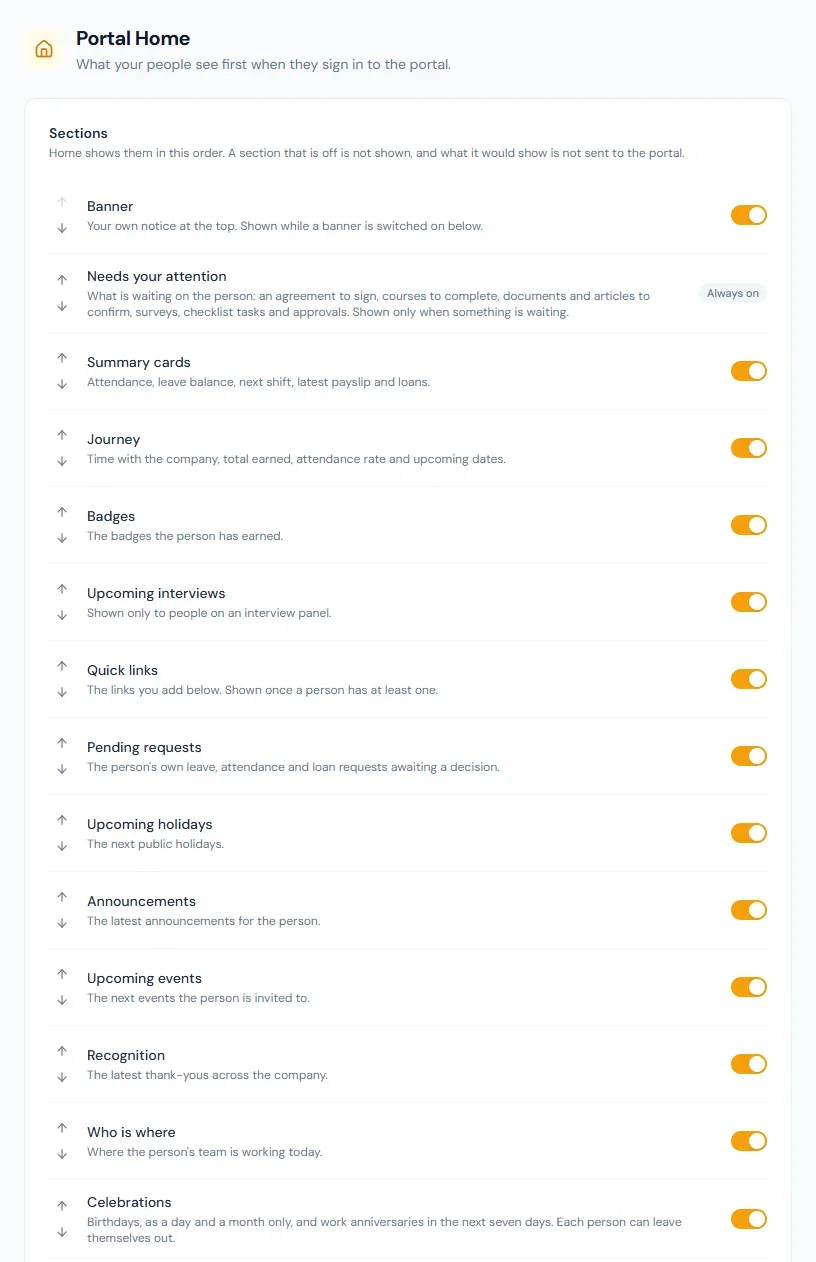
- The arrows move a section up or down. Home shows the sections in the order of the list.
- The switch turns a section off. A section that is off is not shown, and what it would show is not sent to the portal at all: with Celebrations off, no birthday leaves the server.
A change is saved as you make it.
| Section | What it shows | In a new workspace |
|---|---|---|
| Banner | Your own notice, while one is switched on (see below) | On |
| Needs your attention | What is waiting on the person (see below) | Always on |
| Summary cards | Attendance this month, leave balance, next shift, latest payslip, active loans | On |
| Journey | Time with the company, total earned, attendance rate, next payday and holiday | On |
| Badges | The badges the person has earned | On |
| Upcoming interviews | Their interviews, for people on an interview panel | On |
| Quick links | The links you add (see below) | On |
| Pending requests | Their own leave, attendance and loan requests awaiting a decision | On |
| Upcoming holidays | The next public holidays | On |
| Announcements | The five newest announcements meant for them | On |
| Upcoming events | The next three company events they are invited to, with their reply | On |
| Recognition | The latest three recognitions across the company | On |
| Who is where | Where their team is working today | On |
| Celebrations | Birthdays and work anniversaries in the next seven days | Off |
| New joiners | People who joined in the last 30 days | Off |
Sections that sit side by side as cards (Pending requests, Upcoming holidays, Announcements, Who is where, Celebrations, New joiners) share a row of three when they are next to each other in the list. A section with nothing to show for a person takes no space: the banner when none is live, quick links when the person has none, upcoming interviews for someone on no panel.
A section also follows the person's plan and permissions as it always has. The payslip and loans cards need payroll; Who is where needs work_locations.view; Upcoming events needs events.view; Recognition needs recognition.give and a plan with Performance.
Needs your attention
One list of what is waiting on the person. It appears only when something is, and it cannot be switched off, because it carries what people have to act on:
- an employment agreement to sign;
- an address to verify, with the days remaining;
- required documents that are missing;
- company documents to read and confirm;
- knowledge base articles to read and confirm;
- surveys waiting for answers;
- courses to complete, on a plan with Learning;
- checklist tasks assigned to them;
- requests waiting for their decision.
Each line opens the page that clears it. The numbers come from those pages' own lists, under the person's own permissions and plan, so Home never counts something the person could not open.
A must-read announcement is not on this list. It stops the person before they reach Home.
Banner
One notice for everyone, in plain text: a title, a message, and an optional link.
- Style: Information (blue), Good news (green) or Important (amber).
- Link address: a web address starting with
https://, or a page inside the app such as/portal/company-documents. Anything else is refused. - Show from / Show until: leave either empty to show the banner with no start or no end. The banner appears and disappears on its own at those times.
- Show the banner has to be on, and the banner needs a title or a message.
The preview under the form shows the banner as people will see it. Press Save banner to publish it.
For something people must confirm they have read, use a must-read announcement, not the banner. The banner records nothing.
Quick links
Links to the tools, forms and shared folders your people open often. A workspace can have up to 24.
Each link has a name, an address, an icon, and an audience:
- Who sees it: everyone, or chosen departments, branches, roles or named people. It is the same audience picker announcements, articles and library documents use.
- Open in a new tab: on for an outside site, usually off for a page inside the app.
- Show on Home: turn off to hide a link without deleting it.
The arrows set the order. A person sees only the links aimed at them, in that order. The address follows the same rule as the banner's link.
Celebrations and new joiners
Both are off until you switch them on, because they put people's dates in front of their colleagues.
Celebrations lists birthdays and work anniversaries from today through the next six days, by the workspace's own calendar.
- A birthday is shown as a day and a month. The year of birth, and so anyone's age, is never sent to the portal.
- A work anniversary shows the years of service.
- Someone born on 29 February is celebrated on the 28th in a year without one.
- Each person can leave themselves out. The card carries a Leave me out link, and Include me to come back. Someone who is out is not listed for either date.
New joiners lists the people who joined in the last 30 days, newest first, with their job title and department.
Both list people who are working here now (Active or On Leave). Where the people directory is open, a name opens that person's card.
Roles
Everyone with a portal reads Home. Arranging it needs company.settings, which Super Admin and HR Manager hold by default.