People directory
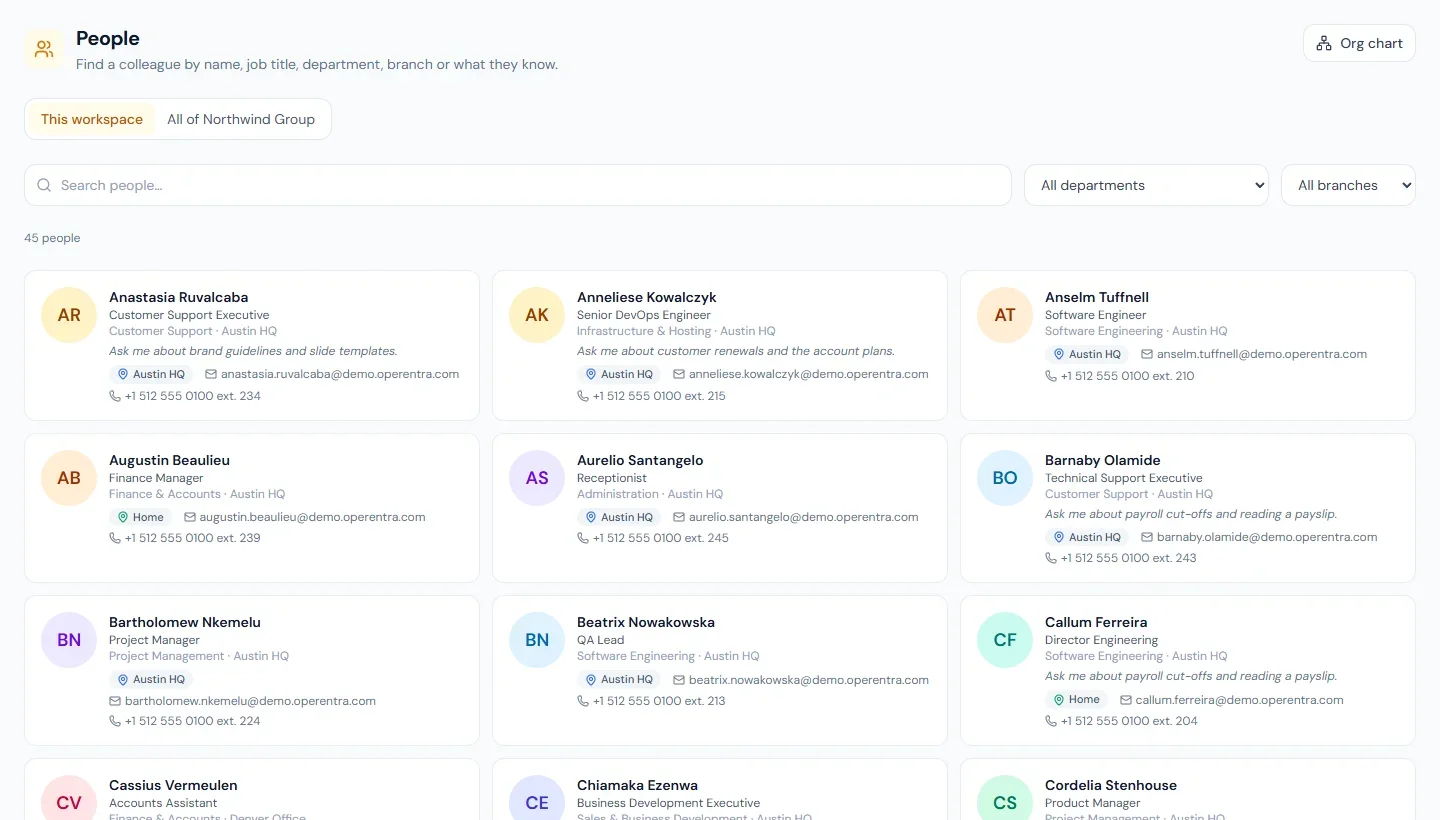
The people directory lets everyone in the workspace find a colleague, see how to reach them at work, and see where they sit in the organisation. It has three screens in the portal, all under Company → People:
- People (
/portal/directory): everyone working here now, searched by name, job title, department, branch, skill or the words in a person's own "About" line. - A person's card (
/portal/directory/<person>): contact details, the reporting line above them, their direct reports, their skills, and, where the plan includes recognition, how often they were recognised in the last 12 months. - Org chart (
/portal/org-chart): the whole reporting tree, with a department filter and a focus on any person.
Reading them needs directory.view, which every default role holds. You set what they show under Settings → People Directory (/admin/settings/directory, needs company.settings).
What is shown, and what never is
| Always shown | Name, photo, job title, department and branch. |
| Shown unless you switch it off | Work email; work phone and extension; where the person works today and whether they are away; skills; the "About" line. |
| Never shown | Personal email, personal phone numbers, identity numbers, date of birth, address, pay, and the reason for an absence. The directory does not read them. |
The directory lists people whose status is Active or On Leave. Someone suspended, not yet activated, or who has left is not listed.
The switches
Settings → People Directory has three parts, and a fourth in a workspace that is part of a group.
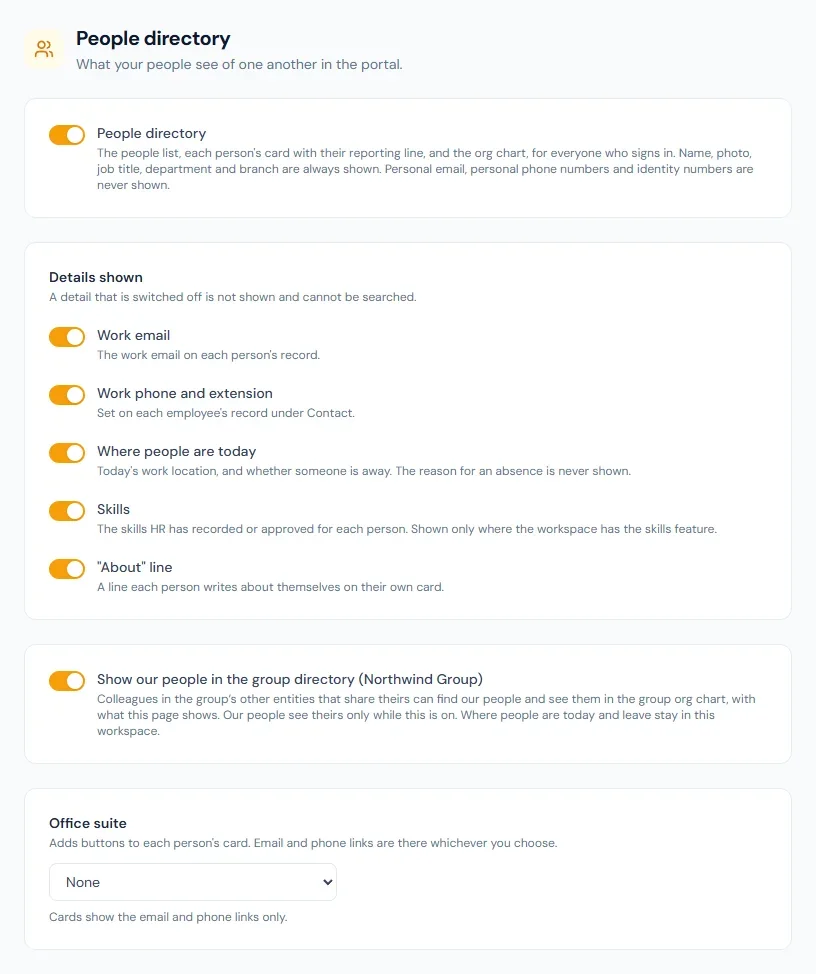
People directory. The main switch. It is on in every workspace. Switched off, the three portal screens say the directory is not open and the People entry leaves the portal menu.
Details shown. One switch each. A detail that is switched off is not shown, and it cannot be searched either: a hidden email address cannot be found by typing it.
| Switch | What it controls |
|---|---|
| Work email | The work email on the person's record. |
| Work phone and extension | The two fields under Contact on the employee form (below). |
| Where people are today | Today's work location and an Away label. Away means the person is on approved leave today or has a status of On Leave. The leave type and reason are not shown. |
| Skills | The skills HR has recorded or approved for the person, with their level. Shown only where the workspace has the skills feature. A person's own proposal does not appear until HR approves it. |
| "About" line | The line the person writes about themselves. |
Office suite. Adds buttons to each person's card. Email and phone links are there whichever you choose.
| Choice | Buttons added |
|---|---|
| None | Email and Call only. |
| Google Workspace | Schedule a meeting, which opens a Google Calendar event with the person as a guest. There is no Chat button: Google Chat has no link that opens a conversation with a person by their address. |
| Microsoft 365 | Chat in Teams, Call in Teams and Schedule a meeting, which open Microsoft Teams with the person. |
The buttons use the person's work email, so they appear only for people who have one and only while Work email is shown.
Show our people in the group directory. Only in a workspace that is part of a group, and off until you turn it on: joining a group shares only the workspace's name, country, currency and headcount. Turned on, people in the group's other workspaces that share theirs can find your people in the group directory and see them in the group org chart, with exactly what the switches above show. Where people are today and the Away label are never shown outside this workspace. It works both ways: your people see the group's other workspaces only while this is on.
Work phone and extension
Employees → (a person) → Edit → Contact has Work Phone and Extension. These are the numbers colleagues reach the person on at work: a desk line, a company mobile. They are separate from the personal phone number on the same form, which the directory never shows.
The "About" line
Each person writes their own, on their own card in the portal: Company → People, open your own card, Edit beside About. It is one or two lines of plain text, up to 280 characters ("Ask me about month-end close and expense claims"). Colleagues can search for the words in it. HR does not edit it from the admin side.
Reporting lines
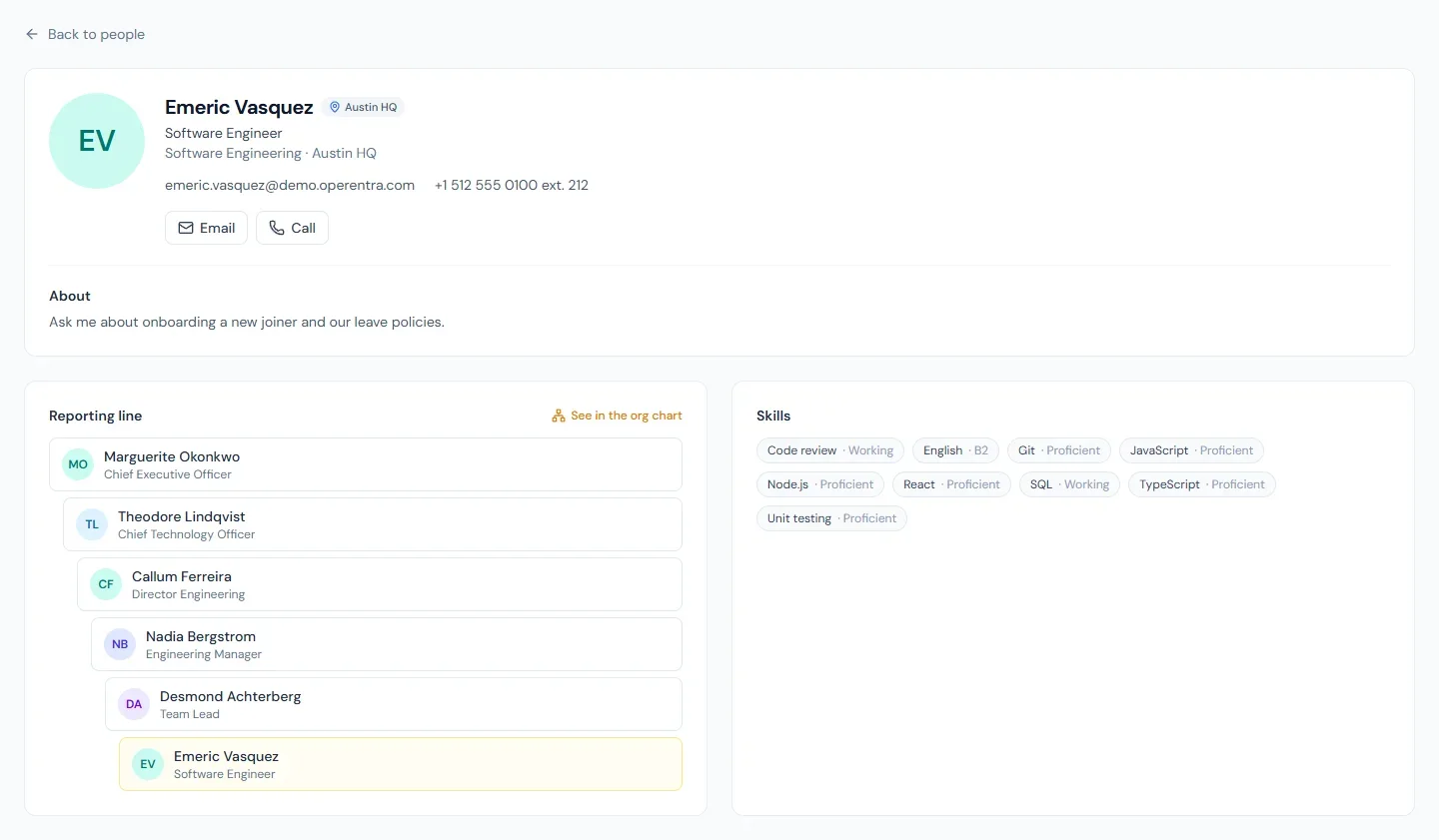
A card shows the line above the person, from the top of the company down to them, and their direct reports below. Both come from Reporting Manager on each employee record, the same field the admin org chart reads. A line stops where a manager is not in the directory (they have left, or are suspended).
Across the group
In a workspace whose people are shown in the group directory, Company → People and the org chart have a second view, All of (group name):
- The directory lists everyone in the group's sharing workspaces, each with their workspace and its country. It can be narrowed to one workspace or one country. The search covers what each workspace shows: a detail one workspace hides is neither shown nor searched there.
- A card shows the person's workspace, their line up and their direct reports. Recognition stays on cards in your own workspace.
- The group org chart draws every sharing workspace's tree. Where the group has placed a workspace's top under a person in another workspace (in the group console, Reporting between entities), the two trees are joined and the card is marked Another entity. This is for the chart only: approvals, leave and every other reporting rule stay inside each workspace.
Two org charts
| Admin org chart | Portal org chart | |
|---|---|---|
| Where | Employees → Org Chart (guide) | Company → People → Org chart |
| Who | employees.view_all sees everyone; employees.view_team sees their own line | Everyone with directory.view sees the whole workspace |
| A name leads to | The employee record (with employees.view_all) | The person's directory card |
| Export | PNG | None |
The assistant and the API
Where a workspace has the AI assistant, anyone with directory.view can ask it to find a colleague: "who can I ask about payroll cut-offs?", "who does Imani report to?". It reads the directory, so it answers with what the directory shows. A detail you have switched off is not given to it, and with the main switch off it says the directory is closed.
The public API returns work_phone, extension and about_me on each employee, and accepts the first two on create and update. The API reads the employee record, not the directory, so the switches on this page do not apply to it: what a key can read is decided by its scopes.
Roles
directory.view is granted to all six default roles. To keep a custom role out of the directory, leave the permission off that role. To close the directory for the whole workspace, use the main switch.