Loans & advances
The Loans module lets your workspace lend money to employees and recover it in fixed monthly installments that are deducted automatically during payroll. A loan moves through a simple lifecycle: an employee requests it from their portal, an admin approves it, and from then on each installment is collected inside the monthly pay run until the loan is fully paid.
Admin screens live under Loans & Advances in the sidebar (/admin/loans/...).
Employees see their own loans under My Loans in the portal (/portal/loans).
Menu items and buttons only appear if your role has the matching loan permission.
The five permissions are loans.configure (loan types), loans.apply (request a
loan), loans.view_all (see everyone's loans), loans.approve (approve/reject,
pause and resume), and loans.view_own (an employee's own loans in the portal).
Loan types
Every loan belongs to a loan type that sets the ground rules — the borrowing limit, how many installments are allowed, and any interest. You create these once and reuse them for all applications.
To manage them, go to Loans & Advances → Loan Types (/admin/loans/types) and
select Add Loan Type. Each type has:
| Field | What it controls |
|---|---|
| Name | Display name, e.g. "Personal Loan". Must be unique in your workspace. |
| Code | Short unique code, e.g. PL. Entered in uppercase. |
| Max Amount | The largest loan an employee may request of this type. |
| Max Installments | The most months the repayment can be spread over. |
| Interest Rate (%) | Flat interest applied to the whole loan. Leave at 0 for interest-free advances. |
| Max Active Loans | How many loans of this type one employee may have running at once. |
| Active | Turn a type on or off. Inactive types can't be selected for new requests. |
You can edit a type or deactivate it later. A type that still has pending or running loans against it cannot be deactivated until those are resolved.
For a salary advance, create an interest-free type (Interest Rate 0) with a low
Max Amount and a small Max Installments count — for example one or two months.
Who can request a loan
Loan applications are controlled per employee. On the employee record
(/admin/employees → open a person → Edit) there is a Loans & Advances
setting with two choices:
- Allowed to apply — the employee sees the Apply for Loan button in the portal.
- Not allowed to apply — the button is hidden and a short notice explains that loans aren't available for their account.
New employees are set to Allowed by default.
Requesting a loan (employee)
From My Loans (/portal/loans) an eligible employee selects Apply for Loan
and fills in:
- Loan Type — one of the active types, which shows its maximum amount.
- Amount — how much they want to borrow.
- Installments — how many months to spread repayment over.
- Start Month / Start Year — the first month a deduction should be taken.
- Purpose — optional free text.
The form shows an estimated monthly installment as they type. When they submit, the request is checked against the loan type's rules and is rejected with a clear message if any of these fail:
- The amount is above the type's Max Amount.
- The installments are above the type's Max Installments.
- The employee already has as many running loans of that type as Max Active Loans allows.
- The start month is in the past — deductions can only begin from the current month onward, because payroll collects an installment in the month it falls due.
A successful request is created with status Pending and a generated reference
number in the form LN-2026-00001.
How the schedule is built
On submission the system works out the full repayment plan up front:
- Total interest = amount × interest rate.
- Total payable = amount + total interest.
- Installment amount = total payable ÷ number of installments.
It then creates one installment row per month, starting from the chosen start month and rolling into the next year where needed. Each installment records its principal and interest portions; the final installment absorbs any rounding so the totals match exactly. All installments start as Upcoming.
Approving or rejecting (admin)
New requests wait in Loans & Advances → Pending Approvals
(/admin/loans/pending). Open one to reach the loan detail page
(/admin/loans/{id}), which shows the borrower, the amounts, and the full
installment schedule.
While a loan is Pending you can:
- Approve — confirm the loan. Its status becomes Active and the borrower is emailed a confirmation.
- Reject — decline the request, entering a reason (required). The status becomes Rejected and the borrower is emailed the reason. It also shows on the loan detail page and on the loan in the borrower's portal.
Only pending loans can be approved or rejected. You can't approve or reject your own loan while another approver can decide it; in a workspace with only one approver, that person can still decide their own.
Disbursement
Approving a loan sets it to Active, and from that point the full loan amount is treated as disbursed — it appears under "disbursed" in the loan reports and the outstanding balance starts at the total payable. The actual hand-over of money to the employee (bank transfer, cash, etc.) happens outside the app through your normal process; the system's job is to track the amount and recover it through payroll.
Repayment through payroll
Once a loan is Active, its installments are collected automatically each month as part of the regular pay run. There is no separate step — it happens while you process and lock payroll.
When you process a pay run, the payroll engine looks up every installment that:
- belongs to an Active loan for that employee,
- is due in the month and year being run, or earlier, and
- is still Upcoming or Due and not claimed by another pay run.
Their total is deducted on the employee's payslip as one Loan Repayment line, and each installment is claimed by that pay run. Re-processing an unlocked run releases the old claim and re-picks the installments, so the deduction stays correct if you reprocess.
When you lock the pay run, the claim is settled: the matched installments are marked Paid, and the parent loan's running totals move — paid installments and paid amount go up, and the outstanding balance comes down. When the last installment is paid the loan automatically flips to Completed.
Payroll catches up on installments that no pay run has claimed. If a loan is approved after payroll for its start month was processed, the start month's installment is deducted by the next pay run you process, along with that run's own installment.
An employee whose loan is not yet approved, or whose start month is still in the future, simply has no loan deduction that month.
Pausing and resuming a loan
To stop collecting a loan for a while, open the Active loan's detail page
(/admin/loans/{id}) and select Pause. While the loan is Paused:
- its Upcoming installments are marked Skipped, and payroll does not deduct them;
- an installment that a processed pay run has already claimed stays with that run: it is still deducted on that payslip and is marked Paid when the run is locked.
To start collecting again, open the Paused loan and select Resume. The loan becomes Active again and the rest of its schedule is rebuilt:
- An installment whose month passed while the loan was paused moves to the end of the schedule. A month has passed when it has ended in your workspace's time zone, or when payroll for it has already been processed. Moved installments follow the last remaining installment, one month each, with the same amounts, so the full balance is still recovered.
- Every other skipped installment goes back to Upcoming in its own month.
- Installment numbers are reassigned so they follow the due months.
For example, take a loan paused in May and resumed in July, with payroll for May and June already processed. Its May and June installments move to the two months after its last installment, and July's pay run deducts only July's installment.
If payroll for the current month was processed while the loan was paused, the current month's installment moves to the end too. To have it deducted this month, resume the loan before you process the month's payroll.
Both actions need the loans.approve permission. Neither sends an email; the
employee sees the new status and schedule under My Loans in the portal.
Tracking loans
- All Loans (
/admin/loans) lists every loan with the borrower, amount, installment, paid-vs-total progress, outstanding balance and status. You can search by name or loan number, filter by status, and Export CSV or Print the register. - Loan detail (
/admin/loans/{id}) shows the summary figures plus the full installment schedule, including which installments are paid and when. - Loan Reports (
/admin/loans/reports) totals the money still out — disbursed, recovered and outstanding across active loans — with a per-employee repayment progress table. - My Loans (
/portal/loans) gives the employee the same view of their own loans, with an expandable installment schedule and a repayment progress bar.
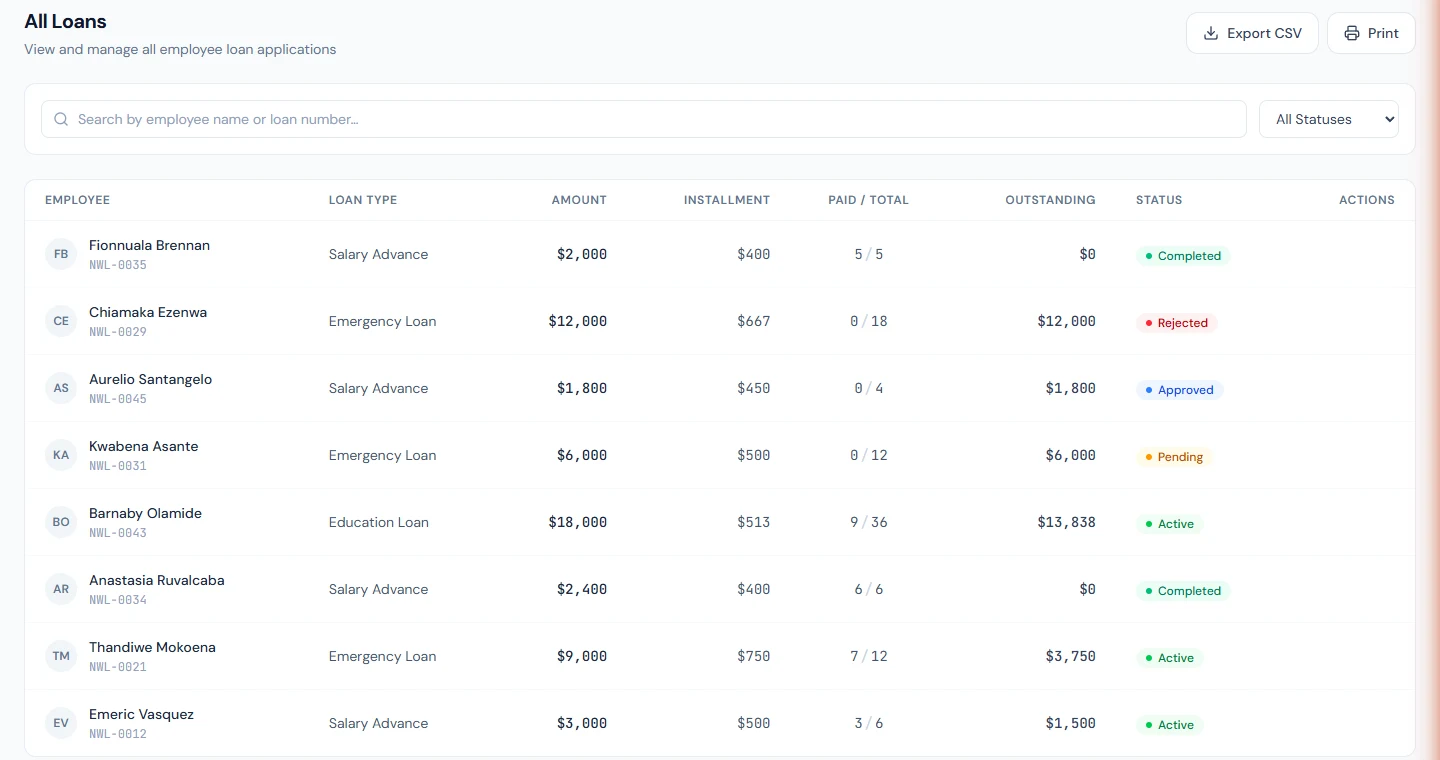
Loan statuses
| Status | Meaning |
|---|---|
| Pending | Requested, waiting for an admin to approve or reject. |
| Active | Approved; installments are being collected through payroll. |
| Completed | Every installment has been paid. |
| Rejected | The request was declined. |
| Paused | Collection is on hold; upcoming installments are skipped until the loan is resumed. |
Installments within a loan are shown as Upcoming, Due, Paid, or Skipped.
Because loan deductions flow through payroll, see the Payroll page for how a pay run is processed and locked.