Reports
The Reports area brings together read-only, exportable reports drawn from every part of your workspace — people, attendance, leave, payroll, tax, loans, and appraisals. Open it from the admin sidebar or go to:
/admin/reports
Every report is generated live from your current data, can be narrowed with filters, and can be downloaded as a CSV file. Reports are read-only: they never change any underlying record.
Reports require the Reports permission. If you don't see the Reports section, ask your workspace administrator to grant it to your role.
The Reports hub
The hub shows a card for each report category. Click View Reports on a card to open that category, then switch between its sub-reports using the tabs at the top of the page.
| Category | Opens at | What it covers |
|---|---|---|
| Employee Reports | /admin/reports/employees | Directory, headcount, demographics, joiners and leavers |
| Attendance Reports | /admin/reports/attendance | Monthly summaries, late arrivals, absences, overtime |
| Leave Reports | /admin/reports/leave | Utilization, balances, and applications |
| Payroll Reports | /admin/reports/payroll | Monthly and yearly payroll, component and bank breakdowns |
| Tax Reports | /admin/reports/tax | Monthly deductions, year-to-date, slab analysis |
| Loan Reports | /admin/reports/loans | Outstanding balances, schedules, defaulters, disbursements |
| Appraisal Reports | /admin/reports/appraisals | Ratings, cycle completion, increment recommendations |
The hub also shows an Audit Reports card. This one is a shortcut into the activity log
(/admin/audit/activity) rather than a report in this section.
What each category contains
Each category page groups related sub-reports under tabs. The sub-reports available today are:
Employee Reports
- Directory — full employee list, filterable by department, designation, branch, employment type, and status.
- Headcount — counts grouped by department, designation, branch, employment type, status, or gender.
- Demographics — a breakdown of the workforce by demographic attributes.
- New Hires — everyone who joined within a chosen date range.
- Anniversaries — upcoming work anniversaries within a horizon of days.
- Attrition — everyone who left within a chosen date range.
Attendance Reports
- Monthly Summary — per-employee attendance for a selected month and year.
- Late Arrivals — late entries over a date range.
- Absenteeism — absences over a date range.
- Overtime — overtime hours over a date range.
Leave Reports
- Utilization — leave taken across the fiscal year.
- Balances — allocated, used, and remaining leave per employee, broken out by leave type.
- Applications — leave applications submitted over a date range.
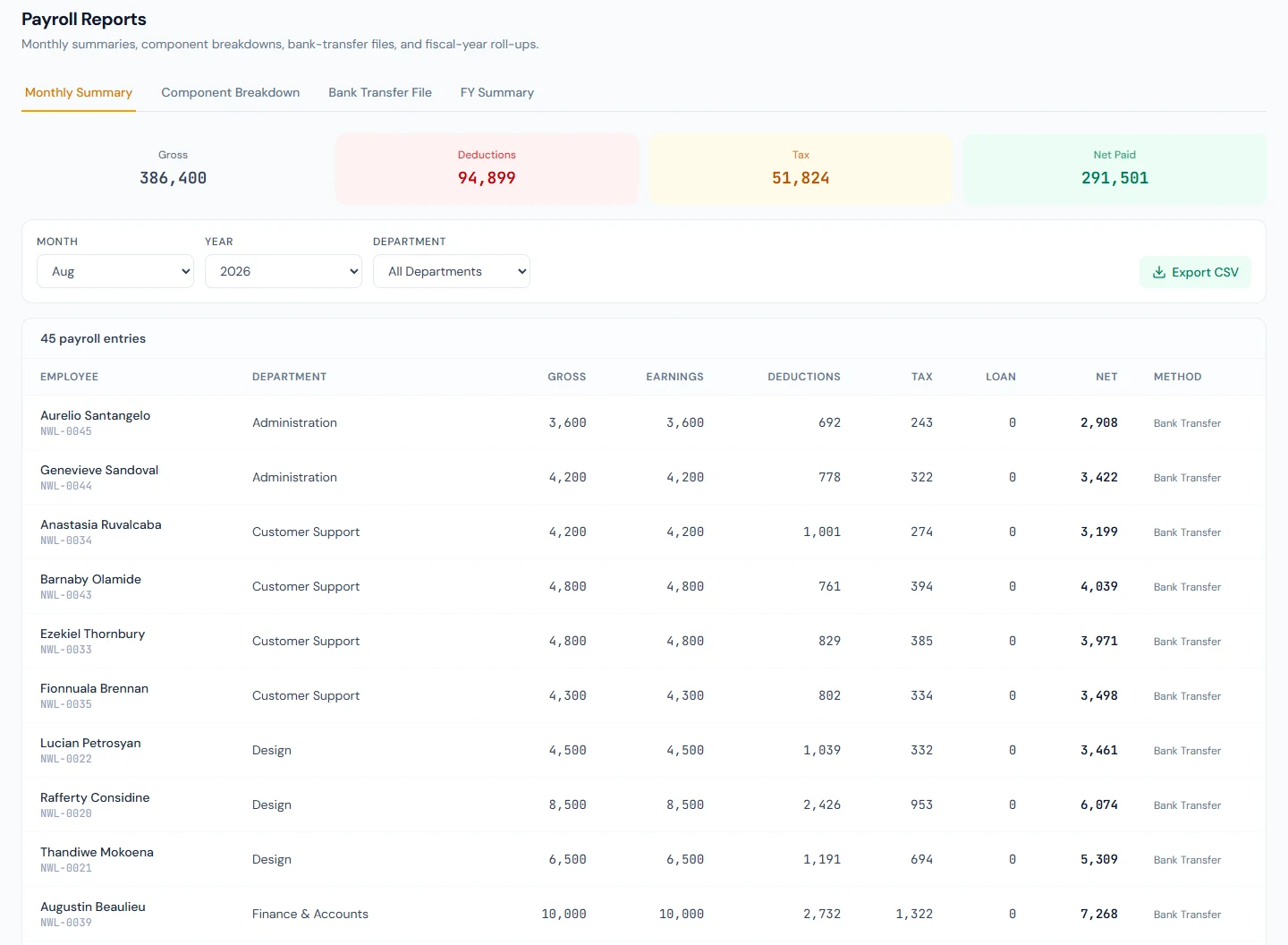
Payroll Reports
- Monthly Summary — payroll totals for a selected month and year.
- Component Breakdown — earnings and deductions split by salary component.
- Bank Transfer File — the per-employee amounts for a month's disbursement.
- FY Summary — payroll totals month by month across a fiscal year.
Tax Reports
- Monthly Deductions — income tax deducted in a selected month.
- YTD Summary — year-to-date tax per employee for a fiscal year.
- Slab Analysis — how employees distribute across tax slabs.
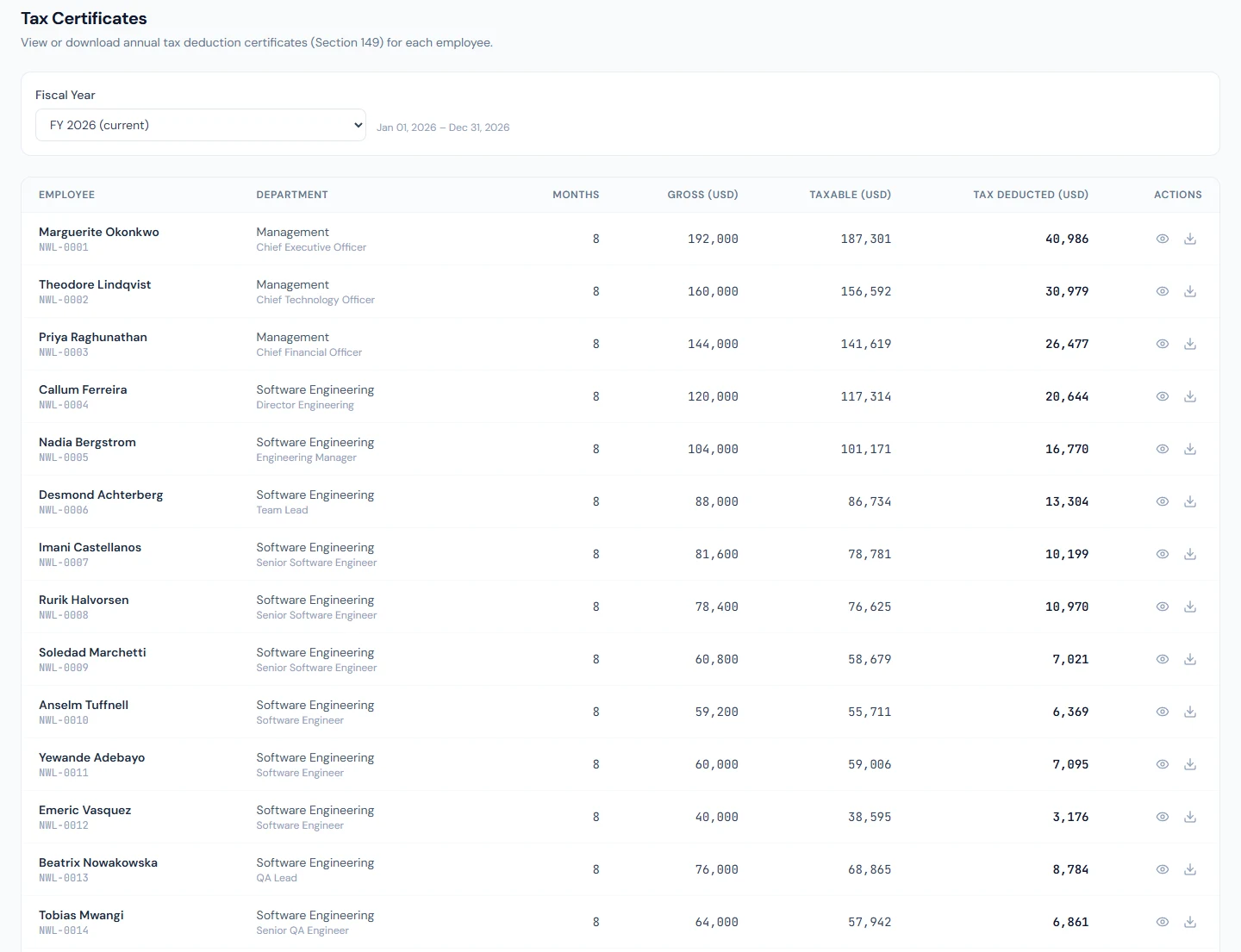
In the monthly and year-to-date reports, and on tax certificates, Gross is the pay earned, not the contracted salary: every earning line, bonuses and payroll additions, less the days docked for absence, unpaid leave and late arrivals. Expense claims reimbursed through payroll are left out; an untaxed addition entered under Adjustments counts as pay. The monthly payroll report's Gross column is still the contracted salary, shown beside Earnings.
This category applies only where your country levies personal income tax. In a
no-income-tax workspace (the UAE, Saudi Arabia, and countries without a statutory
pack), the Tax Reports entry is removed from the sidebar and from sidebar search;
the hub card, if opened, shows a Not applicable in <your country> panel instead of
empty tables; and the server refuses the CSV export for these three report types (404).
Nothing is misconfigured — every figure would be zero by definition.
Loan Reports
- Outstanding — current loan balances, filterable by status.
- Repayment Schedule — instalments due across a month range.
- Defaulters — loans with a missed instalment for a month and year.
- Disbursements — loans disbursed over a date range.
Appraisal Reports
- Ratings Distribution — how appraisal ratings are spread across a cycle.
- Cycle Completion — how far a review cycle has progressed.
- Increment Recommendations — recommended increments and promotions from a cycle.
Filtering a report
Each page shows a filter bar above the results. The controls vary by report but come from a common set:
- Month / Year — for reports scoped to a single payroll or attendance month.
- From / To dates — for range-based reports such as new hires, late arrivals, and applications.
- Department — narrow most reports to a single department, or leave it on All Departments.
- Fiscal Year — for leave, tax, and payroll-summary reports; defaults to the current fiscal year.
- Status / Group by — extra controls on specific reports (for example, headcount grouping or loan status).
Adjust the filters and the table updates in place. Empty results show a short "nothing to show" message rather than an error.
Exporting to CSV
Every report has an Export CSV button. Click it to download the currently filtered rows as a
.csv file — the download respects whatever filters you have applied. The file is named for the
report and, where relevant, its period (for example attendance-2026-07.csv or
leave-balances.csv).
Where a report lists the employee's identity number, the column is headed with your workspace's own document, such as Social Security Number in the US or Emirates ID in the UAE. The tax reports include an NTN column only in Pakistani workspaces, or when an employee has one on file.
CSV is the export format for these reports. To share a report in another format, open the CSV in a spreadsheet app and export from there.
Employee tax certificates (self-service)
Employees don't need to ask HR for a tax certificate — they can download their own from the employee portal at:
/portal/tax-certificates
The page lists one card per fiscal year in which the employee's salary has been processed. Each card shows:
- The fiscal year and its date range, with a CURRENT badge on the in-progress year.
- Summary tiles for Gross, Taxable, and Tax Deducted amounts.
- View — opens the certificate PDF in a new tab.
- Download — saves the certificate PDF (named after the fiscal year).
For an in-progress fiscal year the totals reflect year-to-date activity; once the year closes, the certificate is the employee's final record of income tax deducted at source. If an employee's user account isn't linked to an employee record, the page tells them to contact HR instead.
This portal page exists only in income-tax countries — where none is levied, employees never see a Tax Certificates entry in the portal, so don't point staff there in a UAE-type workspace.
Certificates appear automatically after an employee's first processed payroll — there is nothing for HR to publish per employee. Point staff to Tax Certificates in the portal whenever they ask for a salary-and-tax summary.