Performance & appraisals
Your workspace has two related tools for measuring how people are doing:
- Appraisals — structured, periodic reviews built on a weighted competency template. Employees self-assess, managers rate, and HR finalizes a signed record (with a verification QR) that can optionally feed a pay increase into payroll.
- Performance tracking — a continuous, evidence-based scoring engine. It turns assigned tasks, daily reports, attendance, and connected GitHub / WHMCS activity into a merit score, and can recommend merit-based pay increments for you to review.
Both live under the admin menu. Employees see their own side under My Performance and Appraisals in the portal.
Throughout, one rule holds for anything money- or AI-related: the AI only proposes — a person always approves. No pay change is ever applied automatically.
Part 1 — Appraisals
Set your review rules first
Open Admin → Appraisals → Settings (/admin/appraisals/settings). Here you choose:
| Setting | What it does |
|---|---|
| Default cadence | annual, half_yearly, quarterly, or custom — pre-selected when you create a cycle. |
| Rating scale max | The top of the rating scale (a number from 2 to 10, e.g. a 1–5 scale). Reviewers rate from 1 to this number. It cannot be lowered below a rating already given in an active cycle. |
| Point labels | Optional words for each point (e.g. 3 "Meets expectations"), shown to reviewers beside the rating buttons and under the rating chosen. |
| Self review | Whether employees rate themselves before the manager. |
| Manager review | Whether the assigned reviewer rates the employee. |
| Peer/360 review | Not available yet; the switch is disabled. |
| Auto-flow to payroll | Not available yet; the switch is disabled (see below). |
Build a competency template
Open Admin → Appraisals → Templates (/admin/appraisals/templates) and create a template. A template is a list of competencies, each with a weight, and the weights must add up to 100. For example: Quality of work 40, Communication 20, Ownership 20, Punctuality 20.
Once a template has been used by any cycle, you can still correct its name, description and the wording of its competencies, but you cannot add, remove or re-weight competencies: every cycle on that template, running or closed, reads them from it. Create a new template instead. Before a template is used, removing a competency in the editor removes it for good.
Run a cycle
A cycle is one round of appraisals for a period, pinned to a template.

- Open Admin → Appraisals → Cycles (
/admin/appraisals/cycles) and create a cycle: name, cadence, the period start/end dates, optional self- and manager-review due dates, and the template to use. - Use Roll out to generate one appraisal for every active employee. Each employee's reviewer is their reporting manager at that moment; to name someone else (an employee with no manager, a manager who has left, or one whose role cannot review), open the appraisal and use Change reviewer. An appraisal with no reviewer cannot be finalized.
- Rolling out activates the cycle and emails each new participant. Rolling out again later (for new hires) only adds and notifies the people who don't already have a row — no one gets pinged twice.
An appraisal moves through these stages:
pending → self_in_progress → self_done → manager_in_progress → manager_done → finalized
If self-review is turned off, it starts at the manager stage and no cycle-started email is sent; if manager review is off, a submitted self-review jumps straight to manager_done. At least one of the two must stay on.
- Employee self-review — the employee opens Portal → Appraisals (
/portal/appraisals), rates each competency against the scale, adds comments, and submits. Drafts can be saved; submitting needs a rating on every competency, and a submitted self-review is final. - Manager review — the reviewer sees the appraisal in Reviews in the portal (roles with Review Team Appraisals), rates each competency, and submits. The reviewer can start before the self-review is in; submitting the manager review closes the self-review. HR is notified.
Finalize the record
When an appraisal reaches manager_done, an HR admin opens it (/admin/appraisals/:id) and finalizes it. On finalize the system:
- Computes the final rating as the weight-weighted average of the manager's competency ratings (of the self-review's, when manager review is off).
- Lets you add final comments and, optionally, a recommended increment (a percentage or a fixed amount) and a promotion recommendation.
- Produces a finalized PDF stamped with a verification QR code. Anyone can scan it to confirm the document is genuine and untampered on the public verification page.
- Emails the employee with the PDF attached.
A finalized appraisal is locked — its reviews can no longer be edited. Close cycle locks the whole cycle for good; the confirmation counts any appraisals not yet finalized, which can no longer be finished once it is closed.
From recommendation to raise
A recommended increment is a record on the appraisal, the PDF and the appraisal reports; it does not change pay. To grant it, record the raise under Payroll → Increments (or apply an Increment Recommendation, below), which updates the salary from its effective date. Auto-flow to payroll is not available yet.
Appraisal emails
The cycle sends four automated emails, all editable in your email templates: cycle started, self-review submitted (to the reviewer), manager review submitted (to HR), and appraisal finalized (to the employee, with the PDF).
Part 2 — Performance tracking
The performance engine builds a merit score from real evidence rather than a single yearly form. It is designed so the score is hard to game and easy to explain.
How the score works
Every scored event writes a line to a merit evidence ledger. Each employee's score for a date range blends two things:
- Quality — of the points available, how many were actually earned (a ratio, so it isn't inflated by doing more).
- Volume — how much was earned versus what the role is expected to produce in that period.
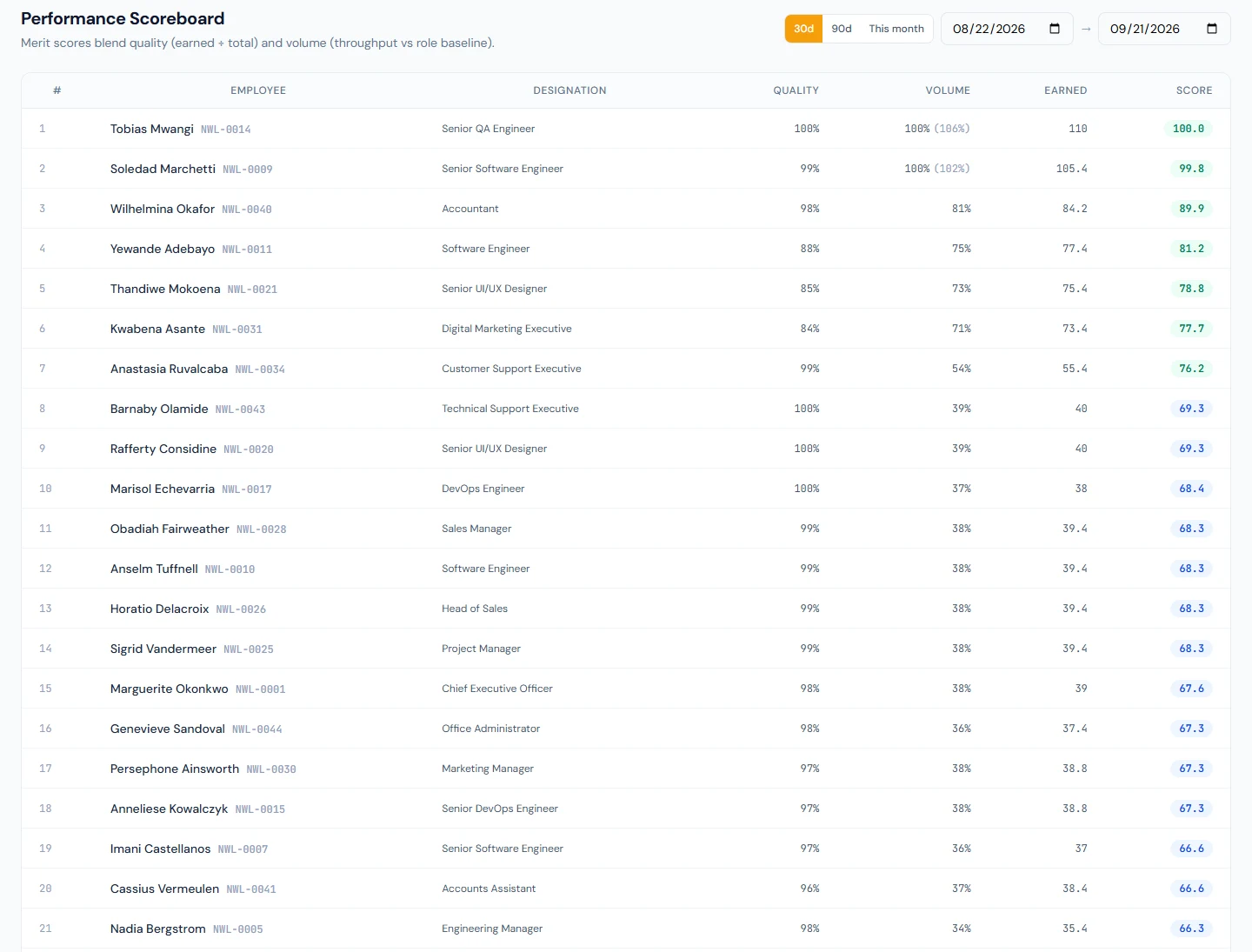
Quality and volume are combined into a single composite score from 0 to 100, using the quality/volume weighting you set in performance settings.
Scorecard profiles
Open Admin → Performance → Scorecard profiles (/admin/performance/profiles). A profile decides, for a group of people, how much each evidence source counts and how much output is "expected." For example:
sourceWeights: { tasks: 0.6, daily_report: 0.1, attendance: 0.3 }
expectedMonthlyPoints: 100
Assign a profile to a designation or to an individual employee, and mark one profile as the default that applies when nothing more specific matches.
Connected integrations count by default. While the GitHub or WHMCS integration is connected and active, any profile that does not mention that source scores it at a default weight of 0.4, so a newly connected integration starts counting without editing every profile. The profiles page shows the weights actually applied. To keep a source out of a profile, set its weight to 0 explicitly: a saved value is always respected.
Tasks
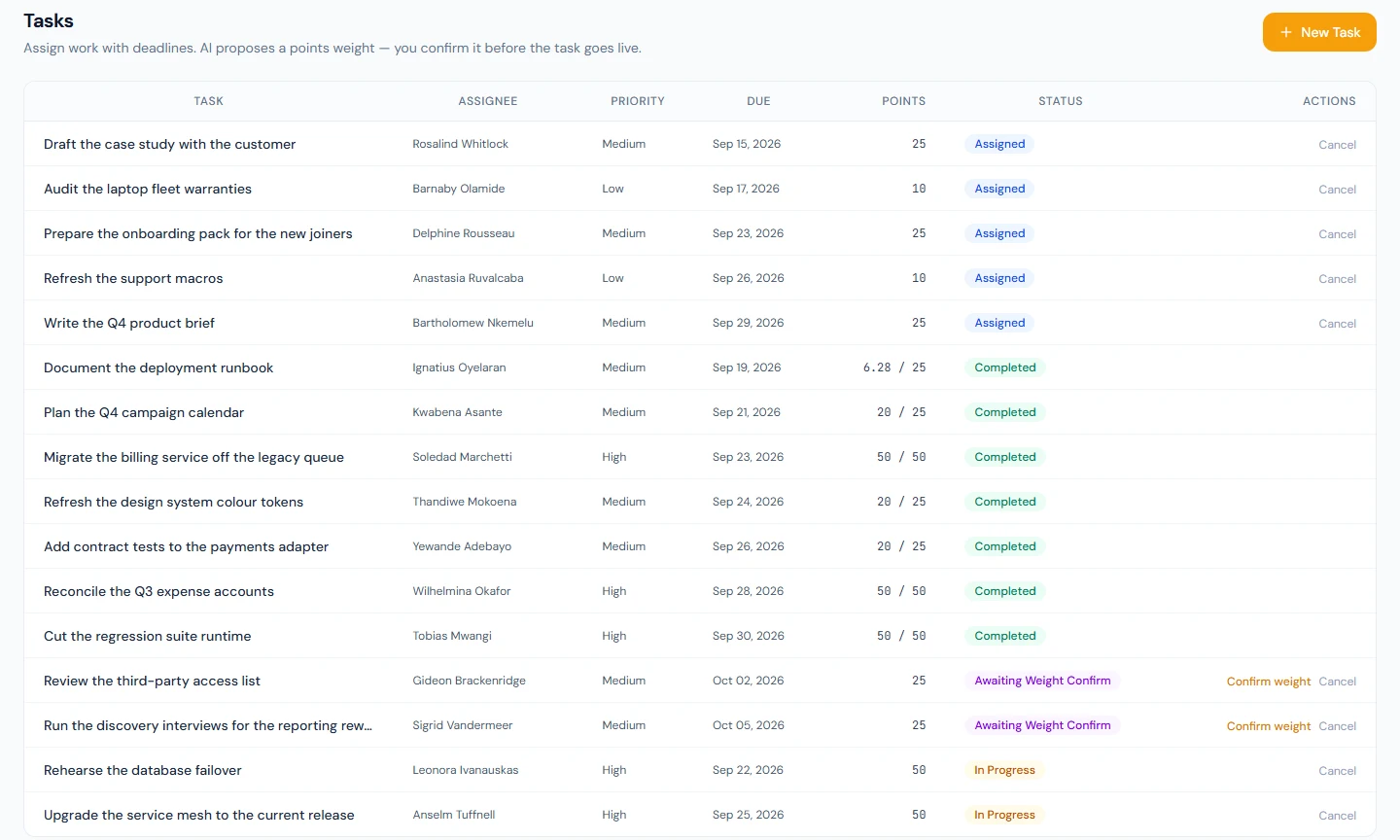
Open Admin → Performance → Tasks (/admin/performance/tasks). Managers assign work here, and completed work becomes evidence:
- Create a task with a title, assignee, due date, and priority.
- The AI proposes a difficulty weight (points). The manager confirms or edits it, which activates the task.
- The employee starts the task and marks it complete with a note (Portal → My Tasks).
- The manager grades quality 1–5. The AI turns that grade plus the completion note into a quality factor, and the earned points are recorded — quality × timeliness, with a bonus multiplier only for genuine off-day work.
The board opens on Open tasks: everything not yet completed, overdue or cancelled. They are listed by what needs a manager: tasks Submitted — Needs Grading first, then tasks Awaiting Weight Confirm, then assigned tasks, then tasks in progress, each group by due date, soonest first. The status filter shows one status at a time, or All tasks, where completed, overdue and cancelled tasks follow the open ones in that order, most recent first. The count beside the filter is the number of tasks it shows.
Employees work their tasks in Portal → My Tasks, which lists their own work first: tasks in progress, then assigned tasks, then tasks waiting for the manager's grade, each group by due date, soonest first. It also opens on their open tasks; All adds the finished ones after them, most recent first.
The AI may only nudge the manager's rating by a small, hard-bounded amount (±0.15 of the rating-out-of-5). A terse completion note can never tank a well-rated task — many strong performers simply don't write prose. Timeliness is also floored at zero: finishing very late can earn nothing, but never subtracts points, so completing a task always beats abandoning it.
Recurring tasks (/admin/performance/recurring-tasks) are schedules — daily, weekly, or monthly — that automatically create the same task for a group. These are self-graded at full quality when completed on time; missing one records a negative signal. An occurrence is created only for active employees on their working days: none on their weekly off, a company holiday or a day of approved full-day leave.
Because a schedule can target any employee, creating or editing one requires performance.manage or performance.view_all alongside performance.review. A team-scoped reviewer (see Who can do what) manages one-off tasks for their direct reports only, and the Recurring Tasks page is hidden from them.
Daily reports
Daily reports are off in a new workspace; turn them on in performance settings when you want them. Once on, employees file a short daily report. Submitting one earns the submitted-report value from settings, scaled by an AI quality verdict; a missed report on a working day records the missed-report penalty. A report is due one hour after the employee's shift ends (for a shift ending at 23:00 or later, just after midnight, for the day before). No report is owed on weekly-off days, holidays, or days of approved full-day leave, or by exempt employees and designations. All day boundaries — what counts as "today," the missed-report sweep, and the activity suggestions — follow the company's time zone, not the server's.
How the AI verdict works. The reviewer reads the report itself first, and treats tracked activity only as supporting evidence. It knows the employee's role, whether they have linked GitHub / WHMCS identities, and whether your company assigns performance tasks at all — so it never punishes people for work the system simply doesn't track. The four verdicts:
| Verdict | Meaning | Points effect |
|---|---|---|
ok | Says concretely what was worked on. It does not need to be long, and it does not need attached evidence — most legitimate work (meetings, ops, sales, admin) leaves no trace in the tracked systems. | Full value |
low_effort | So vague a manager can't tell what was done ("worked all day"). Judged on information content, not length. | Half value |
duplicate | Near-verbatim copy of the previous report. A genuinely repetitive job producing similar-shaped reports is not a duplicate. | Reduced |
mismatch | Requires a positive contradiction: the employee has a linked identity, claims specific tracked work (e.g. "merged 3 PRs"), and the tracking disproves it. Absence of evidence is never a mismatch. | Lowest |
A report the AI never graded (AI off or unavailable at submit time) is stored with no verdict — it earns full value and is never presented as an AI-cleared ok.
Anyone with performance.manage can override a verdict from the Daily Reports page: pick the correct verdict on the report card and confirm. The employee's points are corrected through an appended ledger entry, the card shows an Overridden badge, and the AI's original verdict is kept for audit.
Submission rules. A report needs at least 20 characters of content. It can be filed for today or backfilled up to 7 days: the portal lists the missed days still inside that window, and writing one reverses that day's penalty. Future dates are rejected, and once submitted, a day's report is locked.
You read submitted reports and their verdicts under Admin → Performance → Daily reports (/admin/performance/daily-reports). The reader is built for working through a period, not skimming a dump:
- Filters sit in their own card above the list: a From/To date range (defaults to roughly the last two weeks) with quick presets — 7/14/30 days, This month, and Last month — plus an employee picker covering the full active roster, a department filter, a status filter (submitted / missed), and a verdict filter. A Clear button appears whenever any of the non-date filters are set.
- The verdict filter's options are All verdicts, Any flagged, OK, Low effort, Duplicate, and Mismatch. Any flagged is a shortcut for any submitted report the AI did not clear — reports still awaiting a verdict are not counted as flagged.
- Summary chips above the results show the range's total plus flagged and missed counts. Those two counts deliberately cover the whole filtered range regardless of the status or verdict filter you've drilled into, so they stay meaningful while you inspect a single verdict — and each chip is clickable and applies the matching filter.
- Results are paginated: 50 rows per page by default, selectable between 25 / 50 / 100 / 200 (200 is also the server-side cap). Changing any filter resets you to page 1.
GitHub & WHMCS evidence
When your workspace connects the GitHub and WHMCS integrations, work done there feeds the same ledger automatically:
-
GitHub — merged pull requests, code reviews (including AI-graded review quality on opted-in repos), and issues worked or closed.
-
WHMCS — support-ticket replies, graded on the replying agent's own messages. Two things are scored, and they measure different things:
- the first reply on a ticket, against your WHMCS first-response SLA, so speed counts;
- each agent's replies per day, per ticket, worth the WHMCS reply credit from settings and scaled by the AI quality grade. Tickets that pass between people are ordinary support work, so everyone who worked one is scored — not only whoever happened to answer first. The first responder's own first day is covered by their first-reply row and is not counted twice.
A day's replies are graded once that day has ended in your company's time zone, so an agent who comes back to a ticket after lunch is judged on the whole day rather than on however much of it existed when the hourly poll last ran. Set the reply credit to 0 to score first responses only.
This activity corroborates daily reports (so genuine work with a brief note still reads as ok) and adds to the merit evidence used for scoring and increment recommendations. Connecting the integrations, linking logins to employees, triaging AI-flagged reviews, and the WHMCS time-zone setting are covered in Integrations for performance.
Weekly sales report
For sales staff (matched by a department named like "sales"), the engine collects a mandatory, numbers-only weekly report — no prose, just the metrics you define. Configure the metrics, deadline weekday, and hour in performance settings; the default deadline is Friday 6 PM in the company's time zone. Submissions are read under Admin → Performance → Sales reports (/admin/performance/sales-reports). This report does not affect the merit score.
Missed weeks are marked by an hourly sweep that always targets the newest week whose deadline has passed — so a brief outage during the deadline window can't cause a week to be skipped. The pre-deadline reminder is only sent to people whose week has no submission yet.
The scoreboard
Admin → Performance → Scoreboard (/admin/performance/scoreboard) ranks everyone's composite score for a date range (defaulting to the trailing 30 days — the same window the employee sees on their own portal page, so both sides always read the same number). Click into an employee (/admin/performance/employees/:employeeId) to see the source-by-source breakdown behind their number. The scoreboard requires performance.view_all.
Merit-increment recommendations (AI proposes, you approve)
Open Admin → Performance → Increment recommendations (/admin/performance/increment-recommendations). This is the pay side of the engine:
- Generate — for a chosen window (about six months by default), the engine gathers each eligible employee's evidence and composite score. People with under three months' tenure are skipped as too new to judge fairly.
- The AI proposes a band (
none,small,standard, orstrong) and a percentage, with a written rationale citing the evidence. If AI scoring is off or unavailable, a transparent rule-based fallback produces the recommendation instead — recommendations are labelled with whether AI or the rule generated them. - You review each one and either Apply or Dismiss it. Applying routes through the normal payroll increment path — the same one used for any manual raise — so a person with the payroll salary-assignment permission is the one who commits it. Nothing is applied on its own.
The AI never changes anyone's pay. It only drafts a recommendation for a human to accept, edit the percentage of, or throw away.
AI and the operator's key
The AI used for weighting tasks, grading quality, checking daily reports, grading GitHub reviews and WHMCS replies, and drafting increment recommendations runs on the platform operator's AI provider and key ("operator pays"). Your workspace controls the master AI scoring enabled switch, found in Admin → Performance → Settings under the AI section.
When the switch is off, no AI is used anywhere in performance scoring: daily reports go ungraded (full value, no verdict), task weights fall back to priority defaults, and GitHub / WHMCS work is scored on metadata and speed only. No report, review, or ticket text leaves the system. The same is true whenever no key is configured — every AI step has a deterministic fallback, and the module never depends on AI being available.
Performance settings
Admin → Performance → Settings (/admin/performance/settings) collects the tuning knobs: the review SLA hours (GitHub), the WHMCS first-response SLA hours and the WHMCS reply credit, the missed-report penalty and the separate submitted-report value (what a filed report is worth before its verdict — kept independent so softening the penalty doesn't erase the reward), the recurring-task miss penalty, task reminder offsets, the off-day multiplier, the quality/volume weighting, the daily-report toggle and extra recipient, the AI-scoring switch, and the full weekly-sales-report configuration.
Who can do what
| Area | Permission |
|---|---|
| Manage appraisal templates, cycles, and finalize | appraisals.manage |
| Change appraisal settings | appraisals.configure |
| Submit a manager review | appraisals.review |
| View / submit your own appraisal | appraisals.view_own |
| Manage performance settings, profiles, recommendations; override report verdicts; triage flagged reviews, void scores, and link integration identities | performance.manage |
| See the scoreboard and all reports | performance.view_all |
Assign and grade tasks — team-scoped: on its own, this reaches only your direct reports' tasks (with performance.manage or view_all it becomes company-wide) | performance.review |
| Manage recurring task schedules | performance.review plus performance.manage or performance.view_all |
| Apply an increment recommendation | payroll.salary_assign |
| Your own tasks, score, and reports | performance.view_own |
What employees see
An employee uses these portal pages:
- Portal → My Tasks (
/portal/my-tasks): start and complete assigned tasks. - Portal → Daily Report (
/portal/daily-report): file the daily report, with suggested GitHub / WHMCS items to attach. - Portal → Sales Report (
/portal/sales-report): submit the weekly sales numbers. It appears only for sales staff while the weekly sales report is turned on. - Portal → My Performance (
/portal/my-performance): their own composite score and breakdown. - Portal → My Appraisals (
/portal/appraisals): complete self-reviews. Managers work their review queue in Portal → Reviews (/portal/reviews).