Leave management
The leave module lets your workspace define what kinds of leave employees can take, how much they get, who is eligible, and how requests are reviewed. Everything lives under Leave in the admin sidebar (routes begin with /admin/leave). Employees apply and check balances from their portal.
How leave fits together
Leave is built up in layers. Set them up in this order the first time:
| Layer | What it does | Where |
|---|---|---|
| Leave type | A named kind of leave (Annual, Casual, Sick…). | /admin/leave/types |
| Leave policy | The rules for one type — quota, eligibility, carry-forward, sandwich rules, effective dates. | /admin/leave/policies |
| Leave group | A bundle of policies attached to a shift or employee, so different staff get different entitlements. | /admin/leave/groups |
| Allocation | Writes each employee's yearly balance for the fiscal year. | /admin/leave/allocations |
| Balance | The running total an employee can draw from. | /admin/leave/balances |
Your workspace already ships with a starter set of leave types and policies, so you can review and adjust rather than build from scratch.
Leave types
A leave type is the label employees see when they apply. To add one, open Leave Types and select Add Leave Type.
| Field | Notes |
|---|---|
| Name | Shown to employees. Must be unique in your workspace. |
| Code | A short tag (up to 10 characters, e.g. AL, SL). Also unique. |
| Color | Used on the calendar and balance chips. |
| Paid | Whether the leave is paid. Unpaid types (like leave without pay) are still tracked. |
| Pay | Shown when Paid is on. The share of a normal day's pay each day of this leave is paid at, from 1 to 100%. The default is 100 (full pay); enter 50 for half-pay leave. |
Deleting a type deactivates it rather than erasing history. You cannot deactivate a type that still has pending applications — resolve those first.
Leave at reduced pay
When a paid type's Pay is under 100%, payroll withholds the rest of each day of that leave:
- A day of 50% leave is paid as half a day. Four days of it in a month withhold two days' pay.
- A half-day application withholds half as much: half a day of 50% leave withholds a quarter of a day's pay.
- If the type's policy counts weekends and holidays (a sandwich rule), the rest days inside the leave are paid at the same share.
- The withheld pay is part of the Unpaid Leave Deduction, not an absence, and the payroll run's breakdown counts it under Unpaid Leaves: four days at 50% count as 2.
- A day inside the leave on which attendance shows the employee at work, not on leave, is paid in full.
- A payroll run with Skip attendance deductions pays the leave in full, as it does unpaid leave.
- Leave encashment and final settlement do not use it: they pay out a balance at the policy's encashment rate (see Encashment).
Employment contracts list the type in their leave table with its share in the Pay column ("50%"); a full-pay type shows "Paid". The Leave Types and Leave Balances pages show the share next to the type too.
Where your country's starter set pays a tier of sick or maternity leave at a reduced rate, that tier is its own leave type with Pay already set, for example "Sick Leave (Half Pay)" at 50%. Each tier keeps its own balance.
If you have been posting the unpaid share of reduced-pay leave as a payroll adjustment, stop once the type's Pay is set. Payroll now withholds it, and the adjustment would dock the employee twice.
Leave policies
Each type needs a policy to be usable. From Leave Types, use the settings action on a type (or open Leave Policies and pick the type) to reach the policy editor at /admin/leave/policies/{leaveTypeId}.
A type has one active policy at a time, versioned by its effective dates. Saving updates the current active policy; setting an Effective To date lets you retire an old policy and start a new one later.
Accrual mode
- Annual Quota — the standard mode. The full yearly quota is credited when leave is allocated.
- Cyclic Accrual — credits a fixed number of leave days for every block of worked days (for example, 1 day of rest for every 20 worked). Used for residential or rotational staff. When you choose this, set Worked Days per Cycle, Leave Days Credited, and an optional Max Accumulated cap. A daily job counts the previous day's qualifying worked days shortly after 01:00 in your workspace's time zone, once that day's attendance is marked, and tops up the balance automatically.
Policy settings
| Setting | What it controls |
|---|---|
| Annual Quota (days) | Days granted per fiscal year (for annual-quota mode). |
| Max Consecutive Days | The longest single stretch an employee can request. |
| Carry Forward | Whether unused days roll into the next year, and the Max Carry Forward Days cap. |
| Encashment | Whether leftover days can be cashed out, the Encashment Basis, and the rate (see Encashment). |
| Negative Balance | Whether employees may go below zero, and by how many days. |
| Applicable Gender | Restrict a type to all, male, or female employees. |
| Min Service Months | Hold the type until an employee reaches a tenure. |
| Employment Types | Restrict a type to the employment types you tick, at allocation and when employees apply. None ticked means every employment type. |
| Pro-rata for New Joiners | Scale the quota down for staff who joined mid-year. |
| Requires Document After (days) | Force an attachment when a request exceeds this length (0 = never). |
| Accrual Method | How the quota becomes available: Annual releases it all at once; Monthly releases it gradually (one-twelfth per completed month of service). Quarterly is also selectable. |
Sandwich rules
Sandwich rules make non-working days (weekends, week-offs, public holidays) count against leave in some cases:
- Between — off-days that fall between two leave days count as leave (e.g. a Friday + Monday request consumes the weekend too).
- Adjacent — off-days immediately next to a leave day count as leave. The Adjacent Scope picks Immediate (one day per side) or All (chains through every connected off-day and adjacent holiday).
Without any sandwich rule, requests only consume actual working days — weekends and holidays inside the range are skipped automatically.
Leave groups
Not every employee gets every policy. A leave group bundles the policies that apply to a category of staff (office staff, drivers, residential workers…), and that bundle is what an employee actually draws from.
On Leave Groups, create a group, then tick the policies it contains. Groups are grouped by accrual mode (Annual Quota vs Cyclic Accrual) to make selection clearer.
How a group reaches an employee, in order of priority:
- Direct assignment — a group set on the employee record.
- Shift default — the default leave group on the employee's active shift.
- Company default — the group flagged Default group, used as a workspace-wide fallback.
An employee is only allocated (and can only apply for) policies that belong to their single resolved group. A group that is still assigned to employees or shifts cannot be deleted — reassign them first.
Allocating leave
Allocation writes each employee's starting balance for a fiscal year. Open Allocations, pick the fiscal year, and select Allocate for All Employees.
What allocation does:
- Grants each eligible employee the quota from every annual-quota policy in their leave group.
- Applies pro-rata for anyone who joined mid-year (when the policy allows it).
- Carries forward last year's leftover balance, capped by the policy's carry-forward limit.
- Skips employees who fail a policy's gender, tenure, or employment-type conditions.
- Never duplicates an allocation that already exists for the selected year.
You can also allocate a single employee via the API, but the page handles the common "run it for everyone" case.
When your fiscal year rolls over automatically (see Company Setup → Fiscal Years), the new year's allocation — including carry-forward from the year that just closed — runs the same night. A daily job also fills any current fiscal year that has no allocations yet, and catches up at platform start, so allocation self-heals regardless of when your year starts. The manual Allocate for All Employees button remains for immediate reruns.
Balances
Leave Balances shows what each employee has left. Search for the employee and pick the fiscal year (the current year is selected to start with). The balance for a type is:
balance = accrued + carried forward − used − encashed
- Accrued is the amount available so far. For annual accrual that equals the full allocation; for monthly accrual it grows month by month.
- Used rises when a request is approved; encashed rises when days are cashed out.
- For a type that accrues monthly or quarterly, the card shows Accrued so far with the year's allocation beside it ("15 of 20 this year") in place of Allocated, so the figures on the card add up to the balance.
Employees see their own balances in the portal; admins with view access see everyone's.
Applications and approvals
Applying
Employees apply from the portal (/portal/leaves/apply). A request captures the leave type, from/to dates, an optional half-day, a reason, and an optional attachment. When submitted, the system checks that:
- the type is active and the dates fall inside the current fiscal year;
- the employee meets the policy's gender, tenure, employment-type, and leave-group conditions;
- the range contains working days, and does not exceed the max consecutive limit;
- there is enough balance (unless the policy permits a negative balance within its limit);
- the dates don't overlap an existing pending or approved request;
- an attachment is present if the length triggers the document requirement.
The number of days is calculated from working days in the range, adjusted for any sandwich rule.
Reviewing
New requests arrive as Pending. The employee's reporting manager is emailed. If the employee has no reporting manager (or theirs has left or has no email address), the email goes instead to the users who can approve leave for everyone: those holding both Approve Leave and View All Leaves, usually HR and admins. Any reviewer with the approve permission can act on the queue at Pending Approvals (/admin/leave/pending):
- Approve — marks the request approved, deducts the days from the balance, and marks those dates as on leave on the attendance record. The employee is emailed.
- Reject — requires a reason, which is emailed to the employee.
You can't approve or reject your own leave while another approver can decide it. In a workspace with only one approver, that person can still decide their own.
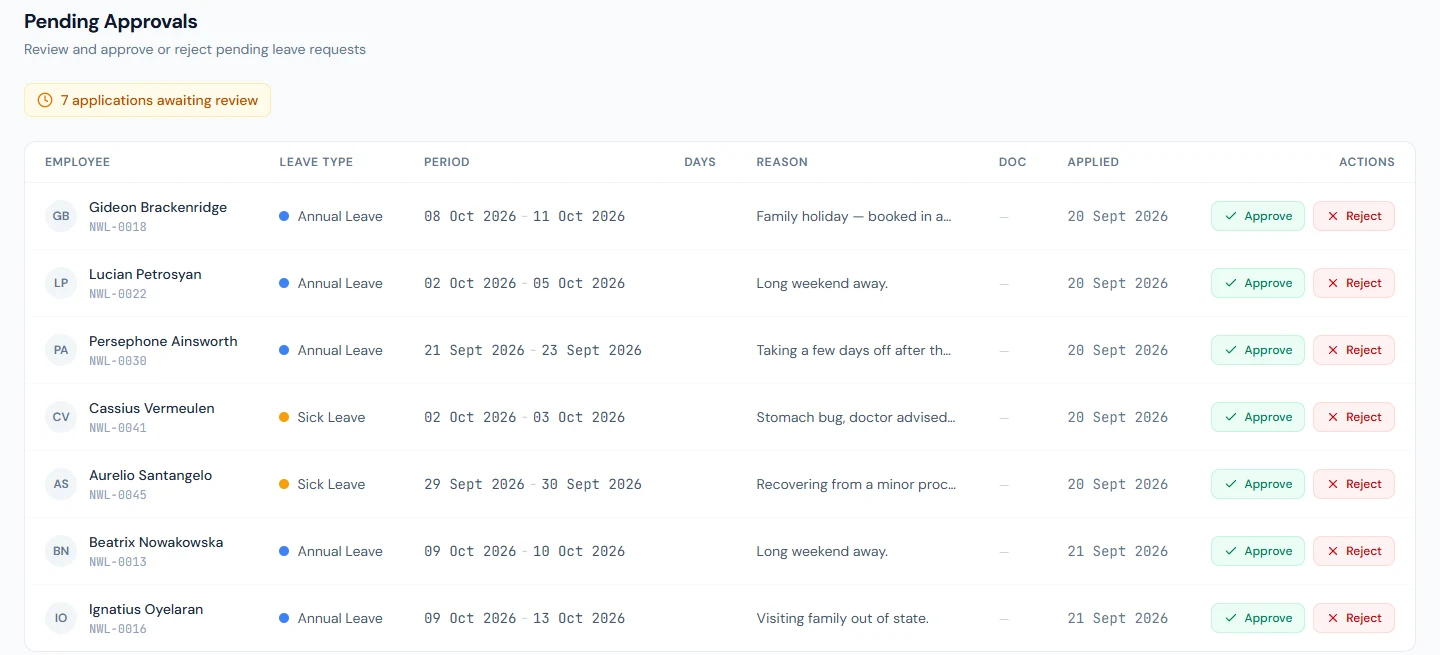
What the queue holds depends on the reviewer. Someone who also has View All Leaves (HR and admins) sees every pending request in the workspace. Someone who can approve but not view all leaves (the Department Head role, for example) sees, approves and rejects only the requests of the employees who report to them.
Managers can also watch their own team's requests through the team view, and Leave Applications (/admin/leave/applications) lists every request with status filters, search, CSV export, and a printable register.
Cancelling
An employee can cancel a request that is still pending, or an approved request whose start date is still in the future. Cancelling an approved leave restores the balance and clears the attendance marks; the employee is notified.
Leave calendar
Leave Calendar (/admin/leave/calendar) shows approved leave across the whole workspace on a month grid. Each employee-on-leave appears as a colored dot (using the leave type's color) on the days they're away — a quick way to spot coverage gaps before approving more requests.
Encashment
If a policy allows encashment, unused days can be paid out. The policy's Encashment Basis says how a day is priced:
- Days of basic pay: the rate is a multiple of the employee's daily basic pay, which is their monthly basic ÷ 30. A rate of 1 pays one day's basic for each encashed day, and 1.5 pays a day and a half. Each employee is paid at their own salary. The monthly basic is the one payroll pays: what the salary structure's Basic component gives on the employee's gross, from the salary in force (today on this page, the last working day in a final settlement). Editing the structure changes it, as it changes the next payroll run.
- Fixed amount per day: the rate is an amount in your workspace currency, the same for every employee.
payout = days × the per-day figure
Open Encashment (/admin/leave/encashment) and choose an employee. Only leave types whose policy allows encashment appear, with the balance, the per-day figure and the total. The balance is the one Leave Balances shows: for a type that accrues monthly or quarterly, only the days accrued so far can be encashed. Select Process Encashment on a type to cash out its whole balance; the encashed days are deducted from the balance.
Process Encashment records the encashment and shows the amount. It does not add the amount to a payroll run: pay it through a payroll adjustment.
A type cannot be processed, and says why, when its policy has no rate, or when it is priced in days of basic pay and the employee's salary structure gives no basic pay (it has no Basic component).
Who can do what
Access to leave features is governed by permissions (see /docs/workspace/access-control):
| Permission | Grants |
|---|---|
leave.view_own | See your own balances, applications, and team requests. |
leave.view_all | View all applications, balances, the calendar, and groups. |
leave.apply | Apply for and cancel your own leave. |
leave.approve | Review the pending queue and approve or reject requests. |
leave.configure | Manage types, policies, groups, allocations, and encashment. |
Email notifications
The module sends automatic emails at each step — a request notice to the manager, and approval, rejection, or cancellation notices to the employee. You can review and customize the wording under your workspace's email templates.