Payroll
Payroll is where your workspace turns each employee's salary into a monthly pay run: it calculates gross pay, applies attendance-based proration, deducts tax and other statutory amounts, produces salary slips, and records how each person was paid.
All screens below live under Payroll in the admin sidebar (/admin/payroll/...).
The exact deductions and tax math follow your workspace's country pack — for
example, a US workspace withholds federal income tax from the year's brackets, while
workspaces set to a Gulf country such as the UAE have no income tax. You never pick
these formulas by hand;
they come from the country set on your company profile.
Menu items and buttons only appear if your role has the matching payroll permission (view, process, approve, lock, manage, configure). If a page is missing, ask an admin to grant the permission.
The big picture
A typical month runs in this order:
- Set up components and structures (one-time, then occasional edits).
- Assign a salary to each employee.
- Add any increments, bonuses or adjustments for the month.
- Process the payroll run for the month.
- Review → Approve → Lock the run — approval runs automatic pre-flight checks and is refused while any blocking problem remains.
- Mark as paid (disburse) and optionally generate the bank file.
- Send salary slips; employees acknowledge them in their portal.
1. Salary components
Screen: /admin/payroll/components
A component is a single line that can appear on a pay slip — Basic, Housing Allowance, Provident Fund, Income Tax, Social Security, and so on. Click Add Component and fill in:
| Field | What it does |
|---|---|
| Name / Code | Label shown on slips; the short code (e.g. BASIC, TAX) is how the payroll engine recognises statutory lines |
| Type | Earning, Deduction, or Employer contribution |
| Calculation | Fixed, % of Basic, % of Gross, or Computed by payroll — the last is for lines the engine works out from your country's rules (income tax, social-security contributions); formulas are not evaluated |
| Taxable | Whether the amount is included in taxable income, with an optional exempt portion (a share of basic or a flat cap) |
| Mandatory | Shown as mandatory on the structures that include the component |
The component with the code TAX is special: income tax is only deducted from an
employee whose salary structure includes a TAX component. A structure built
without it is treated as fully tax-exempt.
2. Salary structures
Screen: /admin/payroll/structures
A structure is a reusable template that bundles several components together (for example "Standard Employee"). Click Add Structure, give it a name, then add components one by one. For each row you set the calculation type and a value (or a formula) and whether it is mandatory. Click a structure to see its full component breakdown.
3. Assign salaries to employees
Screen: /admin/payroll/salaries
Click Assign Salary and choose the employee, the structure, the gross salary, and the effective-from date. This becomes the basis for every future pay run.
To give someone a different template later, use Change Structure on their row — it creates a new assignment from the effective date you pick, so history is preserved.
4. Increments, bonuses and adjustments
These optional items feed into the pay run for their month.
- Increments —
/admin/payroll/incrementsA permanent salary change going forward (types: annual, promotion, performance, adjustment). Enter the employee, the new salary and the effective date. To lower a salary, use Process Decrement on the same page. Enter the reduced salary and a reason. If the email trigger and letter template are active, the employee gets a salary revision email and a decrement letter instead of the increment ones. The change shows in red in the list. - Bonuses —
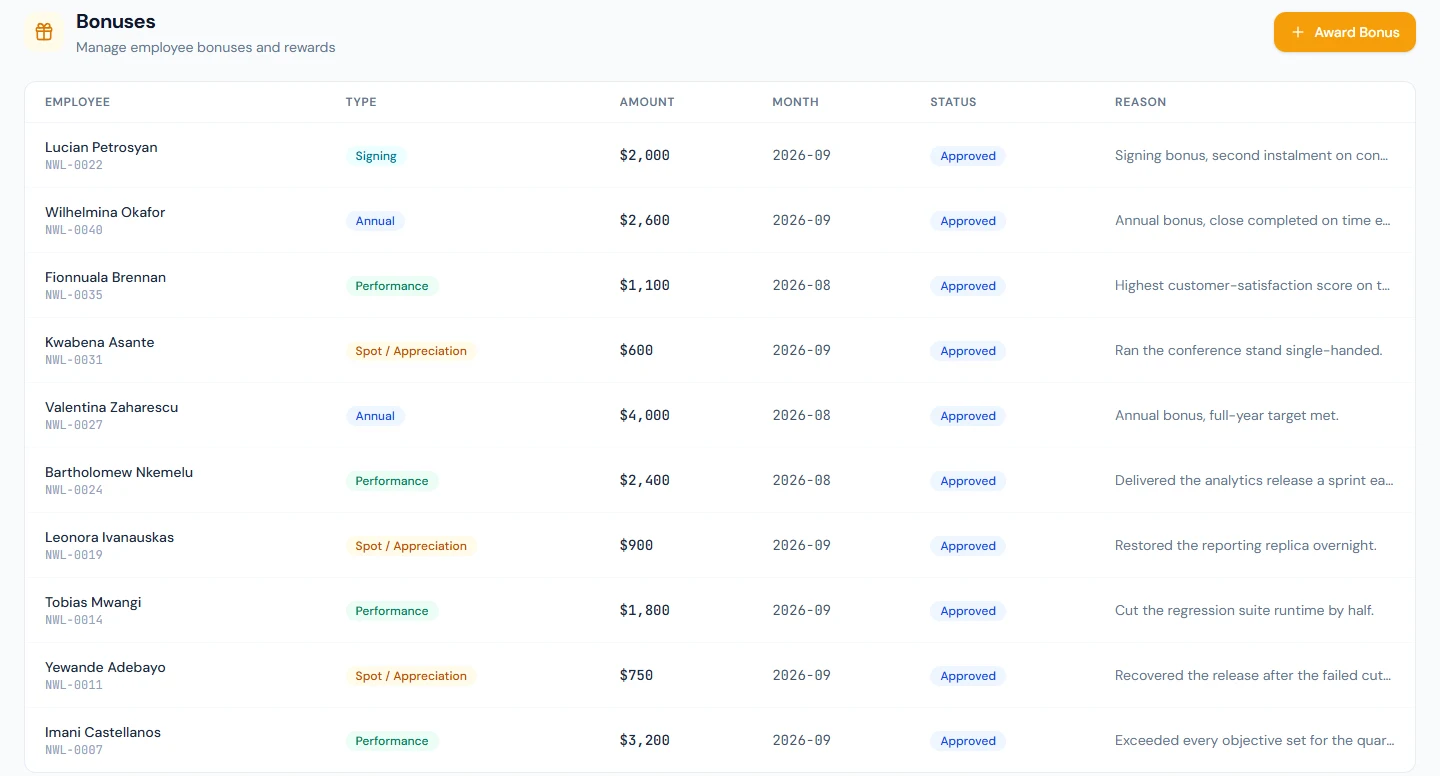
/admin/payroll/bonusesA one-time payment for a chosen month (performance, festival, annual, signing, spot, or custom). A bonus is recorded as approved and the employee is emailed; it becomes paid when its month's run is locked, and can be edited or cancelled until then. In US, UK and Canadian workspaces a bonus is taxed as pay: the month's payroll takes income tax and contributions (FICA, National Insurance, CPP and EI) from it, as it does from salary. Elsewhere a bonus is paid on top of net pay, with no income tax or social security taken from it; to tax a payment as pay there, enter it as an adjustment with Tax applicable on. The Bonuses page says which applies to your workspace. - Adjustments —
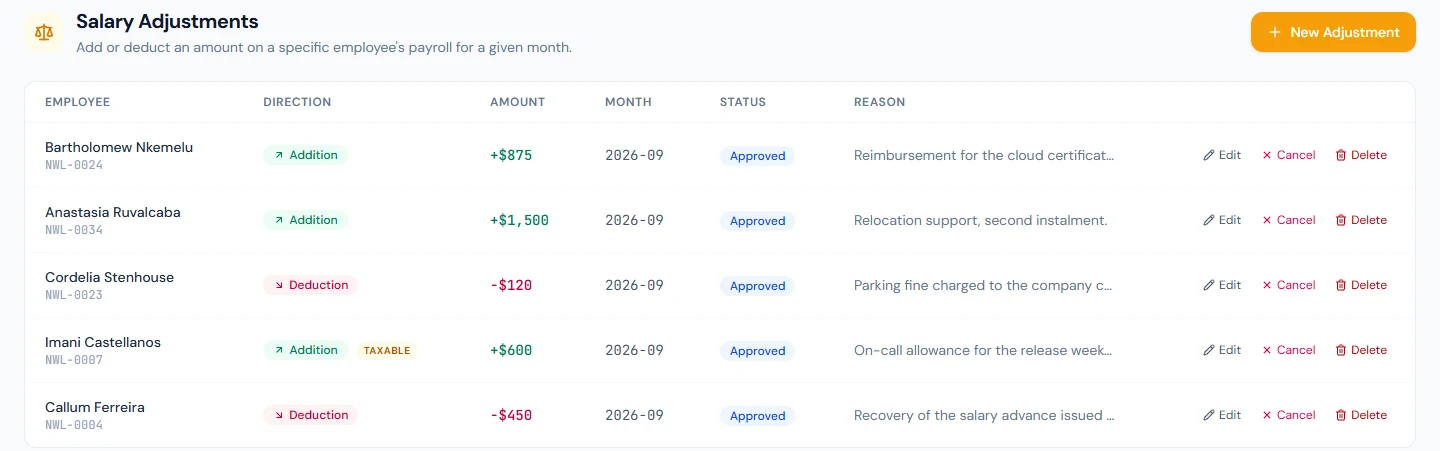
/admin/payroll/adjustmentsA low-ceremony one-off addition or deduction for a month. An addition with Tax applicable on is taxed as pay, for income tax and for contributions such as US FICA; leave it off for a reimbursement. Use it for corrections and edge cases.
Bonuses and adjustments attached to a run are settled (marked paid) automatically when the run is locked, after which they can no longer be edited. Nothing can be added to a month whose run is locked or paid; use the next month. One added while the run is approved is paid only if the run is sent back to review and reprocessed, and locking is refused until it is. An approved expense claim becomes an addition in the current month, or the next month whose payroll is still open.
5. Process a monthly payroll run
Screen: /admin/payroll/process
Pick the month and year (the picker defaults to the previous month, since a month's payroll is normally run after it closes) and click Process Payroll. The system calculates every eligible employee and shows totals for employees, gross, deductions and net. Anyone it skipped is listed under the totals with their employee code and the reason; they are not in the run, so fix each reason and process the month again. The Checks before approval panel on the same page lists, for the selected month, everything that would stop approval before you process it.
Processing a month again rebuilds the run for the people payroll pays now. Someone the run no longer pays (they have left or been deactivated since, have no salary for the month, or are skipped) drops out of it, and so do their bonuses, adjustments and loan installment for the month: these stay unpaid, and locking or paying the run does not mark them paid.
If your workspace has enabled it in settings, a Skip attendance deductions checkbox appears — ticking it pays everyone in full for that run, ignoring absences, late days and unpaid leave.
Presence-based proration (the "sandwich" rest-day rule)
Payroll prorates pay on a calendar-day basis: each employee earns payable days out of the month's total days, and pay is scaled by that ratio.
- Working days are paid according to attendance (present days count, absent days do not, half-days count as half).
- Rest days (weekly offs and holidays) are paid only when they sit between two earned days. An absence directly next to a weekend or holiday forfeits that rest day — this is the "sandwich" rule.
- Mid-month joiners and leavers are prorated for the days they were actually employed.
- Unpaid leave docks only its days in the month being paid. A leave that runs from one month into the next is split between the two payrolls, not charged in full to both.
- Leave at reduced pay — a paid leave type whose Pay is under 100% — is paid at that share of each day, and the rest is part of the unpaid-leave deduction. See Leave at reduced pay.
Rest-day swaps (a worked weekend traded for a different day off) are honoured in the same calculation. If Skip attendance deductions was used, everyone counts as fully present and no proration is applied.
Income tax and statutory amounts
Tax and other statutory figures come from your country pack:
- Income tax — progressive slabs, a flat percentage, or none (for example, the Gulf states), depending on your country. Tax is applied only if the structure carries a TAX component (see the tip above). Where the statute taxes pay net of the employee's statutory contributions (the Philippines), those lines are taken off before the tax table is applied. German and French workspaces are asked to enter their own bracket table before approval — see the pre-flight table below.
- Provident Fund, Gratuity, and social-security contributions are computed using the country's rules: provident fund as a share of Basic, gratuity by the country's end-of-service rule, and social security on the pay earned that month.
- Contributions charged on pay, such as US FICA, UK National Insurance, or Canada's CPP and EI, are worked out on the pay earned that month. Days docked for absence or unpaid leave are left out, as they are for income tax; a late-arrival penalty is not. An adjustment with Tax applicable on counts as pay for them too, and so does a bonus in US, UK and Canadian workspaces.
- A bonus or taxable adjustment is taxed in the month it is paid, as if that month's pay ran all year. For US federal withholding this is the IRS aggregate method. It can withhold more on a bonus than the year's tax return ends up charging on it; the difference is settled after the tax year. Contributions with an annual wage cap, such as US Social Security, are capped a twelfth at a time, so a very large bonus month can take less of them than is due.
If your country levies no income tax through payroll (for example the UAE or Saudi
Arabia — or Singapore, where employers never withhold and IRAS assesses each employee
directly), the tax screens are not just inert — they are removed. The whole Tax section
vanishes from the admin sidebar (Tax Slabs, Tax Certificates, Adjustments, Templates),
Tax Reports disappears from Reports, and employees do not see Tax Certificates
in their portal. An old bookmark opens a Not applicable in <your country> page
instead of an error, and the underlying API answers 404.
Nothing is wrong and there is nothing to configure — this is driven by the country on your company profile, not by permissions or your plan, and no admin can turn it on.
Tax slabs and the new fiscal year
Your fiscal year now advances automatically each year — the platform opens the next year the day after the current one ends (see Company Setup → Fiscal Years). But in a progressive-tax country the slab table follows each year's Finance Act, so the new year does not automatically come with brackets.
Seeded brackets cover the years your country pack ships with. Before processing the
first run of a new fiscal year, open
Tax → Tax Slabs (/admin/tax/slabs), pick the new year and confirm brackets exist.
A fiscal year with no slabs computes zero income tax for everyone — the platform
logs an error when this happens, but the run itself will not invent a number. If slabs
are missing, contact support or enter the year's brackets on that page.
Fixing a run before approval
While a run is still in draft, processing or review, you can open it
(/admin/payroll/runs/{id}) and Reprocess one or more selected employees without
disturbing the rest. Once approved, locked or disbursed, entries are protected from
reprocessing.
When a bonus or adjustment for the month is added, edited or cancelled after the run was processed, the run page says This run is out of date. and counts what changed, for example "1 new adjustment". Reprocess to include it. The banner counts only the people a reprocess would pay: active employees who joined by the end of the month and have a salary for it. An item for anyone else does not raise it. A leaver's final settlement, for one, is paid outside payroll (see Paying the settlement).
6. Review, approve, lock and disburse
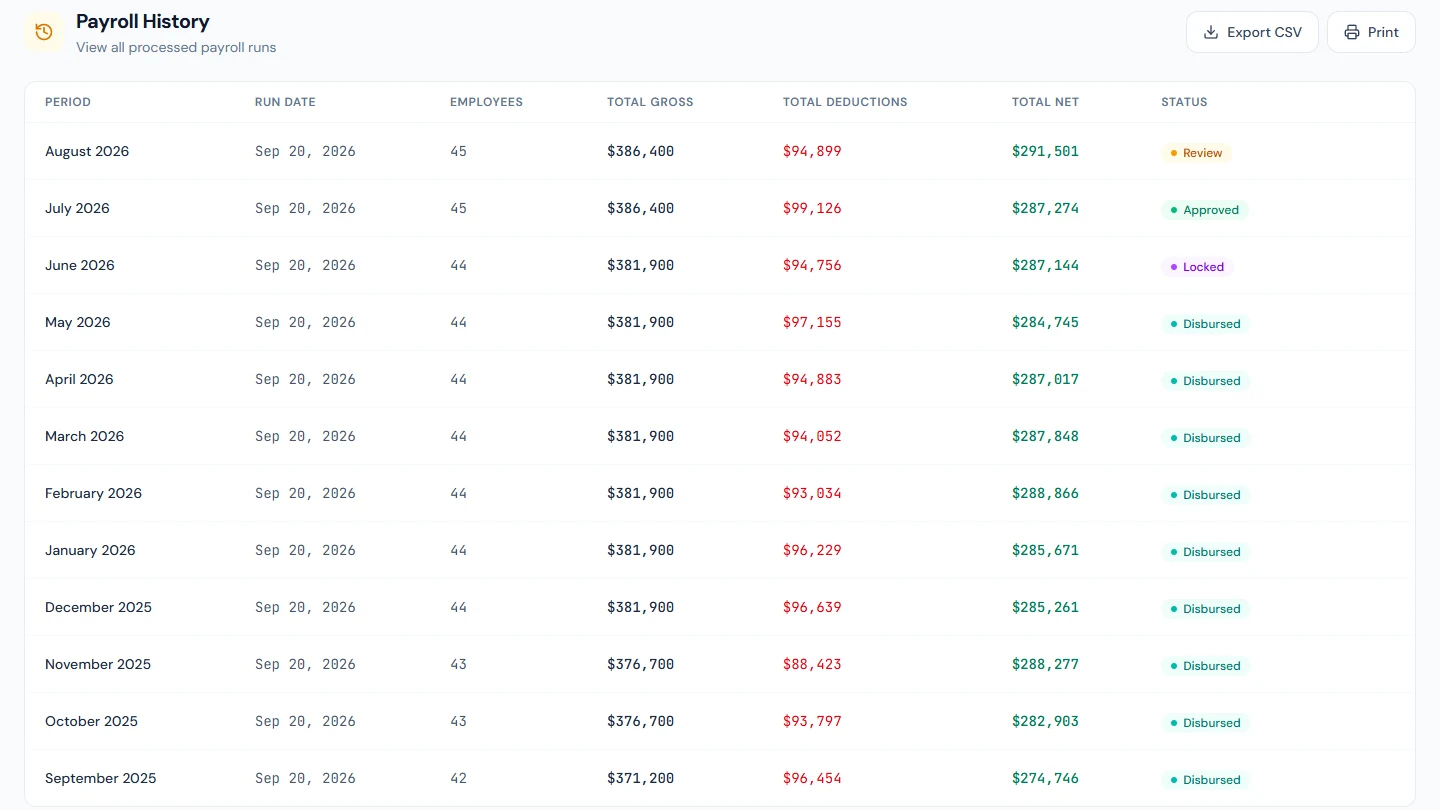
Open a run from the history list (/admin/payroll/history) or straight after
processing. A run moves through these statuses:
| Status | Meaning |
|---|---|
| Review | Freshly processed; still editable |
| Approved | Signed off; ready to lock or pay |
| Locked | Frozen — no further changes |
| Disbursed | Payments recorded as made |
Buttons appear according to the current status:
- Approve a run in review. You can Send back to review an approved run to edit it again. Approval is subject to the pre-flight checks below — if a blocking issue exists you will see an error explaining each problem, and the run stays in review.
- Lock an approved run to freeze it.
- Mark as Paid opens the disburse dialog — enter the payment date, payment method (bank transfer, cheque, cash or wallet), an optional bank account and reference, and whether to email employees. This marks every entry paid and moves the run to Disbursed.
- Finalize Run is used when each entry was already marked paid individually (e.g. imported history): it moves the run to Disbursed without overwriting per-entry payment details.
- You can also mark or un-mark individual entries as paid from the run detail.
- Paying by cheque? Print the cheques from Cheques → Print Cheques and mark each one issued when you hand it over — that marks the entry paid. While an entry has a cheque in play, its payment is changed only through the cheque. See Cheques.
Print produces a clean payroll register, and Export downloads every column for all employees as a CSV.
Pre-flight checks — why an approval can be refused
The most damaging payroll mistakes look completely normal on a payslip. An employee with no shift is never marked present, so payroll reads the whole month as absence and deducts nearly the entire salary — and the slip still looks ordinary. Before a run can be approved, the system checks the month and refuses approval while any blocking problem remains. Warnings are surfaced but never stop payday.
The Checks before approval panel shows these findings on the Process page for the selected month and, collapsed, on a run still in review. When you click Approve with problems present, approval fails and the panel opens listing each problem. Every finding explains what is wrong, why it matters in money terms, and what to fix — the person running payroll is often not the person who configured the workspace.
Findings about specific people name them in the error itself — "2 employee(s) have no attendance at all this month: Ada Lovelace, Grace Hopper" — so you can go straight to the right profiles. Only current employees are considered: anyone who has left (separated, terminated, resigned or retired) is ignored by every check, because the run will not pay them.
Blockers — approval is refused until these are fixed:
| What stops approval | How to fix |
|---|---|
| This workspace has no default shift | Create a shift under Attendance → Shifts (/admin/attendance/shifts) and mark it as the default. Without one, new employees get no working pattern. |
| Employee(s) have no shift assigned | No shift means no attendance is ever recorded, so payroll treats every day as absence and deducts almost the whole salary. Assign a shift on each employee's profile. |
| Employee(s) have no attendance at all this month | Not a single day is recorded, so the month is treated as unworked. Mark the days on Mark Attendance (/admin/attendance/mark), or switch their shift to auto-present if they are not expected to clock in. |
| No fiscal year is marked current | Set it under Company → Fiscal Years (/admin/company/fiscal-years). |
| No income tax slabs configured for the current fiscal year | Only raised where your country levies income tax. Without slabs, income tax computes as zero for everyone — silent under-withholding. Add them at Tax → Tax Slabs (/admin/tax/slabs). |
| Income-tax brackets for your country are yours to enter | Raised instead of the row above for Germany and France, whose income tax no bracket table can express (German tax classes; the French per-employee withholding rate). Enter your own approximation at Tax → Tax Slabs — or, if you run tax entirely outside the product, a single 0% row for the year, and post each employee's tax as a payroll adjustment deduction. |
| A statutory deduction has no salary component to post through | Your country pack computes a contribution (UK National Insurance, US FICA, Canada CPP/EI, Saudi GOSI, India EPF, Australian Medicare levy, German RV/KV/PV/AV, French vieillesse/AGIRC-ARRCO/CSG, NZ ACC levy, Singapore CPF, Philippine SSS/PhilHealth/Pag-IBIG) but no active deduction component with its code exists, so nothing would be deducted and take-home would come out too high with no line explaining why. Create the component under Payroll → Salary Components and link it to the structures it applies to. |
| The employer's share of a matched contribution has no component to record it | US FICA is matched by the employer: the same 6.2% Social Security and 1.45% Medicare on the same wages. Payroll adds it as an employer contribution through the FICA_ER component, which US workspaces get automatically. If it has been deleted or deactivated, pay still comes out right, but the employer's share is missing from the payslip, the employer cost and the payroll reports. Create an active employer-contribution component with code FICA_ER under Payroll → Salary Components; it does not need to be on any salary structure. |
| Employee(s) have no nationality recorded, and a contribution is levied on nationals only | Saudi GOSI comes out of Saudi nationals' pay and Singapore CPF out of Singapore citizens' pay; a foreign employee contributes nothing. With nationality blank, neither deducting nor skipping can be justified, so payroll deducts nothing for those employees and refuses approval. Set Nationality on each employee's profile, then reprocess. |
Warnings — shown with the findings but never block approval:
- Employees still pending activation will not be paid by this run — activate them first if they should be paid (see the Employees guide).
- More than one shift is flagged as the default.
- Employees with no active salary structure are skipped by the run entirely — not paid zero, but absent from the totals, which is easy to miss when reviewing.
- One or more employees lose over 60% of gross to deductions. The message notes when the bulk is an absence deduction, which usually means missing attendance rather than genuine absence.
A large deduction can be genuine — a mid-month joiner, unpaid leave, a loan recovery — so warnings never block; blocking them would train people to route around the check.
Who is checked. Employees pending activation are excluded from the per-employee checks — payroll never pays them, and they get their own warning instead. The attendance check only covers people this run will actually pay: joined by the end of the month, holding an active salary structure, and not on a Punch Not Required (attendance-exempt) shift — exempt staff never produce attendance rows by design, so they are not flagged. Per-person findings name up to 8 employees, then collapse to a count.
The same checks are available any time via the API (GET payroll/preflight?month&year)
so problems can be caught while the month is being set up.
7. The bank payment file
When a run is locked or disbursed, use Download Bank File on the run detail
page to generate the salary file for bulk upload, in the payment-file format designed
for the paying account (Company › Bank Accounts › Payment file). You choose the
company bank account to pay from and the value date. If that account's format uses a
branch city code, the dialog asks for it and remembers it for that account. A preview
lists who will be paid and who is skipped (and why) before you download. See also
/docs/payroll/bank-payment-file.
If you have set up a contribution fund that is paid into your own fund account, the file also carries one extra row per fund: the run's total for that fund (for a provident fund, the employee and employer shares together) paid into the fund's own bank account. The preview shows these under Fund transfers in this file, with the amount per component. Choose a salary account to pay from — a fund account is never offered as the paying account.
8. Salary slips
Screen: /admin/payroll/slips
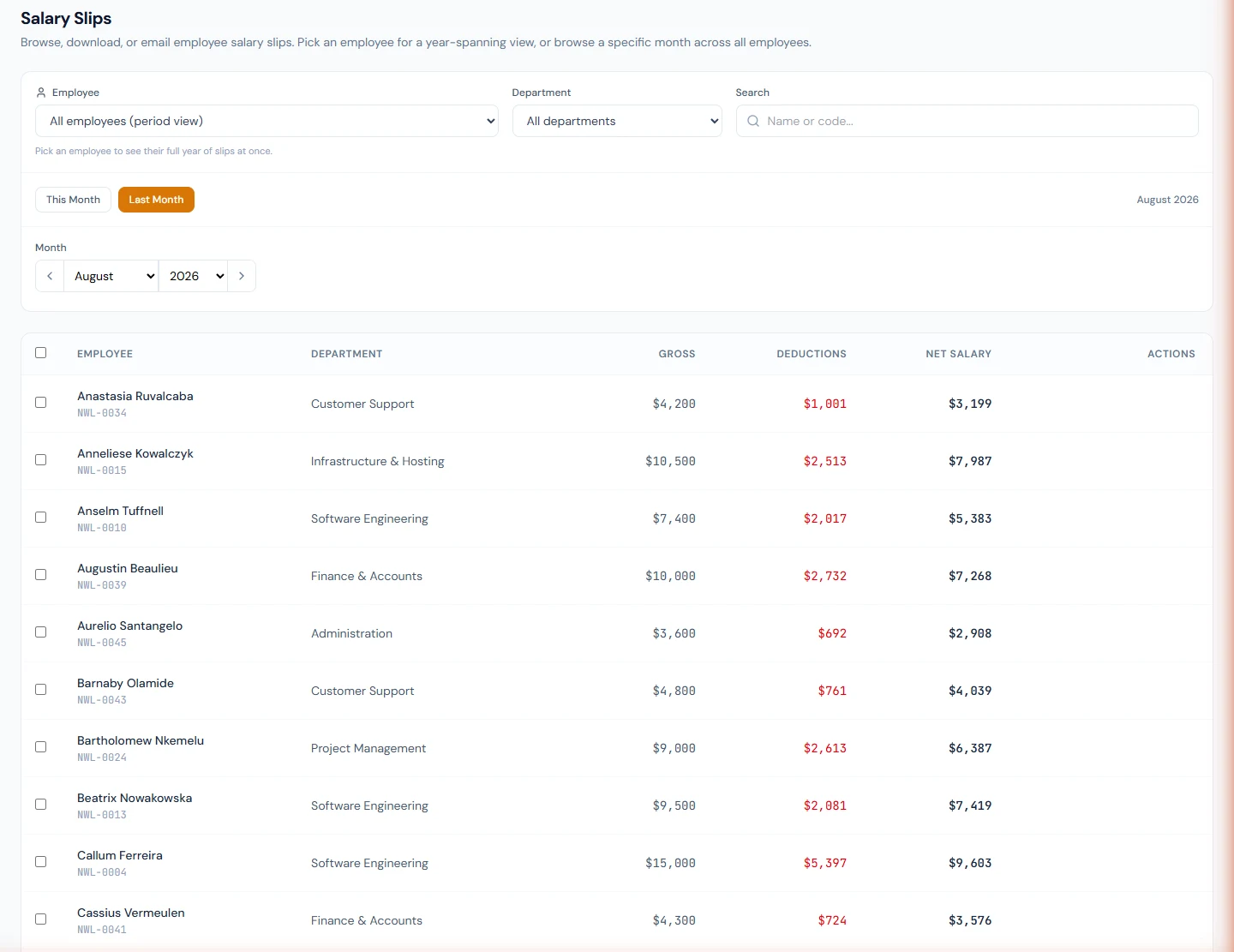
Each processed entry produces a salary slip. From this page you can:
- View a slip, download its PDF, or email it to one employee.
- Select several and Download ZIP or Email All at once.
Besides the salary components, a slip lists the bonus, adjustments, loan repayment and late, absence and unpaid-leave deductions as their own lines when they apply. These lines print in the slip's language; a salary component prints the name you gave it.
The attendance strip at the top of the slip shows working days, present, absent, leaves and late arrivals. It also shows Half Days, Unpaid Leave and Early Leave when the month has any, so every attendance deduction on the slip has its count beside it: half days are part of the absence deduction, unpaid leave has its own line, and early leaves count with late arrivals towards the late deduction.
Slip layout is controlled by your slip template (/admin/payroll/slip-templates).
Acknowledgment flow
When you disburse a run with emails enabled, each employee gets an
acknowledgment-request email (no PDF) linking to their portal at /portal/salary.
After the employee confirms receipt there, the system emails the signed slip PDF
with an e-signature stamp and records the acknowledgment (with timestamp and IP) for
your records.
A slip that is still unacknowledged gets up to two reminder emails: the first at least two days after the request, the second at least three days after that. Reminders go out shortly after 09:00 in your workspace's time zone.
Provident Fund ledger
Screen: /admin/payroll/pf-ledger
If your components contribute to Provident Fund, this page shows each employee's
running PF balance. Click an employee to open their full ledger of contributions and
movements at /admin/payroll/pf-ledger/{employeeId}.
This ledger tracks what each member is owed. The money itself — the fund's bank account — is tracked under Contribution funds.
The profit the fund earns belongs to its members. For a provident fund kept in its own account, share it out from the fund page with Share profit with members (see Sharing profit with members), which posts each member's Fund profit here. Credit fund profit on an employee's ledger is for a one-off correction.
Contribution funds
Screen: /admin/payroll/funds
Use a contribution fund for money collected through payroll that the company does not simply keep in its salary account: most often an employees' provident fund, but equally a pension fund, a gratuity fund, or a statutory scheme.
Setting up a fund starts with one question: how is this fund paid each month?
| Answer | What happens |
|---|---|
| Into our own fund account | The employee and employer shares go into the fund's own bank account, for example a PF trust account. Every payroll's bank file gets one row moving the fund's total from the salary account into that account, and disbursing the run records it on the fund. |
| To a government body | Paid to an authority by challan or online portal (for example GOSI, CPF, EPF or EOBI). Nothing is added to the bank file; you record each payment with its reference. |
| To an outside provider | Paid to a pension provider or insurer that runs the scheme. Nothing is added to the bank file; you record each payment with its reference. |
| Kept on our books | No money is paid out each month. The company owes each employee's balance and pays it with their final settlement. The fund has no remittances, ledger or bank balance; for a provident fund it shows the total owed to members. |
The rest of the setup:
| Setting | What it does |
|---|---|
| Salary components collected | The components whose run total goes into the fund. For a provident fund this is usually PF_EE (employee share) and PF_ER (employer share). A component must be in at least one salary structure, otherwise payroll never produces it and the fund is refused. |
| Fund bank account | Required when the fund is paid into your own fund account; optional (for reference) for a government body or provider. Add it under Company Setup → Bank Accounts with purpose Fund account. |
| Starts from | Runs for months before this are never remitted to the fund (for example, history imported from CSV). |
| Opening balance | Optional, and not offered for a fund kept on your books. What the fund already holds, so the balance starts from the right figure. |
| Tax withheld on bank profit (%) | Optional. The rate the bank deducts from the profit it credits (for example 20). It pre-fills the tax when you record bank profit. |
Who is in the fund is decided by salary structures, as with any component: only employees whose structure includes the fund's components contribute.
PF_EE and PF_ER are seeded only in Pakistani workspaces. To run a provident fund
anywhere else, first create both under Salary Components: PF_EE as a deduction and
PF_ER as an employer contribution, each a percentage of basic. Then add them to the salary
structure. Use exactly these codes: payroll fills each member's PF ledger only from
components coded PF_EE and PF_ER.
The form suggests the first day of the current month. If a run for an earlier month is still to be paid — say you set the fund up in October for a September run that is locked but not yet disbursed — set Starts from to that earlier month, or the run will not include the fund's transfer.
How the balance is kept
Every fund except one kept on your books has its own ledger. The book balance is every credit minus every debit:
| Entry | Written by | Effect |
|---|---|---|
| Payroll remittance | Automatically when a run is disbursed by bank transfer and the fund's row was in the bank file (own fund account), or Record remittance (government body, provider, or any run paid another way) | Adds the run's total for the fund's components — for a bank-file row, the whole-unit amount the file moved |
| Leaver payout | Automatically on final settlement, when the PF is withdrawn or transferred | Takes the leaver's PF balance out of the fund |
| Opening balance, Bank profit, Loan repayment | Add entry | Adds |
| Tax withheld on profit | Add entry — with Bank profit, or on its own against a profit entry | Takes away |
| Bank charge, Loan to member | Add entry | Takes away |
| Adjustment | Add entry — you choose the direction | Either |
Disbursing the same run again never books it twice.
HRM cannot read your bank, so the book balance is only as complete as these records. Use Record statement balance to enter the closing balance from the fund account's statement: it does not change the book balance, but any difference on that date is shown on the fund and on the funds list, so you can find it.
For a provident fund, the fund page also compares the fund's book balance with the total that the Provident Fund ledger says is owed to members. A difference usually means a month has not been remitted yet, the fund's profit has not yet been shared out to members, or the fund held money before member balances were set up.
Bank profit and its tax. When you add Bank profit, enter the profit before tax; the Tax withheld field fills in at the fund's rate (change it to match the statement — banks round). Saving records two lines, so the book follows the statement line by line: the profit, and the tax as Tax withheld on profit.
Whose money is it. Opening balances, adjustments and member loans can name the member the money belongs to — for example a balance transferred in for one employee, or a top-up of one employee's shortfall. Leave it blank for company money (a correction, a repaid bank fee). Payroll remittances already know their employees.
Sharing profit with members
The fund's profit after tax belongs to its members. When bank profit is recorded, the fund page shows how much is not yet shared and a Share profit with members button. It opens a preview before anything is posted:
- Each bank profit credit counts as earned over the month before it was credited.
- Its amount after tax is split by each member's daily balance in the fund that month: payroll deposits from the date they arrived, plus entries marked for a member. Company money does not earn a share.
- Each member's share is rounded to 2 decimals; any remainder goes to the largest share, so the shares always add up to the profit.
Confirming posts one Fund profit entry on each member's PF ledger and marks the profit (and its tax) as shared — shared lines can't be deleted. If something was wrong, Undo on the share removes the members' entries and the profit can be shared again.
Runs not yet remitted
The fund page lists runs that owe the fund something but are not yet on its ledger.
- Own fund account: a run is booked automatically when you disburse it by bank transfer. It only appears here if it was disbursed but not booked — because it was paid another way (cash, cheque, or entries marked paid one by one), or because the fund's row was skipped in the bank file (for example, its account had no IBAN). Once the money has gone, use Record remittance with the transfer reference.
- Government body or provider: every locked or disbursed run appears here until you record its payment with the challan or transfer reference.
Importing historical salary
Screen: /admin/payroll/salary-history-import
To backfill past pay records for an employee (for example when migrating onto Operentra), download the CSV template, pick the employee, upload the filled file, preview the parsed rows and warnings, then import to commit them. Each import is tracked as a batch you can revert in one click if something looks wrong. A setting controls whether the Provident Fund column is treated as a real ongoing balance or a legacy cash refund.
Payroll settings
Screen: /admin/payroll/settings
Workspace-wide options that affect every run:
- Rounding method — round, floor or ceil.
- Rounding precision — number of decimal places.
- Pay day — the day of the month salaries are due.
- Allow skip attendance deductions — whether the "pay in full" option shows on the Process Payroll screen.