Billing & seats
Your workspace is billed per employee, per billing period, in US dollars. That is independent of the currency you pay your own staff in — a workspace running payroll in PKR or AED is still invoiced in USD.
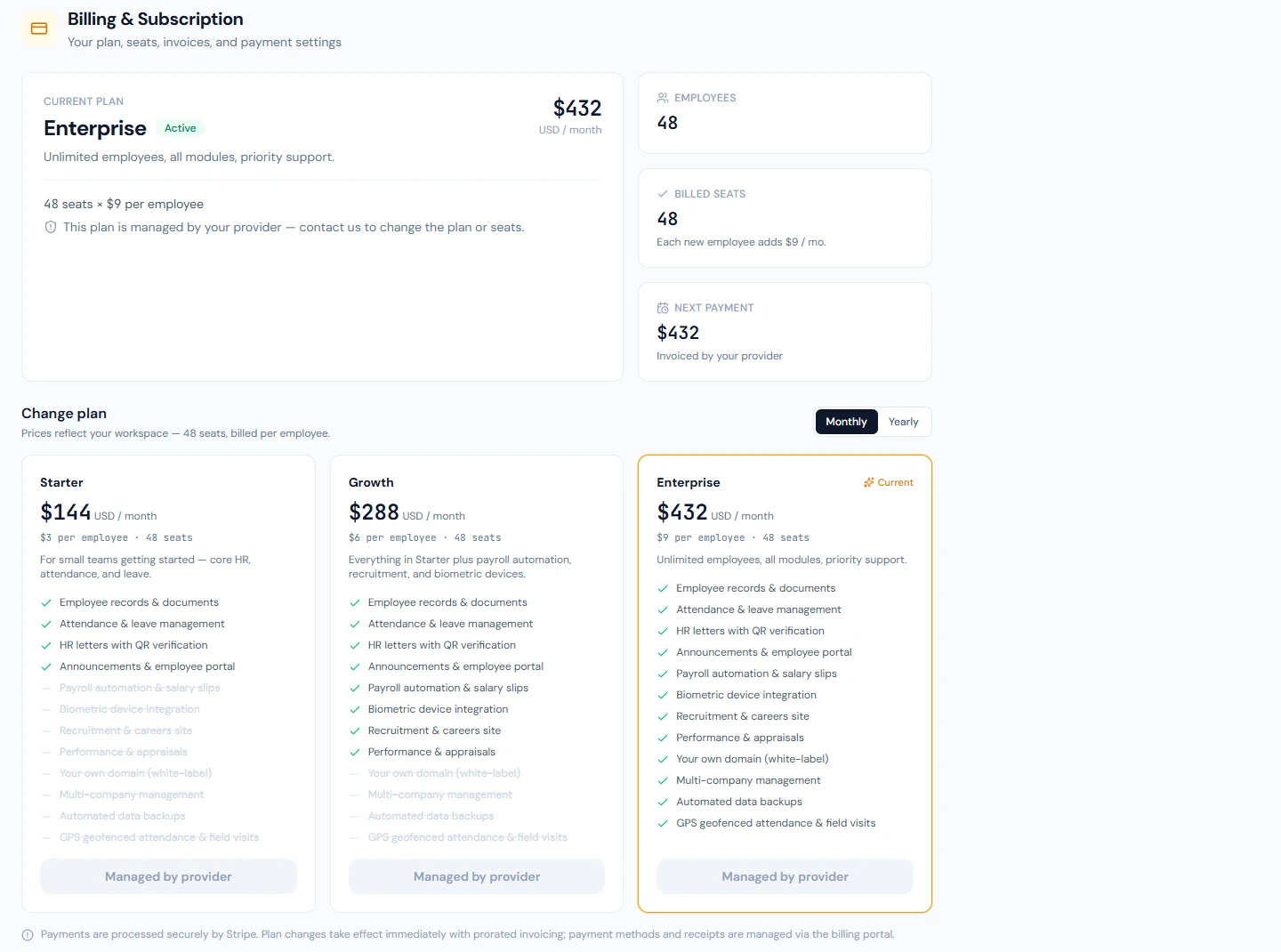
Everything on this page lives on the Billing page in the admin sidebar
(/admin/billing). You need the Workspace settings permission to see it.
What counts as a seat
Your bill is not simply your headcount. It is the largest of three numbers:
| Number | What it is | Why it exists |
|---|---|---|
| Your headcount | Employees in the workspace, except those who have left (separated, terminated, resigned or retired) | You cannot use the product for someone you are not paying for |
| The plan minimum | 10 on all public plans | The floor the plan is sold at |
| Seats you have reserved | Extra seats you chose to hold | Lets you hold capacity ahead of hiring |
So a workspace with 14 employees on a 10-seat plan is billed for 14. A workspace with 4 employees is billed for 10, because the plan minimum wins. A workspace with 14 employees that has reserved 25 seats is billed for 25.
The Billing page shows this as Billed seats, with a note telling you which of the three is currently setting the figure.
Reserving seats never stops you hiring. Public plans have no headcount limit — if you hire past your reserved number, your bill rises to match. Reserving is only useful for smoothing out a planned intake, and it is entirely optional.
See the price before you commit
Change the number in Manage seats and, before you press anything, the page tells you what it will cost:
You will be charged $40.00 now for the rest of this billing period. The seats apply once that payment clears.
That figure comes from Stripe itself, not from an estimate we calculate — it is the exact amount the invoice will be for. If the change costs nothing, it says so and explains why.
Adding seats
You are charged immediately, for the remainder of the current period only, and the seats do not become yours until that payment succeeds.
What you pay
You pay the pro-rated cost of the new seats for the days left in the period — not a full period, and not nothing until renewal.
Worked example. You are on Growth at $6 per employee per month, you have 10 seats, and there are 20 days left in a 30-day period. You raise it to 20 seats:
10 new seats × $6 × (20 days ÷ 30 days) = $40.00 charged now
Your next renewal invoice is then the ordinary 20 × $6 = $120.00.
Three things can happen
| Outcome | What you see | What it means |
|---|---|---|
| Payment succeeds | Green confirmation, seats update instantly | Done. Nothing further to do. |
| Your bank wants confirmation | Amber banner, Stripe's payment page opens | Normal for 3-D Secure cards. Confirm on that page and the seats apply. |
| The card is declined | Amber banner | The seats were not applied and you were not charged. Fix the card and try again. |
In the last two cases your seat count is unchanged and you keep being billed for what you had before. That is deliberate: you are never given seats you have not paid for, and you are never charged for seats you did not get.
The "awaiting payment" panel
If a change is waiting on payment, the Billing page shows exactly where things stand:
Seat change awaiting payment Nothing has changed yet. Your seats stay as they are, and you have not been charged, until this invoice is paid.
Billed now 10 → You requested 20 · Due now $40.00
If it is not paid by 7 Aug 2026, 09:14, the request is cancelled automatically and your seats stay unchanged.
[ Pay now ] · Cancel this change · Or just set a different number above — it replaces this request.
You have three ways out, and none of them can leave you worse off:
| Action | What happens |
|---|---|
| Pay now | Opens Stripe's secure payment page. The seats apply the moment it clears. |
| Cancel this change | The invoice is cancelled, your seats stay as they are, nothing is charged. |
| Enter a different number | Replaces the request — the old invoice is cancelled and a new one is issued for the new figure. |
| Do nothing | After about 23 hours the request lapses on its own, your seats stay unchanged, and you get an email saying it did not go through. |
Just type the number you actually wanted and press Update seats. You do not have to cancel first — the previous request and its invoice are cancelled for you. Setting it back to the figure you are currently billed for withdraws the change entirely.
Removing seats
Reducing your seats lowers your next invoice. It does not, by default, refund the rest of the current period.
The seat was bought for that period, and the period has not finished. This is the normal arrangement for per-seat products. No money leaves your account either way — nothing is refunded, and no negative invoice is issued.
Worked example. You hold 20 seats, mid-period, and drop to 10:
- You are charged nothing now.
- Nothing is refunded for the 20 seats' remaining days.
- Your next renewal invoice is
10 × $6 = $60.00instead of $120.00.
You also cannot reduce below your current headcount — the page refuses it and tells you how many employees you have. Remove the people first if that is really what you mean.
Whether a downgrade credits the unused days is a setting your provider controls, and some accounts are on negotiated terms. If crediting is switched on, the unused portion becomes a credit that reduces your next invoice instead of being forfeited. The Billing page always tells you which applies before you confirm.
Seats you already paid for stay paid for
This is the part worth knowing, because it saves you money.
If you drop seats and then raise them again within the same billing period, you are not charged twice. The system remembers the highest number you actually paid for this period.
Worked example, all inside one period:
| Step | Seats | Charge |
|---|---|---|
| Start | 10 | — |
| Raise to 20 | 20 | Pro-rated charge for 10 new seats |
| Drop to 10 | 10 | Nothing. No credit either. |
| Raise back to 20 | 20 | Nothing — already paid for |
| Raise to 25 | 25 | Pro-rated charge for 5 seats only, not 15 |
The page confirms this before you commit, with: "Nothing to pay — these seats are already paid for in this billing period."
This resets when the period rolls over, which is correct: the invoice those seats were paid on has closed, and the new period is a fresh bill.
When people simply join or leave
You do not have to touch the seat control when you hire or offboard. Once a day the system compares your billed seats against your actual headcount and corrects it.
- Hired someone? Seats rise and the pro-rated cost for the remaining days is charged at that point, using your saved payment method.
- Someone left? Seats fall at the next check, following the same downgrade rule above.
Because it runs once daily rather than instantly, there can be up to a day between a hire and the adjustment. Nothing is lost — the new employee works normally in the meantime.
If that automatic charge fails, your seats are left as they were and you are emailed. The workspace keeps working; nobody is locked out over a card problem.
Changing plan
Switching plan (for example Starter to Growth) is separate from changing seats. The difference in price is worked out for the remainder of the period and invoiced straight away, and the new plan's features are available immediately.
Your seat count carries across unchanged, re-priced at the new plan's per-employee rate. If the new plan has a higher seat minimum, that minimum applies.
Features your plan doesn't include
Features outside your plan stay visible with a lock so you can see what an upgrade adds — in the sidebar, in menu search, and on the pages that link to them. Clicking a lock opens this Billing page with the feature named at the top and the plans that include it highlighted.
Colleagues who can't manage billing see the same locks; clicking one explains that the feature isn't part of your organization's plan and to ask a workspace administrator. In the employee portal these entries are simply not shown.
Invoices, receipts and your card
Manage billing on the Billing page opens Stripe's secure portal, where you can:
- update or replace your card
- download every past invoice and receipt
- update the billing address and tax details that appear on invoices
- cancel the subscription
Your recent invoices are also listed directly on the Billing page.
We never see or store your card details — payments are handled entirely by Stripe.
Cancelling
Cancel subscription on the Billing page (under your plan's renewal date) asks for the main reason and an optional note, then cancels at the end of the period you already paid for — you keep full access until then and nothing is deleted. Changed your mind? Keep my subscription on the same page undoes it any time before that date.
If the reason is cost, the dialog points you at yearly billing or a smaller plan first; if something is missing or not working, it offers a direct line to support.
If a payment fails
A failed renewal puts the subscription into a past due state while Stripe retries the card over the following days. During that window your workspace keeps working normally — everyone signs in, everything saves. A card that expired on a Tuesday should not stop people clocking in.
If the retries are exhausted and the subscription cancels, the workspace becomes read-only: everyone can still sign in, read everything and export their data, but nothing new can be saved. Choosing a plan restores everything immediately, and nothing is deleted by going read-only.
The one thing worth knowing after a read-only spell: attendance was not recorded while the workspace was frozen, so those days need backfilling.
Free trials
New workspaces start on a 14-day trial. You are reminded 7 days and 1 day before it ends. If it lapses without a plan being chosen, the workspace goes read-only as described above — the data is all still there, waiting.
Quick answers
Am I charged the moment I add seats? Yes — a pro-rated amount for the days left in the period, shown to you before you confirm.
Do I get money back if I remove seats? Not by default. Your next invoice is smaller, but the current period is not refunded. Your provider can enable crediting; the page tells you which applies.
Can I be charged twice for the same seat in one period? No. Seats you have already paid for this period can be given up and re-taken at no cost.
What if my card needs bank confirmation? The seats wait. You get Stripe's confirmation page, and the change applies the moment it succeeds. Nothing is charged and no seats are granted until then.
I typed the wrong number and it is now awaiting payment. Type the right one and press Update seats — it replaces the request and cancels the old invoice. Or use Cancel this change. You are not locked in.
Why is my bill higher than my headcount? Either the 10-seat plan minimum, or seats you reserved. The Billing page says which.
Can I go below my headcount? No — you would be using the product for people you are not paying for.
Why is the seat control missing or disabled? Either your plan is not billed per employee, or your provider manages your account directly on negotiated terms. In the second case, contact them to change seats.
Related
- Getting started — setting the workspace up
- Employees — adding and offboarding people, which is what moves your headcount
- Languages & localization — the language your invoices and notices arrive in