Field Visits
Field Visits answers one question HR could not answer before: "Our sales rep reached the office at 10:40 — were they really with a client first?" Enrolled employees check in from the employee portal when they arrive at a client and check out when they leave. The workspace records the GPS reading, compares it with the client's pinned location, and shows every visit next to the employee's office clock-in for that day.
Field Visits is bundled with Geo Attendance and uses the same plan flag. On other plans the menu entries appear locked.
| Screen | Route | What it's for |
|---|---|---|
| Visits | /admin/field-visits | Every check-in in a date range — list, map, CSV, verification verdicts |
| Clients | /admin/field-visits/clients | The client directory with pinned locations |
| Field Staff & Settings | /admin/field-visits/settings | Who may log visits, GPS strictness, optional photo |
| Field Visits (portal) | /portal/field-visits | Where enrolled staff check in and out |
How a visit is verified
A visit is never refused for being far away or for a poor GPS fix — a rep must always be able to record the meeting. Instead every check-in carries a verification verdict:
| Verdict | Meaning |
|---|---|
| Verified | The reading fell inside the radius of a confirmed client pin. |
| Unverified | There was nothing trustworthy to compare against — the client has no pin yet, or only a provisional one. |
| Flagged | The reading contradicts a confirmed pin (outside its radius), or the device's accuracy was worse than the allowed maximum. |
The reason behind each verdict is shown on hover and in the visit details.
Client pins: provisional vs confirmed
- A pin typed by an admin (on the Clients page) is confirmed from day one.
- If a client has no pin, the first clean check-in from the field pins it provisionally. Visits against a provisional pin stay Unverified until HR presses Confirm location on the Clients page (optionally correcting the coordinates and radius first). Filter the Clients page by Location → Provisional to find pins awaiting review.
- Confirming or moving a pin never rewrites past visits — they keep the verdict they were judged with.
Setting up
- Field Staff & Settings → Manage field staff — enrol the employees who meet clients. Only enrolled employees see Field Visits in their portal; everyone else never does.
- Clients — add the clients your staff visit. A pin is optional; leave it empty and the first visit will pin it for you to confirm. Each client has its own radius (default 200 m).
- Review the GPS & check-in rules on the settings page:
- Max GPS accuracy — readings coarser than this are recorded but flagged (default 100 m).
- Default client radius — applied to clients created from the portal.
- Photo at check-in — off by default; when on, staff can attach a site photo to a visit.
- Quick-add clients from the portal — on by default; turn off to keep the directory admin-only.
What field staff see
On Field Visits in the portal:
- Start a visit — pick a client (or quick-add one), optionally type a purpose, and press Check in. The browser asks for location permission the first time.
- While a visit is open, a banner shows the client, the elapsed time and the verdict. End visit asks for the outcome (successful, follow-up, no-show, rescheduled, other) and notes, then records the check-out reading.
- Only one visit can be open at a time. Starting a new one offers to end the current one automatically (it is closed as completed with no check-out reading).
- Today and Last 30 days list the employee's visits; outcome, notes and purpose can be edited for seven days.
Reviewing visits
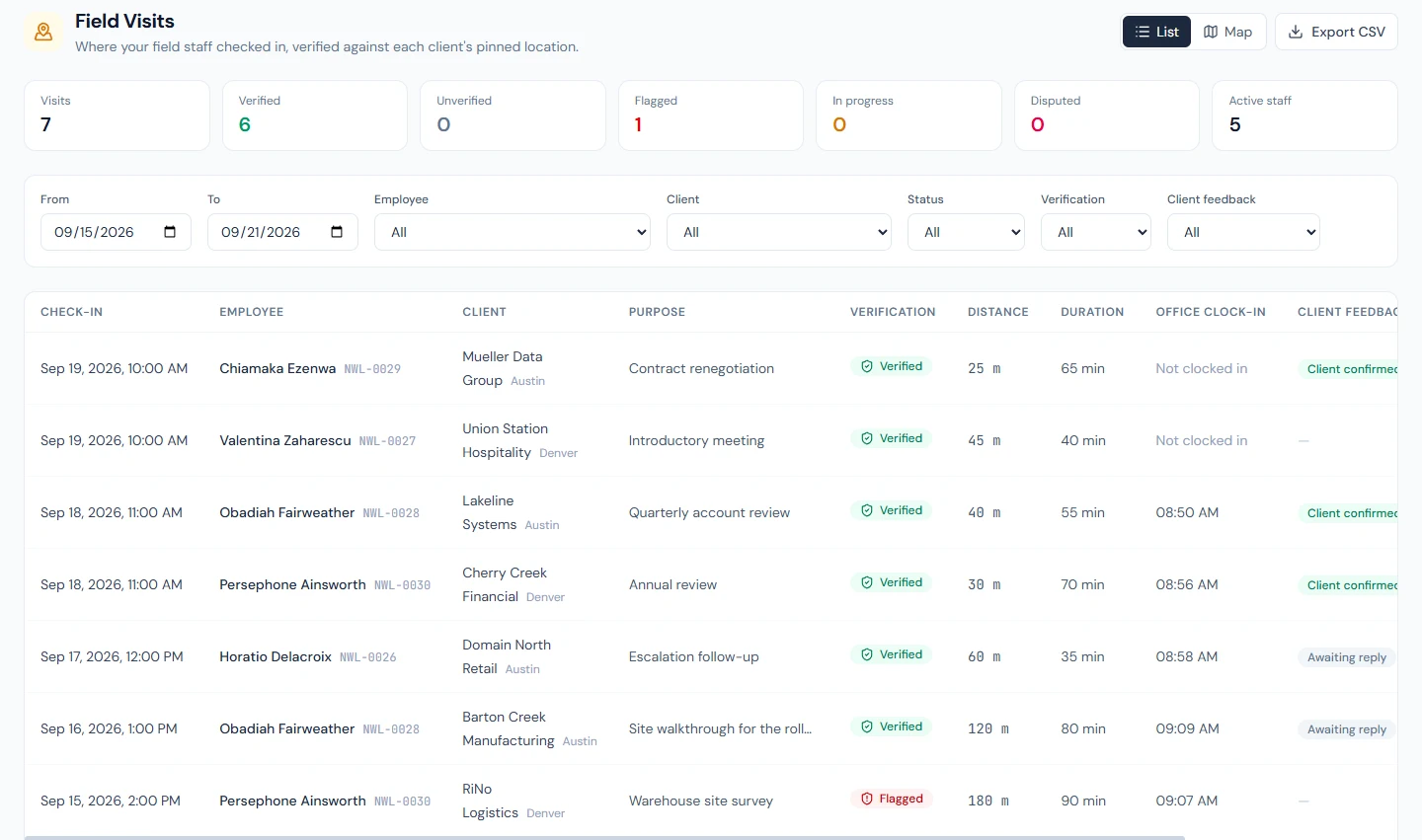
Visits (/admin/field-visits) shows every check-in in the chosen range with the
employee, client, purpose, verdict, distance from the client pin, duration, and — the
column that ties it all together — the employee's office clock-in for the same day.
Switch to Map to see the check-ins plotted (colour = verdict) with confirmed client
pins drawn as circles. Export CSV downloads the same range.
Opening a visit shows both readings on a small map, accuracy, distances, notes, the optional photo, and — for users with the manage permission — two actions:
- Mark completed — for a visit the employee forgot to check out of. The duration stays unknown; nothing is invented.
- Cancel visit — the row stays in the log marked cancelled and is excluded from counts.
Visits never write attendance. They are evidence beside the attendance record, not a punch; HR still decides whether a late arrival was justified.
Client feedback (email / SMS confirmation)
GPS can be spoofed with browser tools; the customer cannot. With the feedback loop on, the client contact receives a short message after the rep checks out:
- Email — branded with your logo: "[Rep] from [Company] visited you today at [time] — confirm the visit and rate it." One button opens the feedback page.
- SMS — one line with the same link (uses your configured SMS provider and credits).
The link opens a public page — no login, no app. The client answers "Did this meeting take place?" Yes / No, optionally adds a 1–5 star rating (Yes only) and a comment, and is done in about 20 seconds.
Turn it on under Field Staff & Settings → GPS & check-in rules: Feedback request by email and by SMS are separate switches, both off by default. Guardrails, all automatic:
- Sent only for visits the rep checked out of — never for cancelled visits or ones an admin closed.
- The client needs an email address / phone number on file for the respective channel.
- At most one request per client per day, no matter how many visits.
- The link is single-use and expires after 7 days.
- Every message carries an opt-out link; an opted-out client is never asked again.
Answers land on the Visits page: a Client feedback column and filter (Awaiting reply / Client confirmed / Disputed), a Disputed summary tile, and the full answer (rating, comment, channels used) in the visit details. A Disputed visit — the client said the meeting never happened — is the strongest possible signal and deserves a conversation, whatever the GPS said.
The email text lives in the Email Templates editor under the Field Visits category (per-language, editable like any other template).
Who can do what
field_visits.view— see visits, the map, clients and settings (Super Admin, HR Manager, HR Officer).field_visits.manage— manage clients and pins, enrol field staff, change settings, close or cancel visits (Super Admin, HR Manager).
Employees need no extra permission — being enrolled as field staff is what grants portal access.