Learning
Courses your company writes for its own people: a few lessons, an optional quiz, and a certificate at the end. You assign a course to the people who need it, they take it in the portal, and a report shows who has finished and who is overdue.
Learning is on the Growth and Enterprise plans. A trial has it.
Courses
Open Learning → Courses.
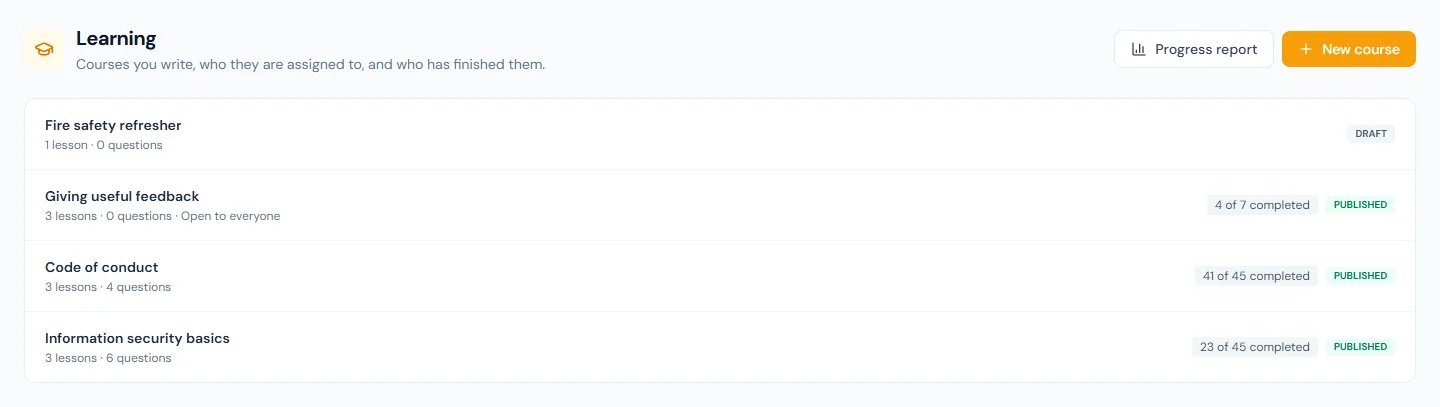
Each course shows its status, its lessons and questions, whether it is open to everyone, and how many of the people enrolled have completed it.
| Status | What it means |
|---|---|
| Draft | Being written. Employees do not see it, and it cannot be assigned. |
| Published | People can be enrolled on it and take it. |
| Archived | Withdrawn. See Archive or delete a course. |
Write a course
Choose New course, fill in the Course settings and choose Create course. The lessons, the quiz and the assignments appear once the course exists.
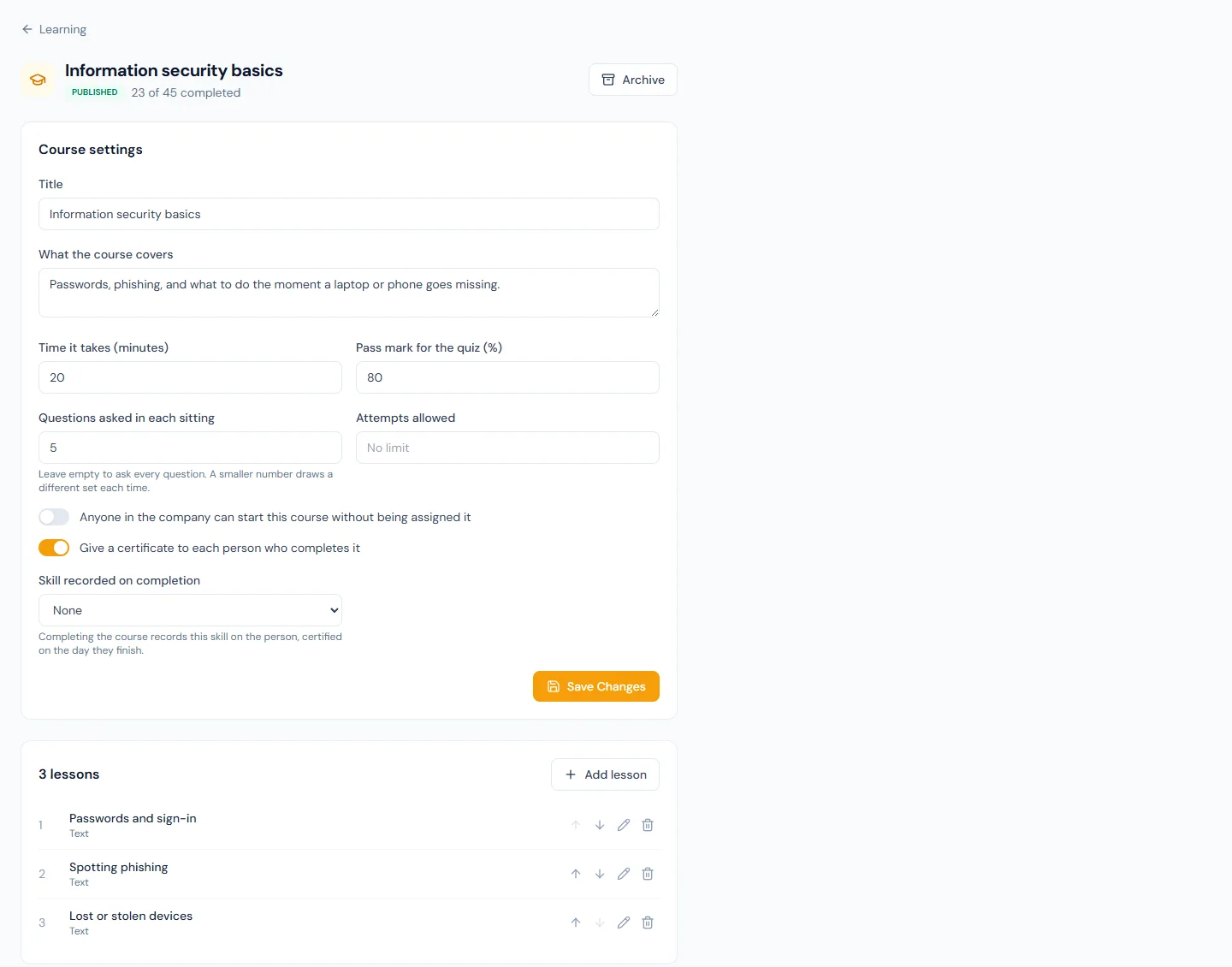
| Field | What it is |
|---|---|
| Title | What people see in their list, in the emails and on the certificate. |
| What the course covers | A short summary shown above the lessons. |
| Time it takes (minutes) | Optional. Shown to the person before they start. |
| Pass mark for the quiz (%) | 80 unless you change it. |
| Questions asked in each sitting | Leave empty to ask every question. A smaller number draws a different set each time. |
| Attempts allowed | Leave empty for no limit. The most you can set is 20. |
| Anyone in the company can start this course without being assigned it | Puts the course under Open to everyone on each person's Learning page. |
| Give a certificate to each person who completes it | On by default. See Completion and the certificate. |
| Skill recorded on completion | Shown when your workspace has skills. See Record a skill. |
Lessons
Choose Add lesson, give it a title, and pick what the lesson is:
| Kind | What the person gets |
|---|---|
| Text | Text you write in the same editor as knowledge base articles. Scripts and unsafe markup are removed when you save. |
| Video | A video that plays inside the lesson. Paste a YouTube, Vimeo or Loom link; a link to any other site is refused. You can add a note to go with it. |
| Knowledge article | A link to a published article in the knowledge base, which the person opens from the lesson. |
| Library document | A link to a published document in the company document library. The person opens the library at that document. |
For an article or a document, choose one the people taking the course are able to open. A lesson does not widen the audience of the article or document it points to.
If the article or document is later removed, the lesson shows No longer available in the editor. The person is told the page is no longer available and can still mark the lesson as done.
Use the arrows beside a lesson to move it up or down, the pencil to edit it and the bin to delete it. A course holds up to 50 lessons.
Deleting a lesson from a published course can leave someone with nothing more to do: they had done every other lesson, and the course has no quiz or they have passed it. They are completed there and then, and told.
The quiz
A quiz is optional. Without one, the course is complete when every lesson is marked done. With one, a person completes the course by passing it after the lessons.
Choose Add question and fill in:
- the Question;
- two to six Answers, with the right one selected. No two answers can be the same;
- What to tell someone who gets it wrong, which is optional.
A course holds up to 100 questions.
You can reword a question or its explanation at any time. Changing its answers, or which one is right, makes it a new question: a sitting someone has open leaves the old one out and is marked on the rest.
How a sitting works:
- The quiz opens only after the person has marked every lesson as done.
- The answers are shown in a different order each time. With Questions asked in each sitting set, each sitting draws a different set of questions.
- A sitting that was started and not handed in is given back as it was. Refreshing the page does not lose it or use up an attempt.
- A sitting is graded once, when the person hands it in. A question left blank counts as wrong.
- After a sitting that did not pass, the person sees their score and the questions they missed, each with your explanation. The right answer is never shown, and it is never sent to an employee's browser.
With Attempts allowed set, a person who uses every attempt without passing is stopped and told to ask HR to allow another attempt. You do that on the progress report: see Allow another attempt. Set a limit only if someone will watch the report for the people it stops.
Publish
Choose Publish. A course cannot be published:
- with no lesson and no question;
- while Questions asked in each sitting is larger than the number of questions.
You can keep editing a published course. A lesson you add later is one more thing to do for the people who have not finished, and it does not undo anyone's completion. If you remove a question and Questions asked in each sitting is now too large, it is lowered for you. Removing the last lesson and the last question returns the course to Draft.
Archive or delete a course
Archive withdraws a course:
- nobody new is enrolled, and its assignments are switched off;
- people who have not finished can no longer continue. The course stays on their list, marked Withdrawn;
- completions and certificates are kept.
Publish again brings an archived course back. Its assignments stay switched off until you switch them on.
Delete is offered only while nobody has ever been enrolled on the course. After that, archive it.
Courses from your group
In a workspace that is part of a group, a course the group shares appears in the list marked "From your group". Nobody here can change its lessons, quiz or settings: the group keeps it in step with the course it was written from. You can still assign it, and see its progress, as for any course.
Who takes a course
There are two ways for a person to get onto a course.
Assign it
On a published course, the Who takes this course card lists its assignments. Choose Assign.

| Field | What it is |
|---|---|
| Who should take it | Everyone, or chosen departments, branches, roles or named people. |
| Days to finish | 14 unless you change it. Counted from the day each person is enrolled. Leave empty for no due date. |
| Take it again every (months) | Two months or more. Leave empty for a course people take once. See Courses that repeat. |
Choose Assign course. What happens:
- The people in the audience today are enrolled at once, and each gets an email and a notification.
- Anyone who joins the audience later, such as a new hire or someone who moves into the department, is enrolled the next morning.
- Someone already on the course, or who has completed it, is not enrolled twice, even when two assignments overlap.
- Someone who started the course by themselves is not enrolled again. The assignment takes their round over: it gets the assignment's due date, and its reminders, like everyone else's.
Each assignment has a switch: Enrolling or Stopped. A stopped assignment enrols nobody new; the people already enrolled stay enrolled.
An assignment's audience cannot be edited. Stop the assignment and assign the course again.
Open it to everyone
With Anyone in the company can start this course without being assigned it switched on, the course appears under Open to everyone on each person's Learning page, and they choose Start this course. A course started this way has no due date and sends no assignment email.
Courses that repeat
An assignment with Take it again every (months) set makes each completion valid for that many months from the day the person completed.
- Thirty days before a completion runs out, the person is enrolled for the next round, and told.
- The new round is due on the day the previous completion runs out. If it has already run out, the round is due after the assignment's days to finish, or after 30 days when the assignment has none.
- The progress report shows each person's latest round.
A completion with no Valid until date is final: the person is not enrolled on that course again.
Someone who completed the course by themselves before it was assigned is not exempt. A repeating assignment counts their completion as valid for its months from the day they completed, and enrols them for the next round when that runs out.
Completion and the certificate
A course with a quiz is complete when every lesson is marked done and a sitting is passed. A course with no quiz is complete when the last lesson is marked done. The completion date is recorded.
With Give a certificate to each person who completes it on, the person can download a PDF certificate from the course. It carries:
- your company's name and logo;
- the person's name, the course title and the completion date;
- the score, when the course has a quiz;
- Valid until, when the course repeats;
- a certificate number, such as
LRN-7K2M-9QXD-4HTW.
The certificate is written in your workspace's document language.
Record a skill
On a workspace with skills, Skill recorded on completion picks a skill from your library and a level. Completing the course then records that skill on the person:
- certified on the day they finish;
- expiring on the course's Valid until day, when the course repeats;
- with From a course as its source.
A higher level the person already holds is never lowered.
Emails and notifications
Each message goes to the person, at their work email or, without one, their personal email, and also appears in the bell.
| When | |
|---|---|
| Course Assigned | When an assignment enrols the person, or a new round starts. Not sent when a person starts an open course themselves. |
| Course Due Soon | Once, when the due date is seven days away or less. |
| Course Overdue | The day after the due date, then every seven days, four times at most. |
| Course Completed | When the person completes the course. |
The four are under Settings → Email Templates, where you can reword each or switch it off for the whole workspace.
Enrolling newcomers, starting the next round and sending reminders happen once a day, in the 9 o'clock hour in your workspace's time zone.
Progress report
Open Learning → Progress Report.
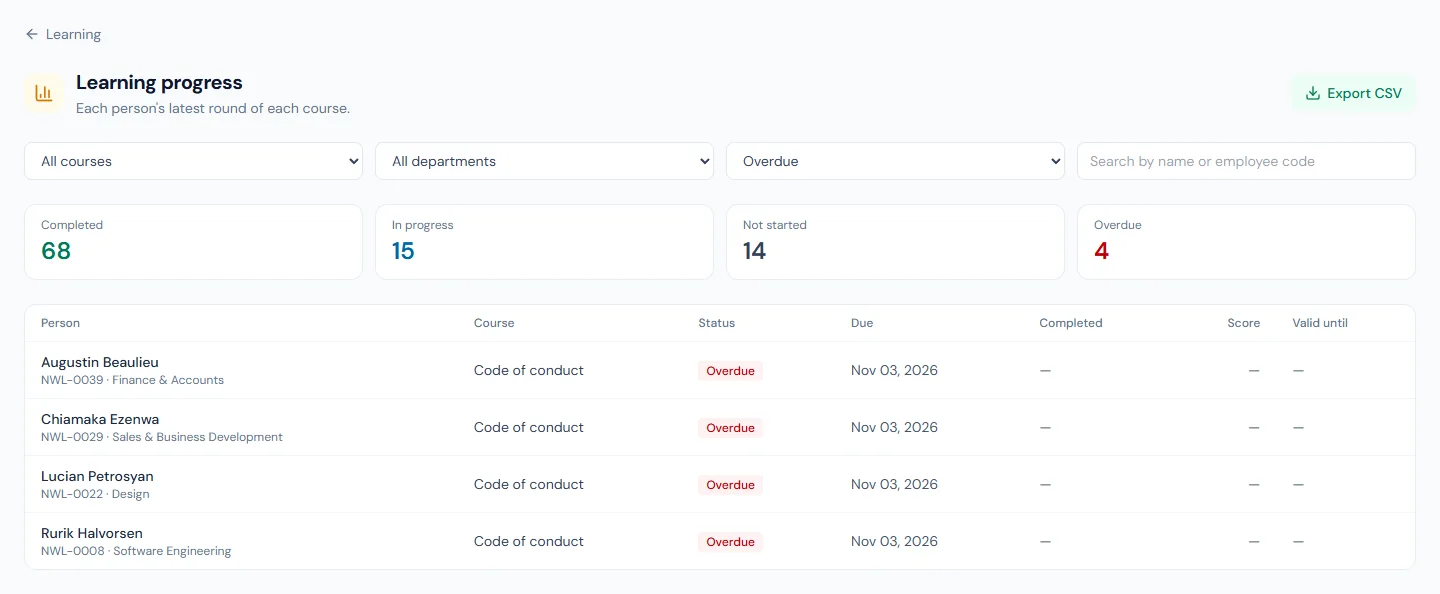
The report lists each person's latest round of each course: the person with their employee code and department, the course, the status, the due date, the completion date, the score and Valid until.
- Status is Not started, In progress or Completed. A course that is not completed and past its due date shows Overdue.
- People who have left stay on the report for the courses they completed. A course they had not finished is no longer listed or counted.
- Filter by course, by department and by status, including Overdue, or search by name or employee code.
- The four totals above the list (Completed, In progress, Not started, Overdue) count everything that matches the course, the department and the search, whatever status is selected.
- Export CSV downloads every matching row with these columns: Employee code, Employee, Department, Course, Status, Overdue, Due, Completed on, Score %, Quiz attempts, Valid until.
Allow another attempt
A person who has used every attempt at a quiz and has not completed the course shows No quiz attempts left under their status. Choose Allow another attempt beside it. That person's attempt count starts over for their current round. Their lessons stay done, and the sittings they already handed in stay on record.
This needs learning.manage.
What managers see
A person who holds learning.view_team has a My team tab on their own Learning page in the portal. It shows the same table for the people who report directly to them. A manager sees the No quiz attempts left note there, without the link to allow another attempt.
In the portal
- Learning in the portal lists each person's courses under To do, Open to everyone and Completed. What employees see is in the employee guide, under Learning.
- Needs your attention on the portal Home shows Courses to complete with the number waiting.
- The AI assistant can show a person their own courses. For the people who manage learning it can also show the course list and the progress report. It reads only.
Who can do what
| Action | Permission | Default roles |
|---|---|---|
| Take the courses they are assigned or choose | learning.take | Everyone |
| See the progress of the people who report directly to them | learning.view_team | Super Admin, HR Manager, HR Officer, Department Head |
| Write and assign courses, and read the progress report | learning.manage | Super Admin, HR Manager, HR Officer |
A custom role gets none of these until you add them under Access Control → Roles.
When a person's data is erased
Erasing an employee deletes their enrolments, their quiz sittings and their certificates. Courses and assignments they wrote stay, without their name.