Announcements
Announcements (/admin/announcements, needs announcements.manage) is the workspace's notice board. An announcement is written here, aimed at an audience, and read on the portal under Company → Announcements. Reading needs announcements.view, which every default role holds.
This page covers what an announcement can do. The step-by-step walkthrough with screenshots is in the HR Academy's chapter on announcements.
Writing one
New Announcement opens the form.
| Field | What it does |
|---|---|
| Title and Body | The body is rich text: headings, lists, emphasis, quotes and links. It is cleaned when saved and again when shown, so pasted content cannot carry scripts or styles. |
| Priority | Normal, Important or Urgent. A label and a colour; it does not change who sees the announcement or how. |
| Category | Optional. Manage the list under Announcements → Categories. |
| Target audience | Everyone, or chosen departments, branches, roles or named people. The same picker and the same rule as the knowledge base and the document library. |
| Publish at and Expires at | Leave Publish at empty to go live when you publish. An expired announcement leaves the portal and stays Published in this list until you archive it. |
| Pin | Keeps it at the top of the portal list. |
| Send email notification | Emails each person in the audience once, when the announcement goes live. |
| Must read | See below. |
Save draft keeps it out of sight. Save & publish makes it live, or schedules it when Publish at is in the future.
A published announcement can be edited: Edit on its card opens the same form, and Save changes applies to what people see straight away.
Must-read announcements
Switch Must read on for something every person in the audience has to confirm: a policy change, a safety notice, a deadline that carries a consequence.
- What the reader meets. The next time they open the app, in the portal or the admin area, the announcement is shown over the page and cannot be closed. I have read this records their confirmation and lets them through. With several pending they are shown one at a time, oldest first.
- Who is asked. Each active employee in the audience. Someone who joins the audience later (a new hire, a move into the department) is asked then. A login with no employee record is never asked.
- What is kept. One confirmation per person, with its date and time.
- When it stops asking. When the announcement expires or is archived.
- If something fails. The screen never locks anyone out: if the list cannot be loaded it is not shown, and if a confirmation cannot be saved the person can close it and is asked again on the next load.
- Signing in as someone else. An administrator signed in as another user is not shown that person's must-reads and cannot confirm for them.
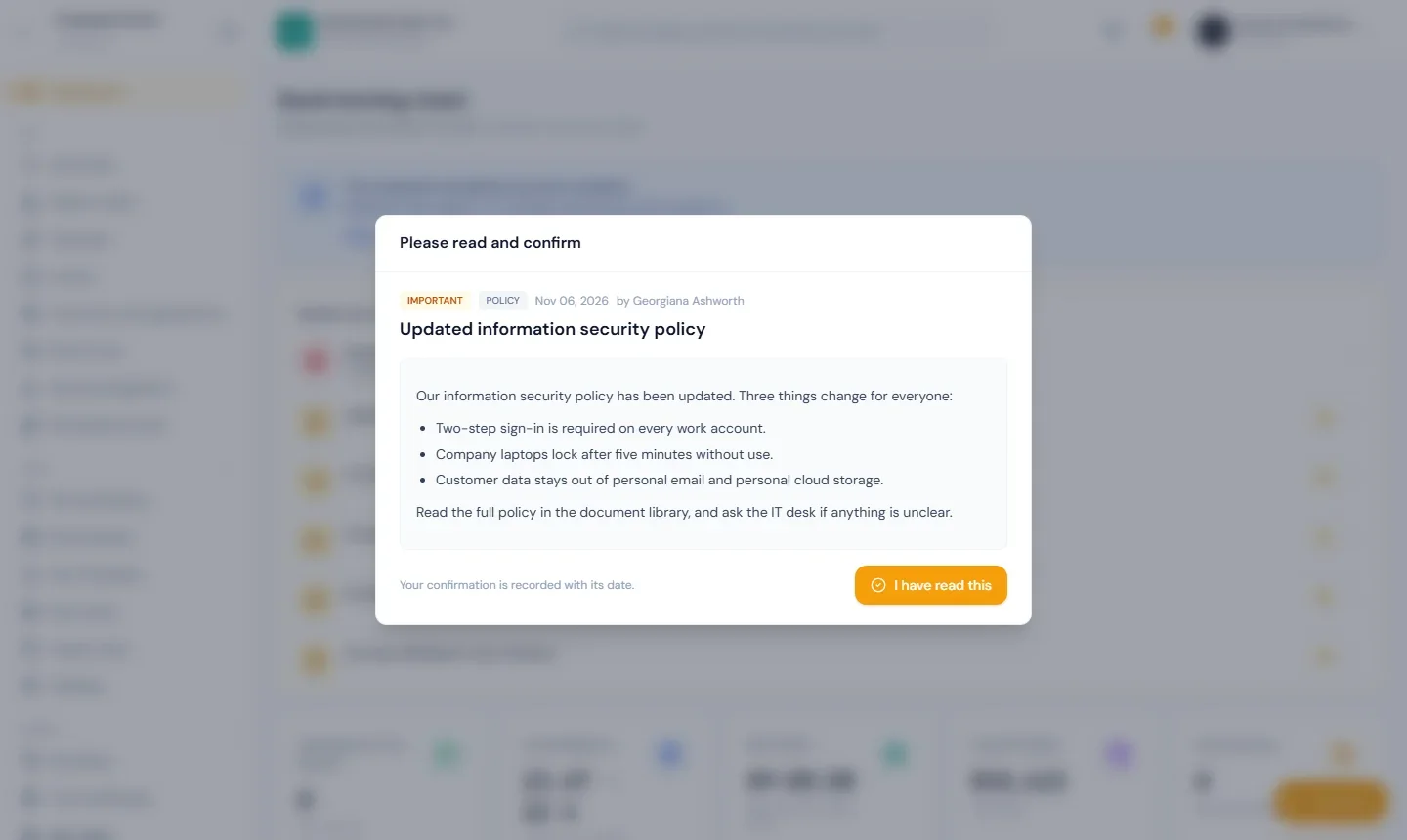
Must read and Priority are separate. An Urgent announcement that is not a must-read is still only a label.
Who has confirmed
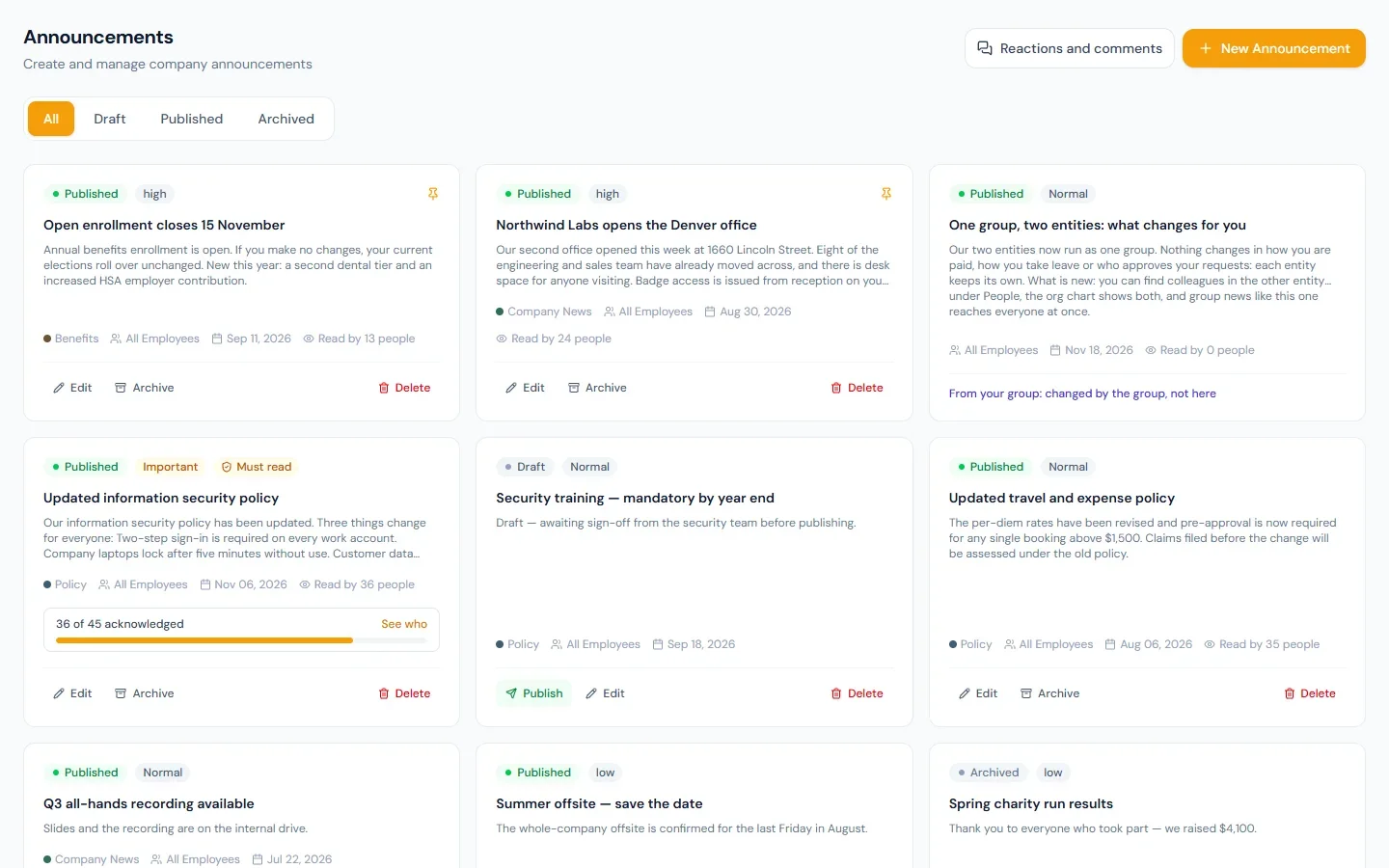
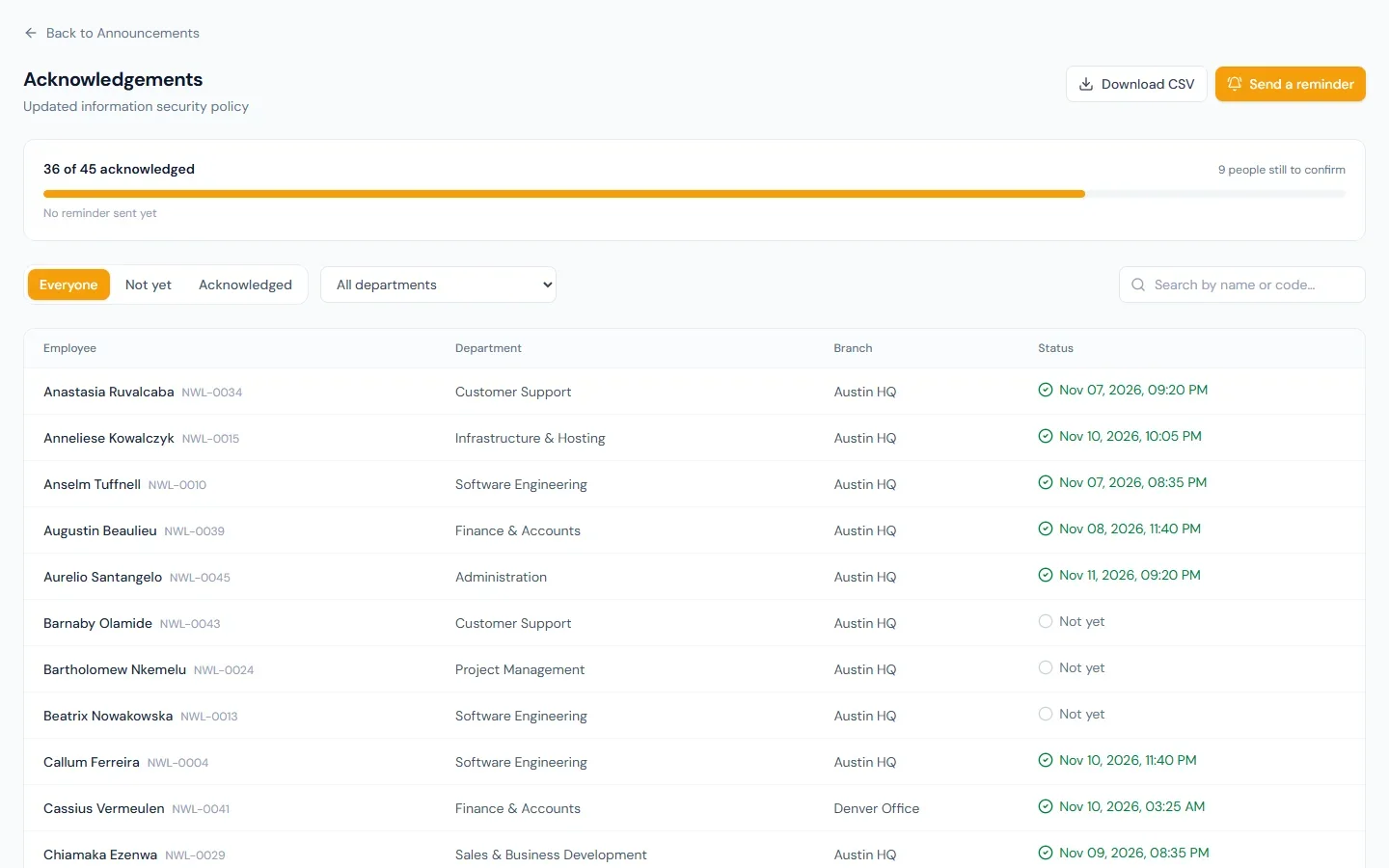
On the list, a must-read card shows N of M acknowledged. See who opens the roster:
- the count over the whole audience, with a progress bar;
- every person with their department, branch and the time they confirmed, or Not yet;
- filters for Not yet and Acknowledged, by department, and a search by name or employee code. The counts stay those of the whole audience while you filter;
- Download CSV, with everyone in it whatever the filters;
- Send a reminder, which emails the people who have not confirmed. It can be sent once in 20 hours for an announcement, and the page shows when the last one went out.
The audience is counted as it is today. Someone who has left the audience, or the company, drops off the roster; their confirmation stays on record.
Asking again after an edit
When you edit a published must-read, Ask everyone to confirm again appears under the switch.
- Leave it off for a correction that changes nothing people agreed to. Confirmations stand.
- Tick it when the content has changed in substance. Everyone in the audience is asked again, including people who had confirmed, and the roster starts from zero. People who had confirmed are told the announcement has changed, and show on the roster as Confirmed an earlier version until they confirm again.
Must-read, the knowledge base or the document library?
All three can ask for a confirmation and keep a roster.
| Use | When |
|---|---|
| A must-read announcement | A message people must see now. It interrupts. |
| A knowledge base article | A policy or how-to people come back to and search. It asks from the portal page and by email, without interrupting. |
| A library document | A file: a signed handbook, a form. |
A common pairing: put the policy in the knowledge base or the library, and announce the change with a must-read that links to it.
News from your group
In a workspace that is part of a group, news the group publishes appears here like your own, marked "From your group", with no edit, publish, archive or delete buttons: the group changes it. Its roster and read counts work as for any announcement.
Read counts
Every published card shows Read by N people: how many opened it in the portal. A read is not a confirmation. When you need names, make it a must-read.
Reactions and comments
Both are off in a new workspace. Reactions and comments on the list page has one switch for each; they apply to every announcement.
- Reactions. A reader chooses one of five (Like, Celebrate, Support, Insightful, Thanks). Choosing another replaces it; choosing the same one again removes it.
- Comments. Plain text, up to 2,000 characters, shown oldest first under the announcement.
- Who can take part. Anyone who can read the announcement in the portal, and anyone who manages announcements, so an author can answer under their own post.
- From this list. With either switch on, a published card shows the number of reactions and comments. Pressing it opens them, so someone who manages announcements can read, answer and delete comments on an announcement they are not in the audience of.
- Moderation. A comment can be deleted by its author or by anyone with
announcements.manage. Deleting removes it for everyone. - Switching off. Reactions and comments already made are hidden, not deleted. They return if you switch back on.
The AI assistant
With announcements.manage, the assistant can draft an announcement (including as a must-read), prepare its publication, list who has and has not confirmed a must-read, and prepare a reminder. Publishing and reminding are cards you confirm; the card states how many people are reached.
Emails
| When | To | |
|---|---|---|
| Announcement Published | The announcement goes live with Send email notification on | Everyone in the audience |
| Announcement Acknowledgement Reminder | You press Send a reminder on a must-read's roster | The people in the audience who have not confirmed |
Both are email templates of the workspace: you can edit their wording or switch either off.
Erasure requests
When a person's data is erased, their confirmations, reactions and comments are deleted with it. Announcements they wrote stay, shown in the portal as "by a former employee".