Company events & recognition
Two things people do together, both on the portal's Home page:
- Company events — a town hall, a training day, an office closure: something with a time, a place or a link, and the people it is for. On every plan.
- Recognition — a short note from one person to a colleague, tied to one of your company's values, that everyone can read. Comes with Performance, on the Growth and Enterprise plans.
Company events
Open Announcements → Company Events.
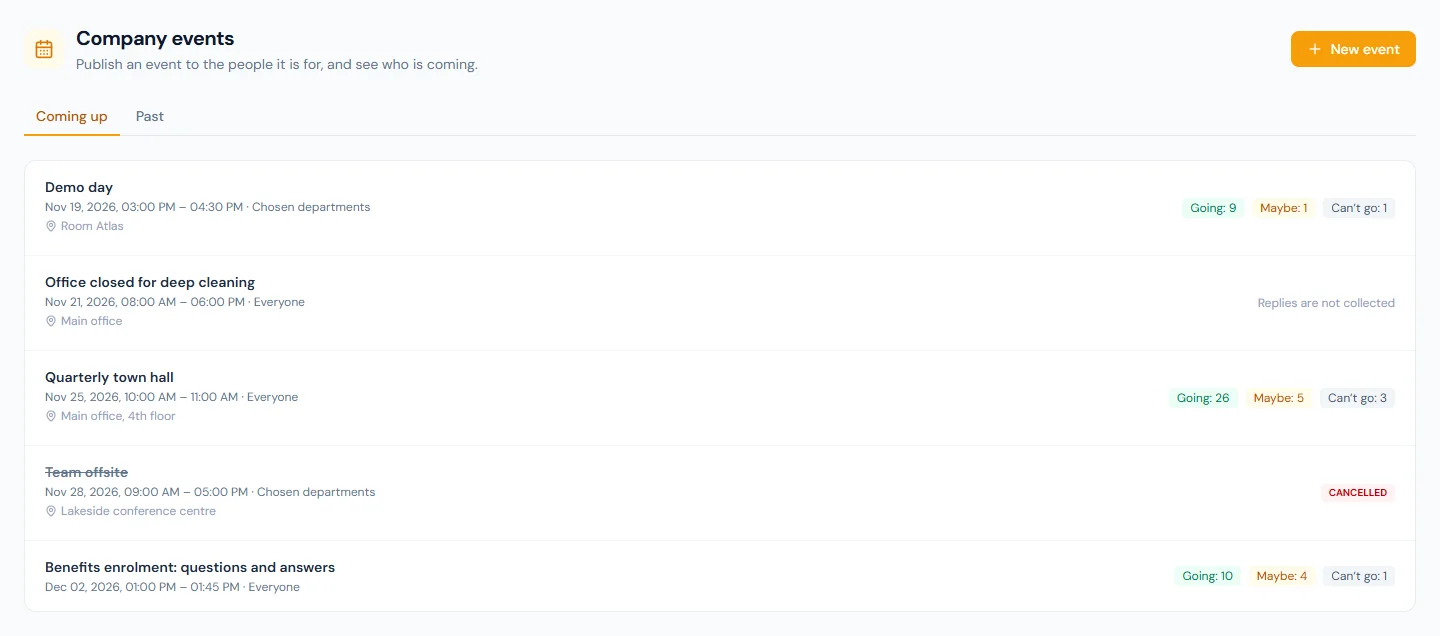
Coming up lists the events that are not over yet, soonest first, with the answers so far. Past lists the ones that are over.
Publish an event
Choose New event and fill in:
| Field | What it is |
|---|---|
| Title | What people see in their list and in the email. |
| Day, starts at, ends at | Times are in your company's time zone, whatever zone your own computer is in. The end is optional; give an end day only when the event ends on another day. |
| Place | A room, a site, or "Remote". Optional. |
| Link to join | A video call or a document. Only links that start with https:// or http:// are accepted. Optional. |
| Details | Plain text. Optional. |
| Who is invited | Everyone, or chosen departments, locations, roles or named people. |
| Ask people to reply | On by default. Switch it off for an event nobody needs to answer, such as an office closure. |
| Tell the people invited | On by default. See Who is told, and when. |
A person sees an event only when they are in its audience. Anyone else never sees it and cannot reply to it.
Replies
Each invited person answers Going, Maybe or Can't go, and can change the answer until the event is over.
Open an event to see who answered what.
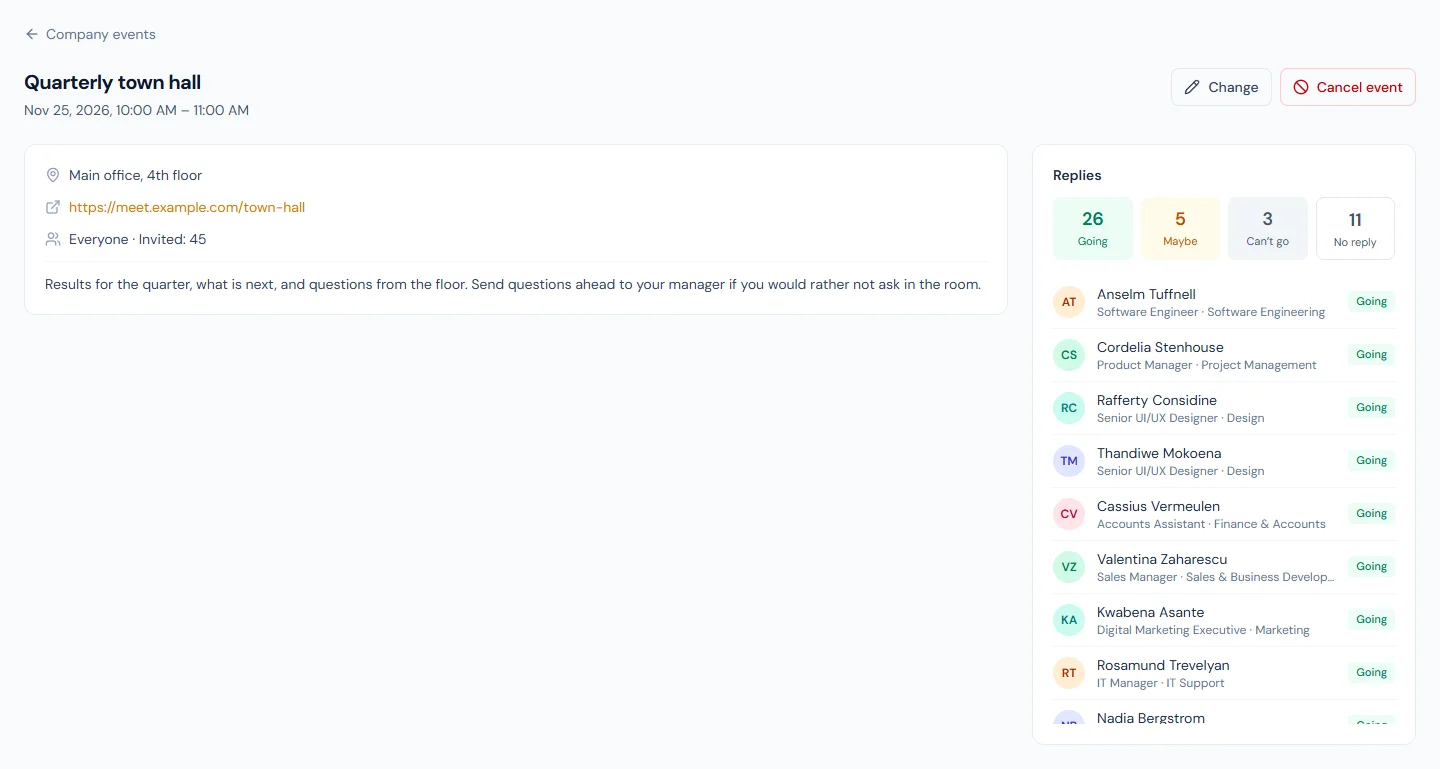
Invited is the number of active employees in the audience today. No reply is how many of them have not answered; they are a number, not a list.
Change an event
Open the event and choose Change. You can change an event until it is over, and you cannot move it to a time that has already passed.
- If you change the time, the place or the link, the people invited are told. Rewording the title or the details tells nobody.
- If you change who is invited, the people you add get the invitation, and the answers of people who are no longer invited are removed.
Cancel an event
Open the event and choose Cancel event, with a reason. The event stays on people's list, marked cancelled, with your reason, and takes no more replies. Cancelling cannot be undone, and an event that is over cannot be cancelled.
Who is told, and when
With Tell the people invited on, each active employee in the audience gets an email and a notification in the bell:
| When | Who |
|---|---|
| The event is published | Everyone invited. An event you enter after it is over tells nobody. |
| Its time, place or link changes | Everyone invited. |
| It is cancelled | Everyone invited who had not answered "Can't go". |
The three emails are Company Event: Invitation, Time or Place Changed and Cancelled under Settings → Email Templates, where you can reword each or switch it off for the whole workspace.
In the portal and in calendars
- Events in the portal lists what the person is invited to, with their answer. What employees see is in the employee guide, under Events & recognition.
- The Coming up card on the portal Home shows the next three. Switch it on or off under Settings → Portal Home.
- Add to my calendar on an event downloads it as a calendar file.
- On the Enterprise plan, a person's own calendar subscribe link also carries the events they are invited to. One they answered "Can't go" is left out, and a cancelled one shows as cancelled.
Recognition
Open Announcements → Recognition.
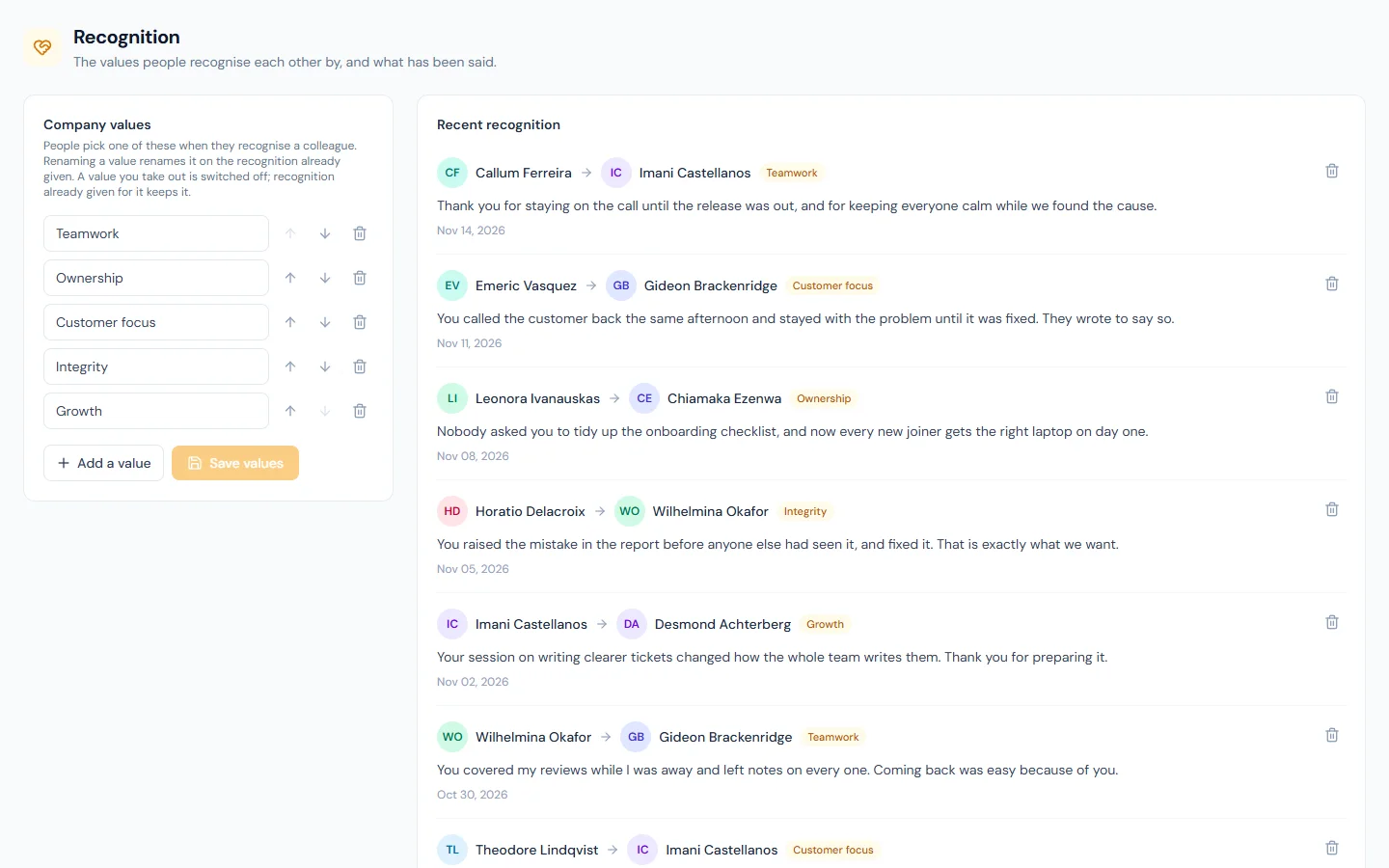
How it works
From Recognition in the portal, a person picks a colleague, optionally one of the company's values, and writes up to 500 characters.
- The colleague is told by email and in the bell.
- Everyone in the workspace can read the feed. The latest three show on the portal Home, in the Recognition card.
- A person's card in the people directory shows how many times they were recognised in the last 12 months, and the latest three.
- Nobody can recognise themselves, and each person can send 10 recognitions in any 24 hours.
Company values
The workspace starts with five values: Teamwork, Ownership, Customer focus, Integrity and Growth. Change the names, their order, or the list itself (up to 20), then choose Save values.
Renaming a value renames it on the recognition already given. A value you take out is switched off: it leaves the picker, and recognition already given for it keeps it.
Remove a recognition
Use the bin beside a note to take it down. It disappears from the feed for everyone and cannot be brought back.
The email is Recognition Received under Settings → Email Templates.
Who can do what
| Action | Permission | Default roles |
|---|---|---|
| See the events they are invited to, and reply | events.view | Everyone |
| Publish, change and cancel events, and read the replies | events.manage | Super Admin, HR Manager, HR Officer |
| Read the recognition feed and recognise a colleague | recognition.give | Everyone |
| Change the values and remove a recognition | recognition.manage | Super Admin, HR Manager, HR Officer |
A custom role gets none of these until you add them under Access Control → Roles.
When a person's data is erased
Erasing an employee deletes their replies to events and every recognition they gave or received. Events they published stay, without their name.