HR Desk
The HR Desk (/admin/hr-desk) is where a person's request to the company arrives and is
answered: a payroll query, a laptop, a request to work remotely, a question for HR. Each request
has a number, a team, an owner, a status and one conversation, so nothing is lost in an inbox.
Leave, expenses, loans, timesheets and letters keep their own pages and approvals. The desk is for everything else.
The HR Desk is on the Growth and Enterprise plans.
How it fits together
| Part | What it is |
|---|---|
| Request type | A form you design, plus the team it goes to and who may send it. "Ask HR a question" is a request type with two fields. |
| Team | The people who work one kind of request: HR, Payroll, and any you add (IT, Facilities). |
| Request | One form a person sent. It keeps the form as it was that day, whatever you change later. |
People send requests under Company → Requests in the portal. What they see is in the employee guide, under Requests.
Request types
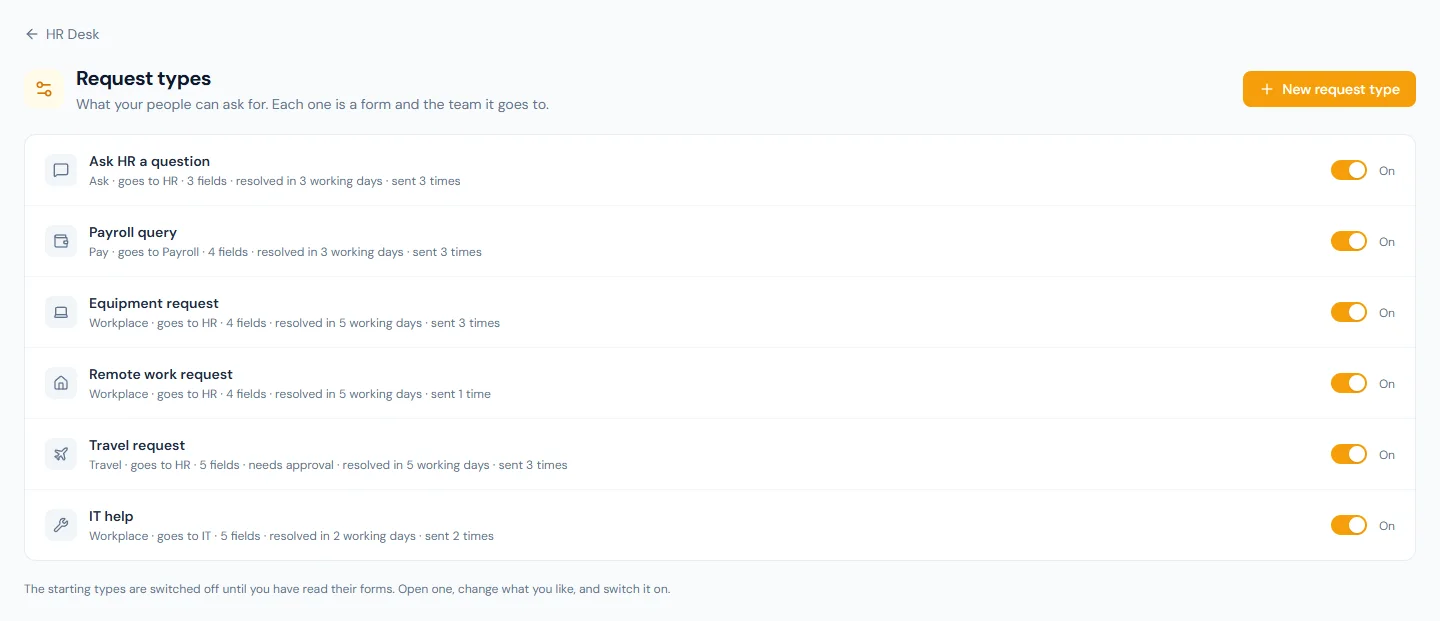
HR Desk → Request types lists them. A workspace starts with five, switched off until you have read their forms:
| Starting type | Goes to | Asks for |
|---|---|---|
| Ask HR a question | HR | A subject, the question, optional files |
| Payroll query | Payroll | What it is about, the pay period, details, optional files |
| Equipment request | HR | What is needed, why, and by when |
| Remote work request | HR | The dates, the place, a reason, whether the manager knows |
| Travel request | HR | Destination, dates, purpose, estimated cost, what needs booking |
They are written in the language your workspace writes its documents in. Open one, change what you like, and switch it on. A starting type cannot be deleted; switch it off if you do not want it.
A sixth built-in type, Change my details, has no form and is not a card in the portal. It is described under Changes to a person's own details.
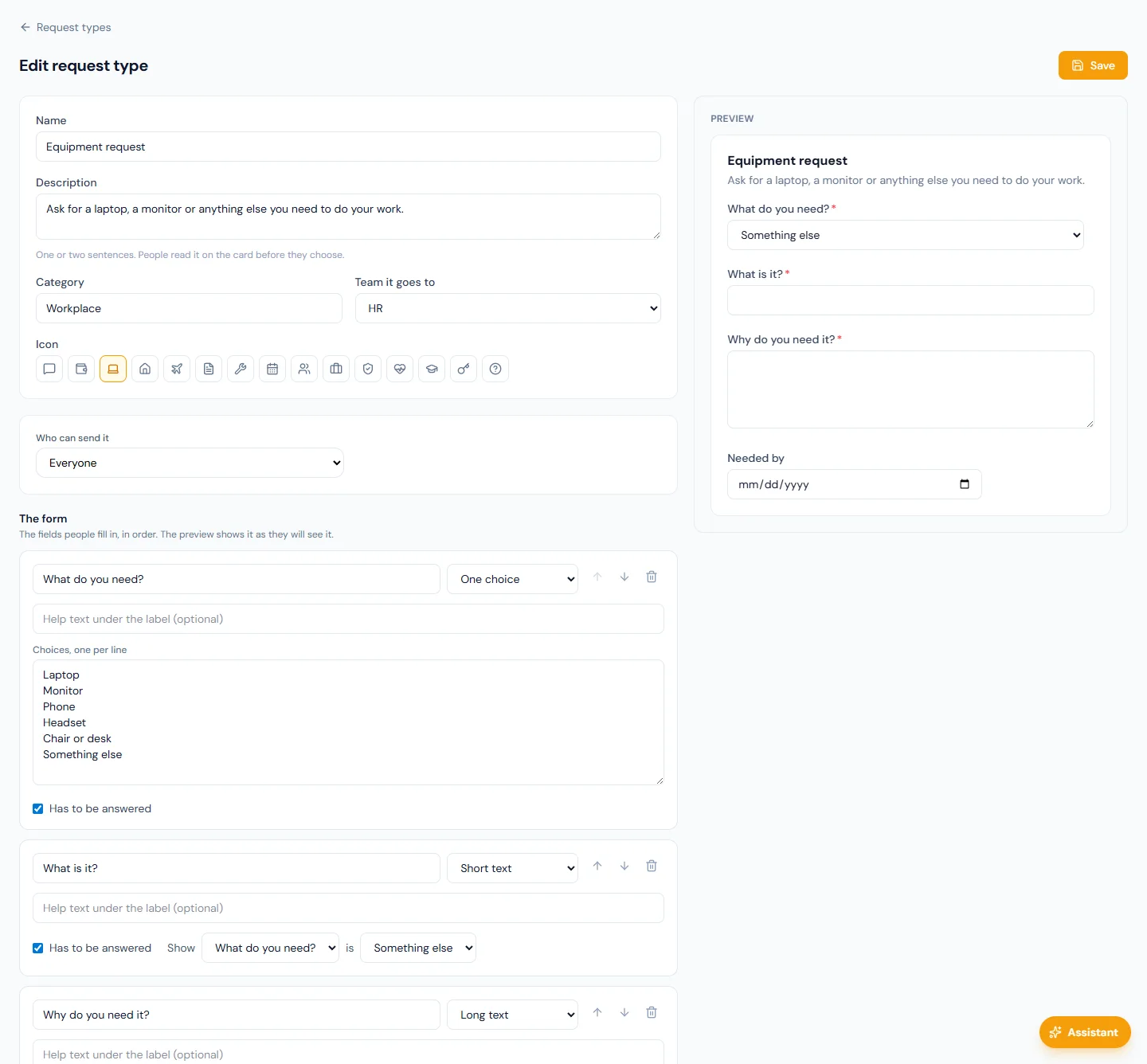
New request type opens the editor:
| Field | What it does |
|---|---|
| Name and Description | What the card in the portal says. |
| Category | The heading the portal groups cards under. Types with the same category sit together. |
| Team it goes to | The team whose list a new request lands in. |
| Icon | The picture on the card. |
| Who can send it | Everyone, or chosen departments, branches, roles or named people. Someone outside the audience never sees the type. |
| Show it in the portal | On, people can send it. Off, nobody can; requests already sent stay as they are. |
The form
Add fields in the order people should fill them in. The preview beside the form shows it as they will see it.
| Field type | The person |
|---|---|
| Short text, Long text | Types an answer. |
| Number, Amount of money | Enters a number. An amount cannot be negative. |
| Date, From and to dates | Picks a day, or a first and a last day. |
| One choice, Several choices | Picks from the choices you list, one per line. |
| Yes or no | Picks one. |
| File | Attaches up to five files. |
| A colleague | Searches the people directory and picks someone. |
| Section heading | Reads it: a heading splits a long form into parts. |
Each field can have help text and can be marked Has to be answered.
Show … is … hides a field until an earlier answer has a given value: "What is it?" appears only when "What do you need?" is Something else. A condition can point at an earlier One choice or Yes or no field. A hidden field is not asked for, and whatever was typed in it before it was hidden is not sent.
A form can have up to 40 fields. There is no scripting and nothing is calculated.
Editing a form later changes what new requests ask. A request already sent keeps the form it was sent with, so its answers still read correctly.
A type that people have sent cannot be deleted. Switch it off.
Approval and deadlines
Both are optional, and both apply to requests sent after you save.
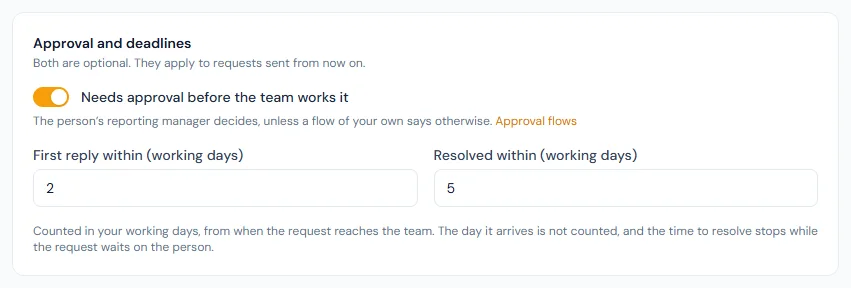
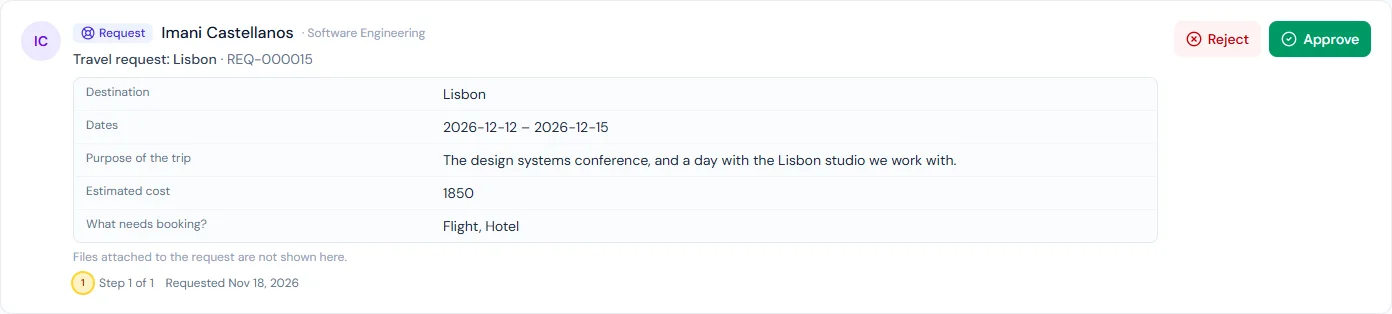
Needs approval before the team works it. A request of this type waits for a decision before it reaches its team:
- Who decides. The person's reporting manager, where the manager's role can approve requests
(
requests.approve). To send a type to someone else, or through more than one step, add a flow under Settings → Approval flows for HR Desk requests (see Approval flows). A flow can be limited to chosen request types and to an amount, which is read from the first Amount of money field the person filled in. - Where they decide. In Approvals in the portal, where the card shows the request's answers. Attached files are not shown there. A refusal needs a reason.
- Approved, the request reaches the team as Open and its deadlines start.
- Not approved, it ends there. The person is emailed the reason, and the team never works it.
- With nobody able to approve (the person has no manager, or the manager's role cannot approve requests), the request goes straight to the team, and its conversation says so.
While it waits, the team can read the request but cannot reply to it, and the person can withdraw it.
First reply within and Resolved within are counted in working days:
- Working days are the days of your default shift's working week, less your company-wide holidays.
- The count starts when the request reaches the team; the day it arrives is not counted. A deadline falls at the end of its day in your workspace's time zone.
- A first reply can be given up to 60 working days and a resolution up to 180. The first reply cannot be given longer than the resolution.
- The time to resolve stops while a request is Waiting on the person, and the deadline moves on by the working days it waited.
- A reopened request gets a new deadline to resolve.
- An internal note is not a reply: only a reply to the person meets the first-reply deadline.
When a request misses a deadline, the team's lead is emailed once for that deadline, within the hour. A team without a lead is emailed as a team.
Articles shown with the form
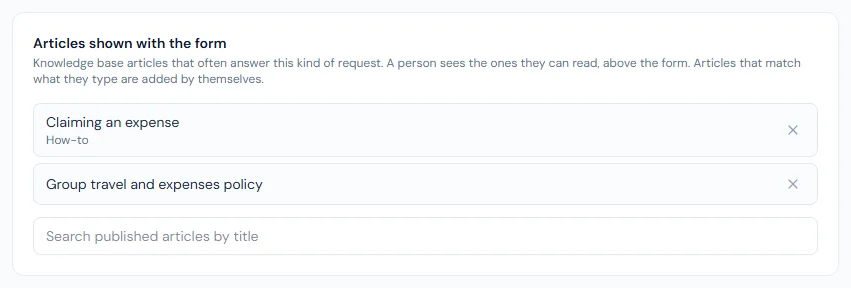
A question the knowledge base already answers need not become a request. Under Articles shown with the form, search your published knowledge base articles by title and pin up to five to a request type.
- Pinned articles appear above the form, under These may answer it, as soon as the person opens it.
- What the person types in the form's text fields is searched in the knowledge base as they type, and the articles found are added under the pinned ones. Nothing needs setting up for this.
- Each person sees only the articles they can read. An article aimed at another department is not offered to them, and someone whose role cannot read the knowledge base is offered none.
- An article opens in a new tab, so what the person has typed stays in the form.
- An article that is unpublished or deleted later simply stops appearing.
Teams
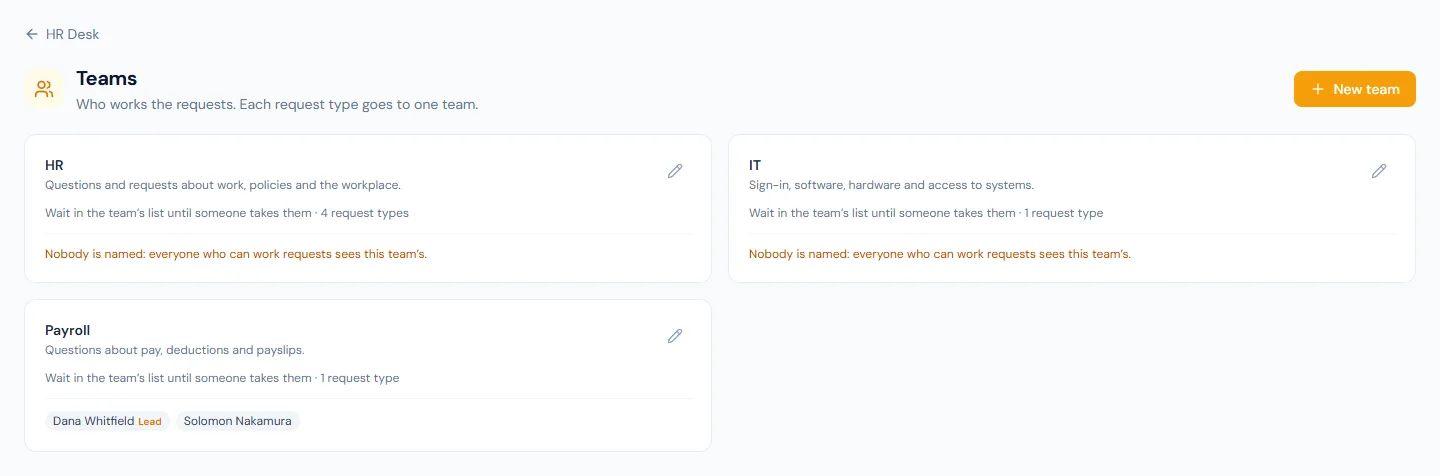
HR Desk → Teams. A workspace starts with HR and Payroll.
- Members are the people who see and answer a team's requests. Only someone whose role can
work requests (
requests.handle) can be chosen. - With nobody chosen, everyone who can work requests sees that team's. A small workspace can leave it that way.
- Team lead is one of the members.
- New requests either wait in the team's list until someone takes them, or go to the members in turn.
- Switching a team off is refused while request types that are switched on still go to it.
A team with request types or requests cannot be deleted, and nor can the two starting teams.
Working requests
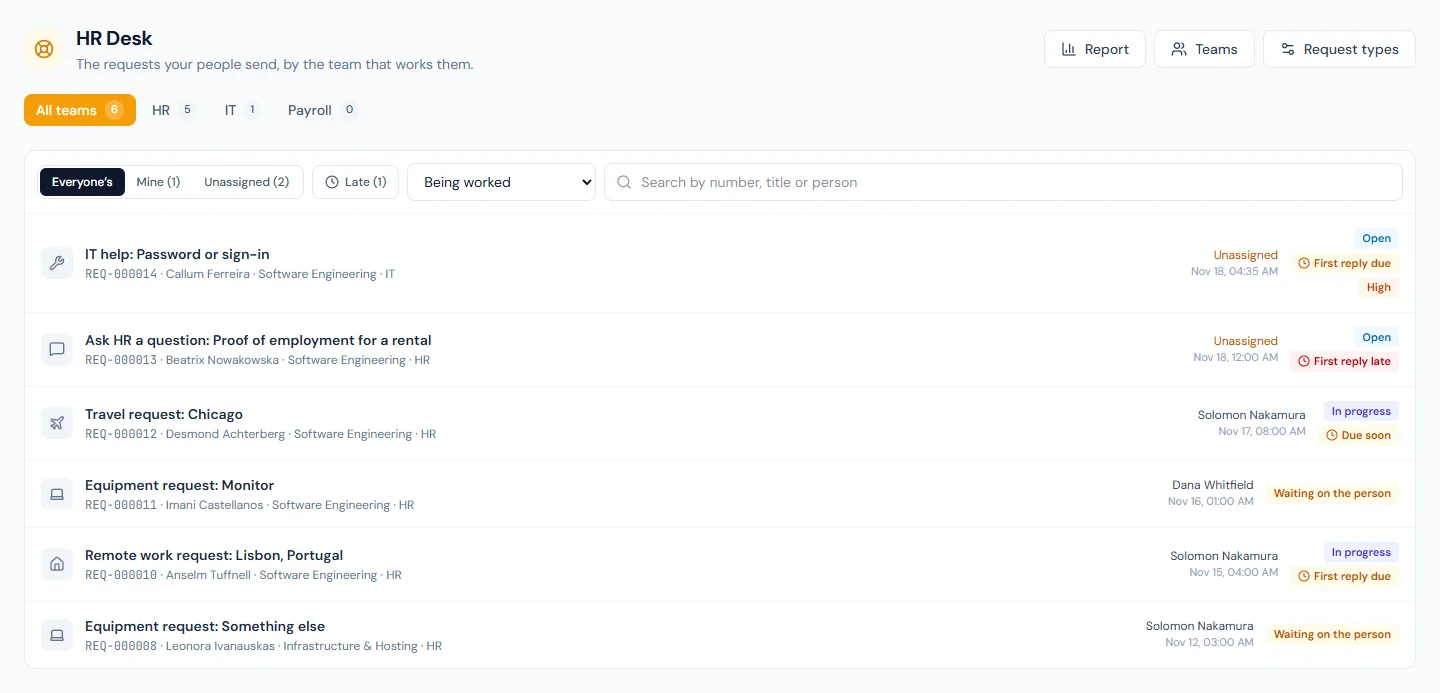
HR Desk opens on the requests of the teams you work.
- Teams across the top, each with how many requests are being worked.
- Everyone's / Mine / Unassigned, Late, a status filter, and a search by number, title or person.
- Each row shows the request, who sent it, who has it and when it last changed.
- A row whose deadline is within a day says First reply due or Due soon; one past its deadline says First reply late or Late. Late lists only those.
- Report, at the top, opens the desk's figures.
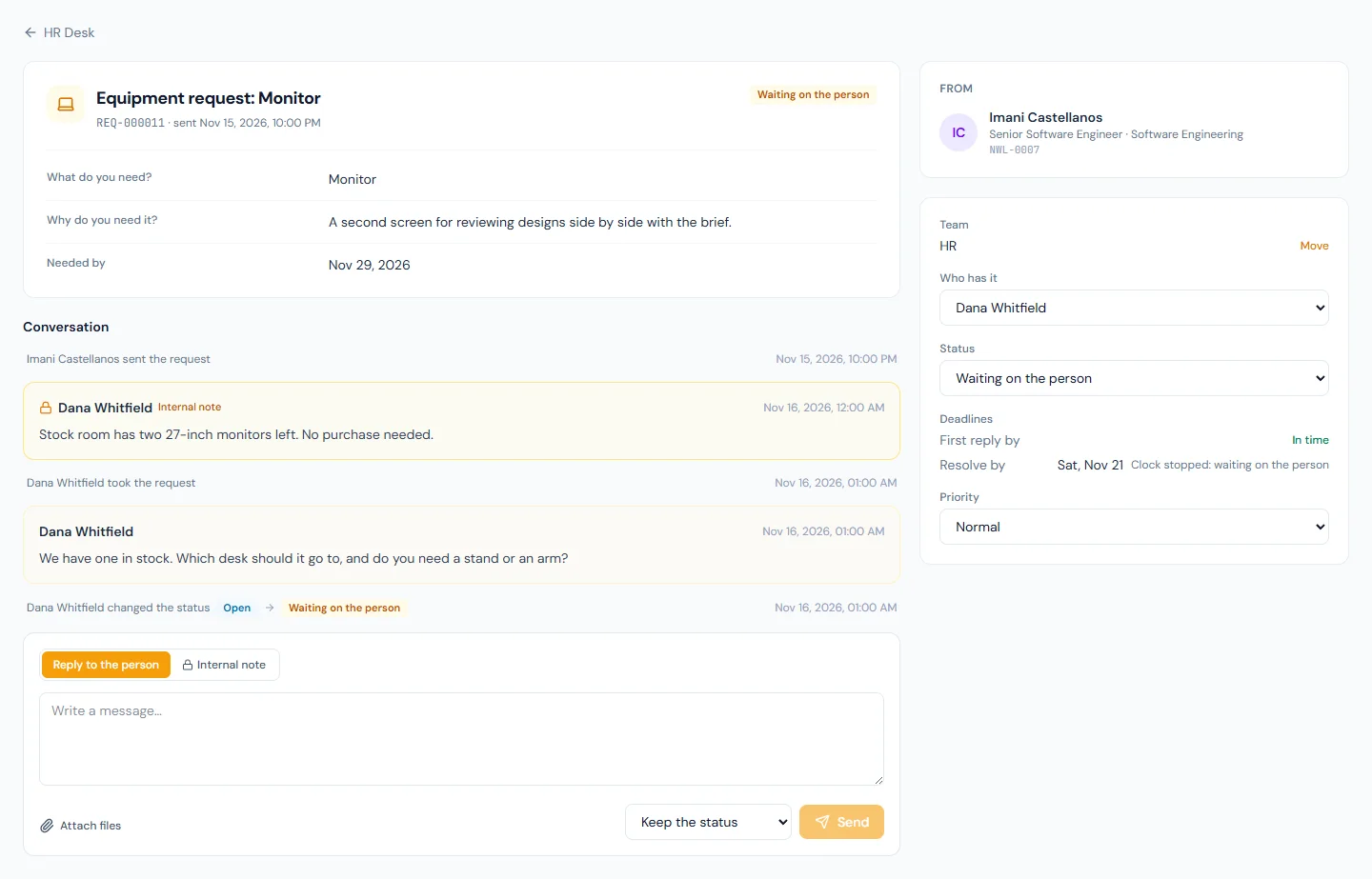
Open a request to see what the person sent, the conversation, and the panel on the right.
| You can | What happens |
|---|---|
| Reply to the person | They see it in the portal and are emailed. A first reply to a request nobody has taken makes it yours. You can set a status with the reply. |
| Write an internal note | Only the people who work this team's requests see it. The person who sent the request never does, and nor do they see a note's files. Nobody is emailed. |
| Take it, or choose Who has it | Gives the request to you or to a colleague who works the team; they are emailed. Nobody yet puts it back in the team's list. |
| Status | See below. |
| Priority | Low, Normal, High or Urgent. For the desk's own use: the person does not see it. |
| Move | Sends the request to another team, which is told. If you are not on that team, you will no longer see it. |
Replies and notes can carry up to five files: PDF, images, Word, Excel, CSV or text, up to 10 MB each. Files are downloaded, never opened in the page.
The panel also shows the request's Deadlines, where its type has any, and whether each was met.
The person's rating
Once a request is resolved, the person is asked one question in the portal: How well was this resolved?, from 1 to 5, with room for a comment. They can change their answer. The rating and the comment are shown on the request at the desk and counted in the report. Nobody is emailed.
Statuses
| Status | Meaning |
|---|---|
| Awaiting approval | Sent, and waiting for a decision. The team cannot work it yet. |
| Not approved | The approval was refused, or a change to the person's details was returned. Nothing more can be written on it. |
| Open | Waiting in the team's list. |
| In progress | Someone has it. |
| Waiting on the person | The desk has asked them something. Their reply puts it back in progress. |
| Resolved | The desk has dealt with it. The person is emailed and has 7 days to reopen it. |
| Closed | Seven days passed without a reopen. Nothing more can be written on it. |
| Withdrawn | The person withdrew it before it was resolved. |
The desk moves a request between Open, In progress, Waiting on the person and Resolved, and can take a Resolved one back to In progress. Closing is automatic and withdrawing is the person's. Awaiting approval and Not approved are set by the approval, never by the desk.
Report
HR Desk → Report gives the figures for the requests sent in a period, for every team or one.
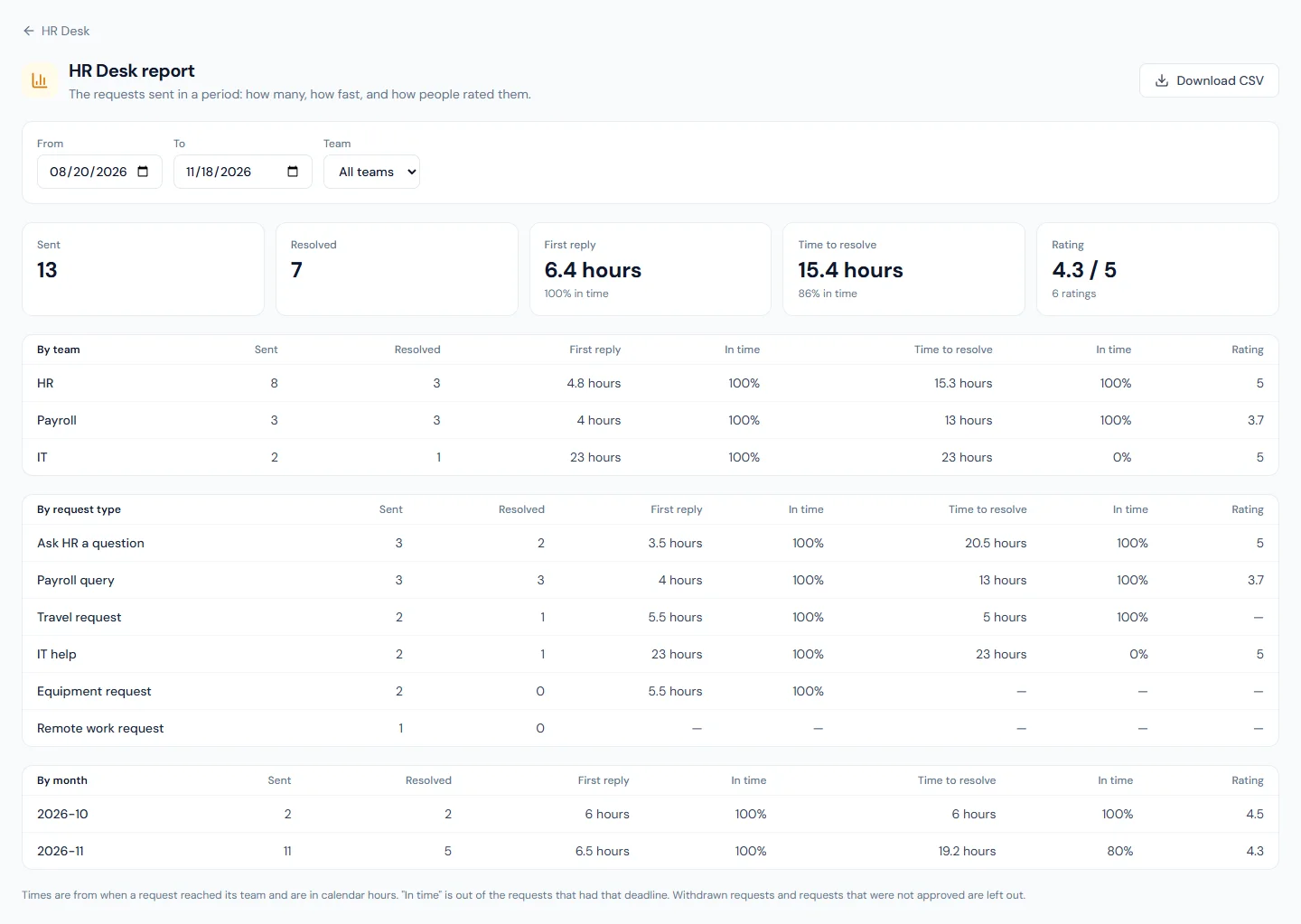
| Figure | What it counts |
|---|---|
| Sent | Requests sent in the period that reached a team. Withdrawn requests and requests that were not approved are left out. |
| Resolved | Those of them that have been resolved. |
| First reply | The average time from reaching the team to the first reply, in calendar hours. |
| Time to resolve | The average time from reaching the team to being resolved, in calendar hours. |
| In time | The share that met the deadline, out of the requests that had that deadline. |
| Rating | The average of the ratings given, and how many there were. |
The same figures follow by team, by request type and by month. Download CSV gives one row per request.
Someone who works requests sees the figures of their own teams; someone who can read every team's sees them all. A report reads up to 5,000 requests; for more, narrow the period.
Changes to a person's own details
People change their name, contact details, address and bank account on their own profile page, and nothing reaches your records until HR approves it (see Profile approvals). The built-in request type Change my details brings that review to the desk.
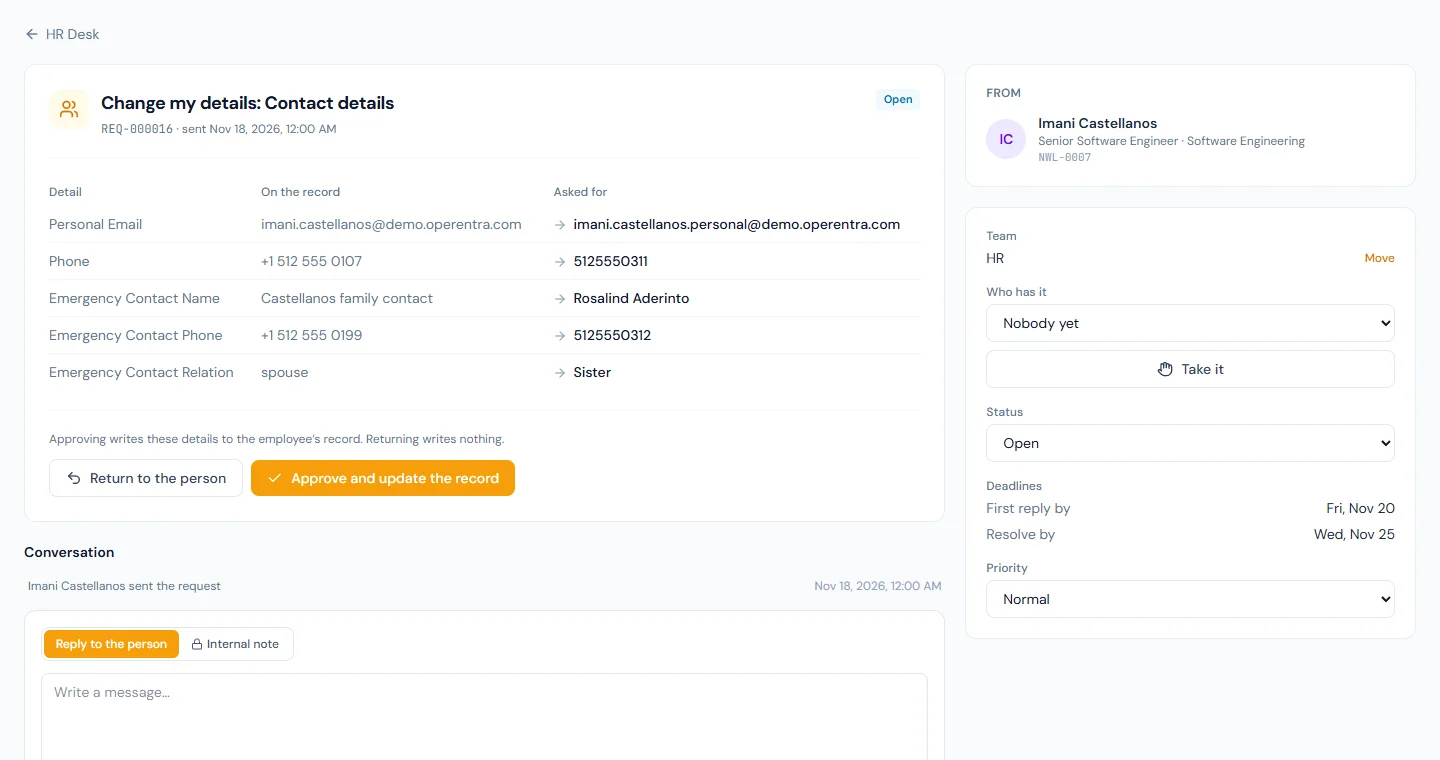
With the type switched on, each change a person sends becomes a request:
- It has a number, a team, deadlines and a conversation like any other request, and the person follows it under My requests.
- It shows each detail that differs: what is on the record beside what was asked for.
- Approve and update the record writes the change to the employee's record, exactly as approving on the Profile approvals page does, and resolves the request. The record's audit trail names the request.
- Return to the person needs a note saying why. Nothing is written; the request ends as Not approved and the person can correct their profile and send it again.
- You can reply first, to ask the person something. The request cannot be marked Resolved by hand while the change is undecided: deciding the change ends it.
- A change to the bank account alone goes to the Payroll team, where that team is switched on. Anything else goes to the team the type names.
- If the person withdraws the request, the change is taken back with it.
Who can decide. Someone who works the request's team and whose role can edit employees
(employees.update). Someone who works the team without that permission can read the request
and reply, not decide.
A new bank account and a locked pay run. A bank file reads each person's account when the file is made. If a pay run with this person in it is locked and not yet paid, the request says so before you approve: a bank file made for that run afterwards pays into the new account. Make the file first, or approve first, whichever you mean.
Switching it on.
- The type is under HR Desk → Request types, named Change my details. It has no form (the profile page is its form), so you set only its name, team, deadlines and the switch.
- In a workspace created from 19 November 2026 it is on from the start. In an older workspace it is off until you switch it on.
- Off, nothing changes: every change is still reviewed, on the Profile approvals page.
- On, the Profile approvals page keeps working too. A decision taken there ends the request.
- Changes that were already waiting when you switched it on stay on the Profile approvals page.
Other ways in
| Where | What it does |
|---|---|
| The portal's Requests page | Ends with Has a page of its own: tiles for leave, expense claims, loans and letters, so a person who came to ask for one of those is sent to its page. A tile shows only where your plan has that page and the person may open it. |
| Home | Needs your attention counts the requests waiting for the person's reply. |
| The portal search | Finds a person's own requests by title or number. Nobody finds another person's request there. |
| The AI assistant | A person can ask what they can request, have a request prepared from what they say and send it by confirming a card, and ask where their requests stand. Someone who works the desk can ask for their teams' requests, read one, and have a reply drafted, which is posted only when they confirm the card. Files cannot be attached in the chat. See AI assistant. |
| A chat channel | A connected Slack, Microsoft Teams, Mattermost or Google Chat channel can hear request.created as one line: New request for HR: Equipment request (REQ-000123). The line names the kind of request, the team and the number, never who sent it or what it says. See Integrations. |
| The public API | GET /v1/request_types, GET /v1/requests and POST /v1/requests (a request sent for an employee, checked as the portal checks it and without files), under the requests:read and requests:write scopes. Internal notes, the conversation and files are not part of the API. |
| Webhooks | request.created, request.updated (a change of status, of who has it, of team or of priority, and an approval decision) and request.resolved. Each carries the request's number, kind, team, status and deadlines, never its answers. |
Speak up
A concern raised in confidence (misconduct, harassment, safety, fraud) is not a request and is never on this desk: it has its own readers, named one by one, and its own page. See Speak up.
Who can do what
| Permission | Lets a person | Default roles |
|---|---|---|
requests.create | Send requests and follow their own | Everyone |
requests.handle | Work the requests of the teams they are on | Super Admin, HR Manager, HR Officer, Accountant |
requests.view_all | Read every team's requests, without answering | Super Admin, HR Manager |
requests.manage | Set up request types and teams | Super Admin, HR Manager |
requests.approve | Approve the requests of their direct reports | Super Admin, HR Manager, HR Officer, Department Head |
Reading every team's requests is not the same as working them: to reply, be on the team (or work a team that has nobody named). A handler never sees the requests of a team they do not work.
Emails
| When | To | |
|---|---|---|
| Request Received at the HR Desk | A request is sent, or moved to a team | The team's members; only the assignee where requests go out in turn |
| Request Assigned to You | Someone else gives you a request | The new assignee |
| Person Replied on a Request | The person writes back, or reopens | The assignee, or the team when nobody has it |
| Reply to Your Request | The desk replies | The person who sent it |
| Your Request Is Resolved | The request is marked resolved | The person who sent it |
| Request Waiting for Your Approval | A request that needs approval is sent | The people who can decide it |
| Your Request Was Not Approved | The approval is refused | The person who sent it, with the reason |
| Request Past Its Deadline | A request misses its first-reply or its resolution deadline | The team's lead, or the team where it has none |
Each also appears in the bell, and each is an email template of the workspace: you can edit its wording or switch it off.
When a person's data is erased
Their own requests are deleted, with the conversation and the files. What they did at the desk for other people stays without their name: a colleague's request keeps its answers. Requests they were working go back to their team's list.