Groups
A company with entities in more than one country keeps one workspace per entity: each has its own country, currency, payroll, tax rules, leave law and fiscal year (see Multi-country & currency). A group sits above those workspaces. It lists every entity in one console, with its country, currency and headcount, and records who runs the group.
Joining a group changes nothing inside a workspace. Its people, payroll, documents and settings stay where they are, and nobody gains access to a workspace because it is in a group: opening a workspace still takes a membership there.
Groups come with the Enterprise plan (and Enterprise trials). Only the workspace that starts the group needs it; a workspace on any plan can join one.
Opening the console
Open the account menu (your name, top right) and select Group. The menu shows it when you
belong to a group, when a group has invited you, or when the workspace you are signed in to may
start one. The console opens at /group, outside any one workspace; Back to workspace
returns you.
Starting a group
A super admin of a workspace with groups switched on can start one:
- Sign in to the workspace that will be the group's first entity.
- Open Group, enter a name, for example "Northwind Group", and select Start a group with this workspace.
You become the group's owner. A workspace is in one group at most.
Adding workspaces
There are two ways in, and both need someone who is a super admin of the workspace that joins:
- Add a workspace you run. If you are a super admin of the other workspace too, pick it from the list and select Add. No invitation is needed: you speak for both sides.
- Invite another workspace. Enter the email of the other workspace's super admin and select Send. They receive an email, sign in with that address, open Group, choose which of the workspaces they run should join, and select Join with this workspace. They can also Decline. An invitation stays open for 14 days; owners and admins can cancel it before then.
Whoever accepts an invitation becomes a viewer of the group, so they can see it. An owner can change that.
The console
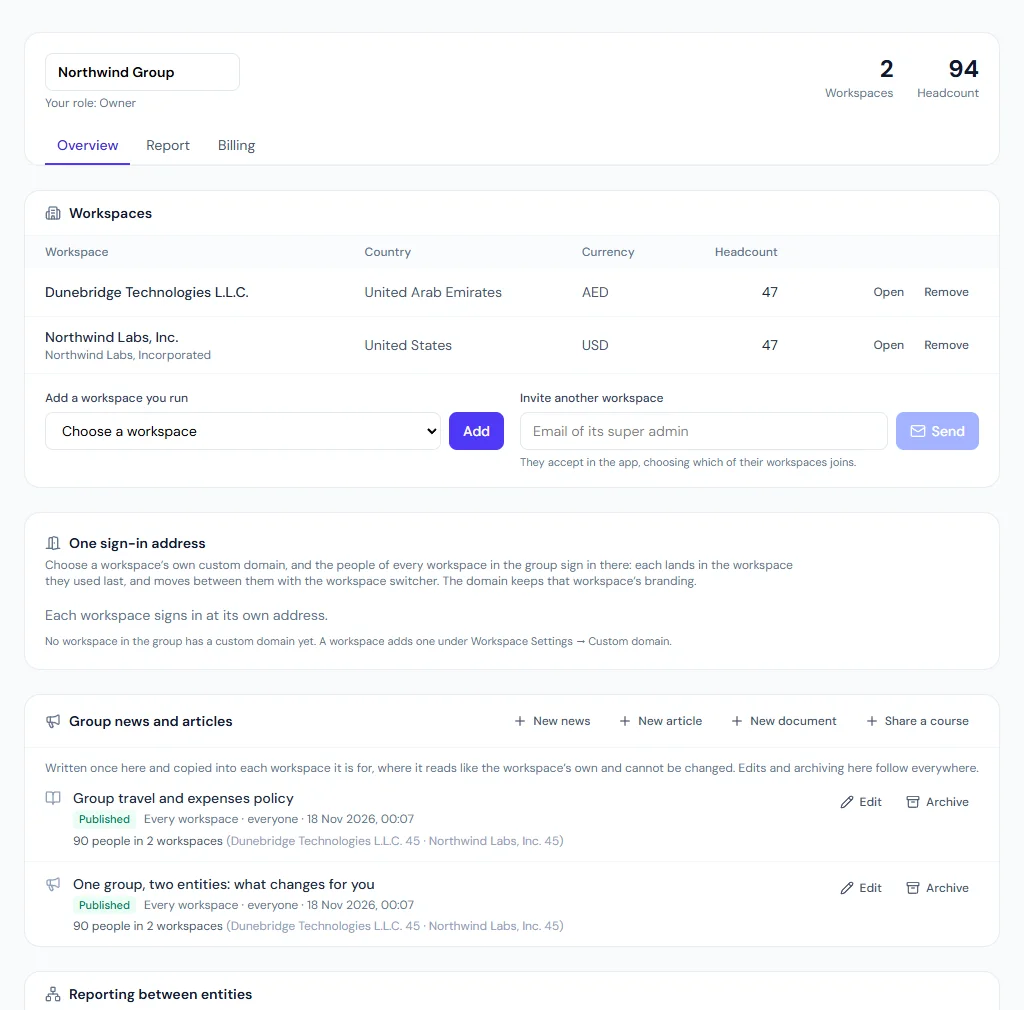
| Part | What it shows |
|---|---|
| Header | The group's name (owners and admins can rename it), your role, the number of workspaces and the total headcount |
| Workspaces | Each entity's name and legal name, country, currency and headcount, with Open where you have a membership, and Remove |
| People who run the group | Everyone with a role in the group, by sign-in email |
Headcount counts active employees, as billing does: people who are not deleted and not separated.
Group news, articles and documents
Owners and admins can write news, a knowledge article or a library document once, in the console's Group news and articles section, and send it to the group's workspaces. Each workspace gets its own copy: the news shows on its announcements and in the portal, the article in its knowledge base under the Company space, the document in its document library, with the same search, assistant answers and must-read confirmation as the workspace's own content.
- Select New news, New article or New document.
- Write the title and text (an article also has a summary). A document has a description, a category and a file (PDF, Word, Excel, PowerPoint or an image).
- Choose the workspaces it is for (none ticked means every workspace in the group) and who in them, by system role: super admins, HR managers, HR officers, accountants, department heads, employees (none ticked means everyone). Departments, locations and named people belong to each workspace, so they are not offered here.
- Tick Must read to have each person confirm they have read it. News can also be emailed, and has a priority (normal, important, urgent).
- Save draft, then Publish.
A workspace reads its copy but cannot edit, archive or delete it; its pages show "From your group". Changes are made in the group:
- Edit a published item and every copy is updated at once. When the text of a must-read changes, everyone is asked to confirm it again.
- For a document, choose a new file when you edit it: every copy gets it as a new version, and a must-read document asks everyone to confirm the new version. Each workspace keeps its own copy of the file, so removing one workspace never affects another's.
- Untick a workspace and its copy is archived; tick one, or add a workspace to the group and save the item again, and it gets a copy.
- Archive takes it down everywhere. Confirmations already given are kept.
- Only a draft can be deleted.
Each published item shows how many people it reached across the group and, for a must-read, how many of them have confirmed the current version, with the figure for each workspace. The workspace's own roster (Announcements → the item → Roster) lists the names.
Sharing a course
A course is written in one workspace's Learning, and shared with the group's other workspaces from the console:
- Sign in to the workspace where the course is written. You need the right to manage Learning there.
- In Group news and articles, select Share a course and pick one of its published courses. A lesson that points at a knowledge article or a library document must point at one the group published, so that each workspace's copy can point at its own copy of it; the console says which lesson does not.
- Choose the workspaces and, by system role, who it is for. Tick Assign it in each workspace to assign it there to those people, with a due date and, if it repeats, how often. Learning then enrols them and sends its usual course assigned email.
- Save draft, then Publish.
Each other workspace whose plan includes Learning gets a read-only copy; a workspace without Learning is left out. To change the course, edit it where it was written, then open it in the console and save: the copies follow, lesson by lesson, so people's progress is kept. The assignment is made once; each workspace can add its own assignments of the copy. Archive withdraws every copy and stops their assignments; people's history and certificates stay. The console shows, for each course, how many people are enrolled across the group and how many have completed it.
Group directory and org chart
Each workspace decides whether its people appear across the group, in Settings → People Directory → Show our people in the group directory (off until turned on). People in the workspaces that share then see each other in the portal's People and Org chart, under All of (group name), with what each workspace's own directory settings show.
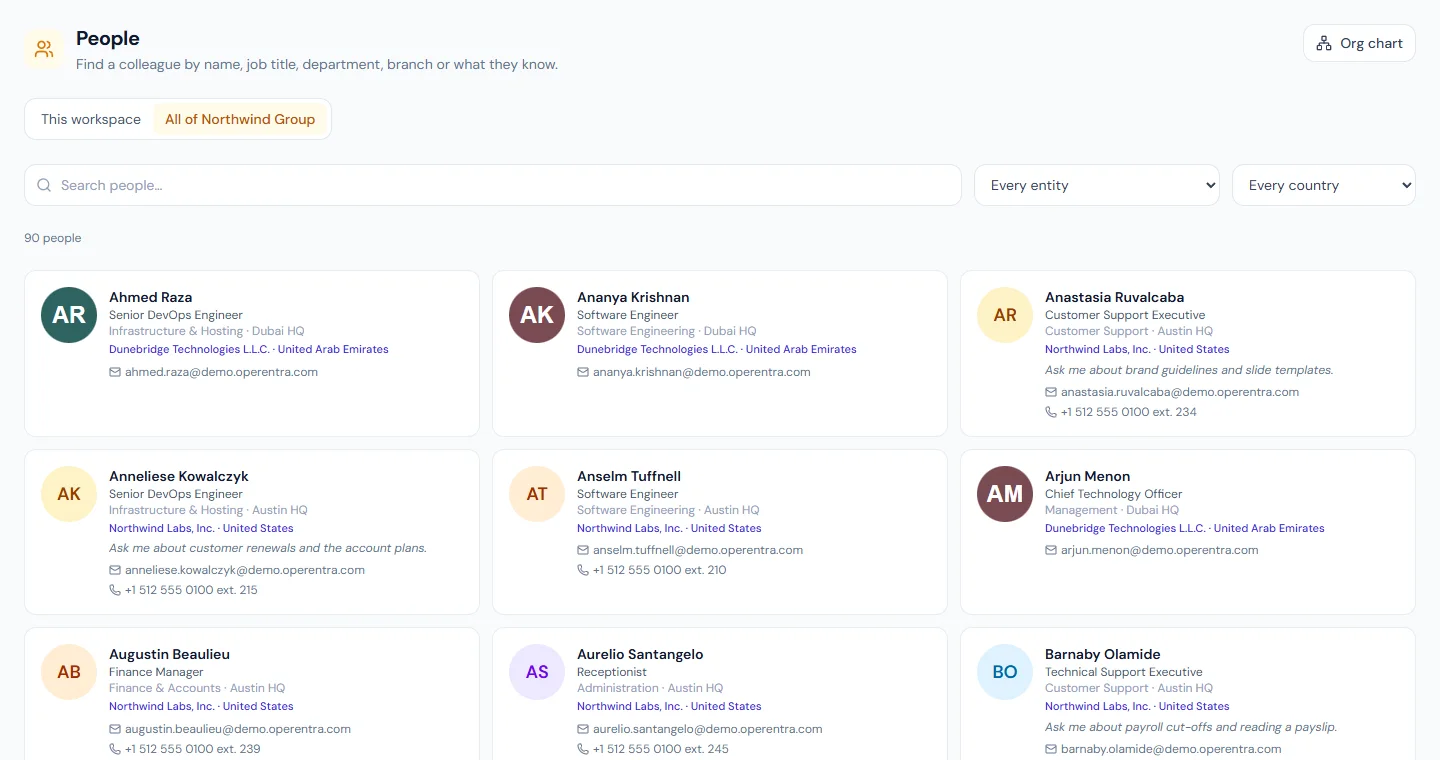
Reporting between entities, in the console, places each workspace's chart in the group org chart: choose the person its top is drawn under, in another workspace that shares its people, or leave it standing on its own. This is for the chart only: approvals, leave and every other reporting rule stay inside each workspace. A workspace that does not share its people is not in the group chart.
The group report
The console's Report tab consolidates the group's workspaces over a range of months (twelve to this one by default, at most 24):
| Figure | Where it comes from |
|---|---|
| Headcount, joiners, leavers | Every workspace, as its own People analytics counts them: headcount at the end of each month, joiners by joining date, leavers by last day. A move between the group's workspaces is neither a joiner nor a leaver here |
| Attrition | Leavers over the average headcount of the period, for each workspace and, for the group and each country, the leavers added up over the average headcounts added up; also annualised. Moves within the group are left out |
| Payroll cost | Only workspaces that show their payroll totals to the group (below): the employer cost of their approved, disbursed and locked payroll runs (pay earned plus the employer's contributions), by the month each run pays |
It is shown by entity, by country and by month, and Download CSV saves it.
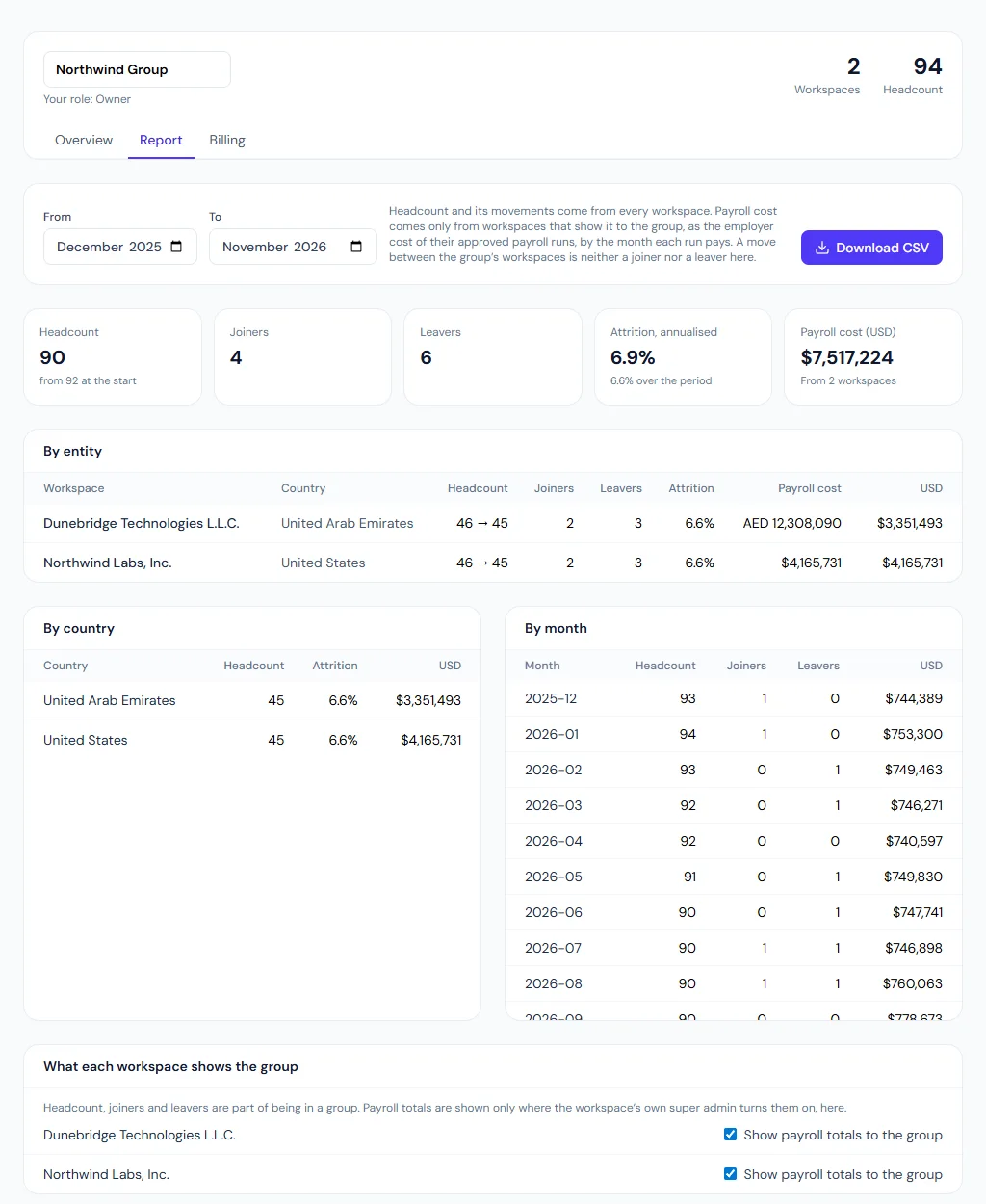
What each workspace shows the group. Headcount and its movements are part of being in a group. Payroll totals are not: each workspace's own super admin turns Show payroll totals to the group on or off for it, in the Report tab. Nobody else can, the group's owners included.
The reporting currency and exchange rates. Payroll cost is converted into the group's reporting currency (USD unless an owner or admin changes it) with rates the group enters, one per currency per month: how much of the reporting currency one unit of the currency was worth. Copy previous month fills a month from the one before. Where a month has no rate, its payroll is shown in its own currency, the report shows the subtotal in each currency and no converted total, and a note names the currencies and months missing a rate.
One sign-in address
A custom domain normally signs in only its own workspace's people. Under One sign-in address in the console, a group owner who is a workspace's super admin can make that workspace's custom domain (see Custom domain) the address where the people of every workspace in the group sign in:
- Each person lands in the workspace they used last among the group's, and moves between them with the workspace switcher, as anywhere else.
- Someone with no workspace in the group cannot sign in there.
- The sign-in page keeps the branding of the workspace whose domain it is.
Only workspaces with a custom domain that is attached or live can be chosen. Choosing Each workspace's own address closes it, and so does that workspace leaving the group.
Once the address is live, the links in emails follow it: a workspace of the group with no custom domain of its own sends its people to the group's sign-in address, so they are not asked to sign in a second time elsewhere. A workspace with its own live domain keeps linking to that.
One bill
The console's Billing tab lets one workspace pay for the group:
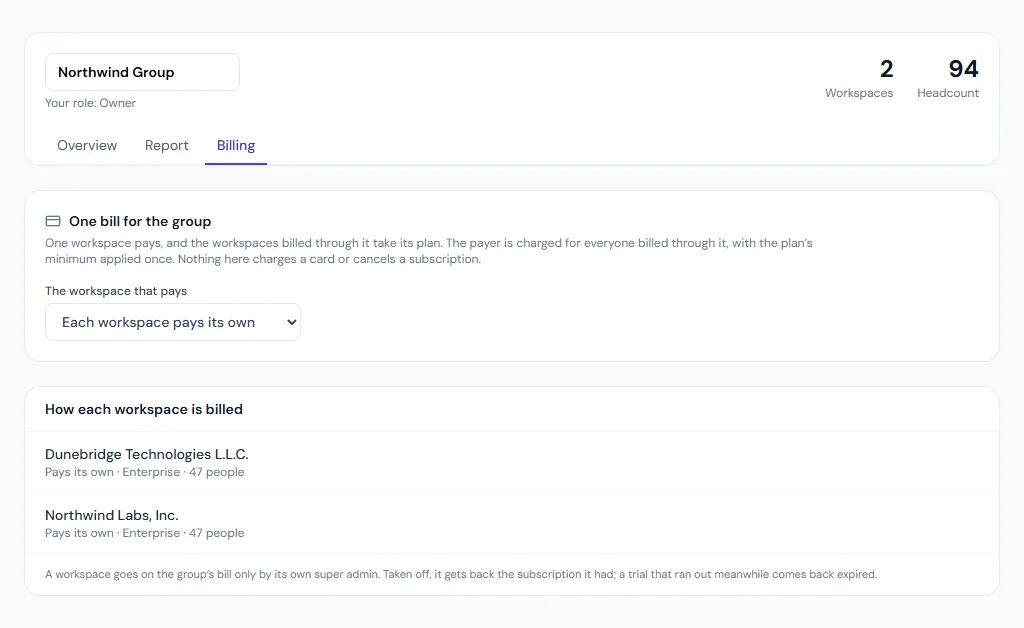
- The workspace that pays. A group owner who is also that workspace's super admin chooses it. It needs a subscription that is active, on trial or awaiting payment.
- Billing a workspace through the group. Each workspace's own super admin selects Bill through the group for it. Its subscription then follows the payer's plan and status, its Billing page says it is billed through the group, and its people are added to the payer's seats, with the plan's minimum applied once to the whole bill.
Nothing here charges a card or cancels a subscription. A workspace that pays its own Stripe subscription is asked to cancel it under Billing first; one with a lifetime deal keeps it and cannot be billed through the group.
Pay its own again (its super admin, or a group owner) takes a workspace off the bill and gives back the subscription it had before; a trial that ran out in the meantime comes back expired. A workspace leaving the group, the payer leaving, or choosing Each workspace pays its own does the same for everyone concerned. Choosing another payer moves the workspaces on the bill to it.
Moving a person to another workspace
Each workspace of a group is its own employer, so someone who moves from one entity to another leaves the first and joins the second. A move does both in step, and carries their years of service with them.
In the workspace they leave. On Offboarding, Move to another workspace (or the same item in the status menu on their profile) asks for:
- the workspace they move to;
- their last day here and their first day there, which must come after it;
- whether end-of-service (gratuity) is carried to the other workspace or settled here;
- a note for the other workspace's HR.
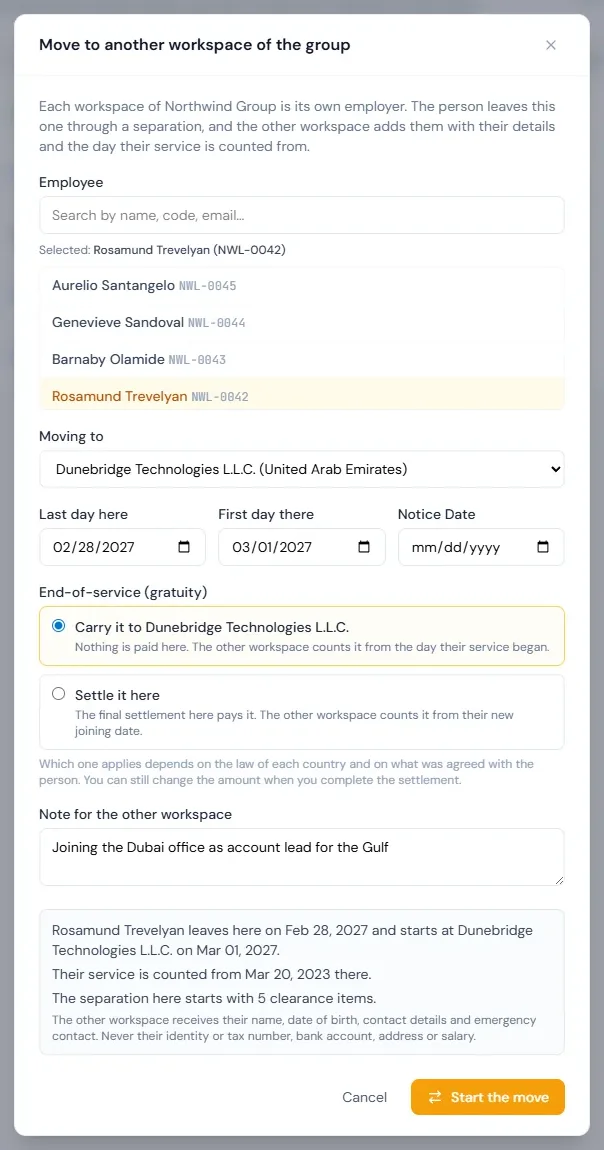
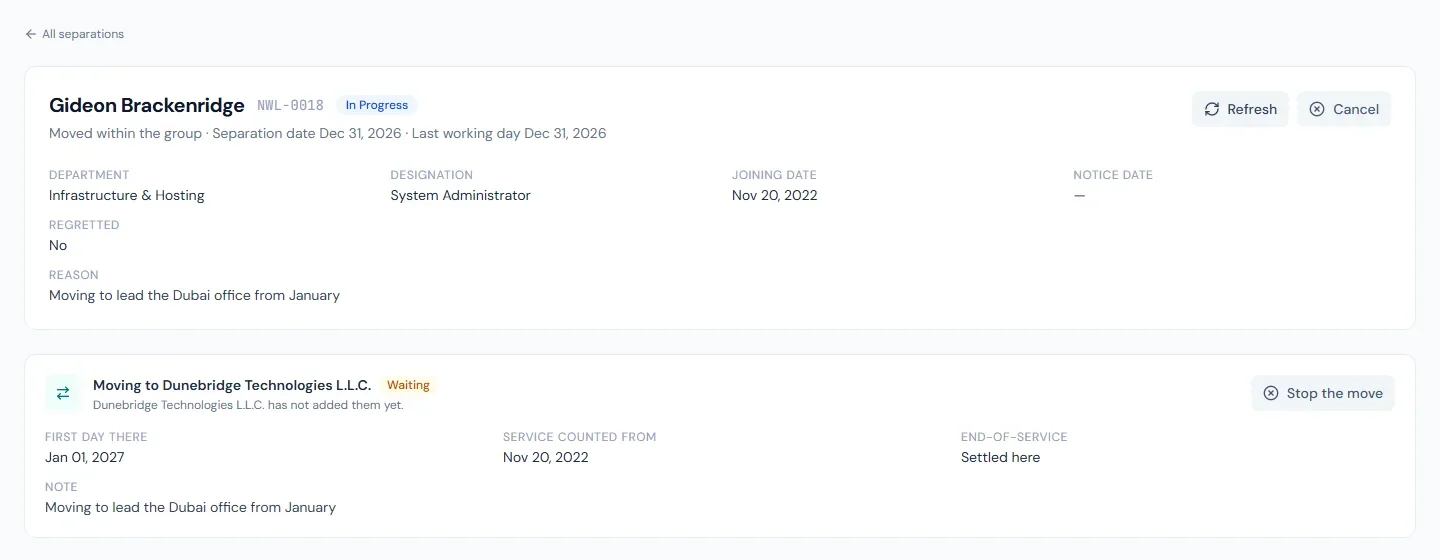
The form shows what the move will do before you start it. Starting it opens a separation here of the type Moved within the group, with its clearance checklist, settlement and experience letter as for anyone leaving, and asks the other workspace to add the person. You need offboarding.manage. The separation page shows where the move stands, and Stop the move cancels a move still waiting, together with its separation unless that is already settled.
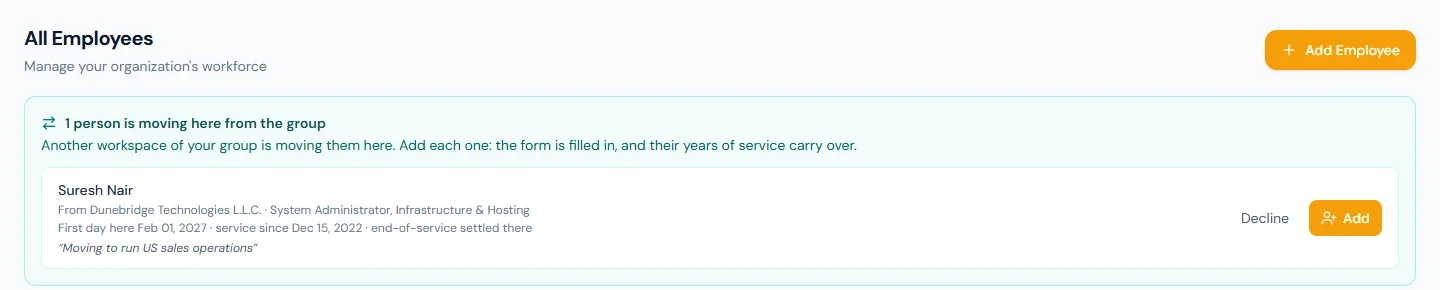
In the workspace they join. People who can add employees see people moving here from the group at the top of Employees, and the workspace's HR receives an email. Add opens Add Employee filled in with what the other workspace passed on: name, date of birth, gender, marital status, nationality, contact details and emergency contact. Never an identity or tax number, a bank account, an address or a salary: each country has its own, and the person brings them through their own profile, as any new hire does. You set the role, pay, shift and place here, and the joining date must come after their last day there. Decline, with a reason, tells the other workspace instead. Either way, the workspace they come from is told by email.
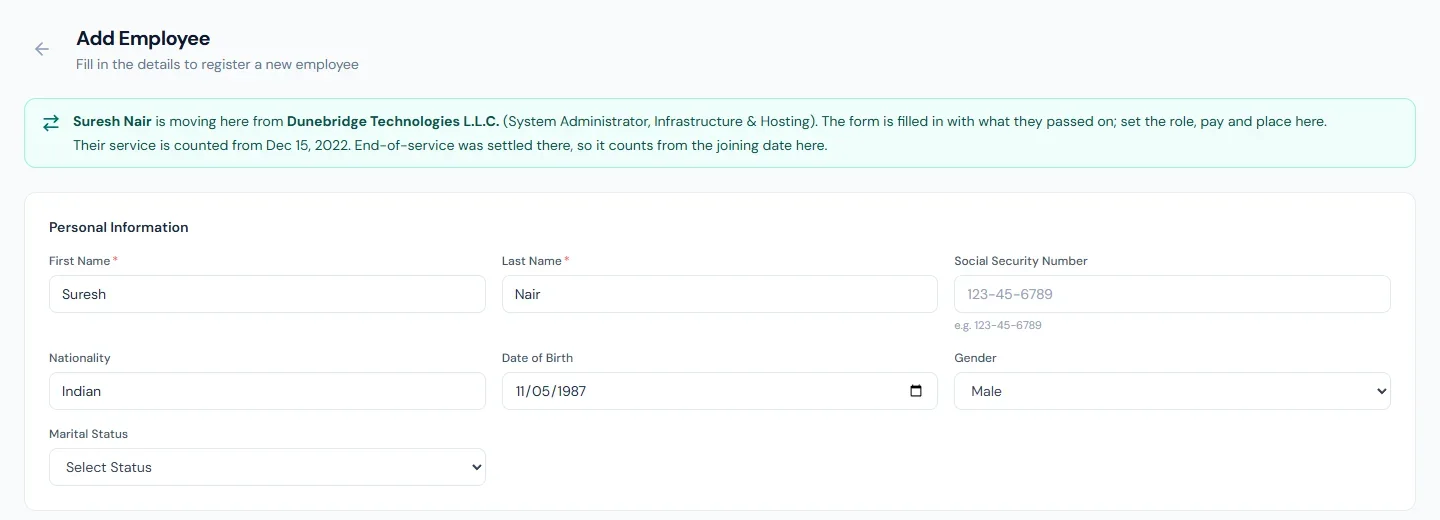
Service counted from. The new record carries a Service counted from date: the day their service began in the group (or earlier, if the workspace they leave already honoured earlier service). Tenure, work anniversaries, length-of-service badges, the minimum service a leave type asks for, a salary line that pays on years of service, and increment recommendations all count from it. Payroll, leave accrual and probation still run from the joining date here.
End-of-service. Whether it is paid when someone moves depends on the law of each country and on what was agreed with them:
| Choice | In the workspace they leave | In the workspace they join |
|---|---|---|
| Carried | The settlement pays no gratuity; its preview shows what it would have been | Gratuity counts from the Service counted from date |
| Settled here | The settlement pays it as for anyone leaving | Gratuity counts from the new joining date |
HR can still change the amount when completing the settlement. A workspace whose country has no end-of-service rule has nothing to carry.
Their sign-in. The invitation goes to the address they already sign in with (unless the workspace that adds them asks for official addresses only), so they keep one login with both workspaces in their switcher. Their access to the workspace they left closes as for any leaver.
In the group report a move is neither a joiner nor a leaver of the group; each workspace's own People analytics still counts it, with the separation type Moved within the group.
Roles
| Role | May |
|---|---|
| Owner | Everything, including making and removing other owners and deleting the group |
| Admin | Rename the group, add and remove workspaces, invite workspaces, add and remove admins and viewers, write and publish group news and articles |
| Viewer | See the console and the report |
A group keeps at least one owner. To add someone, enter the email they sign in with and choose a role; they need an Operentra login first. Anyone can leave a group from the trash icon by their own name.
Removing a workspace, and deleting the group
An owner or admin can Remove a workspace, and a workspace's own super admin can take it out even as a viewer. Nothing inside the workspace changes; it can join again by invitation. A group keeps at least one workspace. When only one is left, the owner can Delete group: the last workspace leaves and the group, its people and its open invitations are deleted.
Common questions
Does a group admin see our employees? No. The console shows each workspace's name, country, currency and headcount. Anything inside a workspace still needs a membership there, with the roles and permissions that workspace gives.
Can one workspace cover two countries? No. Each country's entity is its own workspace, so each is paid under its own country's rules; the group is what brings them together.
Someone moved to another entity of the group. Do they start from zero? No. Move them with Move to another workspace (above): their record in the new workspace counts their service from the day it began in the group.