Knowledge base
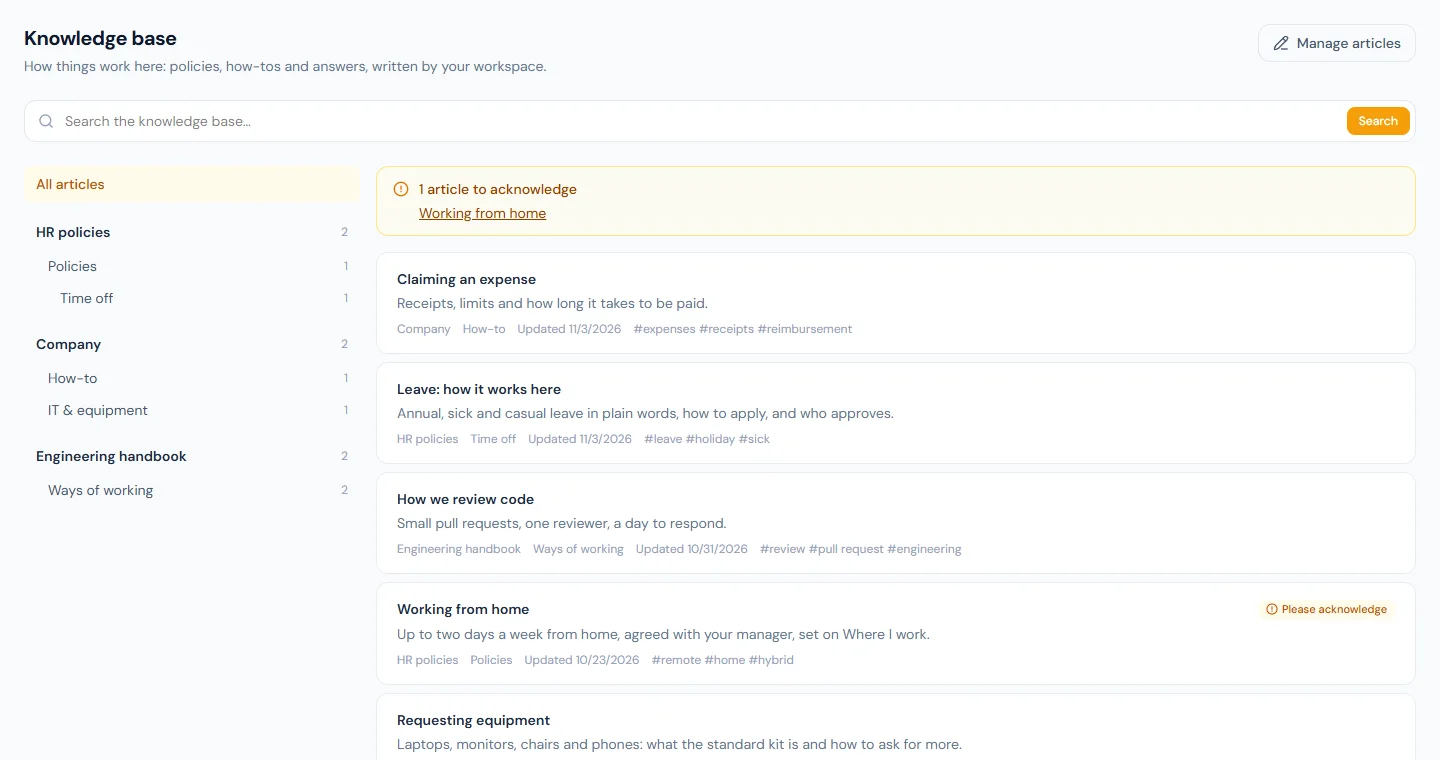
Company → Knowledge Base holds what your employer has written down for you: how leave works here, how to claim an expense, who to ask for what. It is written by people in your workspace, so it is about your company, not a generic guide. If nothing has been published for you yet, the page says so.
Finding an article
- Search at the top looks through the titles, summaries, tags and text of the articles you can read. Every word you type has to appear somewhere, as a word or the start of one; a match in the title ranks first. Each result shows the passage around the first match.
- The list on the left is the knowledge base's spaces (HR policies, Company, and any your employer has added) with the categories inside each. Choose a space or a category to narrow the list to it; All articles clears it.
- A tag at the bottom of an article (
#remote,#expenses) lists everything carrying it; Clear tag goes back.
Only articles aimed at you are listed: everyone's, your department's, your branch's, your role's, or ones written for you by name. If a colleague sees an article you cannot, it was published to a different audience.
You can also ask the assistant — "what is our policy on working from home?" — and it answers from the same articles, with a link to the one it used, and from the text of the company documents shared with you, before it looks in the generic help guides.
Reading and acknowledging
An article shows its space and category, its version and when it was last updated. It can change after you read it; the version moves when it does.
Under the title is how far to trust it. Last reviewed gives the date someone last confirmed the article still holds. An article that has passed its review date says so instead: it may be out of date. It is still the current text until it is changed.
Some articles ask you to confirm you have read them. They carry Please acknowledge in the list, an amber box at the top of the page when there are some waiting, and a button at the end of the article: I have read it. Your acknowledgement is recorded with the date and the version you read, and HR can see who has and has not confirmed. If the article changes afterwards, the box comes back saying which version you confirmed and asking you to read the new one; an unchanged article never asks twice.
You are emailed when an article that asks for acknowledgement is published to you, with a link straight to it.
Writing in a space you own or edit
If you have been made the owner or an editor of a space, the page has a Manage articles button. It opens the articles of your spaces, drafts included, with the same editor HR uses: write an article, choose who can read it, publish it, and keep the space's categories. You see and change nothing in other people's spaces.
- Due for review lists the articles whose review date has come. Open one, read it, and either correct and publish it or press Mark as reviewed if it still holds.
- As the owner, you are emailed on Mondays when something in your space is due, and Spaces lets you change your space's description, its editors and how often its articles are reviewed.
The administrator's guide has the detail: Knowledge base.