My schedule
My Schedule (/portal/schedule, under Time) shows the shifts your planner has
published for you: two weeks at a time, one card per day, with the shift's name, its hours
and the hours it counts for. It appears only when your workspace rosters its people; if
everyone keeps a fixed shift you will not see it, and nothing is missing.
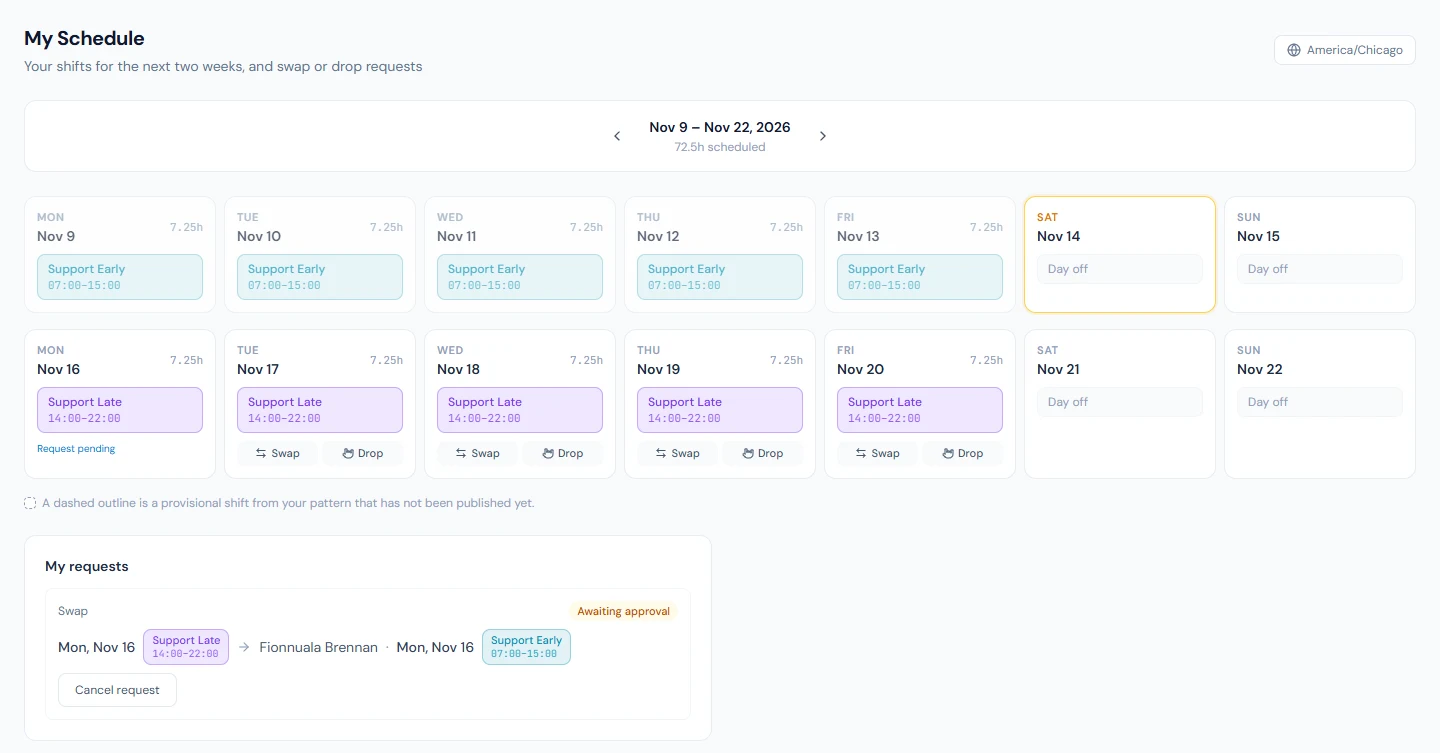
- A solid card is final. Those hours are what attendance and payroll expect of you.
- A dashed card marked Provisional comes from your rotation pattern but has not been published yet. It is the planner's working copy and can still change.
- Day off is a rest day the roster gave you. If you keep a fixed shift, its weekly off days read as Day off too.
- A planner's note under a shift (a different site, who to report to) is shown once the day is published.
- The moon symbol on a shift's hours means it runs past midnight and ends the next day.
Times are in your branch's timezone, named at the top right. The dashboard's Next Shift card shows the first published working day from today and opens this page.
Swapping and dropping shifts
Two buttons sit on every published future working day:
- Swap offers that shift to a colleague you choose. Leave Take their shift on empty to hand the day over outright, or pick one of their days to take in return. Pick the same day and the two of you simply exchange shifts, an early one for a late one. They see the offer under For you on their own schedule and accept or decline.
- Drop gives the shift up for anyone to take. Everyone sees it under For you with a Take this shift button, whatever they are doing that day; someone who already has a shift that day is told so when they try to take it, and the drop stays open.
Once a colleague accepts, the request goes to your manager for approval and shows under My requests with its status: Waiting for colleague, Awaiting approval, Approved, Rejected, Cancelled or Expired. When it is approved both schedules are rewritten and you are told; until then your original shift stands, and you can Cancel request at any time. A day with an open request shows Request pending and cannot be offered twice.
A request is only good until its day. If nobody has accepted and approved it by the end of that day, it becomes Expired and your shift stays yours. If you accept, decline or cancel a request that someone else has just decided, or that has expired, the page tells you why and shows it as it now stands.
You cannot swap a provisional day, a day that has passed, or a day you are not working.
Putting your shifts in your own calendar
My Account → Calendar offers a My shifts subscribe link alongside the leave links (Calendar feeds). Google Calendar, Outlook and Apple Calendar show each published shift as an appointment at its real times, and a change on the roster reaches your calendar on its next refresh. If your employer connected a team calendar you may also be given access to Team schedule, which shows everyone's published shifts.