Letters & acknowledgments
HR letters and letter requests
Open Letters (/portal/letters). It has two tabs.
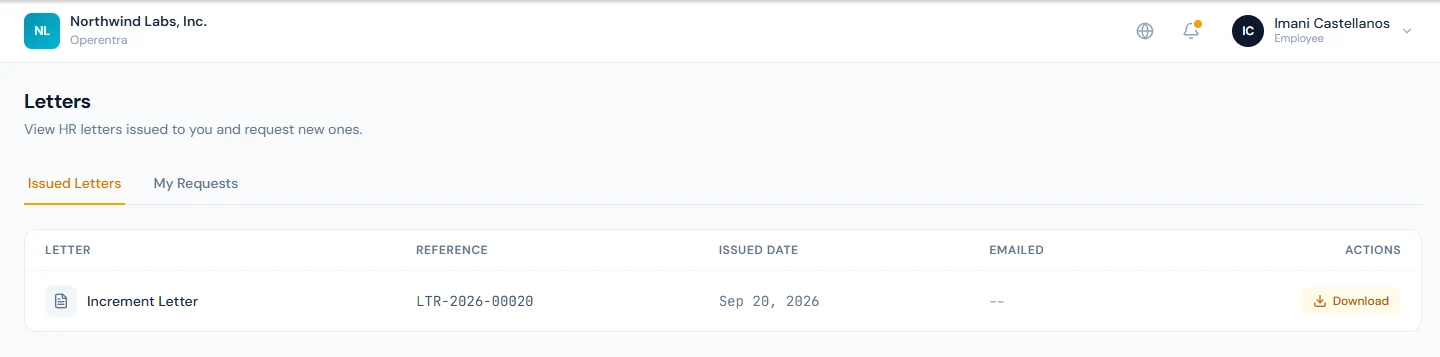
Issued Letters lists every HR letter already generated for you — appointment letters, increment letters, experience certificates, and so on — with its reference number, issue date, and whether it was emailed to you. Use Download to get the PDF.
My Requests is where you ask HR for a letter you need:
- Click Request a Letter.
- Pick a Letter Type and describe the Purpose (for example, "Bank loan application" or "Visa interview").
- Optionally set Addressed To (left blank it becomes "To Whom It May Concern") and add any Additional Notes.
- Click Submit Request.
Your request appears in the table with a status of Pending, Approved, Issued, Rejected, or Cancelled. If it is rejected you'll see the reason; once it is issued you'll see the reference number, and the finished letter also shows up under Issued Letters. You can cancel a request while it is still Pending.
Letters, salary slips, and tax certificates carry a QR code that anyone — a bank, an embassy — can scan to verify the document is genuine, without signing in.
Acknowledging documents
The portal asks you to confirm receipt of a few important documents:
- Employment agreement / contract — if your contract is waiting for your
signature, the dashboard shows an "Employment Agreement Pending" banner. Open
My Contract (
/portal/contract) to read it and accept it electronically. - Salary slips — confirmed from My Salary as described in Payslips & tax documents; this releases your signed PDF slip.
Acknowledgments are recorded with a timestamp (and, for salary slips, your IP address) so there is a clear record that you received the document.
My Documents
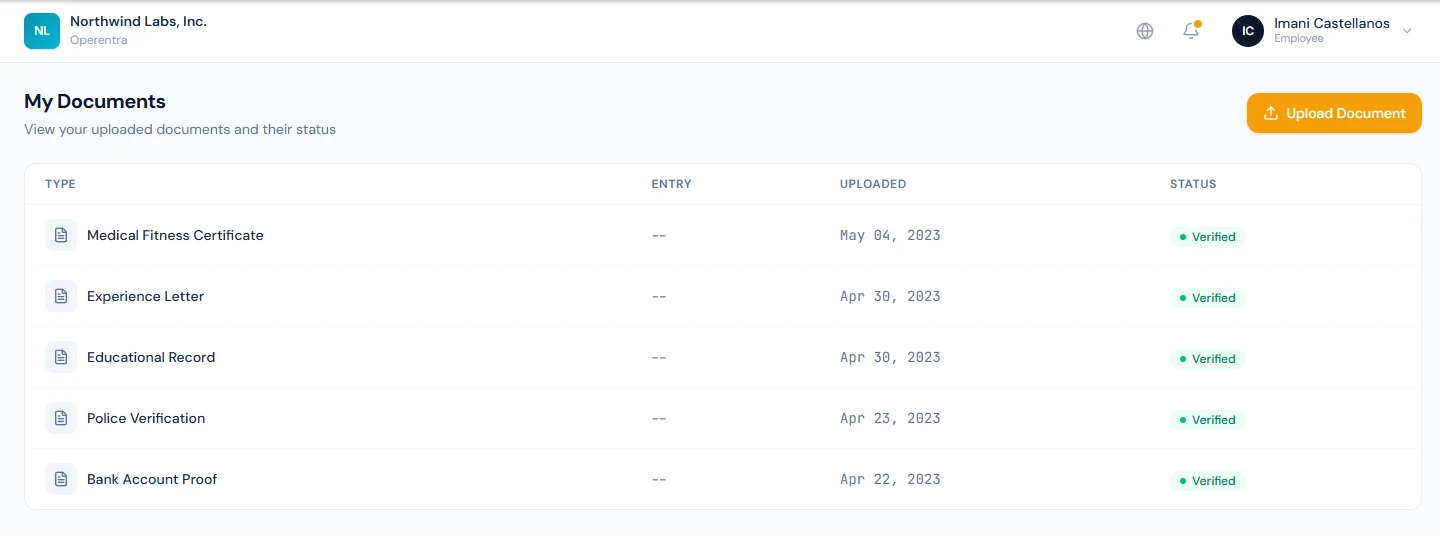
My Documents (/portal/documents) lists your own uploaded documents — such
as ID cards — with their status and expiry dates, and warns you when a document
is due to expire within 30 days so you can renew it in good time. My Documents
itself is a status view — its Upload Document button takes you to
My Profile → Documents (/portal/profile?tab=documents), which is where
document uploads are actually submitted.