Leave
View your balances and policies
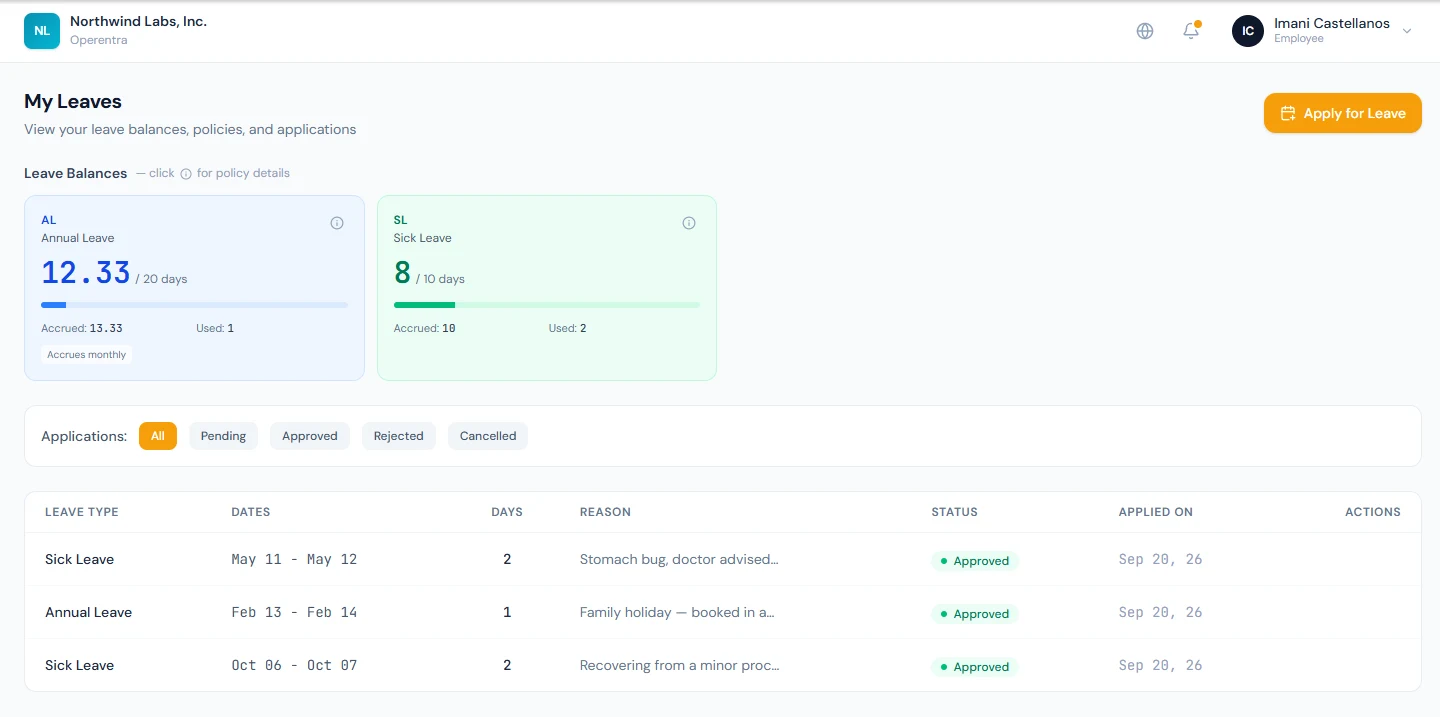
Open My Leaves (/portal/leaves). Each leave type is shown as a card with
your available balance, the annual quota, and how much you have accrued, used,
and carried forward. Click the small info icon on a card to open the
policy for that leave type — it explains the accrual method, eligibility,
carry-forward and encashment rules, any sandwich rule, and whether
documentation is required for longer leaves.
Submit an application
- Click Apply for Leave (from the dashboard, My Leaves, or the sidebar) to
open
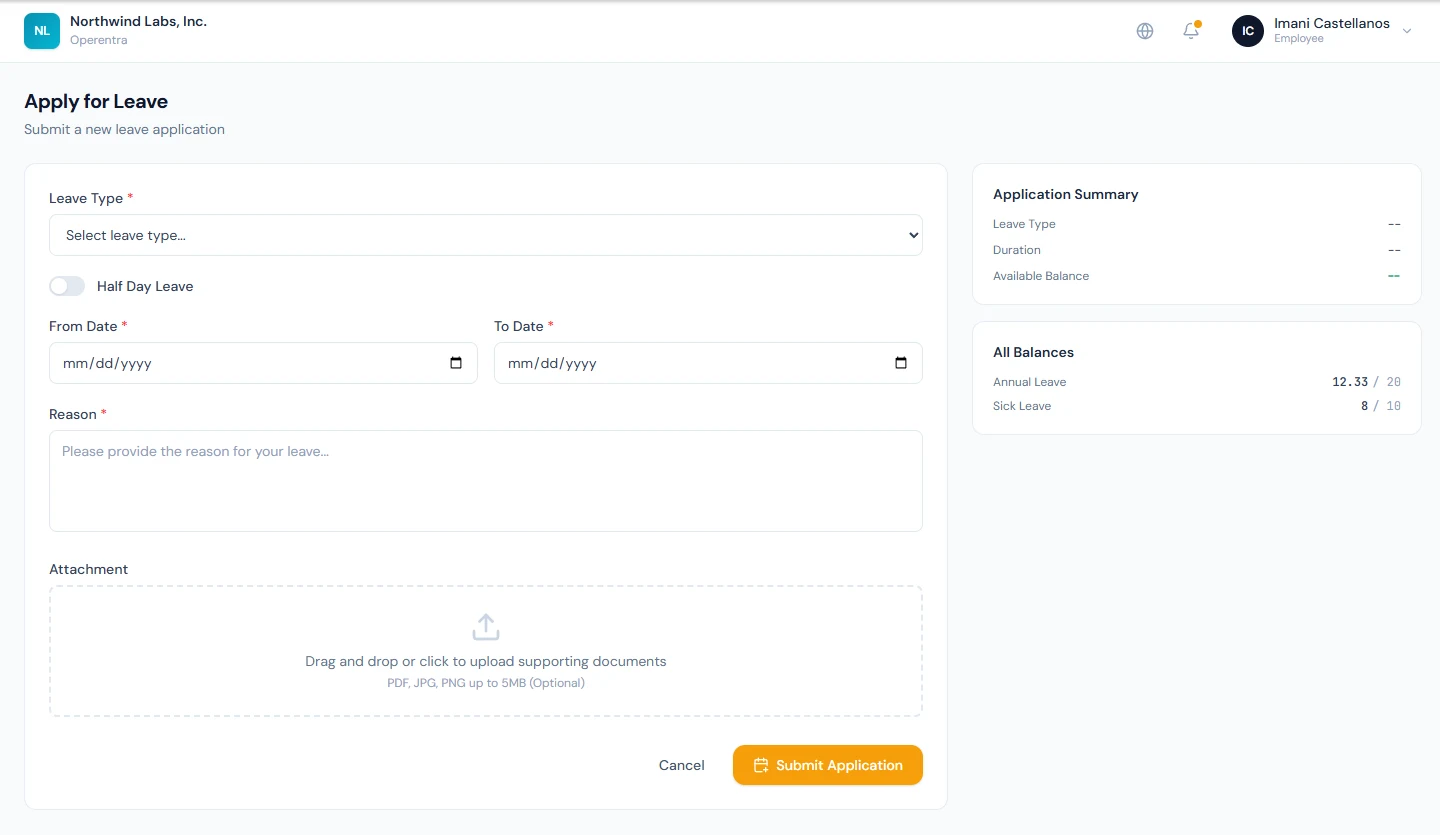
/portal/leaves/apply. - Choose a Leave Type. The dropdown shows your current balance next to each type and marks any type you are not eligible for.
- Turn on Half Day Leave if you only need a morning or afternoon, then pick First Half or Second Half. Otherwise pick a From Date and To Date.
- Enter a Reason. You can optionally attach a supporting document (PDF, JPG, or PNG).
- The side panel shows a live Application Summary — duration and your available balance. If the request exceeds your balance you'll be warned that extra approval may be needed.
- Click Submit Application.
Track and cancel
Back on My Leaves, the applications table lists every request with its status — Pending, Approved, Rejected, or Cancelled — and lets you filter by status. You can cancel a request while it is still Pending, or cancel an Approved leave whose start date is still in the future.