Attendance & field visits
My Attendance (/portal/attendance) shows your daily attendance record —
your status for each day, first-in and last-out times, and any late marks — so
you always know what payroll will see.
Clocking in and out from your phone
If your employer uses GPS attendance and has assigned you to a site, the page shows a Clock In button at the top, which becomes Clock Out once you are in for the day. You do not need to remember which one is next — the page knows.
The first time you use it your browser asks permission to share your location;
allow it, or the button cannot work. You also need a secure (https://)
connection, which the normal workspace address gives you.
You have to actually be at the site. If you are too far away the message tells you which site it measured against and how many meters away you were, so you know whether to walk closer or talk to HR. A few other messages you might see:
- Your GPS signal is too imprecise — your device gave only a rough position. Step outside or somewhere with a clearer view of the sky and try again.
- You are not assigned to any attendance location — ask HR to assign you to your site.
- Attendance for this day has been finalized — HR has already set that day by hand.
- The checkout window has closed — too long after your shift ended; submit a regularization request instead.
Every attempt, successful or not, is visible to HR, so if something looks wrong they can see exactly what happened.
Log a client visit (field staff)
If HR has enrolled you as field staff, a Field Visits entry appears under
Time (/portal/field-visits). Use it when you meet clients outside the
office:
- Start a visit — pick the client (or quick-add one if your workspace allows it), optionally note the purpose, attach a site photo where enabled, and press Check in. Your phone's location is recorded and compared with the client's pinned address.
- When you leave, press End visit, choose the outcome and add notes, and check out.
- Only one visit can be open at a time; starting a new one offers to close the last. Your visits for today and the last 30 days are listed below, and you can fix the outcome or notes for up to seven days.
A visit is evidence beside your attendance, not a clock-in — if you reach the office late after a client meeting, HR sees the visit right next to that day's attendance. Depending on your employer's settings, the client may receive a short email or SMS asking them to confirm the visit and rate it.
Holidays
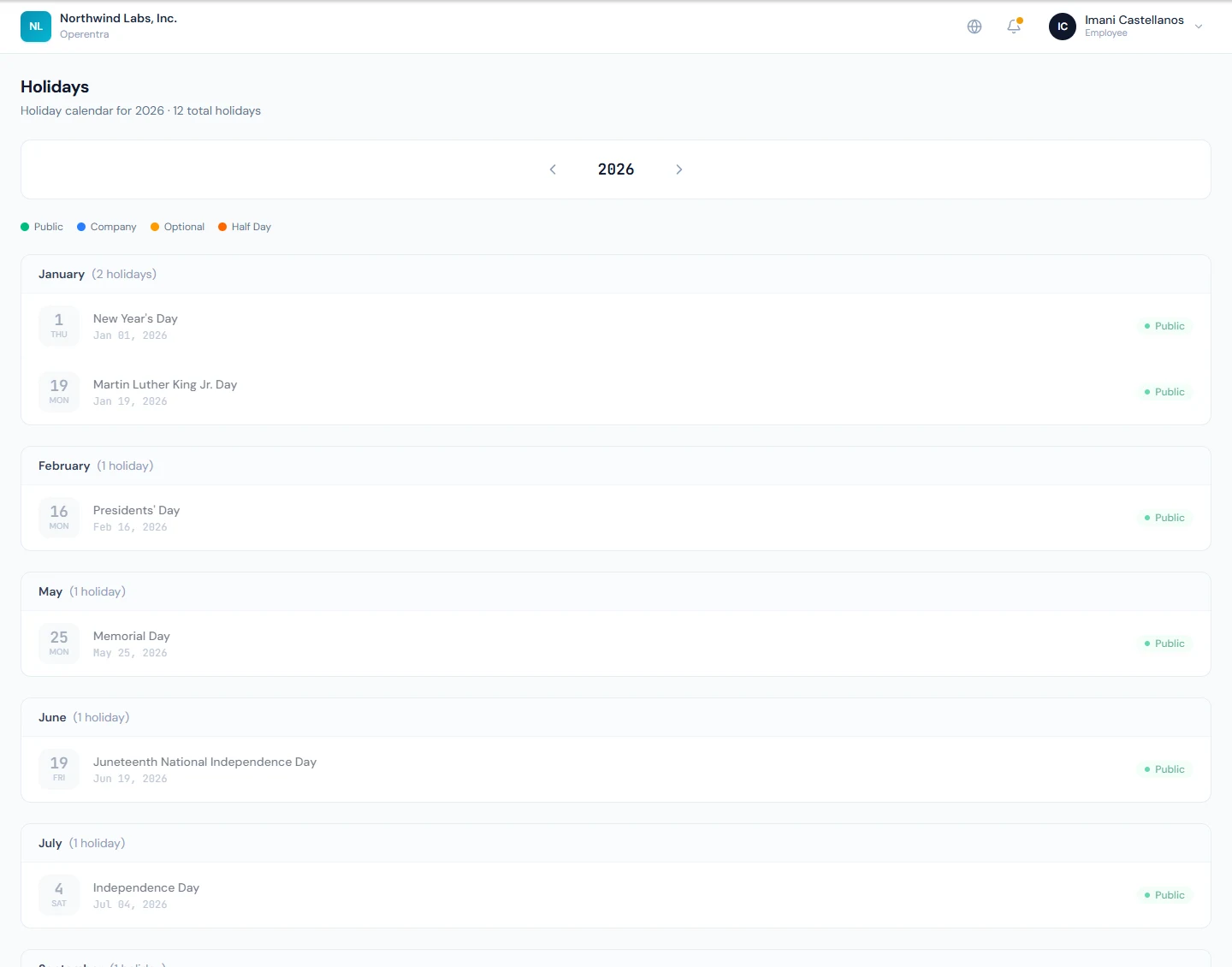
Holidays (/portal/holidays) lists your company's upcoming public and
company holidays, so you can plan leave around them.