People
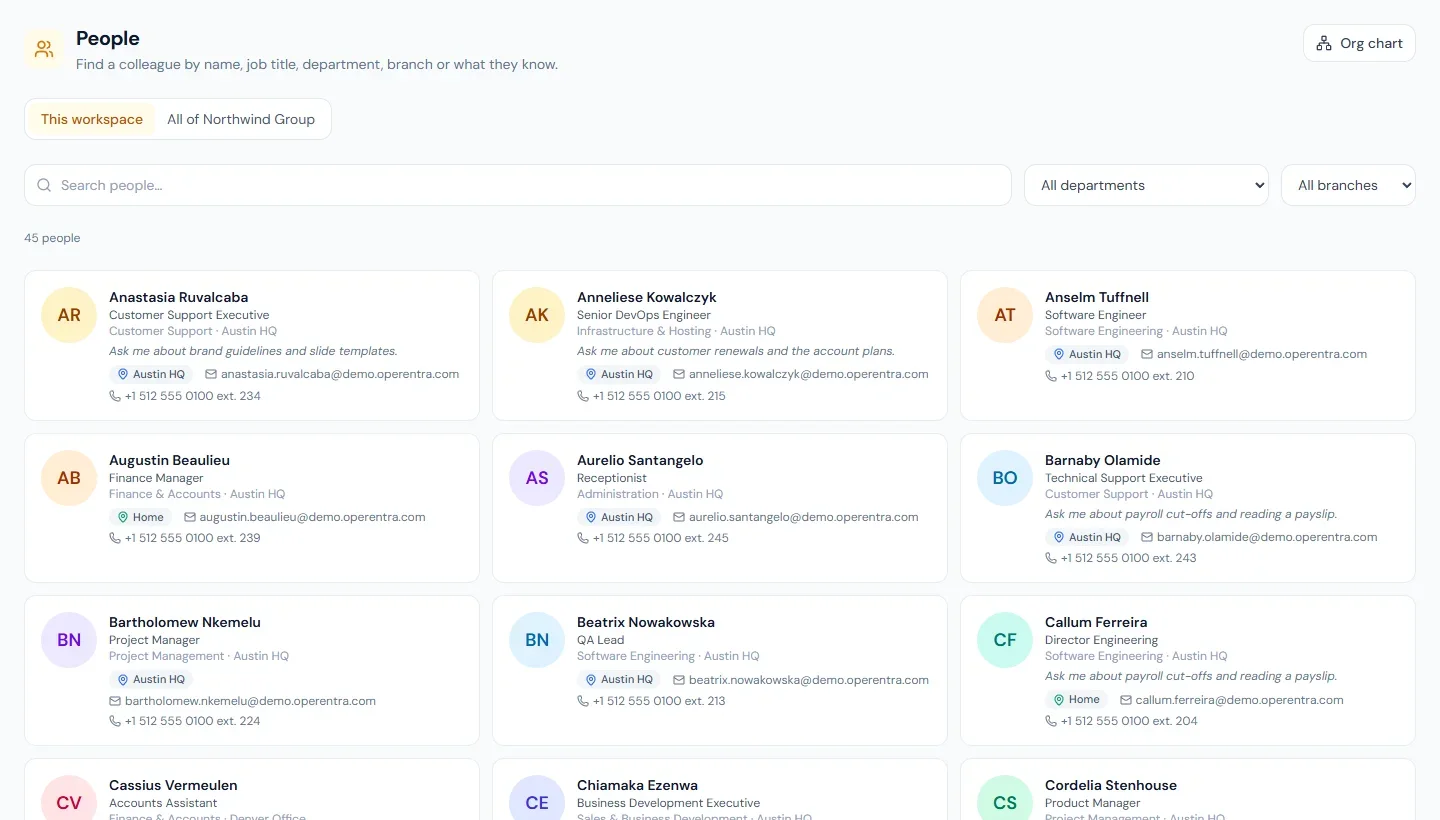
Company → People (/portal/directory) is your company's directory: everyone working here now. If you do not see it in the menu, your company has not opened it.
Finding someone
Type in the search box. Each word you type has to match something about the person:
- their name;
- their job title, department or branch;
- a skill they hold;
- the words in their "About" line.
"finance austin" finds people in Finance at the Austin branch; "payroll" finds the people who work in payroll or say to ask them about it. You can also pick a department or a branch from the lists beside the search box.
Each person shows their job title, department and branch, and, where your company shows them, where they are working today, their work email and their work phone.
Away means the person is on leave today. It never says why.
A person's card
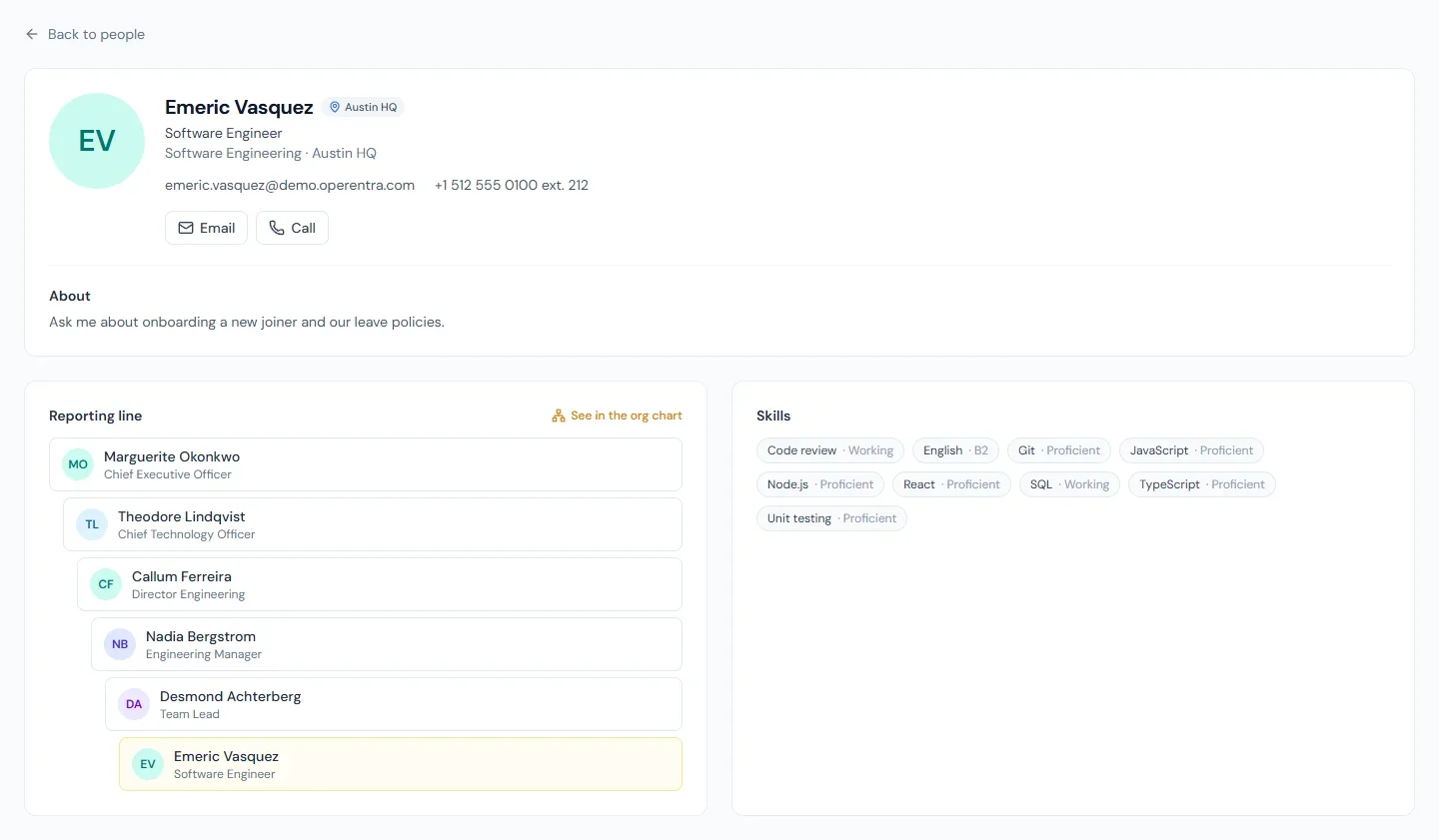
Click a person to open their card.
- Contact. Email and Call open your mail and phone apps. If your company uses Microsoft 365 or Google Workspace, there are buttons to chat, call or schedule a meeting with them as well.
- About. What they have written about themselves.
- Reporting line. The people above them, from the top of the company down, and the people who report to them. Click anyone to open their card. See in the org chart opens the chart at that person.
- Skills. The skills recorded for them, where your company shows skills.
Only work details appear here. Nobody's personal email, personal phone number or address is shown.
Your own card
Find yourself in the list, or search for your name. On your card, press Edit beside About to write a line or two about what colleagues can come to you for, up to 280 characters. Colleagues can search for the words you use.
Your work phone, extension and work email are set by HR. If one is wrong, ask HR to correct it.
Asking the assistant
If your company has the assistant, you can ask it instead of searching: "who looks after expenses in Denver?" or "who is on Nadia's team?". It finds people the same way this page does and shows the same details.
Org chart
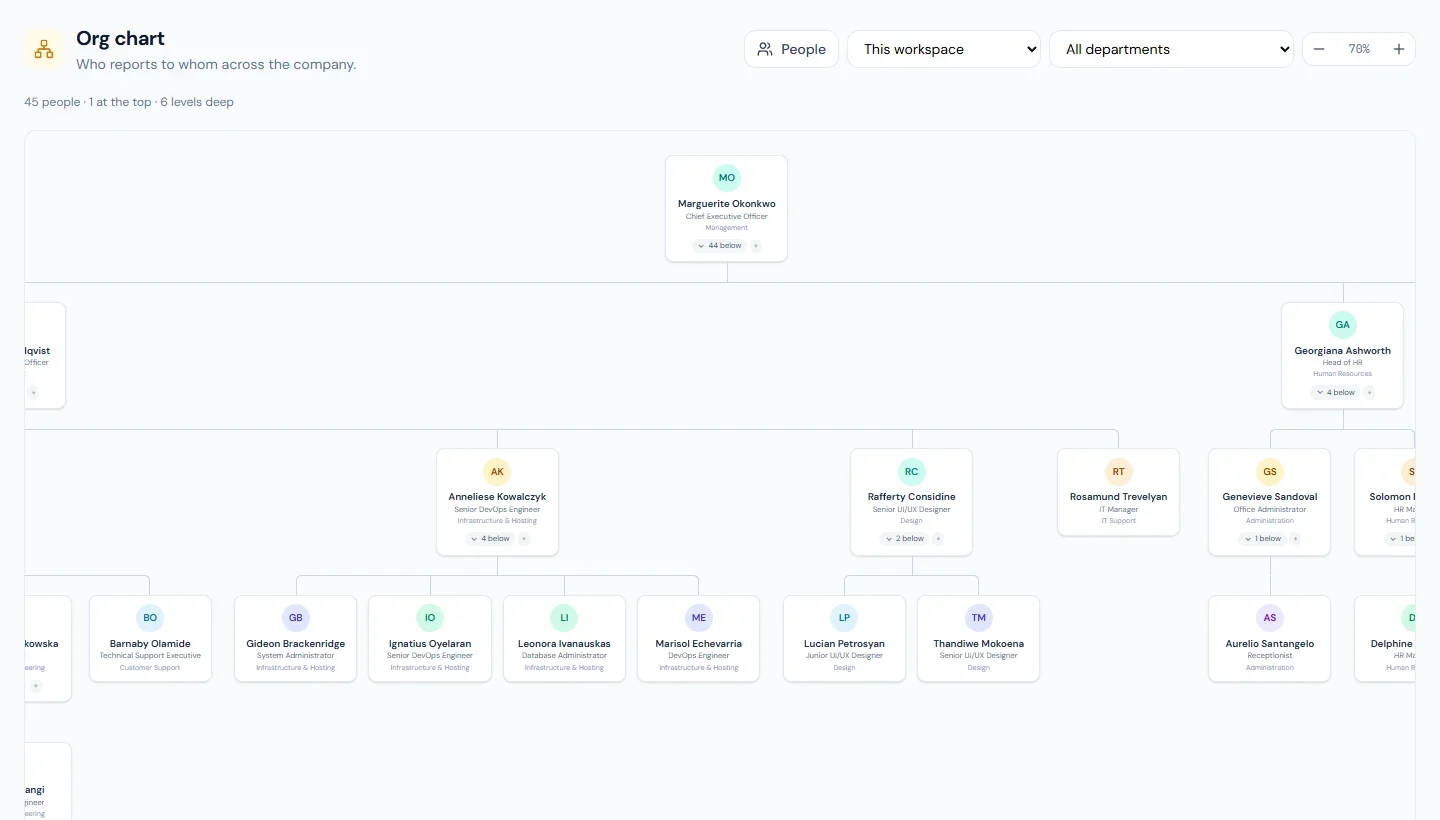
Org chart, at the top of the People page, draws who reports to whom across the company.
- Pick a department to see only that part.
- The count under a person shows how many people are below them. Click it to fold or unfold their team.
- The ⌖ button focuses the chart on that person and their team. A label with their name appears at the top; click it to go back to the whole chart.
- Click a name to open that person's card.
- The − and + buttons make the chart smaller or larger. A chart wider than the page scrolls sideways.
Colleagues across your group
If your company runs several workspaces as a group, for example one per country, and your workspace shares its people with the group, People and Org chart have a second view: All of (group name). It lists colleagues in the group's other entities, each with their entity and country, and you can narrow it to one entity or one country. What you see of each person is what their own workspace shows. In the org chart, a card marked Another entity is where one entity's chart is joined to another's.