Approvals
Approvals (/portal/approvals) is one place for every request that is waiting on you, whatever module it came from, and for the requests you have made yourself. It is in the Work group of everyone's portal menu: you do not need a particular role to be asked to decide something, and My requests is yours whatever your role.
Inbox
Each card is one request: who asked, what for (the leave type and dates, or the claim title and total), when it was requested, and the step it is at. The numbered dots show the request's chain: green steps are done, the highlighted one is waiting on you, grey ones come later.
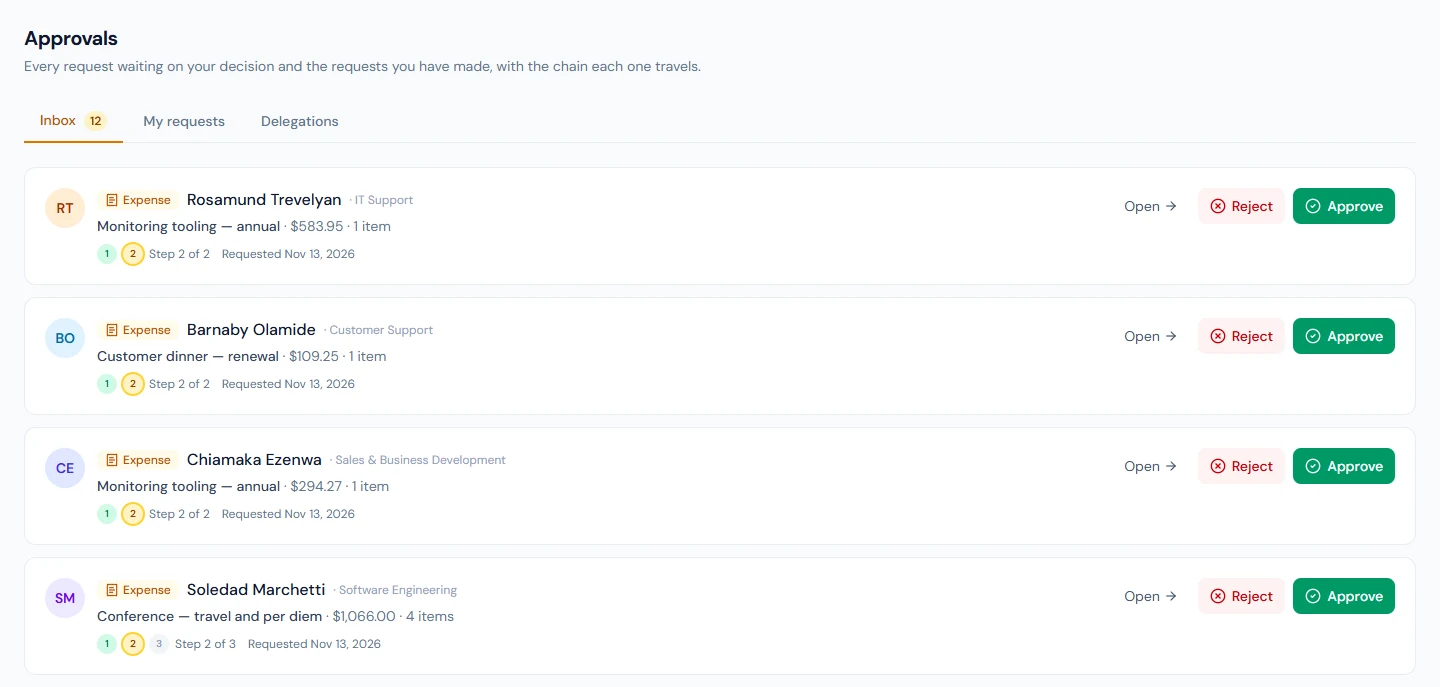
- Approve records your yes. If yours was the last step the request is approved and the module does the rest — leave days are deducted and marked on the attendance record, or the reimbursement is queued for the next payroll. If another step follows, the request moves on to it.
- Reject asks for a reason, which the requester sees. A rejection at any step ends the request.
- Open takes you to the module's own page for that request, where you can decide it with more context, such as a leave attachment or a claim's receipts: Pending Approvals for leave, Allocation Requests, Team Expenses or the claim's page, the roster's Swaps & drops tab, Team timesheets. A card has Open only when you have such a page and the request is on it. If you were asked to decide something without one (as someone's time-off officer, say), the card has no Open and you decide there with Approve or Reject.
An expense claim with lines entered in another currency shows each of them under the total: the amount as typed, the exchange rate the claimant used, and what it came to. Check the rate before you approve.
You never see your own requests here, and a request you have already approved in a step that needs everyone's yes is not asked of you again. If a colleague has delegated to you, their requests appear too, marked on behalf of them.
Your decision is checked when you make it. If the request has moved on since you opened the page (a colleague decided the same step a moment earlier, or it was withdrawn), you are told so and nothing is recorded; the list then shows where things stand. If you are no longer one of the people who can decide a request, because your role or your team has changed, it is refused and leaves your inbox.
My requests
Your own requests of every kind (leave applications, expense claims, shift swaps, leave allocation requests, timesheets), newest first, with their status and chain. Each decision taken on a request is listed under it — who decided, when, and any comment — so you can see exactly where a pending request is waiting. The list also says when a step went unanswered and why (nobody could decide it, the request was decided without waiting for it, or its waiting time ran out), when a request started again from the first step because your administrator changed its approval flow (earlier approvals are shown dimmed and no longer count), and when a decision was made through an integration rather than by a person.
Delegations
While you are away, hand your pending approvals to a colleague. Delegate asks who, from when until when, which kinds of request (leave, expenses, shift swaps, leave allocations, timesheets; tick none to hand over all of them) and an optional note. During that window the colleague sees your requests in their inbox and their decisions are recorded on your behalf. You can end a delegation early with the bin icon; delegations made to you are listed too.
The dates are whole days on your workspace's calendar, whatever timezone you are in when you set them: the delegation starts when the first day begins there and ends when the last day ends there. A colleague standing in for you cannot decide their own requests on your behalf.
The Delegations tab appears for members whose role holds Delegate Approvals, and delegating needs the Custom approval flows feature on your workspace's plan.
A shift swap or drop a colleague accepted reaches the inbox too, with both days and both shifts on the card; approving it rewrites the roster for both people (My schedule).
Who decides what
Who sees a request first, and whether anyone sees it after them, is set by your workspace's approval flows under Settings → Approval flows — ask your HR administrator if a request went somewhere you did not expect.