Requests
Company → Requests (/portal/requests) is where you ask your company for something that does
not have a page of its own: a question for HR, a query about your pay, equipment, a request to work
remotely. If you do not see it in the menu, your company does not use it.
Leave, expenses, loans and letters are still requested on their own pages.
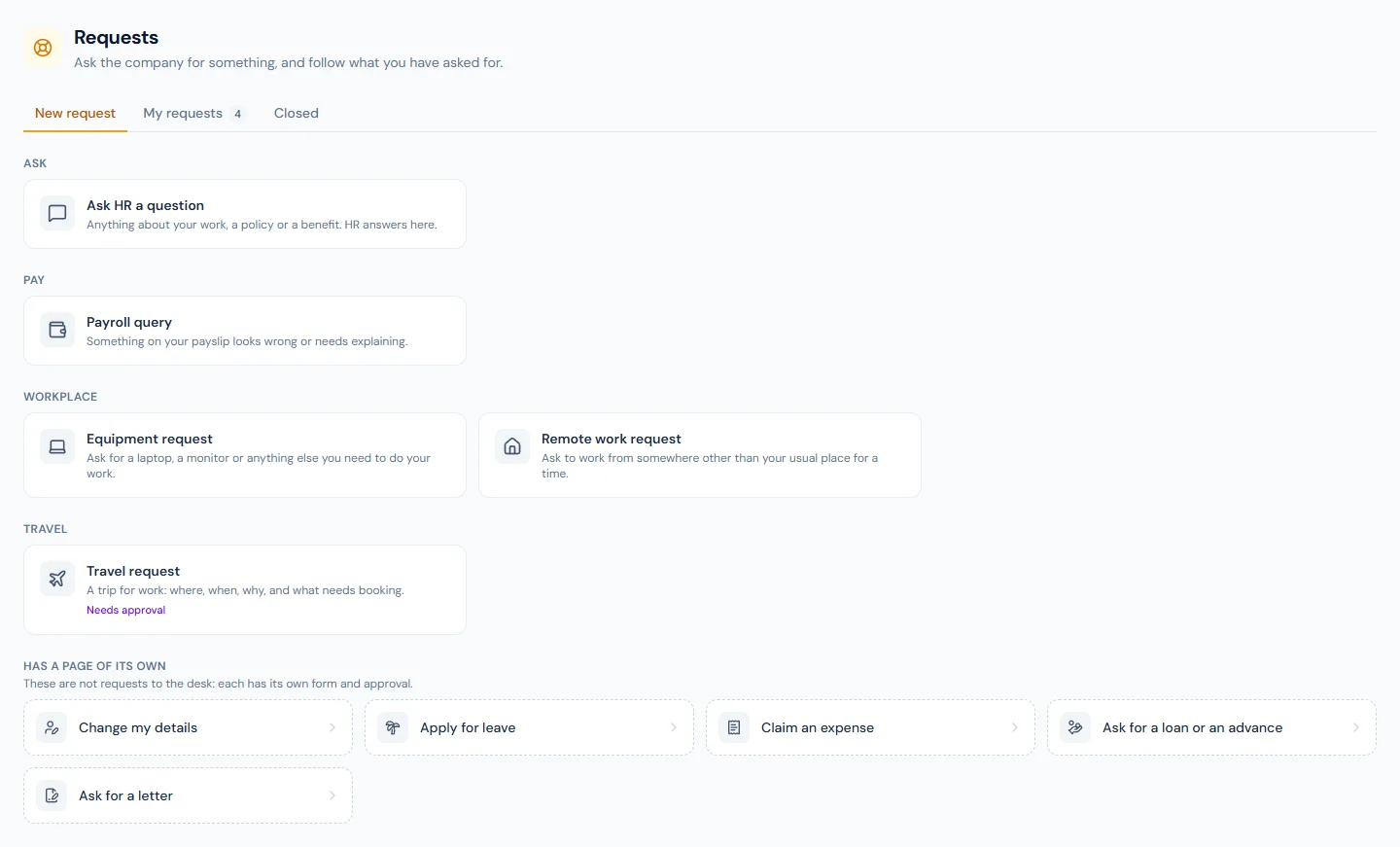
Sending a request
- Open New request and choose a card. The cards are the requests your company has opened to you; a colleague in another department may see different ones.
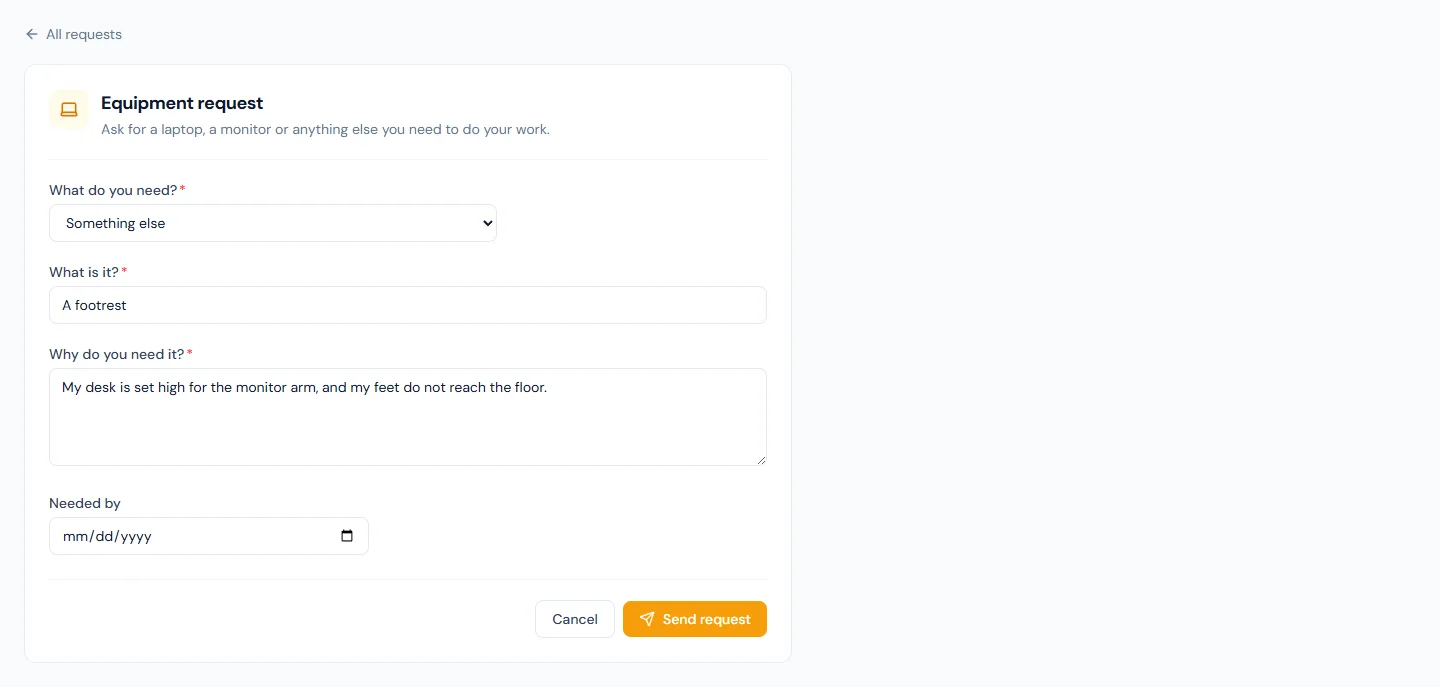
- Fill in the form. A field marked with a red star has to be answered. Some fields appear only after an earlier answer.
- Attach files where the form asks for them: PDF, images, Word, Excel, CSV or text, up to 10 MB each.
- Press Send request.
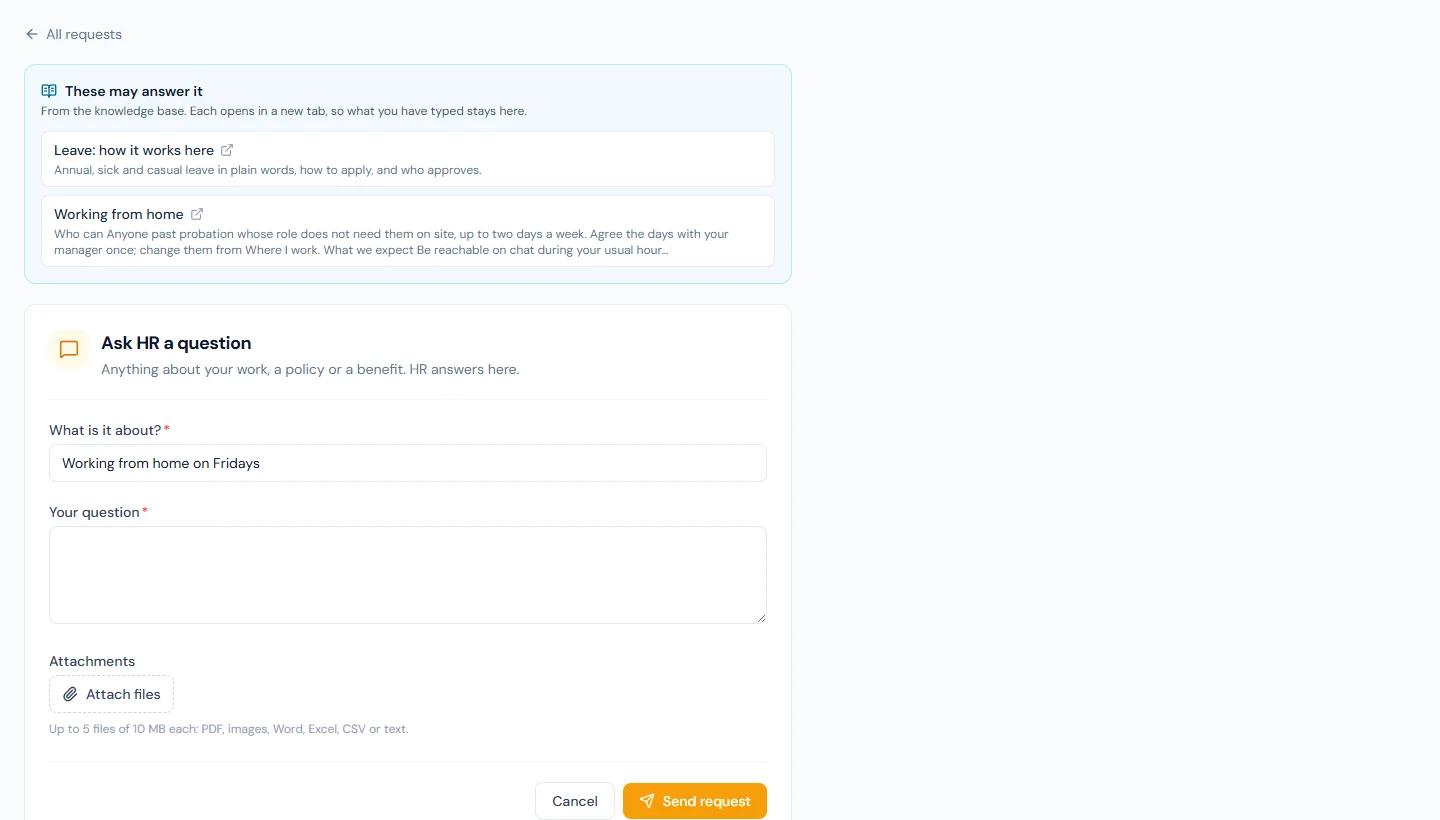
Before you send it, look at These may answer it above the form, when it is there. It lists knowledge base articles on the subject, and adds more as you type. Each opens in a new tab, so what you have typed stays where it is. If an article answers your question, there is nothing to send.
Leave, expense claims, loans and letters are not requests to the desk: each has its own page. The tiles under Has a page of its own, at the bottom of New request, take you there.
The request gets a number, such as REQ-000123, and goes to the team that handles it.
Following it
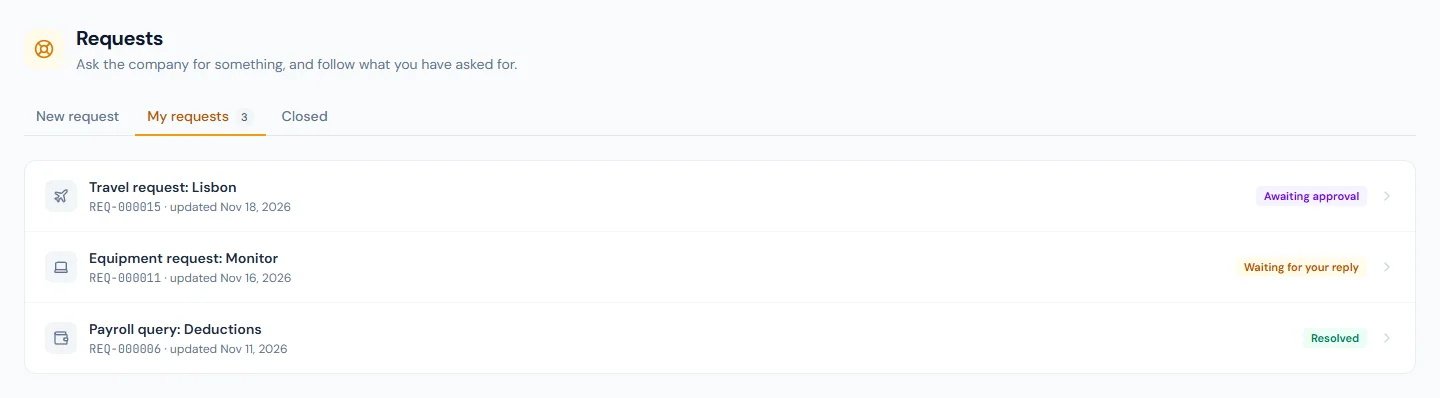
My requests lists what you have sent that is still open, with a status beside each:
| Status | Meaning |
|---|---|
| Awaiting approval | Sent, and waiting for an approval before the team sees it. |
| Not approved | The approval was refused. The reason is on the request. |
| Open | With the team, waiting for someone to pick it up. |
| In progress | Someone is working on it. Their name is on the request. |
| Waiting for your reply | The team has asked you something. Reply and it carries on. |
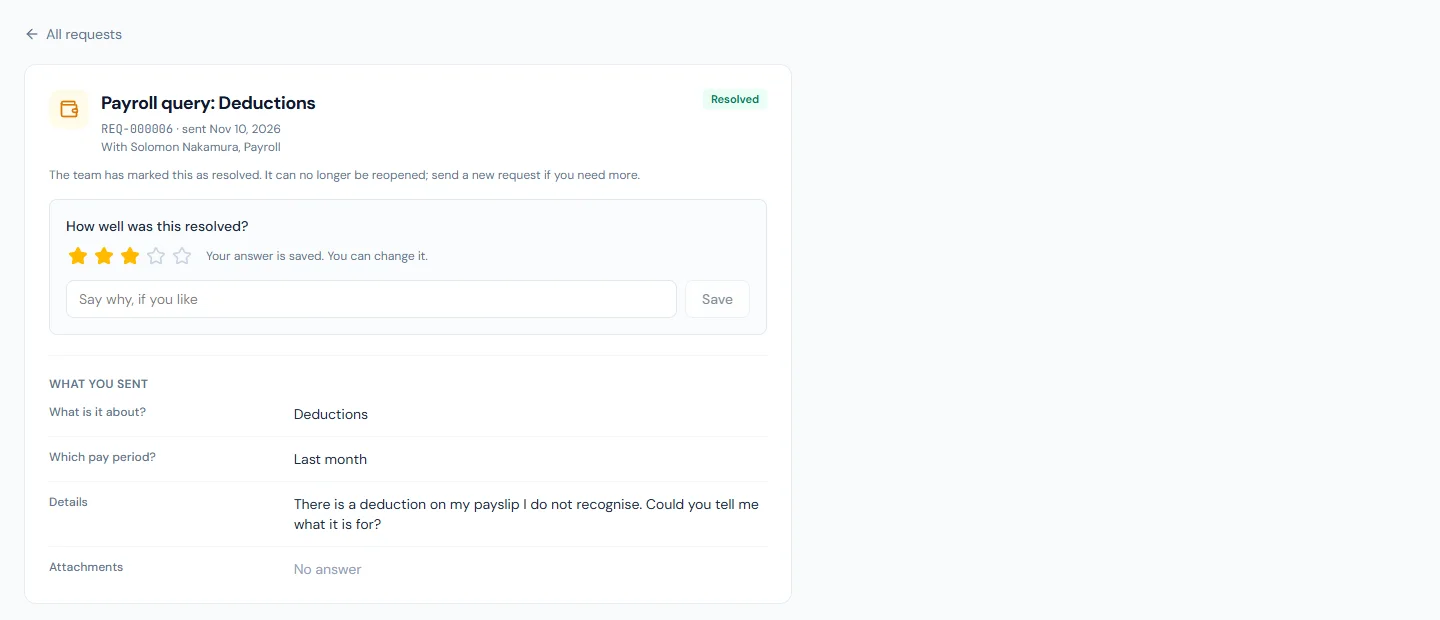
| Resolved | The team has dealt with it. |
| Closed | Finished. Nothing more can be written on it. |
| Withdrawn | You withdrew it. |
Open a request to read the conversation and to reply. You are emailed, and told in the bell, when the team replies and when the request is resolved.
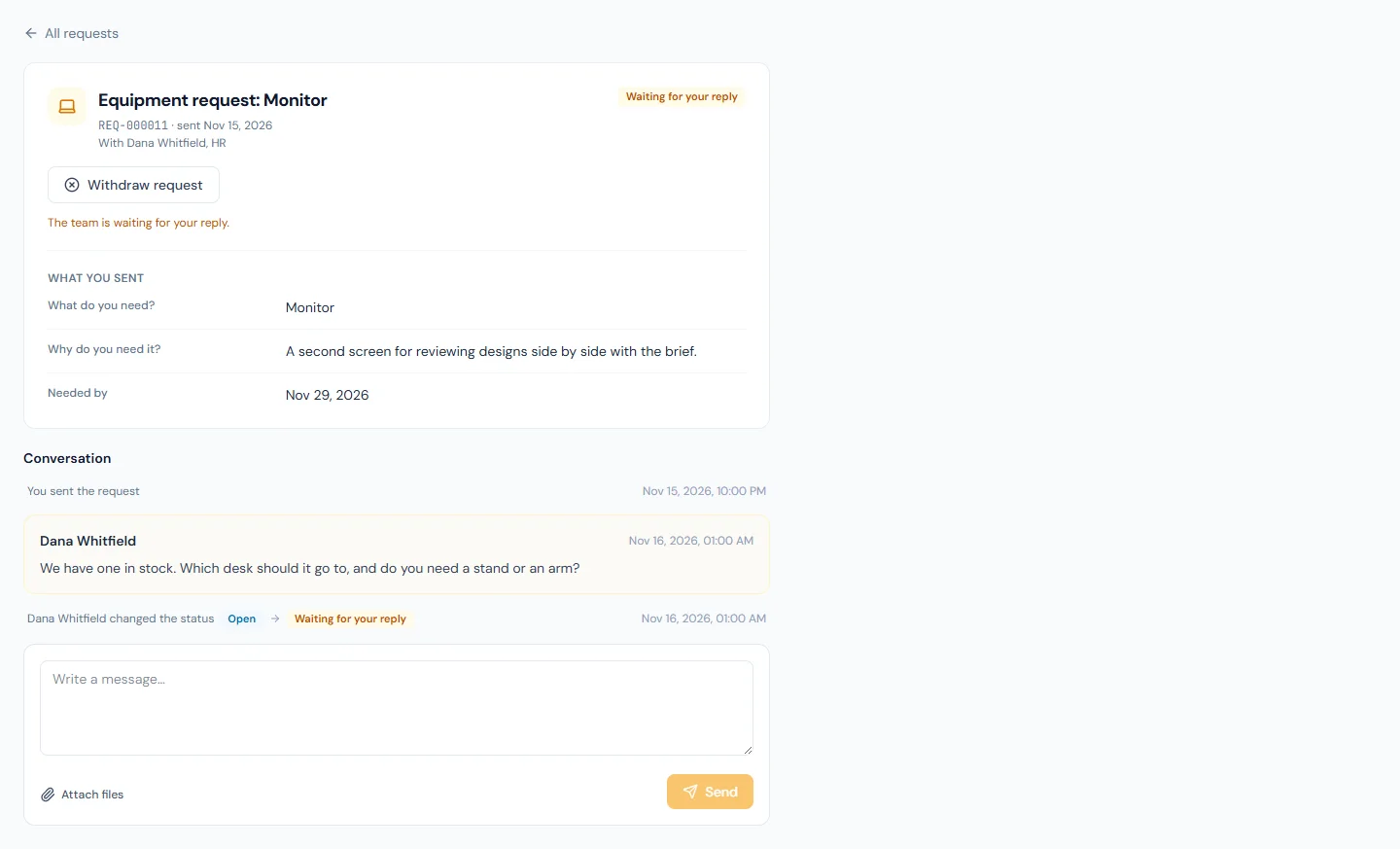
You see what you sent, the replies and the changes of status. The team may also keep notes of its own that are not shown to you.
Changing your own details
Your name, contact details, address and bank account are changed on your profile page, not on a form here. Change my details, under Has a page of its own, takes you there (see Profile and security).
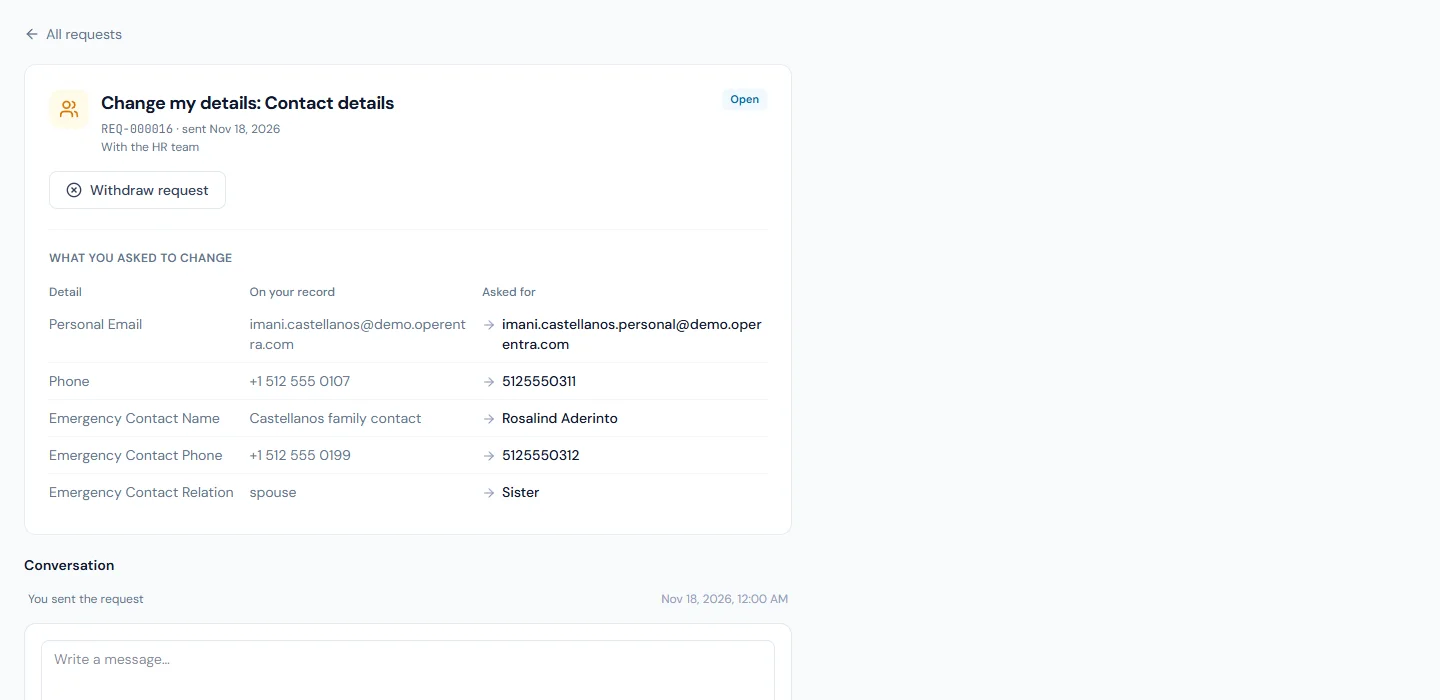
Where your company reviews these changes at its HR Desk, a change you send appears under My requests like any other request:
- It shows each detail as it is on your record beside what you asked for.
- Approved, the change is on your record and the request is resolved.
- Returned, HR says why in the conversation. Correct your profile and send it again.
- HR may ask you something first; reply on the request.
- Withdraw request takes the change back before HR has decided.
Three shortcuts:
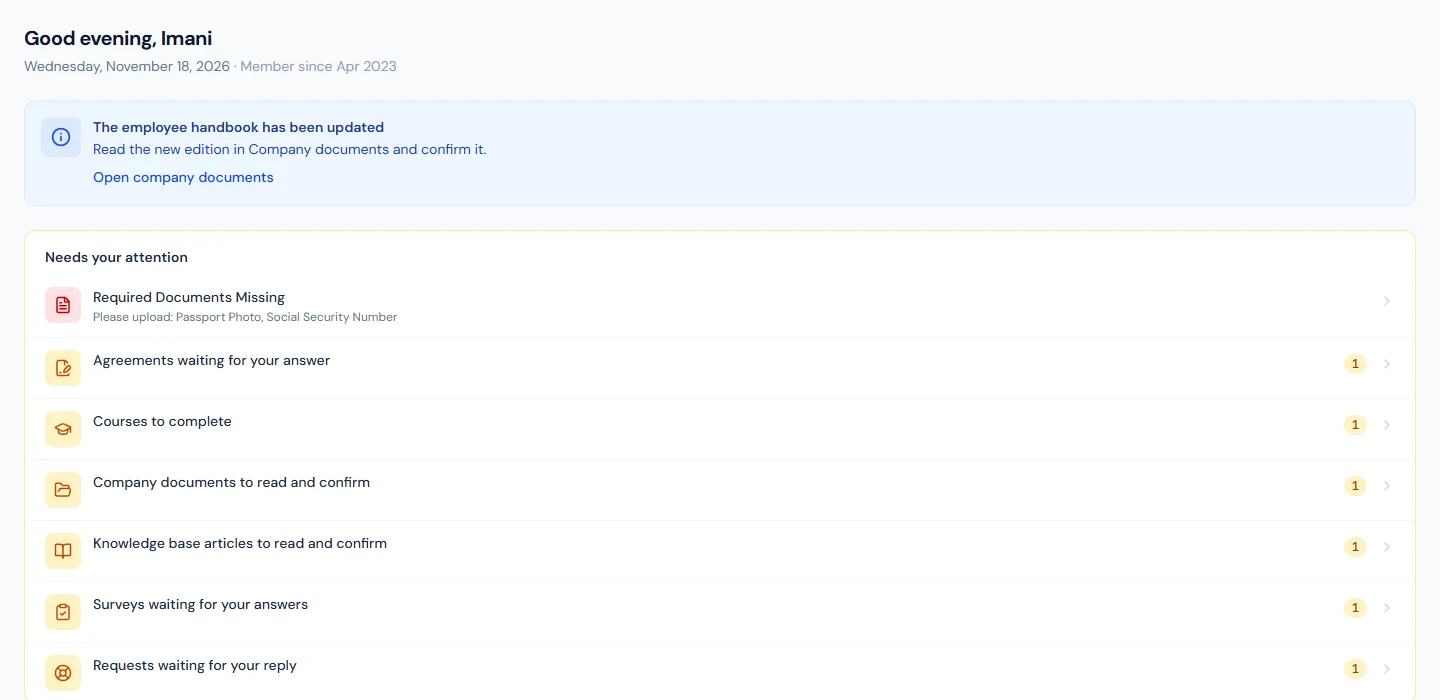
- Home lists Requests waiting for your reply under Needs your attention.
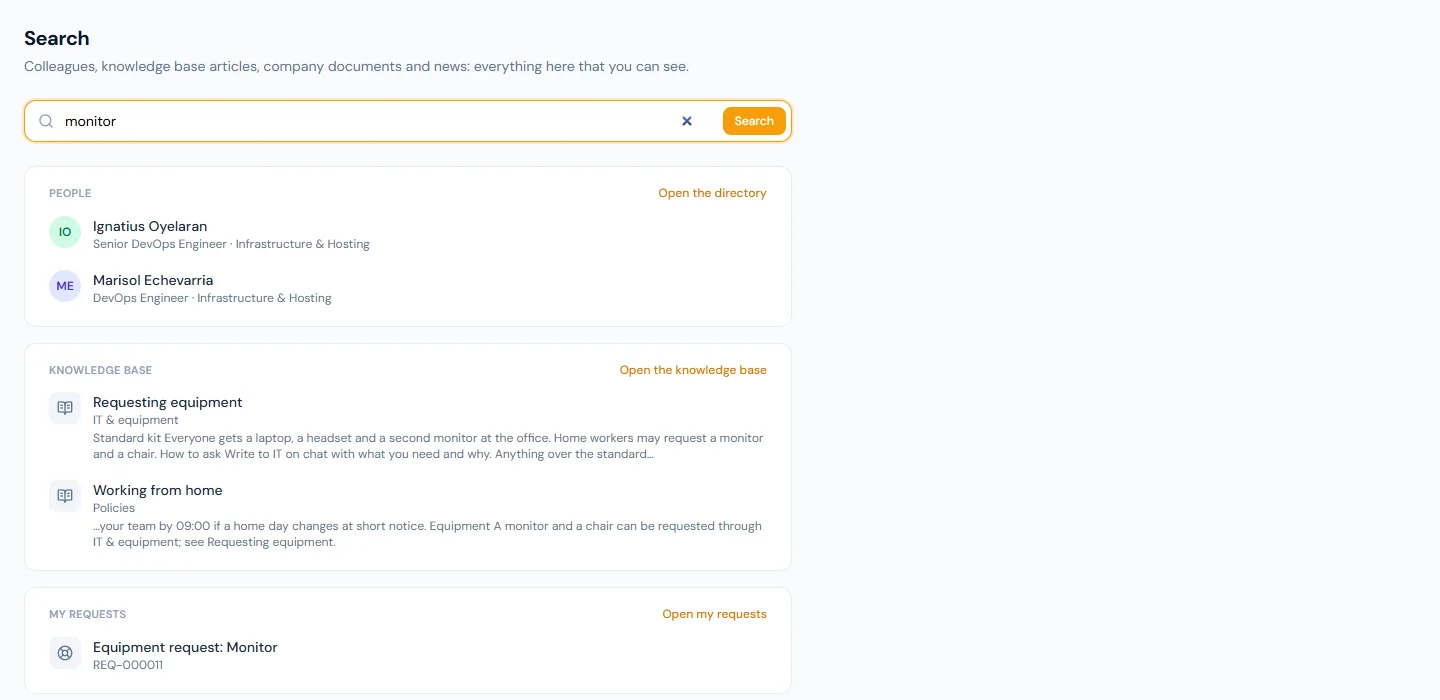
- The search box finds your own requests by title or number.
- The AI assistant can tell you where your requests stand, and can prepare a request from what you tell it. Nothing is sent until you confirm the card it shows you. It cannot attach files.
Requests that need approval
Some requests are approved before the team works them. The card says Needs approval, and the form tells you so before you send it.
- Once sent, the request is Awaiting approval. Usually your manager decides.
- Approved, it goes to the team and carries on like any other request.
- Not approved, it ends there. You are emailed, and the reason is in the conversation on the request. If you still need it, talk to the person who decided, then send a new request.
- You can withdraw it while it waits.
Saying how it went
When a request is resolved, it asks How well was this resolved? Pick 1 to 5 stars, and add a comment if you like. You can change your answer later. The team that handled the request sees it.
If it is not settled
- Reopen. For 7 days after a request is resolved, Reopen puts it back with the team. After that it is closed; send a new request.
- Withdraw. While a request is still being worked, Withdraw request tells the team to stop. It stays in your Closed list.
Something you would rather raise in confidence
A request is read by the team that handles it. For misconduct, harassment, a safety problem or fraud, use Speak up: it is read only by the people named for it, and you can leave your name off.
Who sees your request
The people who handle that kind of request, and the people at your company who oversee all requests. Your manager and your colleagues do not, unless they are among them.