My timesheet
Time → My Timesheet is the week's hours, by project and task, one row per thing you worked on and one column per day. If the entry is not in your sidebar, your workspace does not use timesheets.
Filling the week in
- The page opens on this week; the arrows step to other weeks, and Recent weeks lists what you already sent and its status.
- Add a row, pick the project and, if it has them, the task. A project without tasks takes the hours as a whole.
- Type the hours for each day and move on to the next cell (or press Enter). You can write them as a decimal or as a time: 7.5, 7,5 and 7:30 are all seven and a half hours, and .5 is half an hour. Hours are kept in quarter hours, so what you type is rounded to the nearest quarter when you leave the cell. The row and day totals follow, and a note per cell is optional.
- If a cell does not hold a number of hours, or a day adds up to more than the daily limit your workspace set, the cell is marked in red and a line under the grid says which day and why. The week cannot be saved or submitted until that is corrected.
- Save draft keeps the week without sending it. Submit for approval sends it to your manager; it needs at least one entry.
Only active projects and open tasks are offered. If a project you used was archived since, the row says so and the week will not save until you move the hours.
Hours you have typed but not saved belong to the week on screen. If you move to another week before saving, you are asked whether to discard them, and closing or reloading the page warns you first.
After submitting
The week shows Submitted and is read-only. Your manager (or HR) sees it in their approvals. While nobody has decided, Withdraw takes it back to a draft so you can change it and resubmit.
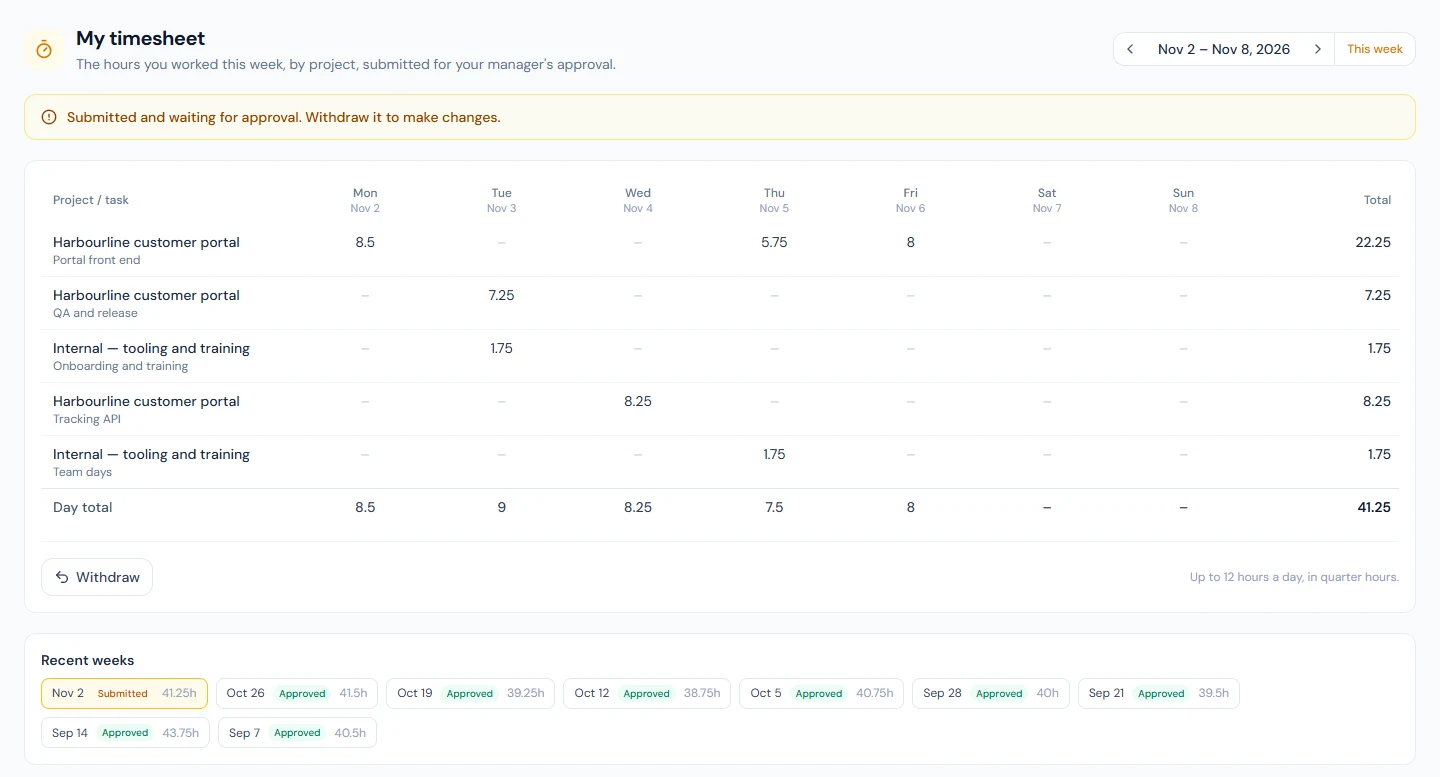
- Approved: the week is recorded. You are emailed, and it cannot be edited any more.
- Returned: your manager sent it back with a note, shown on the page and in the email. Edit the week and submit it again.
If you approve timesheets
A manager sees Time → Team timesheets: the weeks their direct reports submitted, with the ones waiting at the top. Open one to see the grid, then Approve or Return for changes with a note. The same requests also sit in your Approvals inbox, with the leave and expense requests waiting on you, and a link in the approval email opens the week directly.
Hourly pay
If you are paid by the hour and your workspace has switched payroll to timesheets, your payslip is built from the approved hours of the month. A week still waiting when payroll runs is not counted, so submit on time and ask your manager to decide before the month closes.