Goals, 1:1s & feedback
Three pages under Work sit beside your appraisals and cover the year between reviews. All of them need the Performance feature on your employer's plan; without it they are not in the sidebar.
Goals
Work → My Goals has three tabs.
- Mine lists your own goals, your department's and the company's. Add goal sets one for yourself: a title, what done looks like, how it is measured (percent complete, a number against a target, done or not done, a milestone), a due date, a weight from 1 to 10, who can see it, and how often you want to be reminded to check in. You can align it to a team or company goal. A percent and a number run from a Start to the target. Leave the start empty to count up from 0; where lower is better, enter the figure you start from above the target, and progress counts down to it (open tickets 40 → 0).
- My team appears if people report to you: each report's goals, and Add goal to set one for them. They are emailed when you do.
- Alignment is the tree: company goals at the top, team goals under them, individual goals under those.
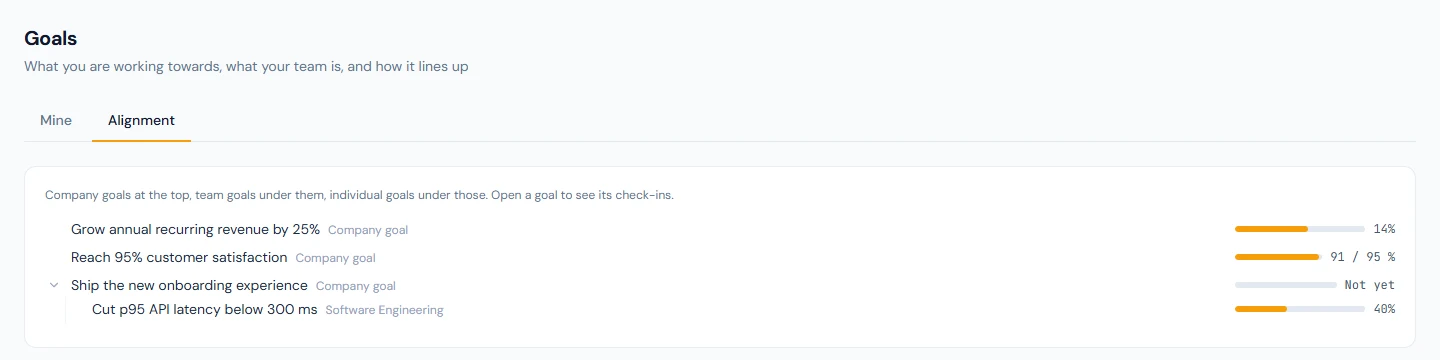
Open a goal to check in: the latest value, how it feels (on track, at risk, off track) and a line on what changed. One check-in can also mark the goal complete. Your manager sees every check-in. If you chose a cadence, you are emailed when a check-in is due and the reminder stops once you check in.
A completed goal counts towards your merit score: its weight sets the points, and how much of the target you reached sets how many you earn (My Performance). A goal your manager or HR set for you counts as soon as you complete it. A goal you set for yourself shows Awaiting confirmation once you complete it, and counts when your manager or HR confirms it; the same goes for a goal someone set for you if you then changed what it is, how it is measured, its target or its weight. Your manager is told in their notification bell the moment you complete it. If people report to you, that notification reads A goal is waiting for your confirmation: click it to open the goal, then Confirm completion.
Your manager and HR can set goals for you and read the ones you mark Manager and HR. A goal marked Private is yours and your direct manager's only: HR does not see it, cannot open or change it, and it is left out of anything your employer connects to Operentra. Where other people could come across it, it is not named: the line it earns in your merit record reads "a private goal completed", and the emails about it call it "Private goal". Company and team goals are everyone's to read; only HR writes them.
1:1s
Work → 1:1s holds your one-to-one conversations with your manager and, if you manage people, with each of them. Either of you can open one with a date, a title and an agenda you both edit. Action items carry an owner and a done box. Your notes are shared with the other person. A manager's own notes are theirs alone: as an employee you never see them, and HR has no page for 1:1s at all.
Feedback requests
When a colleague's reviewer or HR asks for your view of them, it lands on Work → Feedback Requests and you are emailed. Open it to rate each competency on the workspace's scale and add a comment where it helps, or decline. Anyone who is asked can answer; it does not depend on what your role is allowed to do.

Your answers are never shown as yours. The reviewer and HR see who has answered, but nothing of what anyone said until feedback is closed: the reviewer or HR closes it, or it closes by itself when the appraisal is finalized or its cycle closes. After that nobody else can be asked. What they then read is the average and the comments of a whole group: the peers who answered, or the direct reports, or the people outside the workspace, each on its own. A group is shown only if enough of its members answered; the form tells you how many that is before you send your answers (never fewer than three), and a smaller group is left out entirely. Once feedback is closed a request you had not answered reads Closed.
If someone outside your workspace is asked about you, they get a link that needs no account; it shows them only your name, your role and the competencies.
Asking for an appraisal
Outside the regular cycles, Work → My Appraisals has Ask for an appraisal. Say why, if you like. HR either adds you to a cycle, after which your self review is waiting on the same page, or declines with a note; you are emailed either way. One request can wait at a time, and you cannot ask while you are already in an active cycle.