Learning
Learning in your portal lists the courses your company has assigned to you and the courses anyone can take.
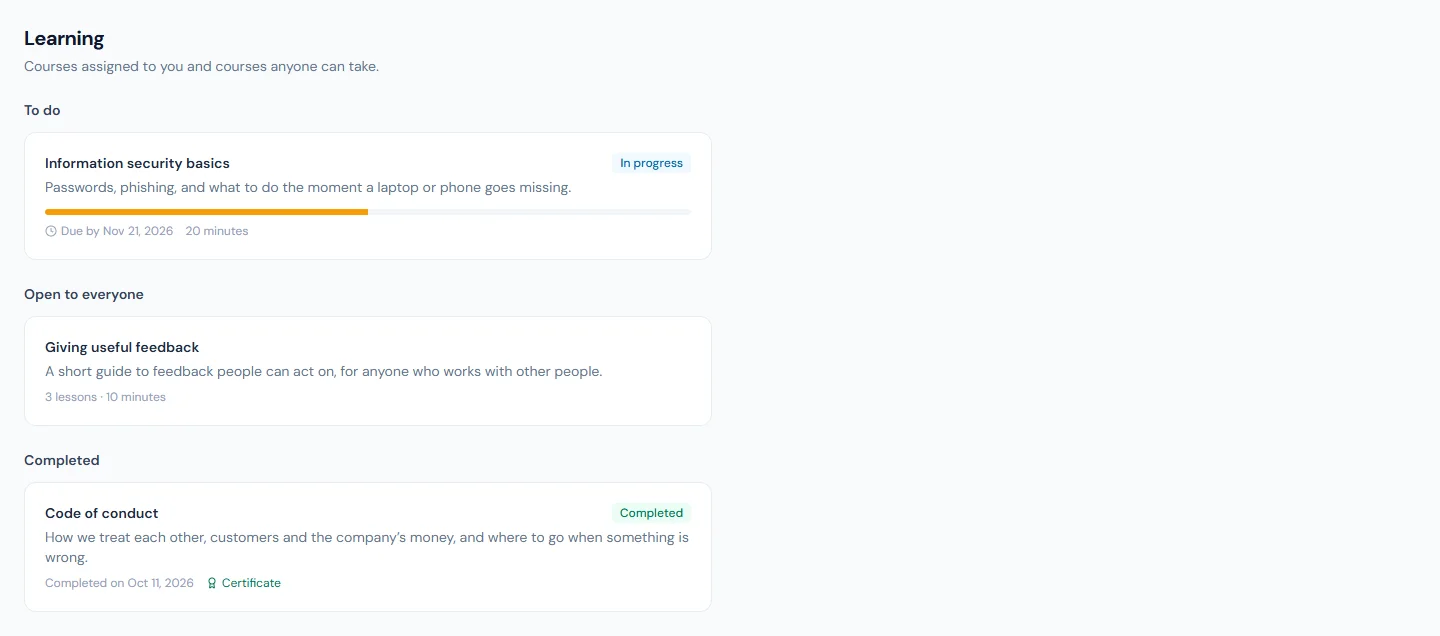
The page has three sections:
- To do — courses you were assigned or have started, each with a progress bar and, where there is one, the day it is due. A course past that day is marked Overdue.
- Open to everyone — courses you can start without being assigned them. Open one and choose Start this course. These have no due date.
- Completed — courses you have finished, with the day you completed each, Valid until when the course has to be taken again, and Certificate when it gives one.
When you have courses waiting, Needs your attention on your Home shows Courses to complete with the number.
Take a course
Open a course to see its lessons in order. The next lesson to do is open.
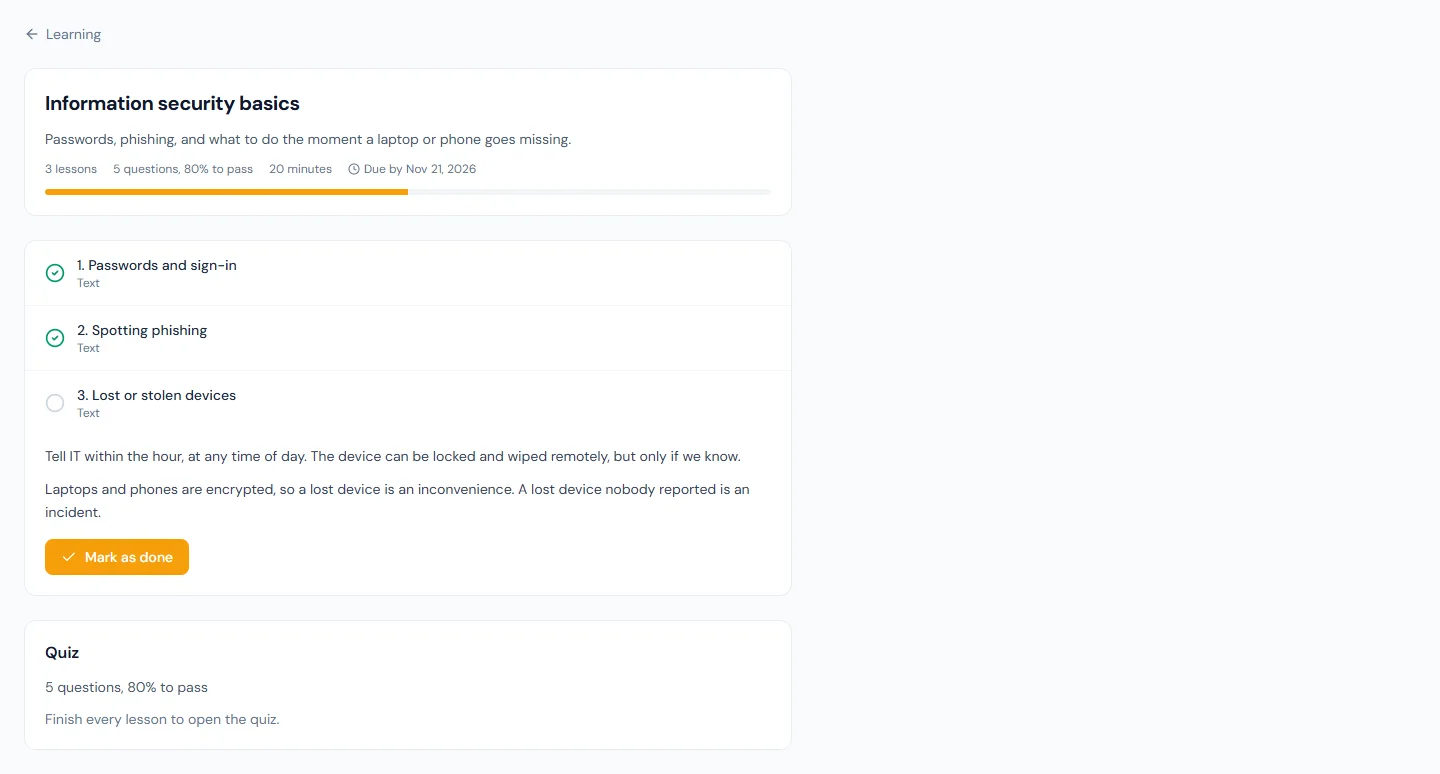
- Read or watch the lesson. A lesson can be text, a video that plays on the page, a knowledge base article or a document in the company library; for the last two, use the link in the lesson to open it.
- Choose Mark as done. The next lesson opens.
- You can reopen a lesson you have already done at any time.
If a lesson says the page it pointed to is no longer available, you can still mark it as done.
A course with no quiz is complete when you mark the last lesson as done.
The quiz
Some courses end with a quiz. The Quiz card shows how many questions it asks and the mark you need to pass. It opens once every lesson is marked as done.
- Choose Start the quiz.
- Pick one answer for each question. Hand in becomes available when every question is answered.
- Choose Hand in. You see your result straight away.
If you leave the page before handing in, your sitting is kept: choose Continue the quiz to pick it up where you left it.
If you do not pass, you see your score and the questions to look at again, sometimes with a note from HR. The right answers are not shown. Go back over the lessons, then choose Try again. Each sitting shows the answers in a different order and may ask different questions.
Some quizzes allow a set number of attempts, shown as the attempts you have left. If you use every attempt, ask HR to allow another attempt.
Your certificate
When you complete a course that gives a certificate, choose Certificate on the course to download it as a PDF.
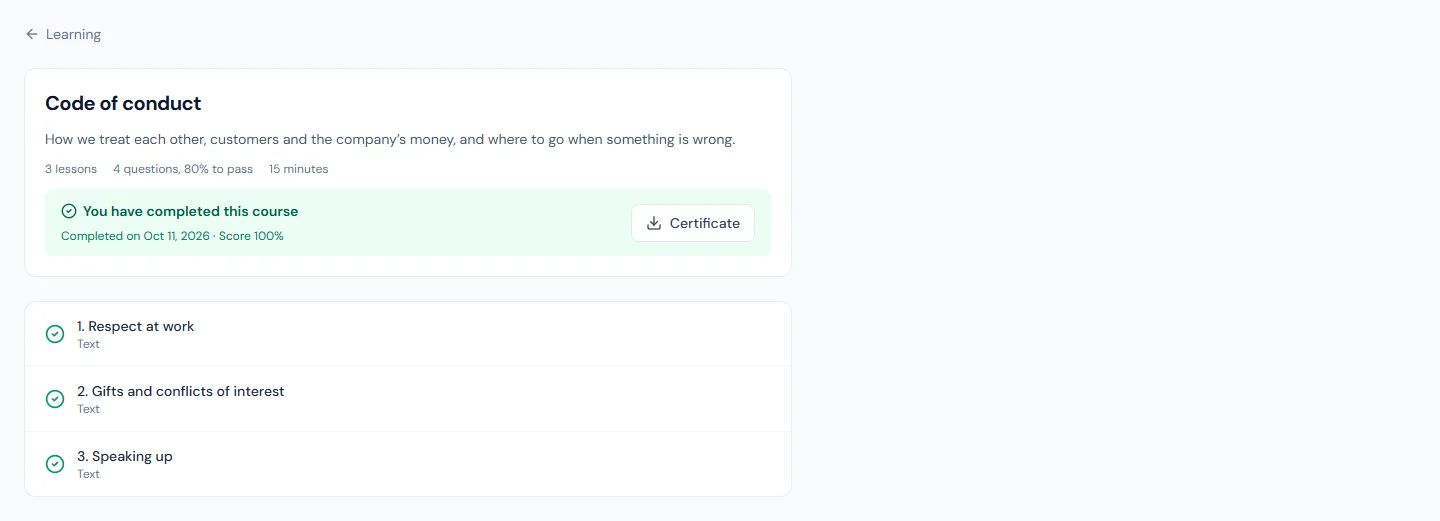
The certificate carries your name, the course, the day you completed it, your score if there was a quiz, and a certificate number.
Emails and reminders
You are told by email and in the bell when a course is assigned to you, when it is due within seven days, when it is overdue, and when you complete it.
Courses you take again
Some courses have to be taken again after a number of months. Your completion then shows Valid until, and the course comes back under To do, with an email, thirty days before that day.
Withdrawn courses
A course your company has withdrawn stays on your list, marked Withdrawn, and can no longer be continued. A course you had already completed keeps its certificate.
Your team
If you manage people, you may see a My team tab. It lists the courses of the people who report directly to you, with their status, due date and score.
If you do not see Learning in your menu, your company's plan does not include it.