Checklist tasks
Work → Checklist Tasks (/portal/checklist-tasks) lists the tasks that someone's onboarding, transfer, promotion or offboarding checklist has given to you. The entry sits directly below My Tasks and is shown only while you have at least one such task. If it is not in your sidebar, nothing is assigned to you.
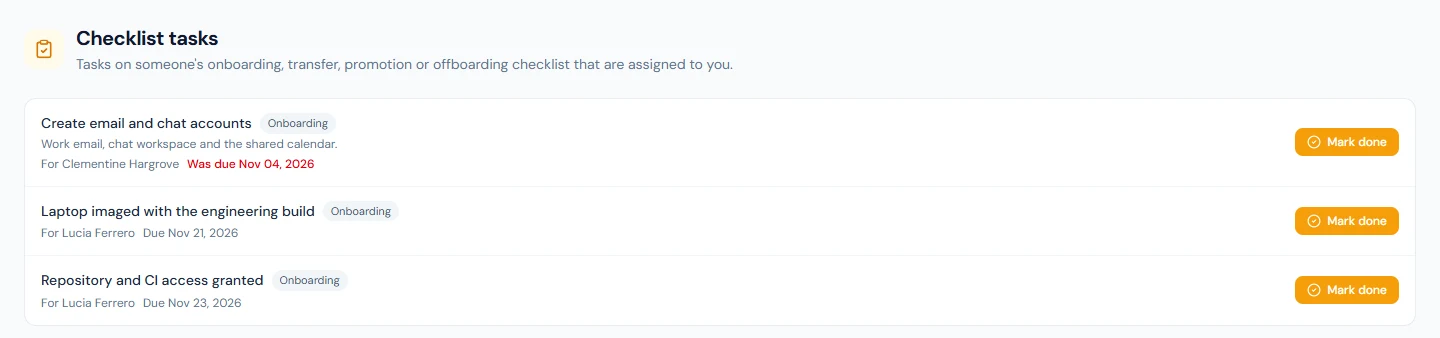
What is listed
A checklist is the list of steps your company works through when a person joins, changes job or leaves. Some of its steps go to people outside HR: the person's manager, their buddy, IT, Finance, or the person themselves. A step that goes to you is on this page. You need no particular role to see it or to tick it.
- Each row has the task's name, a tag for the kind of checklist (Onboarding, Transfer, Promotion or Offboarding), a description where there is one, the person it is for (For and their name) and the due date.
- A task that is still open after its date reads Was due and the date, in red.
- Optional marks a task the checklist does not wait for.
- Open tasks come first, earliest due date at the top, and tasks with no date after those. Tasks already finished stay at the bottom, struck through, while their checklist is open.
- You see your own tasks only, never the rest of the checklist.
On an onboarding, transfer or promotion checklist, a task meant for the manager, the buddy or the person themselves can be created before there is anyone to give it to: no login yet, or no buddy named. If you are now that person, the task becomes yours when this list loads. No email is sent for a task picked up this way.
A checklist closes when it is completed or cancelled; an offboarding one, when the final settlement is done or the separation is cancelled. Its tasks then leave this list.
Marking a task done
Press Mark done when the work is finished. The task is completed in your name, and it counts on the checklist exactly as a tick from the people who manage it does: if yours was the last required task, the checklist is complete.
If the task was given to someone else or closed since the page loaded, the tick is refused with a message and the list reloads.
Undoing a tick
A finished task shows Done. If you ticked it yourself, Undo is beside it and sets the task back to open, for a tick made by mistake. It works while the checklist is still open. A task someone else completed or waived shows Done with no Undo.
Tasks with no button
Two kinds of task are listed without Mark done, because a tick would record work that did not happen. Under each is the line This one is completed from the checklist itself, by the people who manage it or from the records.
- A task that runs an action, such as sending the welcome email or enrolling a joiner on the attendance device. It is completed by running the action on the checklist.
- An offboarding item that follows the records, such as assets returned or loans settled. It closes by itself when the records show it.
Marking done and undoing are all the page does. You cannot waive a task, pass it to someone else or change its date from here.
The email that brings you here
When a task lands with you, you are emailed Task assigned: followed by the task's name and the person it is for. The email carries the description, the due date if there is one, and an Open task button that opens this page. The bell in the top bar holds the same notice (see Notifications).
If your role lets you open the checklist itself in the admin area (onboarding, or offboarding for a clearance item), the button opens that checklist instead, and you tick the task there.